


There are hundreds, if not thousands, of AI chatbots. Still, if you are only talking about major general-purpose chatbots, we have ChatGPT by OpenAI, Claude by Anthropic, Gemini by Google, Copilot by Microsoft, Grok by xAI, and Meta AI by Meta. Most people use one, maybe two AI assistants, and they use them the same old way, where they ask a question, get a useful answer, and close the tab. While there is nothing wrong with that, and there is no correct way of using an AI assistant, modern AI assistants are far more capable than you think and can get so much more done than you think.
Let's take Claude, for instance. Anthropic promotes it as your thinking partner that can help you solve any big, bold, and bewildering challenges. However, still, the majority of people leave what Claude can do on the table.
So, in this article, we'll show you how you can practically use Claude as a teammate that can hold context, pull from your real tools, build documents and dashboards, and take action on your behalf. Hopefully, by the end, you'll have a clear sense of which feature to reach for when, and a starter set of automations you can put to work this week.
AdCreative.ai: An AI-powered platform that automates the creation of high-performing ad creatives for social media and display campaigns
Start with the basics: A better first conversation
Let's start with something basic and simple. How should you talk to Claude? The shortcut to better answers is almost embarrassingly simple; you just need to give Claude more context up front.
A weak prompt looks like:
- Write a follow-up email.
A strong prompt looks like:
- Write me a follow-up email to a prospect I met at a conference yesterday. They run ops at a 200-person logistics company. We talked about route-planning software. Keep it under 100 words, friendly but not chummy, and end with a specific suggestion for a 20-minute call next week.
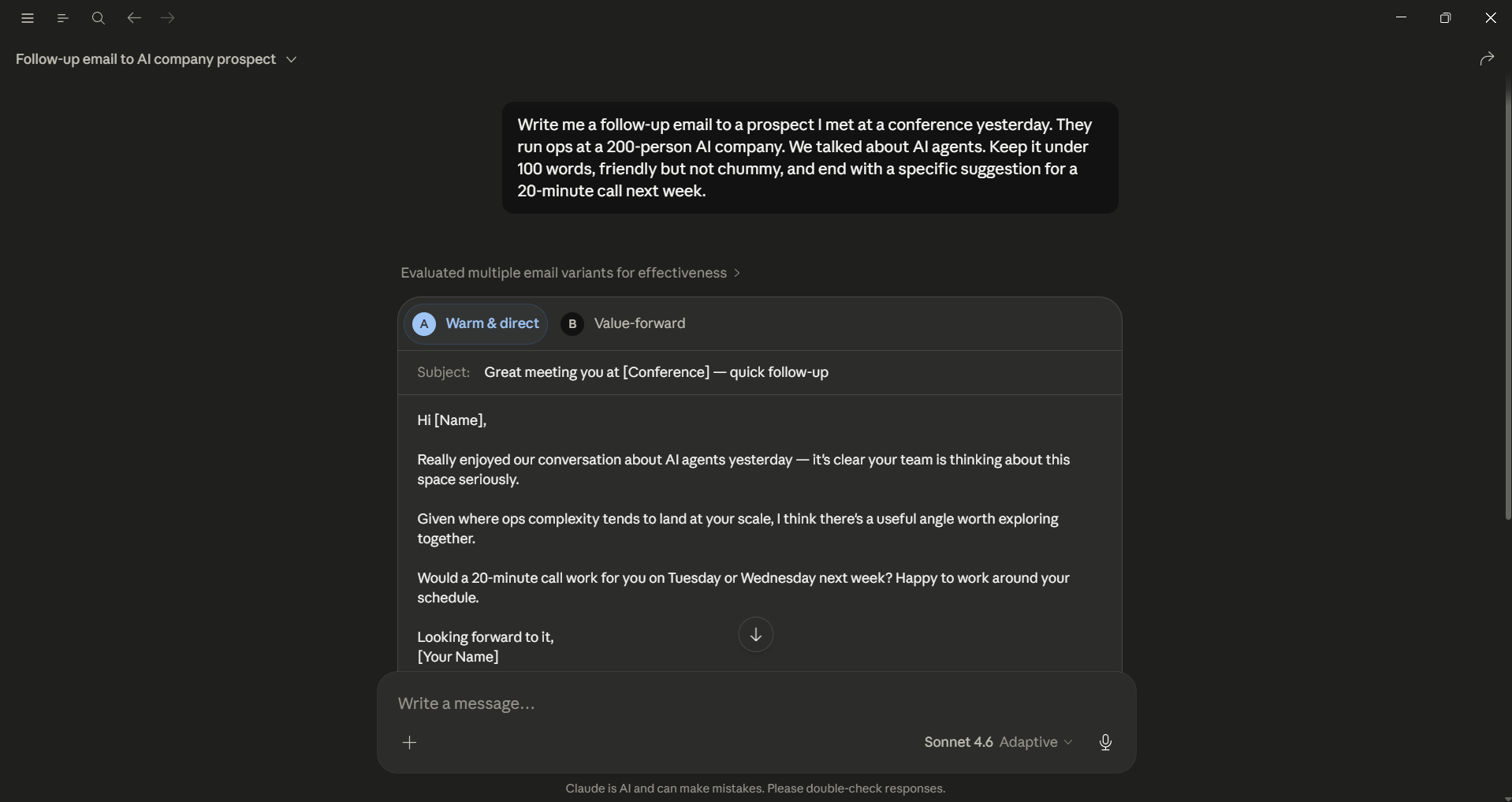
Three habits do most of the work:
- State the goal and the audience. Claude can tune the tone and depth based on who's reading.
- Give examples. Paste in two emails you've sent before that you liked, and Claude will match the voice.
- Ask for a specific output like "three options, ranked, with one sentence on the trade-off," rather than "give me some ideas."
When something isn't quite right, don't start over; tell Claude what's off. "Tighten this. Cut the second paragraph. Make the ask earlier." That iterative loop is where most of the quality comes from.
If you are planning to move from a different AI chatbot to Claude and fear that you'll lose your context and would need to start from scratch with Claude, fear not. Anthropic has made it very easy to move from any AI chatbot to Claude with one prompt.
Pick the right tool: Chat, Cowork, or Code
Claude has three different variants, and it can show up in three different places on the desktop. It is important for you, as a consumer, to know and be able to distinguish between them because they're built for different tasks.
Claude Chat:
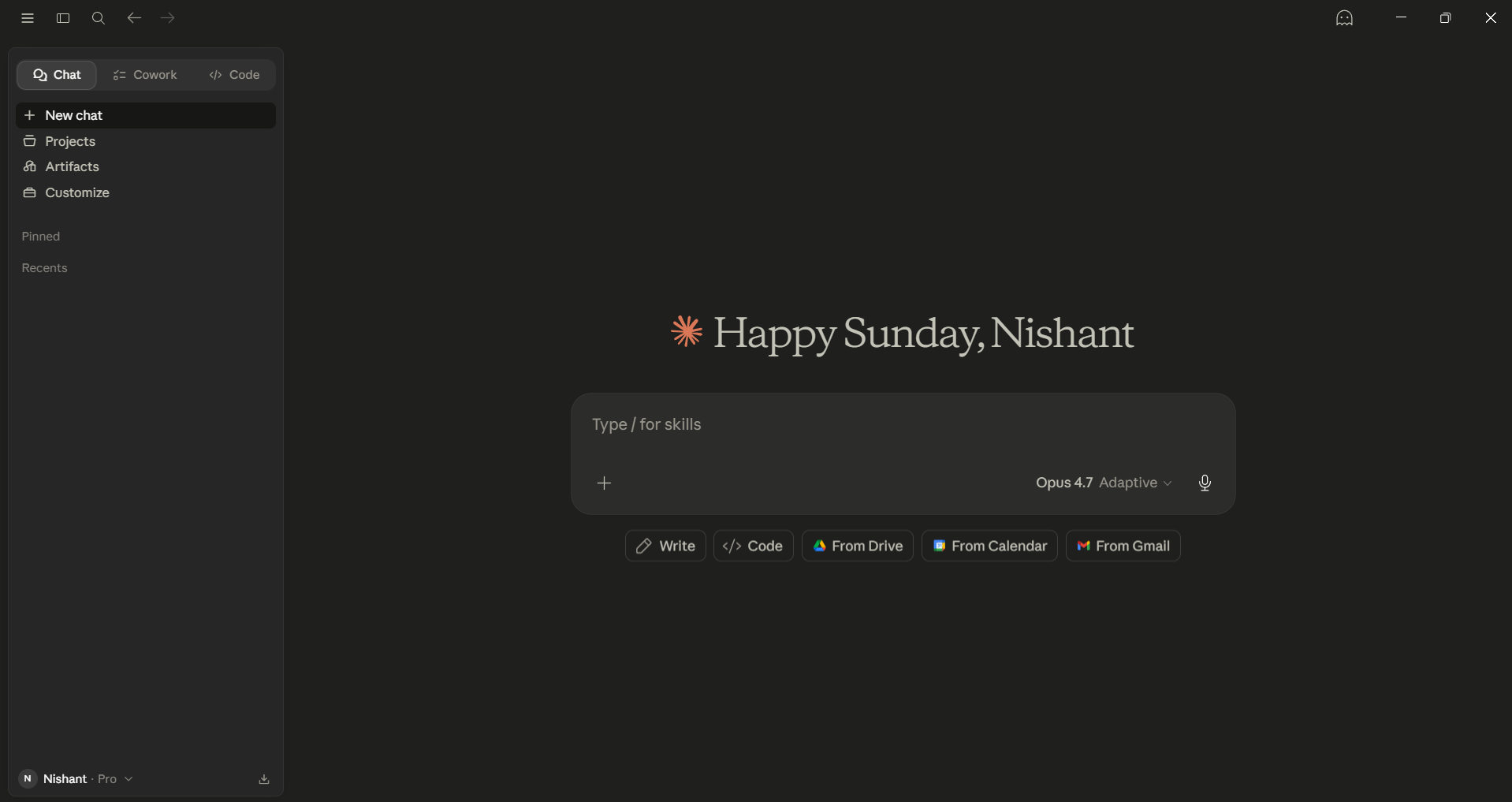
Claude Chat is the standard Claude.ai interface, and the first thing you'll see when you download the Claude desktop app. It is best for:
- Quick questions
- Drafting
- Brainstorming
- Working with files you paste or upload at the moment
Claude Cowork:
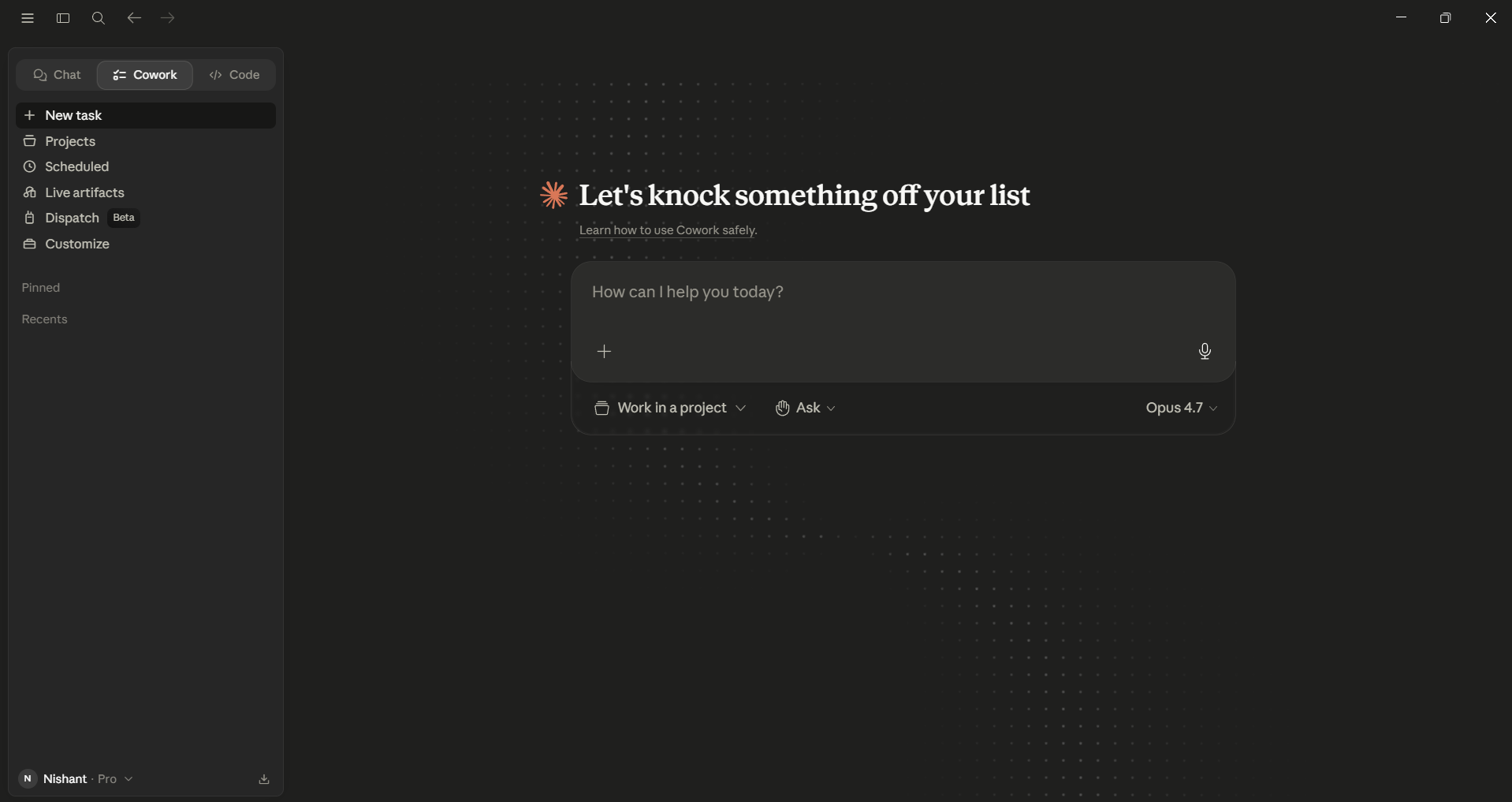
Claude Cowork is available only on the desktop app. You can give Claude a workspace folder on your computer, plus a sandboxed environment to run code in. Cowork is the one to reach for when:
- You need to work with files
- Reorganizing a folder of PDFs
- Cleaning up a messy spreadsheet
- Generating a polished Word document
- Stitching together output from several tools using app connectors.
Claude Code:
Claude Code is a terminal-based developer tool. If you're not writing software, you can ignore it; if you are, this AI coding agent can live in your repo and edit files directly.
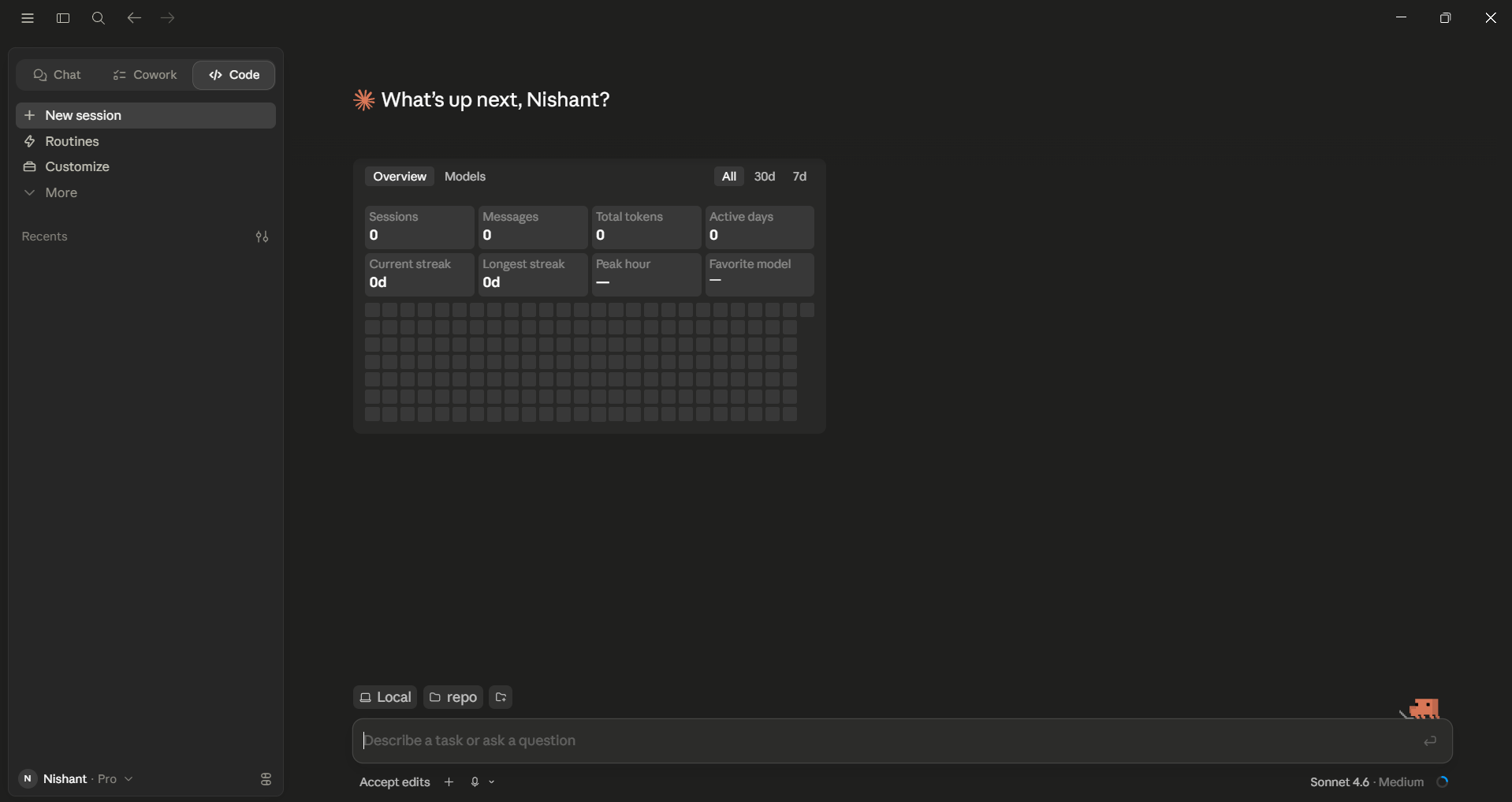
Rule of thumb: If the answer is text, use Chat. If the answer is a file or a multi-step task on your machine, use Cowork. If the answer is a code change, use Claude Code.
Organize work that lasts more than one conversation
Single conversations are fine for one-off chats or discussions. But what if your work is recurring? What should you do when you need to work with the same files repeatedly?
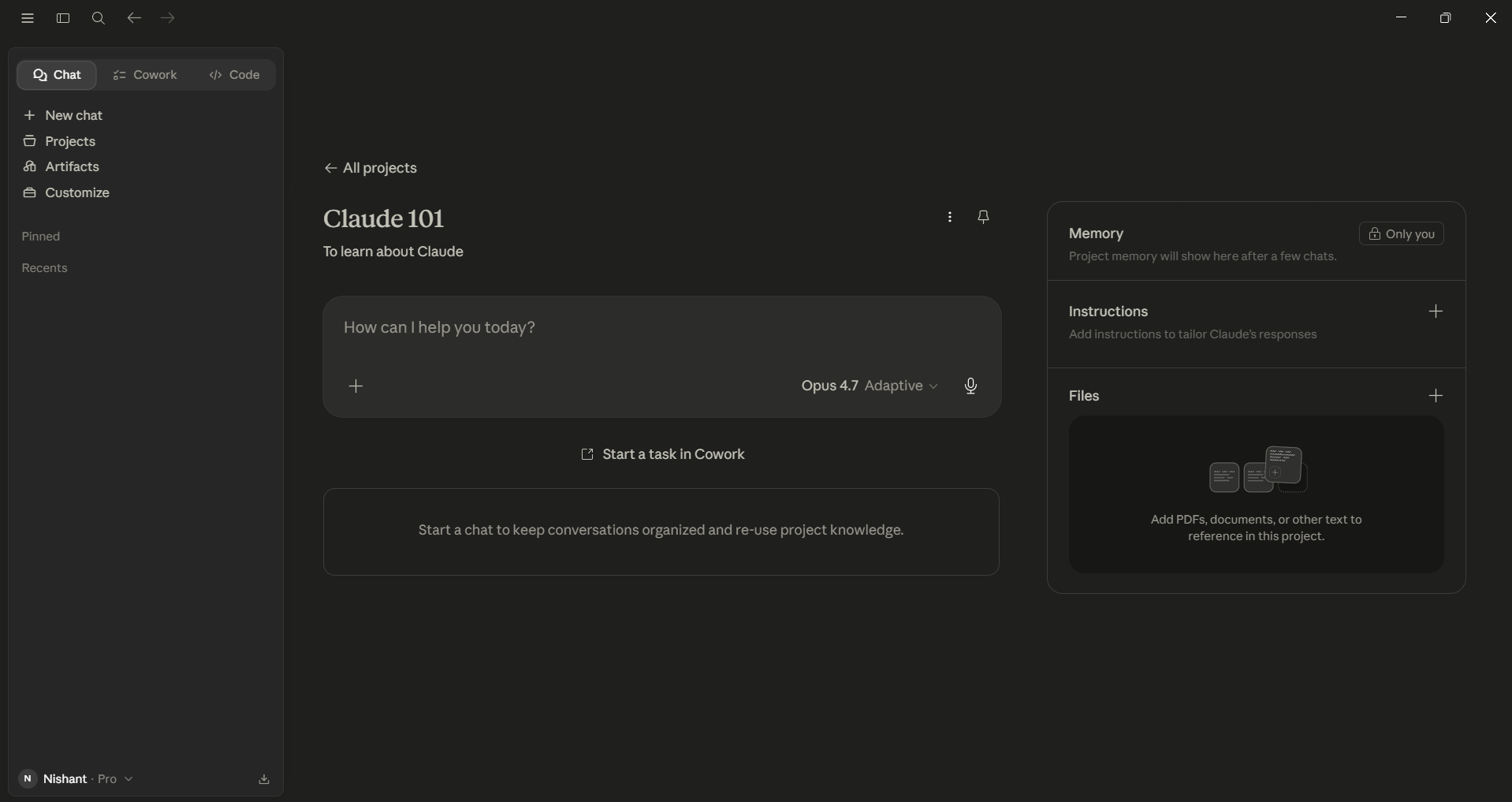
Projects: Persistent context
A Project is a workspace where you add reference files, custom instructions, and project-specific memory in one place. Open the project, add custom instructions and files to tailor Claude's responses, and Claude already knows the background (your client's brand voice guide, team's coding standards, last quarter's metrics). So you don't have to re-explain it every time.
Practical setup:
- Create a project for each ongoing thread of work (a client account, a product launch, your job search).
- Add in the three or four reference documents Claude would need to do good work.
- Write a short custom instruction explaining the goal and your preferences.
- From then on, every conversation in that project starts pre-loaded.
Artifacts: Things you can keep
Claude Artifacts are shareable apps, tools, or content you can build using Claude just by sharing an idea. You give a prompt asking Claude to build something, and when it is ready (a document, a chart, a small interactive tool, or a chunk of code), it appears in a side panel as an artifact.
Artifacts are modifiable, downloadable, and persist with the conversation. You can ask for a Word doc, PowerPoint, spreadsheet, PDF, or HTML page, and get a real file back.
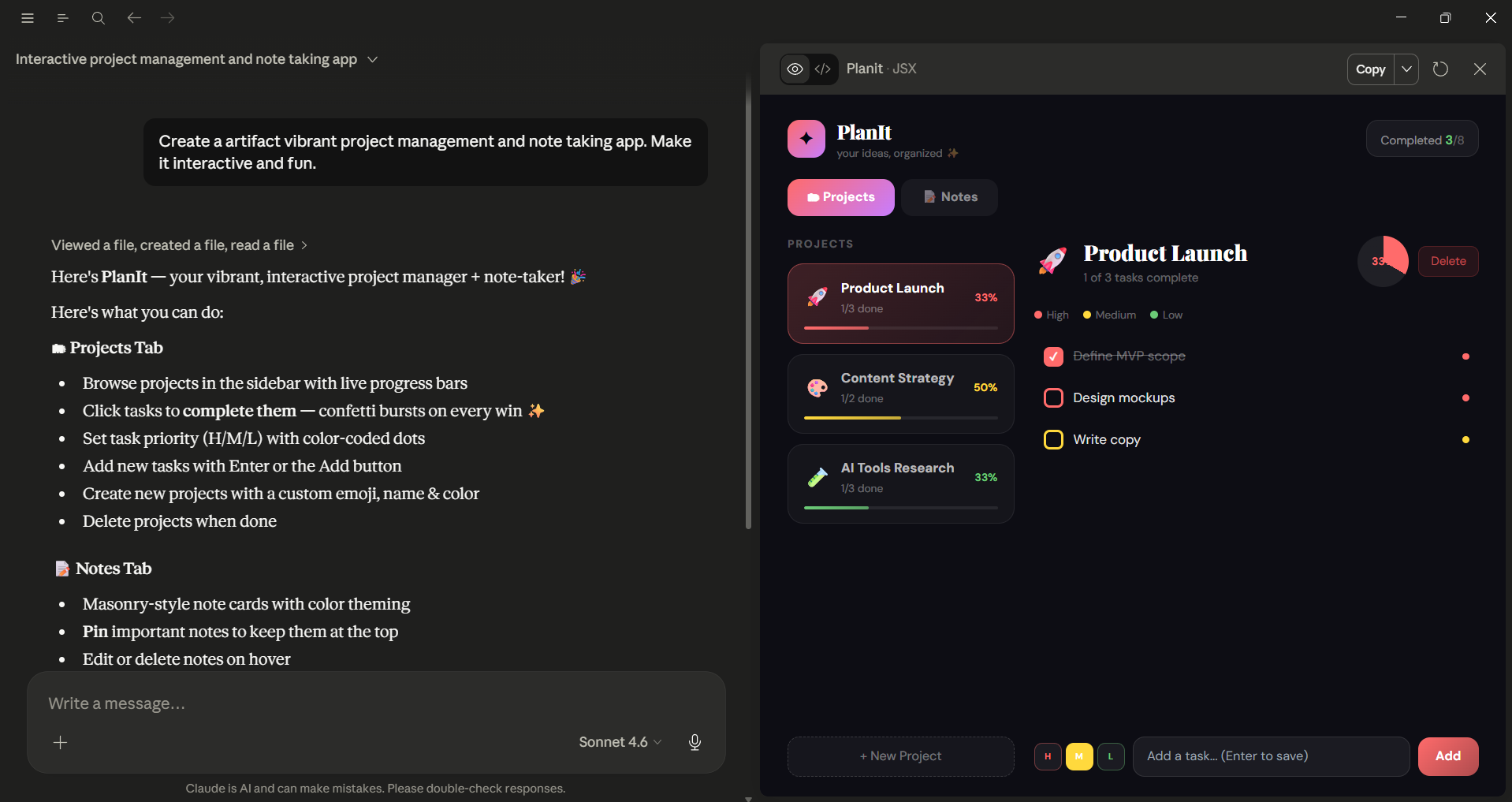
There are also new Live Artifacts that refresh with current data each time you reopen them. That makes them genuinely useful for things you check repeatedly, such as a hiring pipeline view, a weekly metrics page, or a content calendar, anything you'd otherwise rebuild from scratch every Monday. However, Live Artifacts are only available with Claude Cowork.
Skills: Capabilities that load when needed
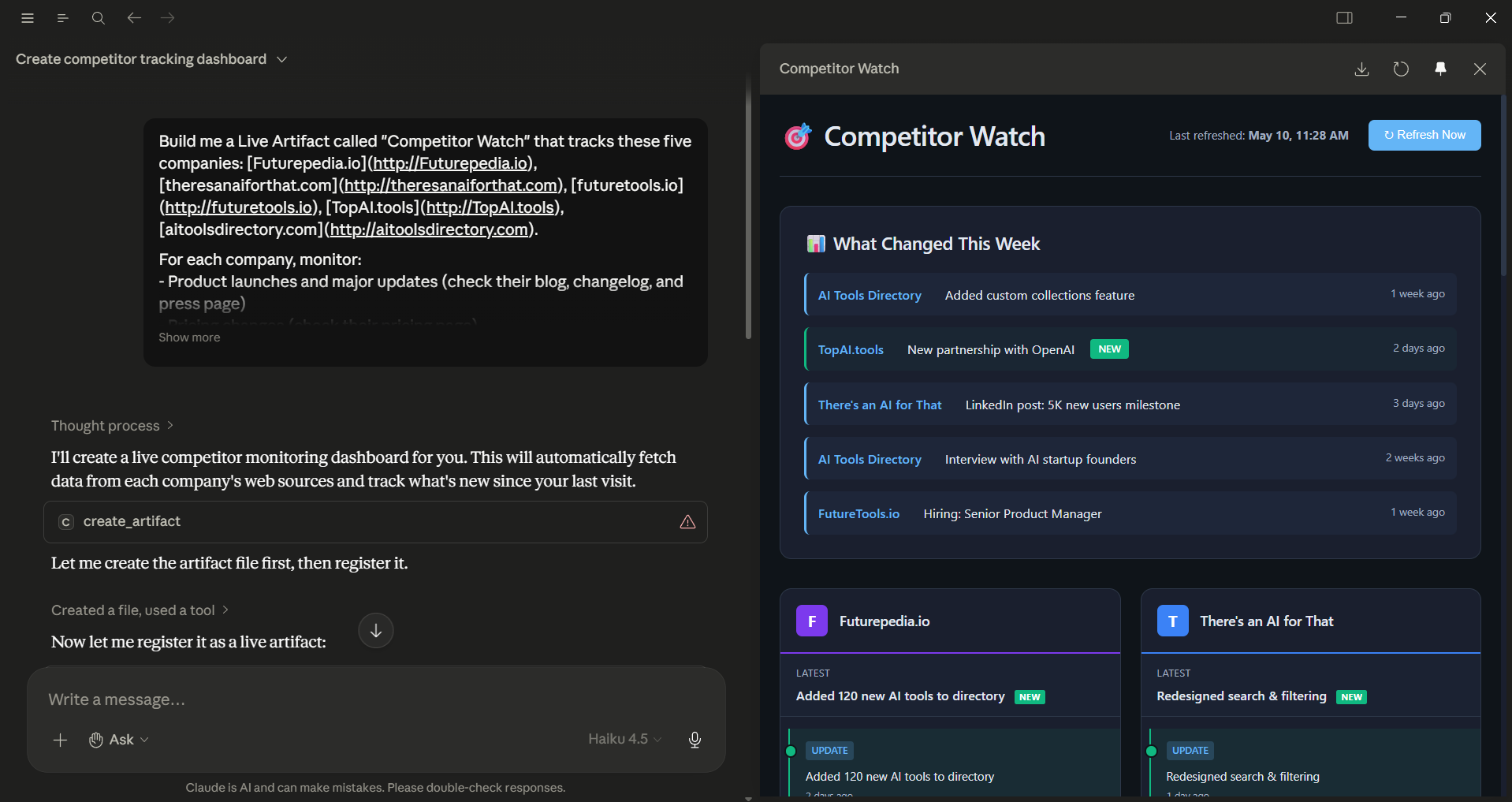
Skills are modular packages of instructions and helper scripts that Claude can pull in automatically when a task matches the condition. You probably already have a few installed without realizing it.
Open Claude, click on Customize, then Skills to review the preinstalled Skills. You can also add or create new Skills that follow your brand's color palette and voice every time that Skill is used.
You don't have to manually activate or turn on skills; they activate when they are relevant to a task. The thing to know is that they exist, because it explains why asking Claude for "a deck about Q3 results" produces something that looks designed instead of a plain bullet list.
Connect Claude to the tools you already use
Finally, one of the most powerful Claude capabilities is its ability to connect with everyday tools that most professionals already use. So what does that mean?
By default, Claude only knows what you paste into the conversation; however, Connectors change that by giving Claude access to your actual apps and data. You can connect Claude to your Gmail, Google Drive, Slack, Calendar, Asana, GitHub, and other MCP apps to get insights without switching tabs or manually searching for information.
To connect apps to Claude, first click on Customize, then on Connectors. You can easily browse and add from existing connectors, or you can add your own custom connectors.
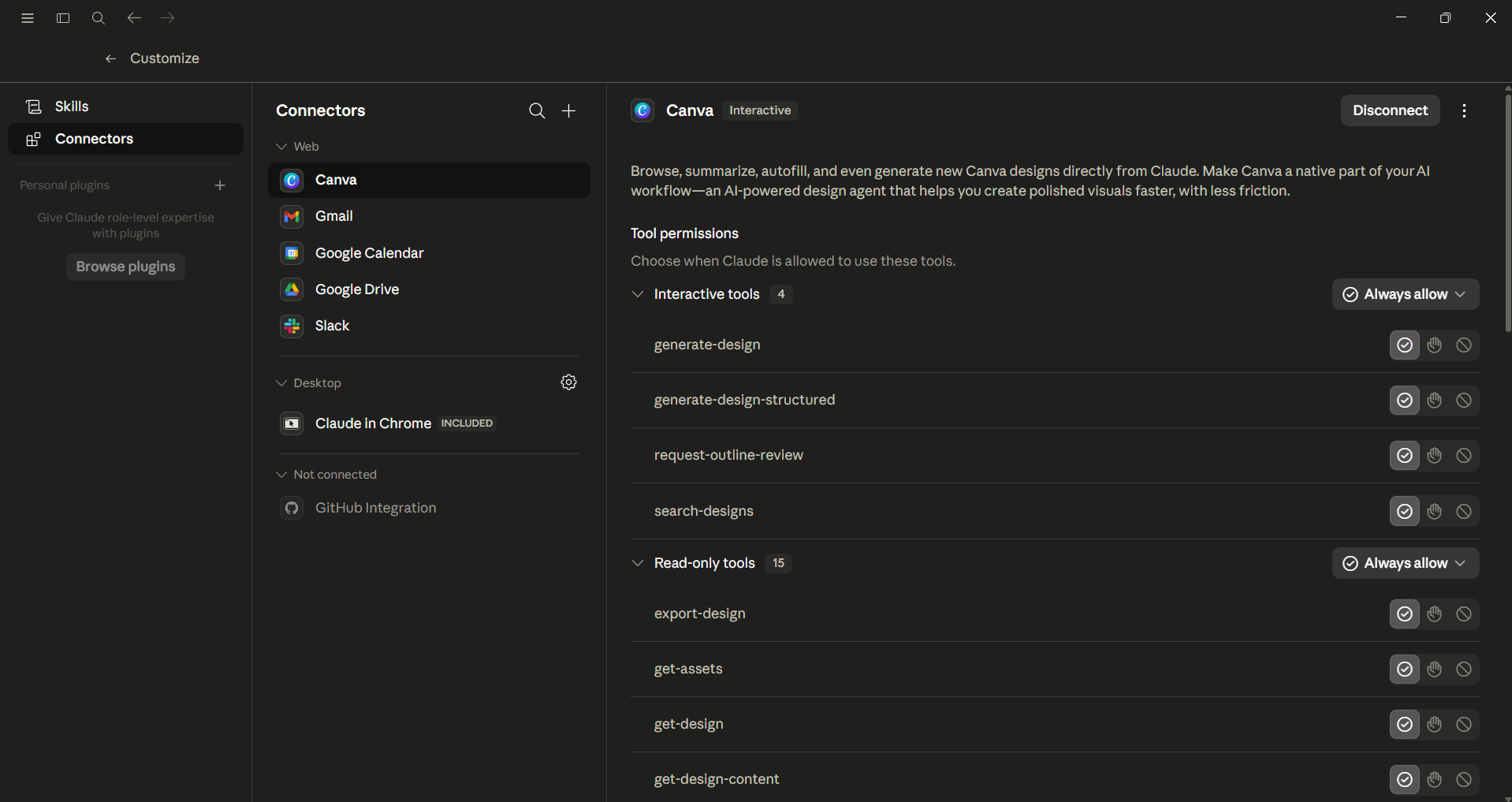
Once a connector is on, you can ask things like:
- Summarize the unread threads in my inbox from this week and group them by what's blocking me.
- Find the three Slack messages from my manager that mentioned the budget review and tell me what she's asked for.
- Look at my calendar for tomorrow and draft a prep note for each meeting using whatever context you can find in Drive.
Each of those would take 20–40 minutes by hand, but with connectors authorized, they're a single prompt.
Enterprise search:
Enterprise search is layered on top of connectors at the organization level. It can index documents, chats, and email across your company's tools so Claude can answer "where's the spec for the new onboarding flow?" or "what did we decide about the pricing change?" without you knowing which tool has the answer.
Research mode:
Research mode allows it to work agentically, running multiple searches that build on each other and synthesizing across your connectors and the web for one to three minutes before producing an in-depth report. You can use it when you'd otherwise block out half an afternoon researching the competitive landscape, conducting due diligence, and running literature reviews. You can just ask Claude to "tell me everything about this customer before the call."
Real automations, by role
There are many role-based use cases of Claude. You can start automating your workflow based on your role.
- For managers: A weekly "what's on fire" project that pulls from email, Slack, and your task tracker and produces a Monday-morning briefing of what slipped, who's blocked, and what to follow up on.
- For salespeople: A project per account, loaded with the company's deal history, so any prep request (call notes, follow-up email, or proposal draft) can come back in your voice with the right context.
- For analysts: Ask Claude to build the spreadsheet, not describe it. With the xlsx skill, it can produce a real .xlsx with formulas and formatting, which you can then iterate on by saying "add a column for variance" or "pivot this by region."
How to actually start
The simplest way to start is not by learning everything, but by focusing on just-in-time learning. You should focus on solving an immediate problem; then you can go on to learn features as needed. Just pick a task that annoys you and build one project around it, add connectors, and create artifacts to see what saves time and what doesn't.
At the very start of this blog, we did say there is no correct way of using an AI assistant, and everyone has a different workflow.
- For you, a connector could become more useful in a project.
- An artifact made inside a project could become a game-changer.
- A custom-made skill could improve every output and make it more polished without any extra work from you.
After two or three weeks of this, the difference between Claude as "a smarter search engine alternative" and Claude as "your thinking partner" will become obvious and hard to give up.
If you want the structured walkthrough with the official examples, the full Claude 101 course is free at anthropic.skilljar.com/claude-101 and ends with a certificate. But you don't need to finish it before you start automating. Open Claude, pick a task, and go.
💡 For Partnership/Promotion on AI Tools Club, please check out our partnership page.

