


When most people hear Codex, they think coding. Fair, that is how OpenAI introduced the platform, an agentic coding tool that can execute complex, multi-file tasks autonomously. While OpenAI has ChatGPT as a general-purpose AI assistant with built-in agentic features like deep research and Agent Mode, and Codex as an AI coding agent, they didn't have a general-purpose AI agent like Antropic's Claude Cowork.
However, that changed when OpenAI announced Codex for Work, turning Codex into your personal assistant for work. Codex for Work allows anyone to use ChatGPT Codex to research, organize, draft, analyze, and automate recurring tasks, using tools you already use. And no, you do not need to write a line of code to use it.
Previously, we showed you how you can get started with ChatGPT Codex for Work. In this article, we will show you how to automate your workflow using ChatGPT Codex for Work, with 5 examples and copy-paste prompts for tasks that can quietly eat your week.
What Is ChatGPT Codex for Work?
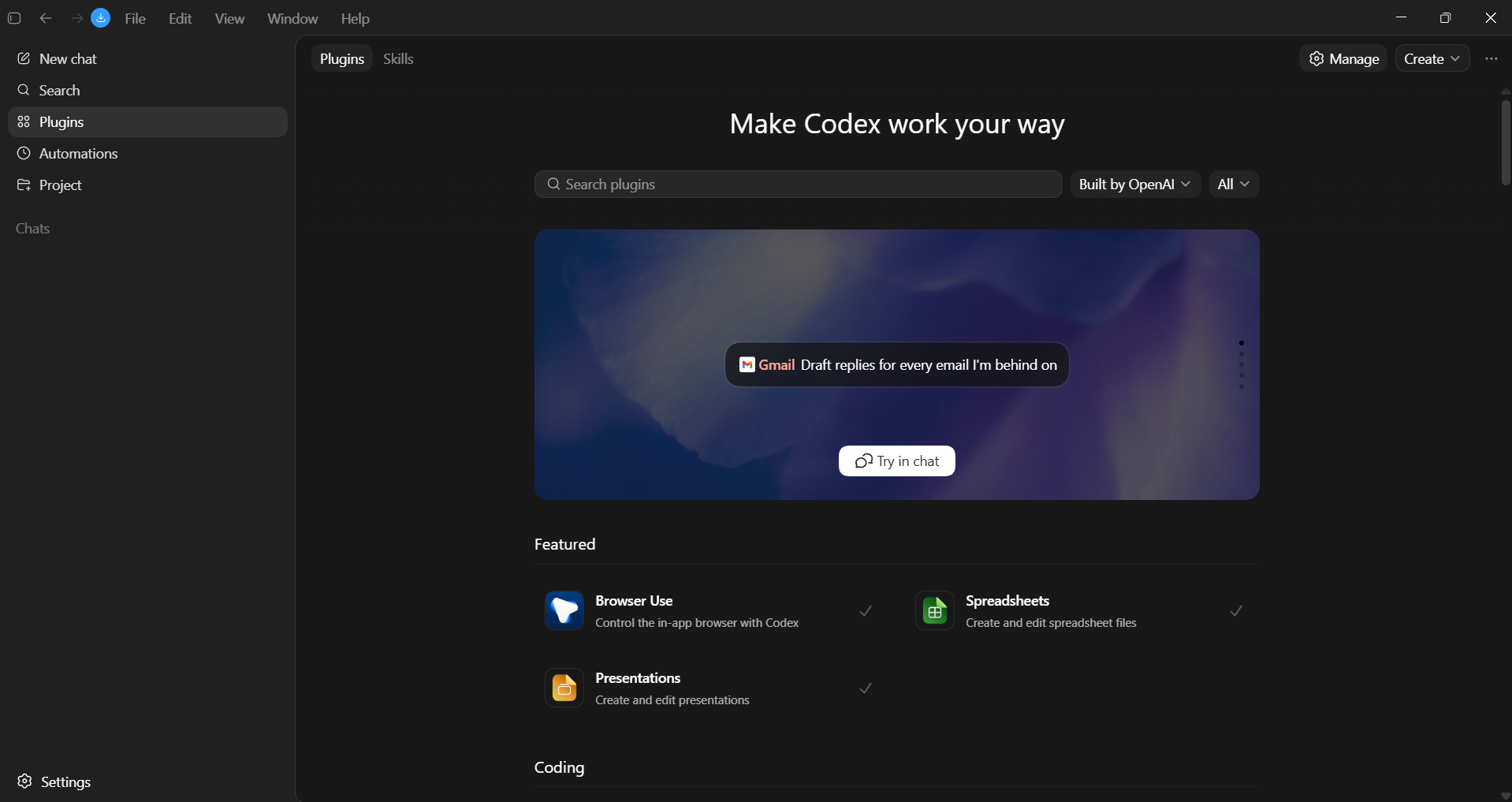
Codex for Work is OpenAI's agentic worker for knowledge tasks. It can read your inbox, summarize Slack channels, draft replies, pull data out of a spreadsheet, build a deck in Slides, and compile a folder of messy PDFs into a clean tracker, all from one conversation thread.
A few things make Codex for Work different from a normal ChatGPT chat.
- It runs in the cloud, so you can kick off a task and close your laptop.
- It can connect to your tools like Gmail, Slack, Google Drive, Notion, Linear, ClickUp, your calendar, and a growing list of business apps.
- It asks before it takes action, so, for example, before sending an email or modifying a file, Codex will show you what it is about to do, wait for approval, and only complete the task when you give it the approval.
Getting Started in 3 Minutes
You will need a ChatGPT Plus, Pro, Business, Enterprise, or Education plan. Then open the ChatGPT Codex for Work web page and download the desktop app if you haven't already. If you are new, Codex will ask what you want to use it for, and you can select the use cases you need it for. You can also go to the Codex app's general settings and change them for everyday work. Connect the apps you are comfortable connecting with Codex.
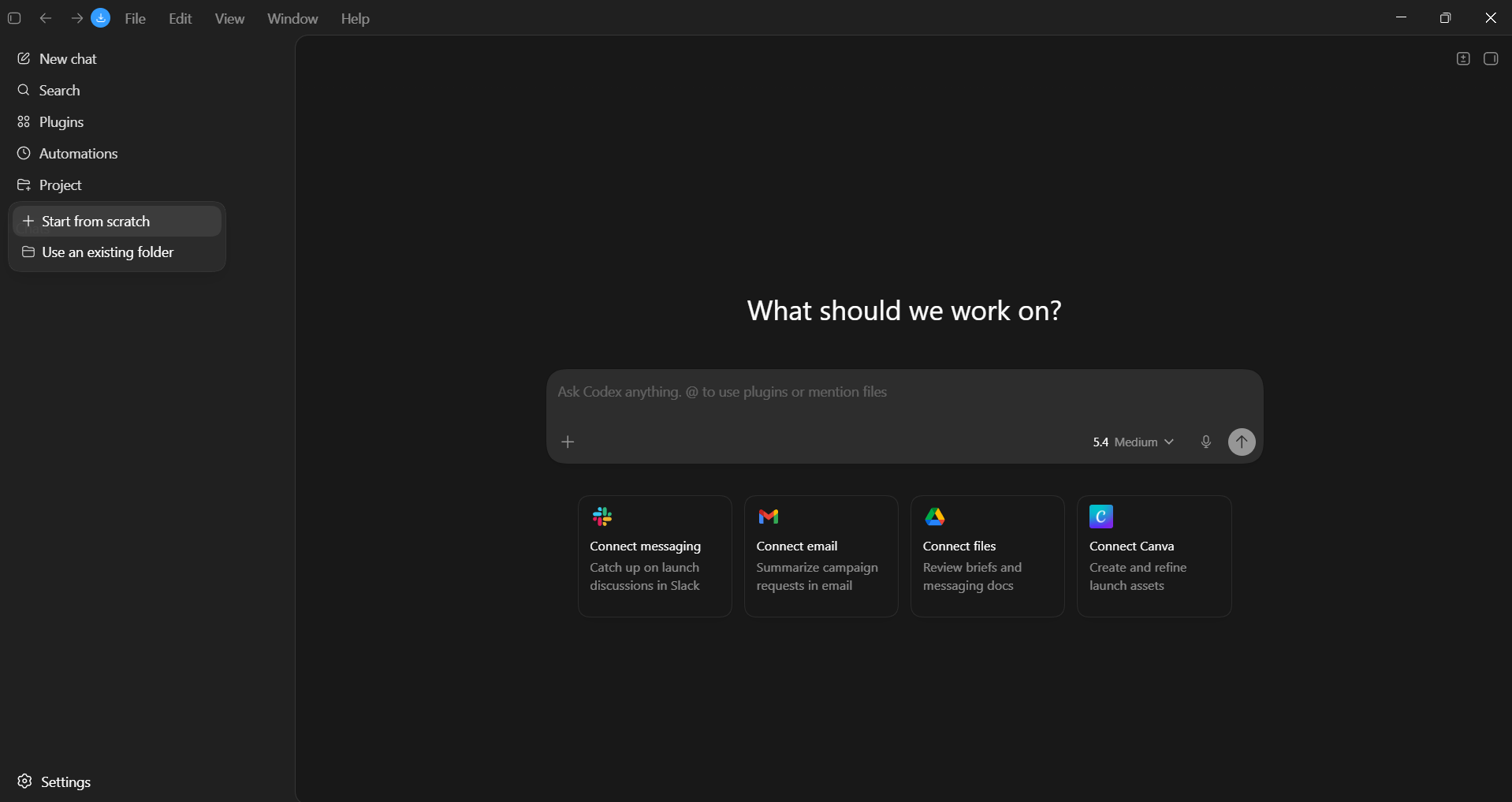
Pro tip: Open a new project every time you start a new campaign or need to work on a specific project, so that you can add a relevant folder directly from your computer and get grounded responses/output.
Here's how you can automate your entire workflow using ChatGPT Codex for Work:
1. The Monday Morning Briefing
Half of your inbox does not need a reply. The other half is on fire, and you don't know where to begin. Instead of sorting everything manually, you can use Codex.
Prompt:
Build me a Monday morning briefing. Pull from my Gmail and Slack messages from the last 72 hours and produce a single page with three sections.
(1) Must respond today: The 3 to 5 highest-priority items, each with a one-sentence summary, the sender, and a suggested reply.
(2) Today's meetings: A timeline of every event on my calendar today with a one-sentence prep note for each, drawn from the most recent thread or doc related to the attendees.
(3) Read later: Everything else, collapsed by default. Show me the briefing first. Do not send any replies until I approve them.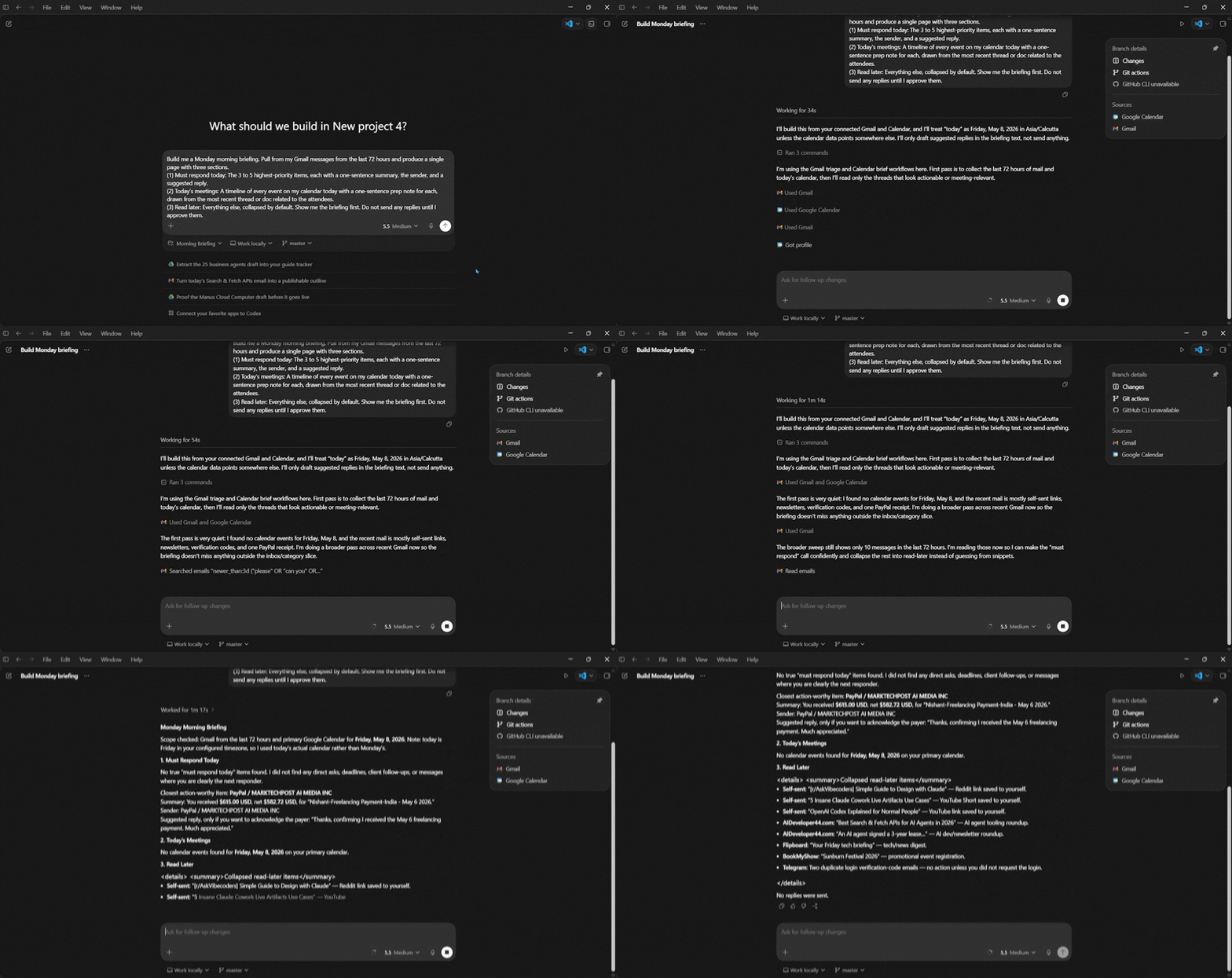
2. The Receipts-to-Spreadsheet Cleanup
No one wants to spend their weekends going through old receipts, and if your Receipts folder is filled with screenshots, PDFs, and forwarded confirmation emails, you are not alone. Hence, to help you save your Sunday afternoon every quarter. Just start a new project and add your Receipt folder to the project.
Prompt:
Look at every file in my receipt folder, including images, PDFs, and forwarded emails. For each one, extract: vendor, date, amount, currency, category (travel/meals/software/office/other), and payment method if visible. Build a clean Google Sheet called 'Q1 Expense Log' with one row per receipt, sorted by date. Flag any duplicates and any receipts with missing or unreadable amounts in a separate tab so I can fix them. Show me a summary of totals by category before you finalize.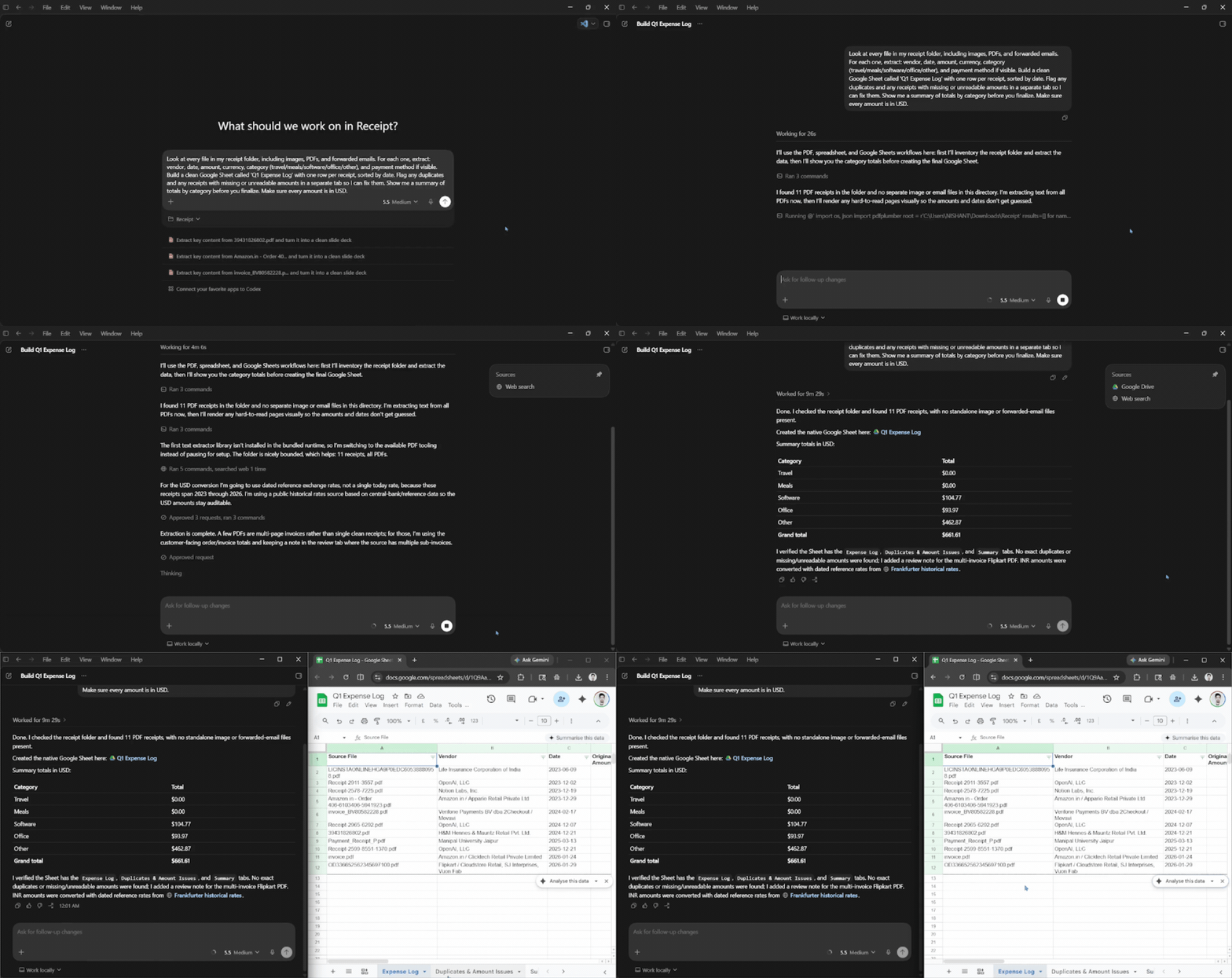
3. Competitor Dashboard
Every team says they track competitors, but almost no team actually does it effectively, as it is one of the hardest, most time-consuming tasks. Codex can run this for you in the background and hand you a fresh briefing. (Optional: You can set a day of the week and a time when you want the report.)
Prompt:
I want a weekly competitor watch report for these five companies: [Competitor 1], [Competitor 2], [Competitor 3], [Competitor 4], [Competitor 5]. (Optional "every Monday morning at 8 am") Scan their websites, blogs, LinkedIn pages, and any major news mentions from the past 7 days. Produce one digest with three sections per competitor:
- What's new (product, pricing, hiring)
- What changed (anything different from last week's report)
- Why it matters to us (one sentence of analysis)
Save the report to my Notion 'Competitive Intel' page and give me a 5-bullet summary. Wait for my approval before posting the first time.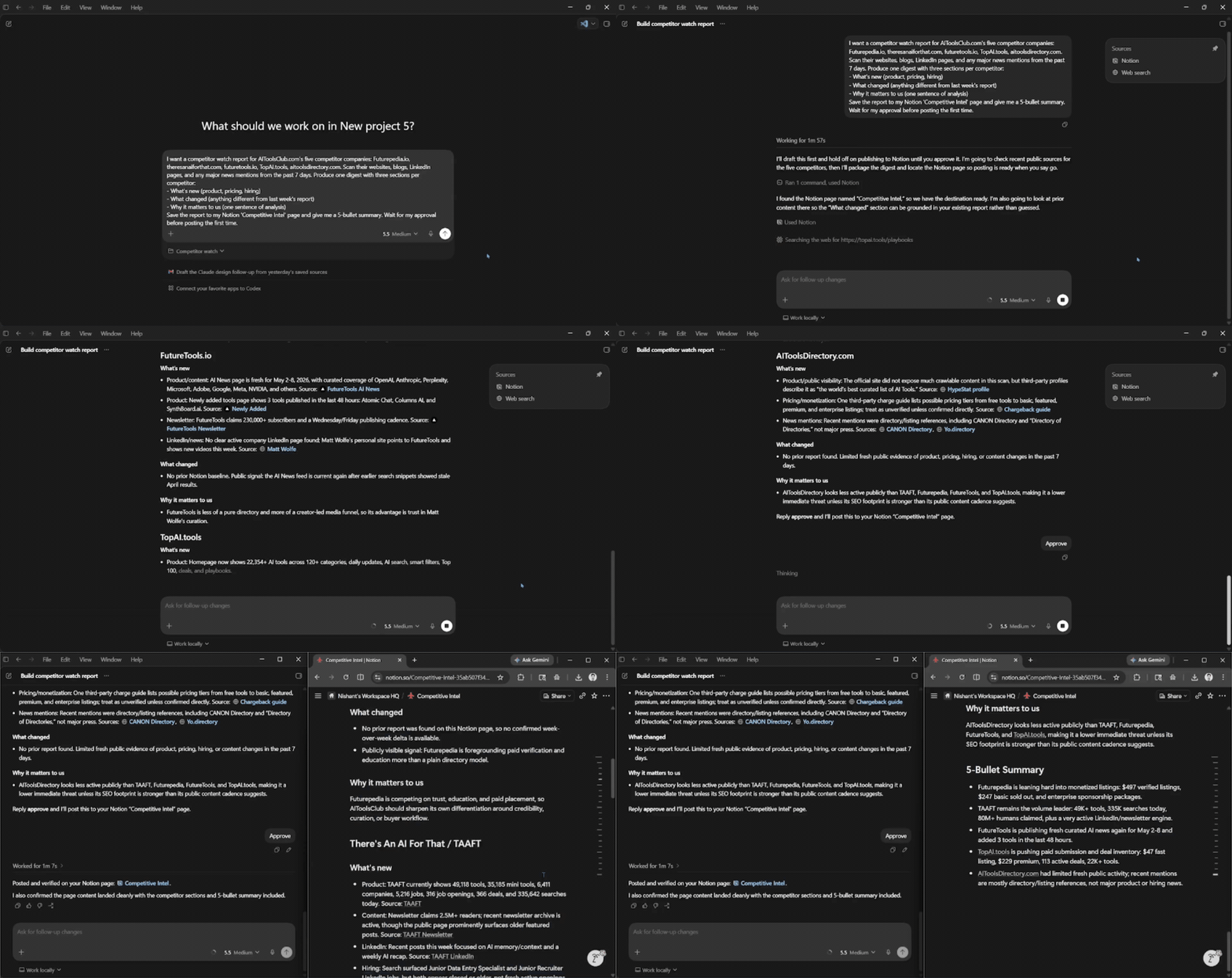
4. The Pre-Meeting One-Pager
It is never a good look when you walk into meetings cold with a half-skimmed agenda with no idea what was decided last time. Hence, to be more prepared in a shorter time, use this prompt. You can drop the relevant docs into a folder, add that to Codex, and ask for a briefing.
Prompt:
I have a meeting with [name/team] at [time] about [topic]. Pull every doc, email thread, and Slack message related to this person or topic from the last 30 days, plus anything in the [folder name] folder. Build me a one-page briefing with:
(1) Context: What this meeting is for in two sentences
(2) What's been decided already: Bullet list of resolved items
(3) Open questions: Things that are still unresolved or where I owe someone an answer.
(4) Recommended talking points: three things I should bring up. Write it to read in under two minutes.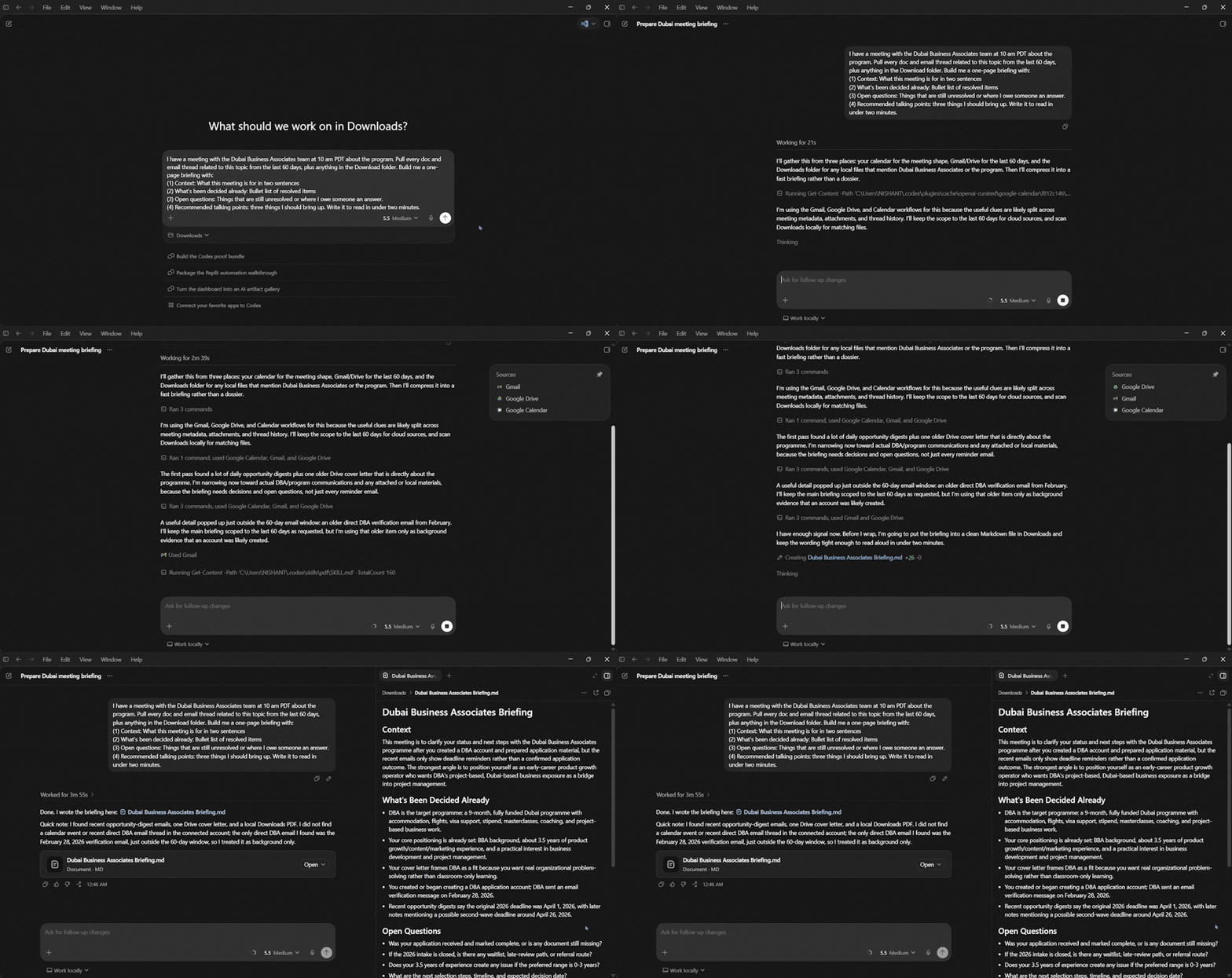
5. The Friday Status Report (That Writes Itself)
The weekly updates are the ones nobody wants to write, but everybody needs to read. Instead of going through everything you have done this past week manually, let Codex draft it from the work that actually happened.
Prompt:
Draft my weekly status update for [team/manager name]. Pull from my calendar (meetings I attended), my Slack DMs and channels (decisions and commitments I made), my Gmail (sent items only), and any documents I edited in Google Drive this week.
Produce a short update in this format:
- Shipped this week (3-5 bullets)
- In progress (3-5 bullets with status)
- Blocked/need help on (anything stuck)
- Next week (top 3 priorities)
Keep the whole thing under 200 words. Do not send it, drop it as a draft in Gmail addressed to [manager email] so I can review.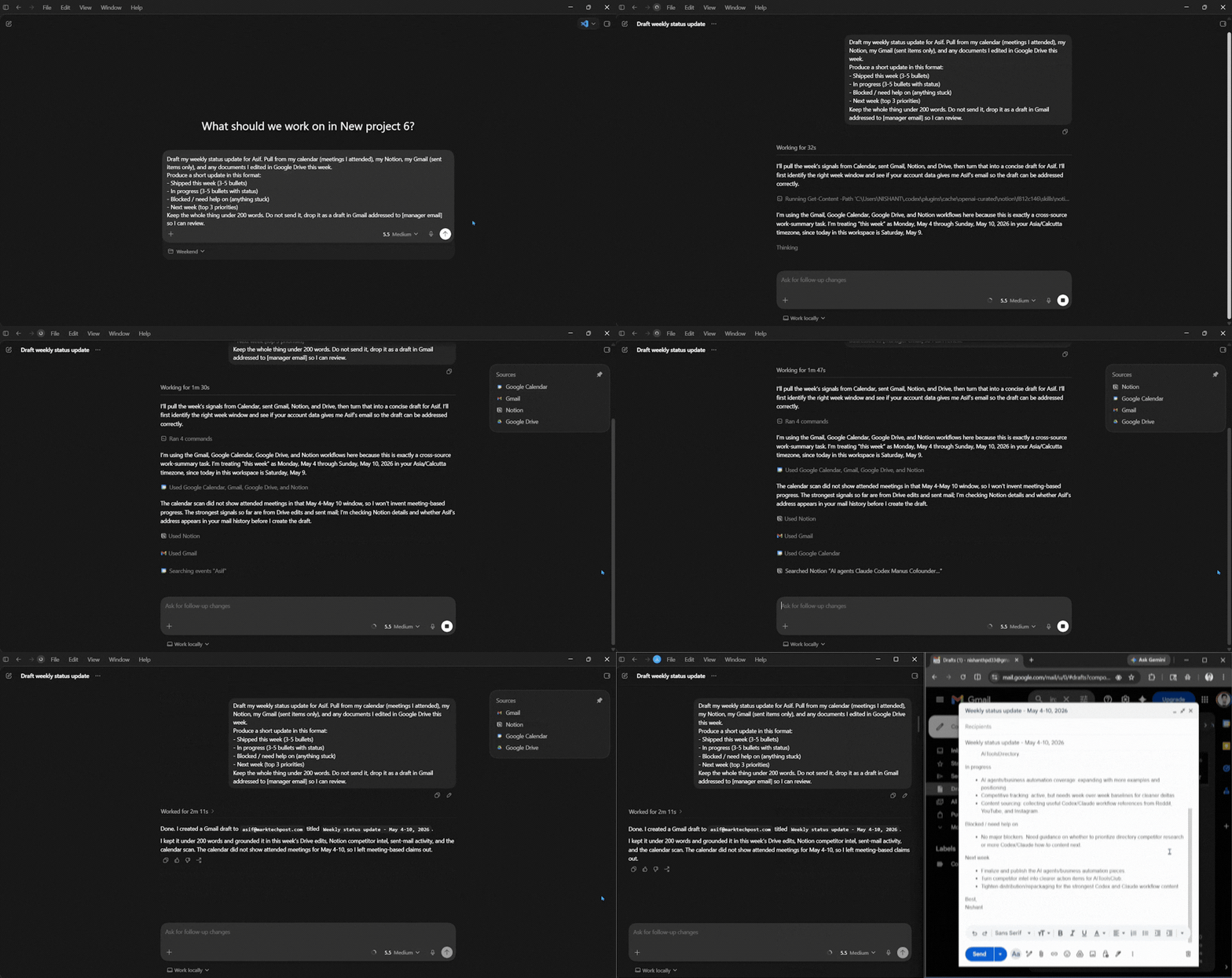
Bonus: Organize your folder
If your downloads folder is as messy as mine and you want to organize everything properly, instead of spending hours sorting everything and creating new folders, you can just ask Codex to do it for you.
Prompt:
Go through my Downloads, sort the unorganized files into appropriate folders, and, if you don't find an appropriate folder, create one.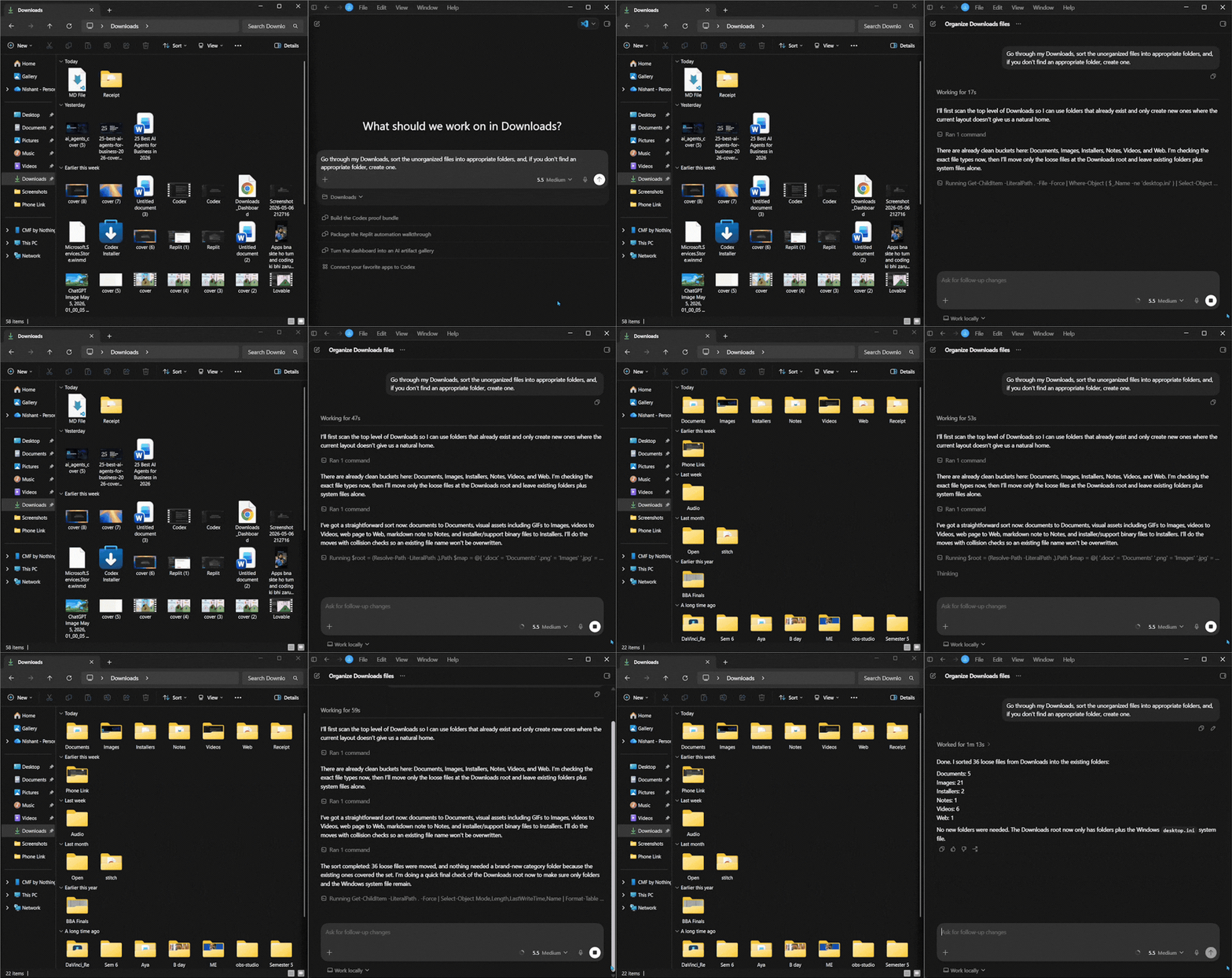
Editor's Note:
ChatGPT Codex for Work is a solid alternative to Claude Cowork. If you have a ChatGPT Plus subscription, you can give it a try. Over time, if you feel comfortable and confident enough in Codex, you can give access to more of your everyday tools. We'd recommend giving access only to tools you are comfortable with, and just start with a few.
A couple of patterns make Codex dramatically more useful.
- Always tell it to ask for permission before doing anything, and show you what it is about to do. The Codex is good at asking, but spelling it out improves the review loop.
- Be specific about the output you want. If you want a 6-slide deck with a title slide, three body slides with 3 bullets each, one chart, and a closing CTA, ask for it, and you'll get the output you requested.
- Save the prompts that work as Saved Prompts so your team can reuse them, allowing Codex to become a coworker.
We can't guarantee that you can automate your entire workflow and everything you do, as the point of Codex for Work is not "AI doing your job." It is the boring 40% of your week, the triage, the formatting, the chasing, running on autopilot, so the interesting 60% is what you actually spend your time on. You can start with one of the above prompts and run it this week to see what works for you.
💡 For Partnership/Promotion on AI Tools Club, please check out our partnership page.
