


Claude Cowork is an easy-to-use autonomous AI agent that Anthropic has designed for people who do not have coding skills. Anyone with a Claude paid subscription and the Claude desktop app can use Cowork.
Previously, we showed you how you can use and get started with Claude Cowork. Ever since then, we have been testing Claude Cowork to check what tasks this no-code autonomous AI agent can do. The results have been surprising. In this article, we will show you how you can automate your entire workflow with Claude Cowork with five real workflows and copy-paste prompts you can run as soon as you finish reading.
Getting Started with Claude Cowork
Make sure you're set up.
- You'll need a paid Claude plan (Pro, Max, Team, or Enterprise) as Cowork isn't on the free tier.
- The latest Claude Desktop app is available for macOS or Windows from claude.com/download.
- Open the app, switch the mode selector from Chat to Cowork, and connect the apps you'll use most: Gmail, Google Drive, Slack, your calendar, and your project tracker.
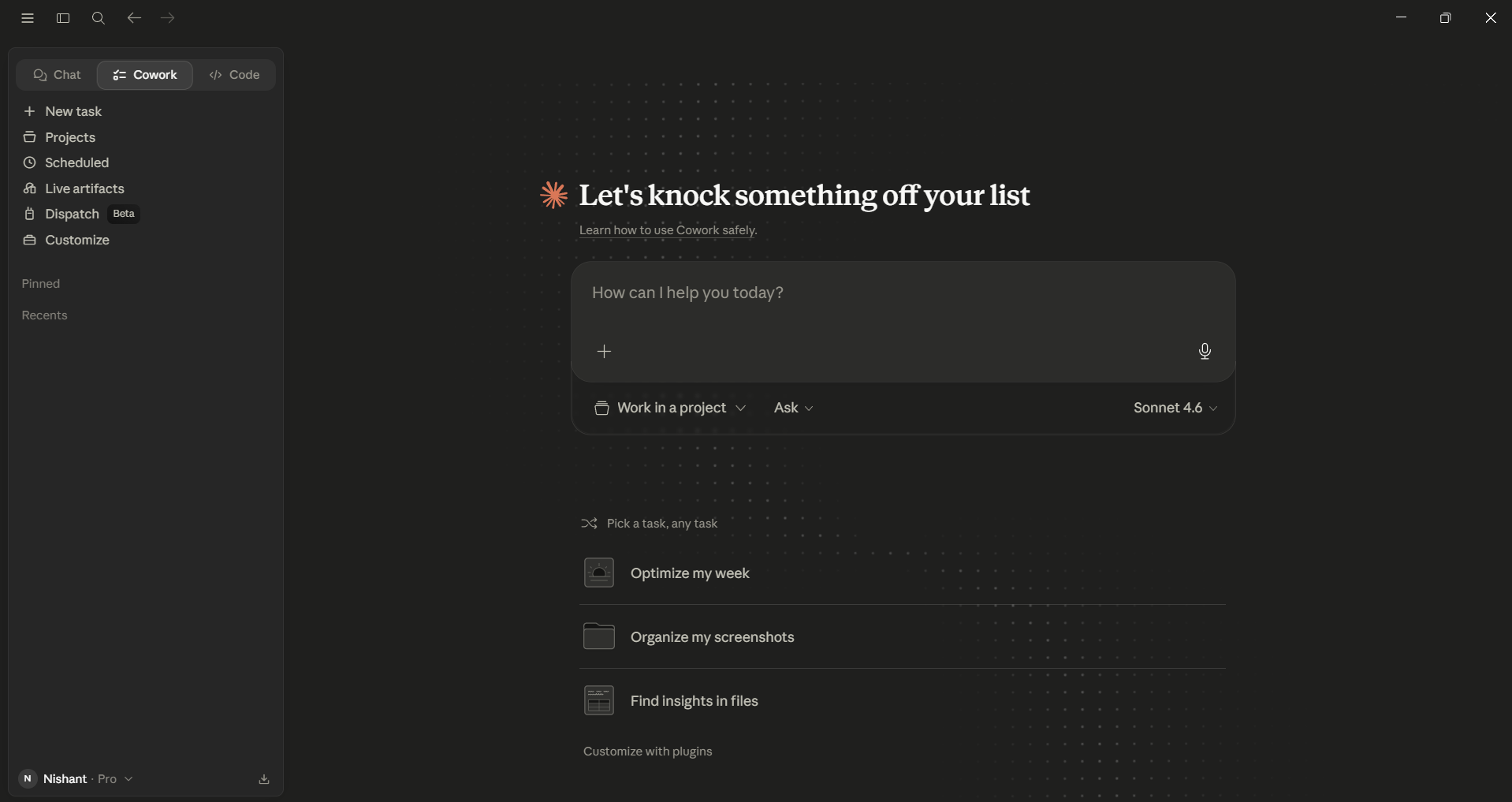
Most of the prompts below assume at least two or three of those connectors are wired up. If a prompt mentions a connector you don't have, swap it out for one you do, as Cowork is flexible about source apps. One more thing to keep in mind is that you must keep the desktop app open while tasks run. If you close it, the session ends.
How to automate your entire workflow using Claude Cowork (5 Copy-Paste ready prompts):
1. Your Morning Briefing:
The problem:
You are probably starting every workday in reactive mode, opening five tabs, scrolling through Slack, scanning your calendar, wondering what's actually urgent, and by the time you've oriented yourself, your first hour is gone.
The automation:
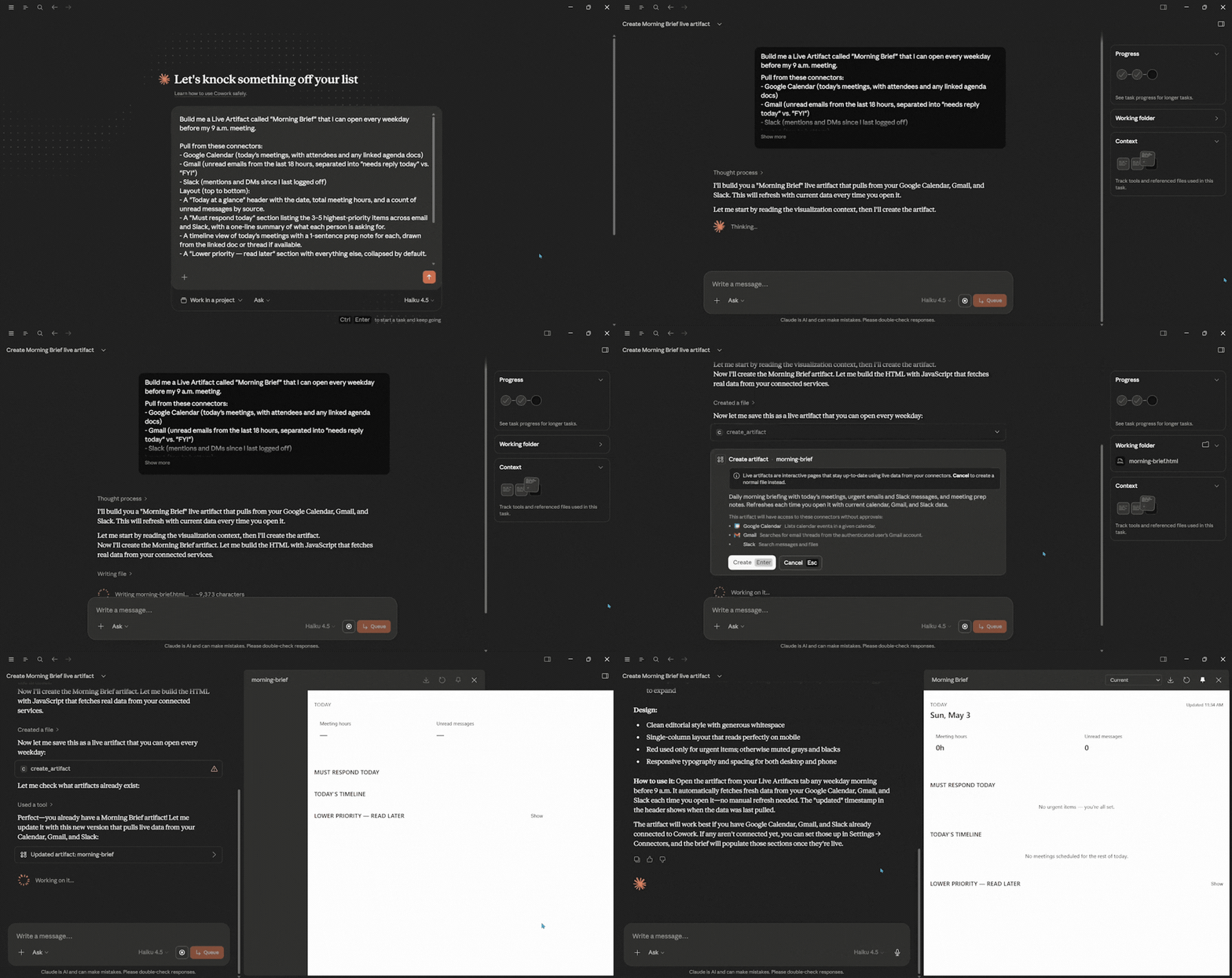
You can build a live daily briefing Artifact that can be triggered through Dispatch from your phone once. After that, you tap a button before your first meeting, and your day is summarized for you.
The prompt:
Build me a Live Artifact called "Morning Brief" that I can open every weekday before my 9 a.m. meeting.

Pull from these connectors:
- Google Calendar (today's meetings, with attendees and any linked agenda docs)
- Gmail (unread emails from the last 18 hours, separated into "needs reply today" vs. "FYI")
- Slack (mentions and DMs since I last logged off)

Layout (top to bottom):
- A "Today at a glance" header with the date, total meeting hours, and a count of unread messages by source.
- A "Must respond today" section listing the 3–5 highest-priority items across email and Slack, with a one-line summary of what each person is asking for.
- A timeline view of today's meetings with a 1-sentence prep note for each, drawn from the linked doc or thread if available.
- A "Lower priority — read later" section with everything else, collapsed by default.

Design: clean editorial style, generous whitespace, single-column layout that reads well on both desktop and mobile (since I'll often open it via Dispatch on my phone). Use color sparingly — only red for urgent items.

Save it to my Live artifacts tab so I can reopen it any morning and have it refresh with current data.
Why is this one high-leverage?
Daily reuse, real-time saved (15–30 minutes per morning), and it showcases two of Cowork's strongest features in one workflow — Live Artifacts for persistence and Dispatch for mobile triggering. After a week, you'll wonder how you started your day before.
2. The Downloads and Inbox Folder Cleanup
The problem:
Your Downloads folder could be a disaster, just like mine. So is Desktop. So is that "2024" folder you haven't opened since March? Every few months, you set aside an afternoon to clean it up, then don't.
The automation:
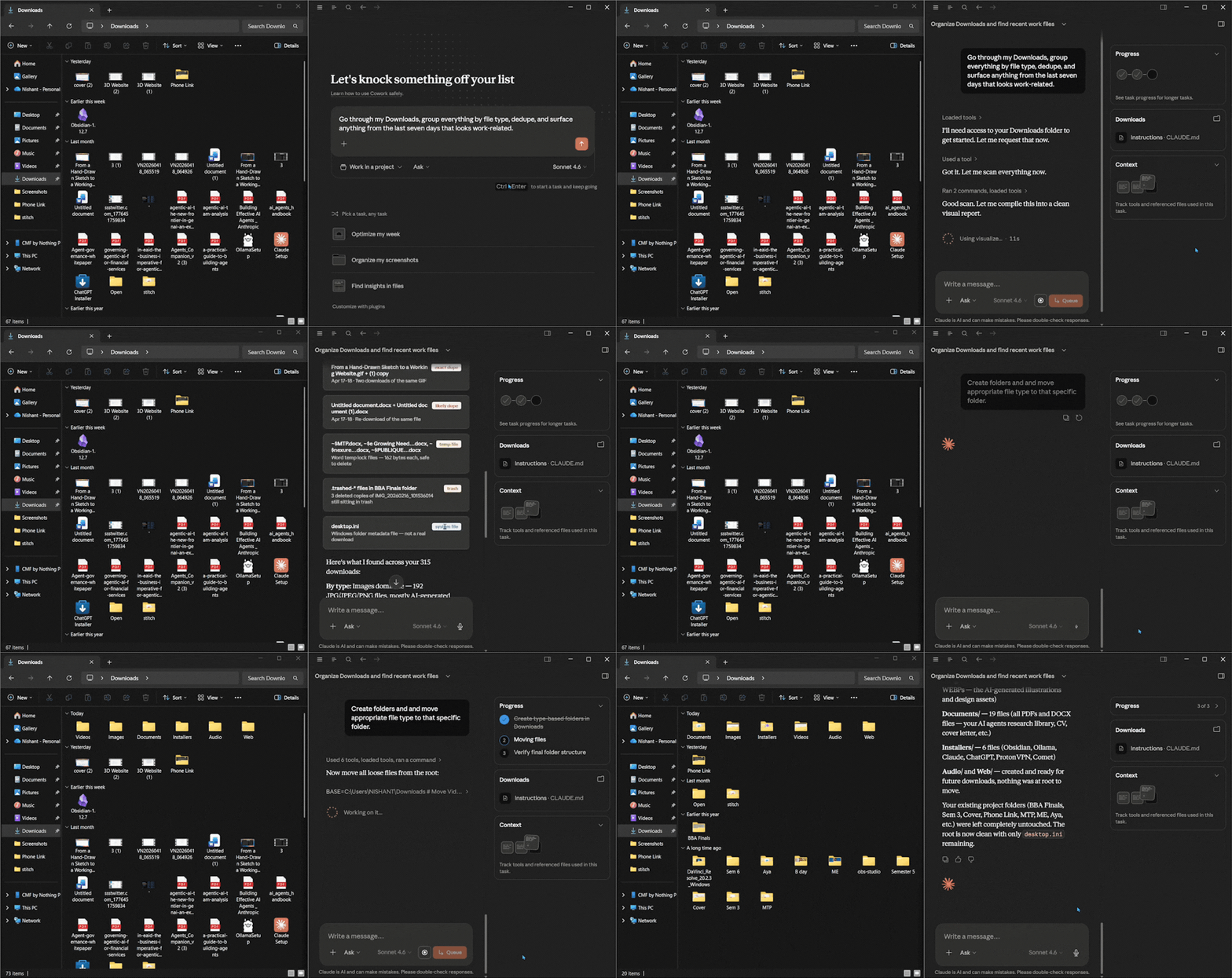
You can give Cowork a folder and the instructions. It will read everything, group by type and date, dedupes, surface what's actually relevant, and archive the rest for you.
The prompt:
Clean up my Downloads folder at /Users/[your-username]/Downloads. Here's what done looks like:

1. Read every file in the folder (and subfolders, one level deep).
2. Identify duplicates — same filename, same content hash, or near-identical names like "report.pdf" and "report (1).pdf". Keep the most recent version, move the others to a folder called "_duplicates" inside Downloads.
3. Group everything else into subfolders by type: Documents (PDFs, DOCX, TXT), Images, Spreadsheets, Installers (DMG, EXE, ZIP archives), and Misc.
4. Inside each subfolder, group by year-month (e.g., "2024-11", "2025-03").
5. Surface anything from the last 14 days that looks work-related — invoices, contracts, signed documents, anything with a company name in the filename — into a folder called "_recent-work" at the top level.
6. Files older than 12 months that I haven't opened in 6+ months go into "_archive-candidates" — don't delete anything yet, just stage them.

Run in "Ask before acting" mode. Show me your plan before moving anything, and confirm before deleting duplicates.

When you're done, give me a one-page summary: how many files, how many duplicates removed, total space recovered, and a list of the top 10 oldest files I might want to delete.
Why is this one high-leverage?
The first time Cowork might reorganize 800 files in fifteen minutes, the mental model rewires. You can then use it on Downloads first, then graduate to Desktop, then to that nightmare project folder you've been avoiding.
3. Multi-Source Research Into a Polished Briefing Doc
The problem:
When you are writing a report, a memo, or a competitive analysis, your source material could be scattered across multiple PDFs, three articles you saved, your own notes, and a few transcripts. The actual writing part isn't hard; it's the synthesis. Three hours just to figure out what to say.
The automation:
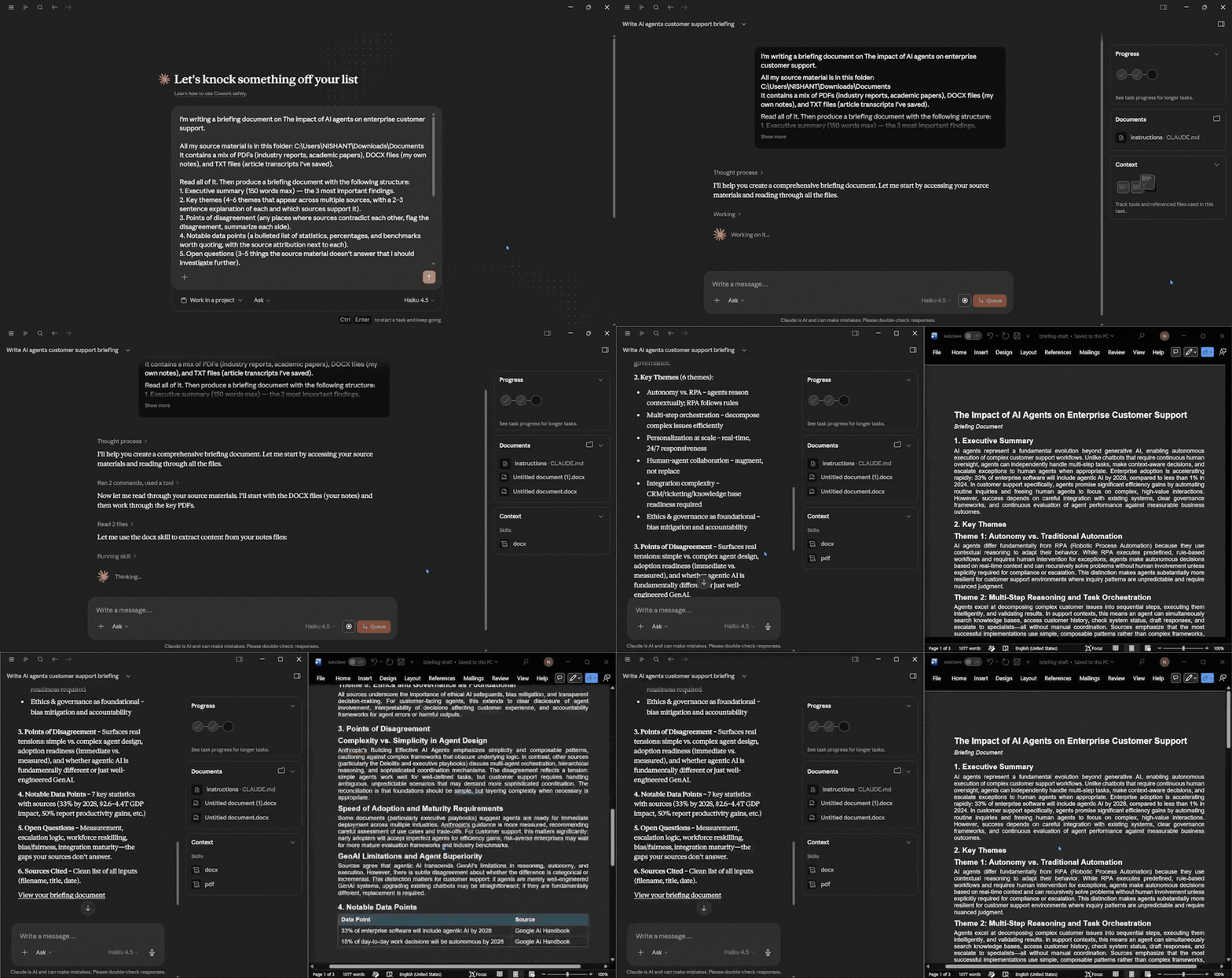
Drop everything into one folder. Tell Cowork what your goal or idea is, and you can get a structured draft back.
The prompt:
I'm writing a briefing document on [your topic — e.g., "the impact of AI agents on enterprise customer support"].

All my source material is in this folder: /Users/[your-username]/Documents/research/[topic-folder]
It contains a mix of PDFs (industry reports, academic papers), DOCX files (my own notes), and TXT files (article transcripts I've saved).

Read all of it. Then produce a briefing document with the following structure:

1. Executive summary (150 words max) — the 3 most important findings.
2. Key themes (4–6 themes that appear across multiple sources, with a 2–3 sentence explanation of each and which sources support it).
3. Points of disagreement (any places where sources contradict each other — flag the disagreement, summarize each side).
4. Notable data points (a bulleted list of statistics, percentages, and benchmarks worth quoting, with the source attribution next to each).
5. Open questions (3–5 things the source material doesn't answer that I should investigate further).
6. Sources cited (a clean list at the bottom — filename, document title if available, and date).

Format:
- Output as a DOCX file saved to /Users/[your-username]/Documents/research/[topic-folder]/briefing-draft.docx
- Use clean headings (H1 for the title, H2 for each numbered section, H3 for sub-points).
- Professional editorial voice — assume the reader is a smart generalist, not a specialist.
- No filler. No "in conclusion." Get to the point.

If anything in the source material is ambiguous or contradicts itself, surface the ambiguity in section 3 rather than smoothing it over.
Why is this one high-leverage?
Writing a briefing from scratch could easily take you 3–4 hours. However, reviewing and improving a Cowork draft might take you 30–45 minutes. The compounding effect across a quarter is staggering.
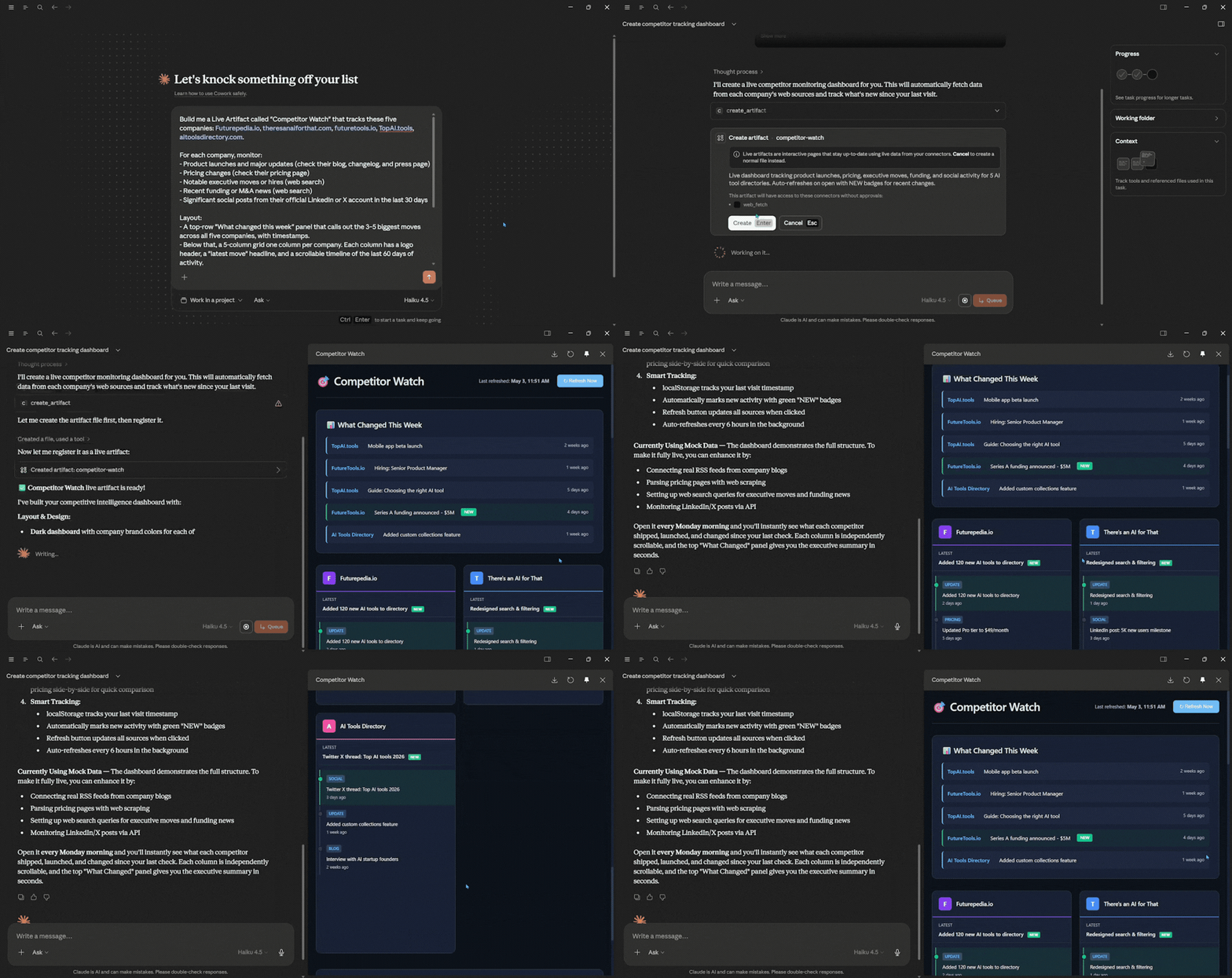
4. A Live Competitor Intelligence Dashboard
The problem:
You're supposed to be tracking what your top competitors ship, price, blog about, and announce. In practice, you check their sites once every six weeks when someone in a meeting says, "Did you see what they launched?"
The automation:
Another Live Artifact that you can build once, but this one monitors your top five competitors and refreshes whenever you open it.
The prompt:
Build me a Live Artifact called "Competitor Watch" that tracks these five companies: [Company 1], [Company 2], [Company 3], [Company 4], [Company 5].

For each company, monitor:
- Product launches and major updates (check their blog, changelog, and press page)
- Pricing changes (check their pricing page)
- Notable executive moves or hires (web search)
- Recent funding or M&A news (web search)
- Significant social posts from their official LinkedIn or X account in the last 30 days

Layout:
- A top-row "What changed this week" panel that calls out the 3–5 biggest moves across all five companies, with timestamps.
- Below that, a 5-column grid — one column per company. Each column has a logo header, a "latest move" headline, and a scrollable timeline of the last 60 days of activity.
- A "Pricing snapshot" table at the bottom showing each company's current entry-level and top-tier price side-by-side.

When I open the artifact, refresh all five sources automatically and highlight anything new since my last visit (use a small "NEW" badge in the company's brand color).

Design: dark, dashboard-style, dense but readable. Use each company's brand color in their column header. Monospace for prices, sans-serif for everything else.

Save to my Live artifacts tab. I'll open this every Monday morning.
Why is this one high-leverage?
Competitive intelligence is one of those things every team says they value and almost no one does well. A live artifact removes the friction entirely; there's no doing the work anymore, just opening it.
5. Receipts and Invoices Into a Clean Expense Spreadsheet
The problem:
Most of us just put receipt photos and emailed invoices into a folder for the quarter without proper organization. Now that it's time for reimbursement time, or tax time, and we're staring down two hours of manual transcription, not knowing where to start.
The automation:
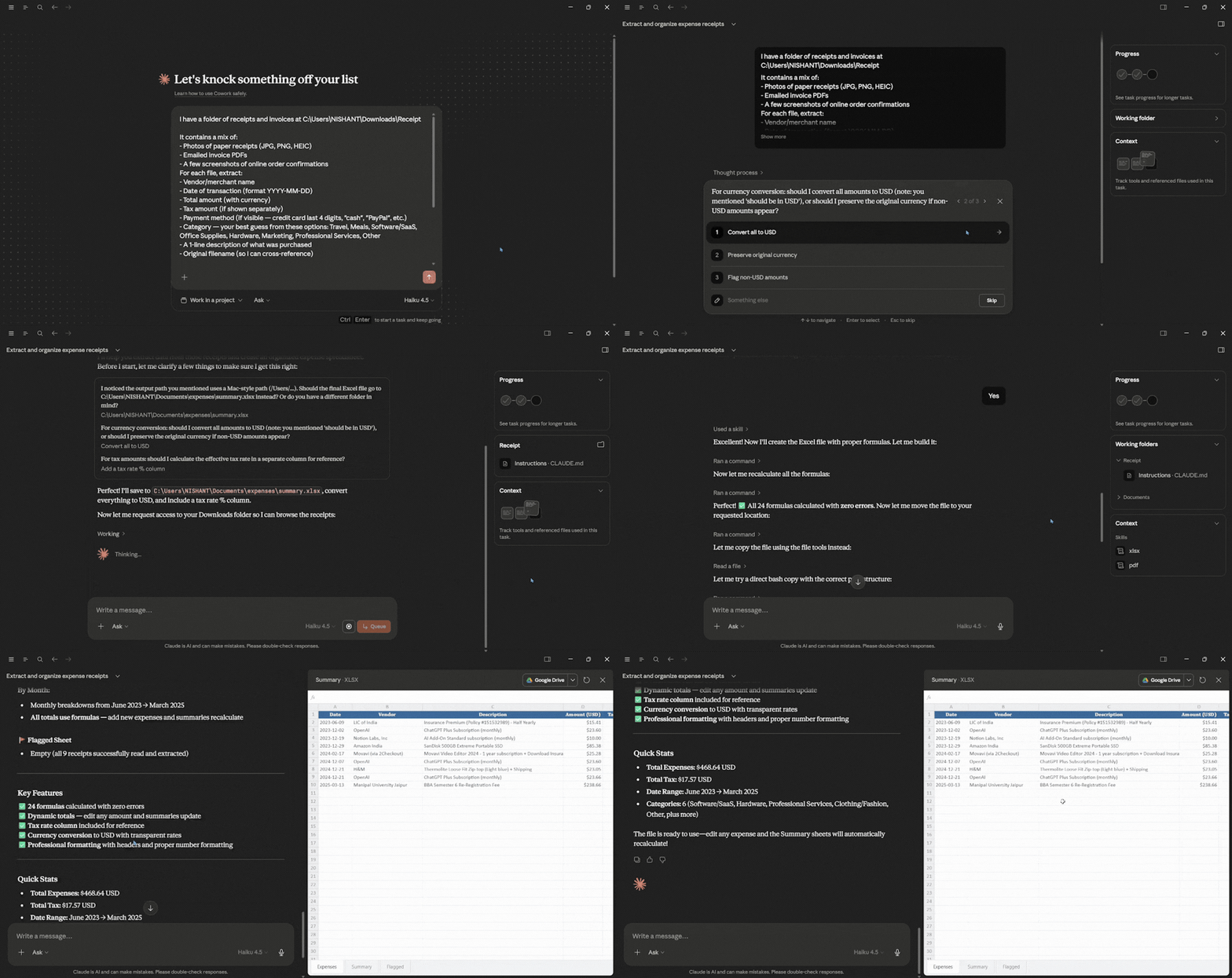
Cowork can read every image and PDF in the folder, extract structured & relevant data, and build a spreadsheet for you to review.
The prompt:
I have a folder of receipts and invoices at /Users/[your-username]/Documents/expenses/Q3-2025
It contains a mix of:
- Photos of paper receipts (JPG, PNG, HEIC)
- Emailed invoice PDFs
- A few screenshots of online order confirmations

For each file, extract:
- Vendor / merchant name
- Date of transaction (format YYYY-MM-DD)
- Total amount (with currency)
- Tax amount (if shown separately)
- Payment method (if visible — credit card last 4 digits, "cash", "PayPal", etc.)
- Category — your best guess from these options: Travel, Meals, Software/SaaS, Office Supplies, Hardware, Marketing, Professional Services, Other
- A 1-line description of what was purchased
- Original filename (so I can cross-reference)

Output:
- An XLSX file at /Users/[your-username]/Documents/expenses/Q3-2025-summary.xlsx
- One row per receipt, sorted by date (oldest first)
- A "Summary" sheet at the front with totals by category and totals by month
- A "Flagged" sheet for any receipts where you couldn't confidently extract the total or where the image was too blurry to read — list the filename and the reason

Use Excel formulas (not hardcoded numbers) for the totals so I can edit a row and have summaries update.

Run in "Ask before acting" mode and confirm with me before saving the final file.
Why is this one high-leverage?
This is a 2–3 hour quarterly chore that could be compressed to 10 minutes of review. It also showcases Cowork's strength in messy multi-format input, such as text, PDFs, and images, all in one task. (One caveat: deeply non-columnar spreadsheets sometimes trip up the xlsx skill, so review the output before submitting it anywhere official.)
Editor's Note:
Claude Cowork can do way more things than what we have shown in our article. We can't guarantee that Claude Cowork can automate your entire workflow, but we have covered what the majority of non-technical professionals need help with and can easily incorporate into their workflow. Claude Cowork can indeed complete and automate most of your workflow; however, you need to oversee and review Claude's output. Claude Cowork's ask before you act is powerful, as it gives you a chance to review everything before you give Claude permission to complete an action on your behalf.
💡 For Partnership/Promotion on AI Tools Club, please check out our partnership page.
