


Most people have used artificial intelligence (AI) tools to get quick answers to their questions. However, AI tools for the longest time couldn't complete tasks on your behalf. For most people, hours of labor go into the action, which can include renaming eighty PDFs, copying numbers from receipt screenshots into a spreadsheet, or stitching together a status report from twelve scattered notes. It might surprise you that researchers, analysts, ops teams, finance, legal, and marketers, people whose actual job is judgment, spend a shocking percentage of their week on assembly work.
Fortunately, with the introduction of autonomous AI agents, manual tasks can now also be sorted and completed by AI agents. Now the question is, which AI agents should you go for? The answer could be completed. You can either build a custom AI agent if you know coding, or vibe code an AI agent, or use a generalist AI agent.
In this article, we will show you how you can use a generalist AI agent like Claude Cowork to automate your workflow without any coding experience.
What is Claude Cowork?
Claude Cowork brings the agentic capabilities behind Claude Code to non-developers in a more user-friendly form. It runs inside the Claude desktop app. You point it at a folder, describe an outcome in plain English, and it plans the work, executes it, and shows you the result. Most AI tools, including Cluade, are built around the prompt; Claude Cowork, however, is built around the outcome.
Calude Cowork is simple to use. You don't need to use any coding, set up a virtual environment, or have a separate dedicated machine. Everything can happen on your laptop.
Claude Cowork Features and Capabilities:
Cowork's surface area is wider than it looks at first glance. Here's what's actually under the hood.
- The agent loop: When you describe a task, Cowork can analyze the request, build a plan, break complex work into subtasks, and run code or shell commands inside an isolated virtual machine on your computer. For complex tasks, it can coordinate multiple sub-agents working in parallel, meaning it doesn't just chug through one step at a time.
- Local file access: This is what makes Cowork different from regular Claude chat. It can read, create, edit, and delete files inside folders you've granted access to. You don't need to upload attachments one at a time. Point it at ~/Downloads and ask it to clean up the last six months.
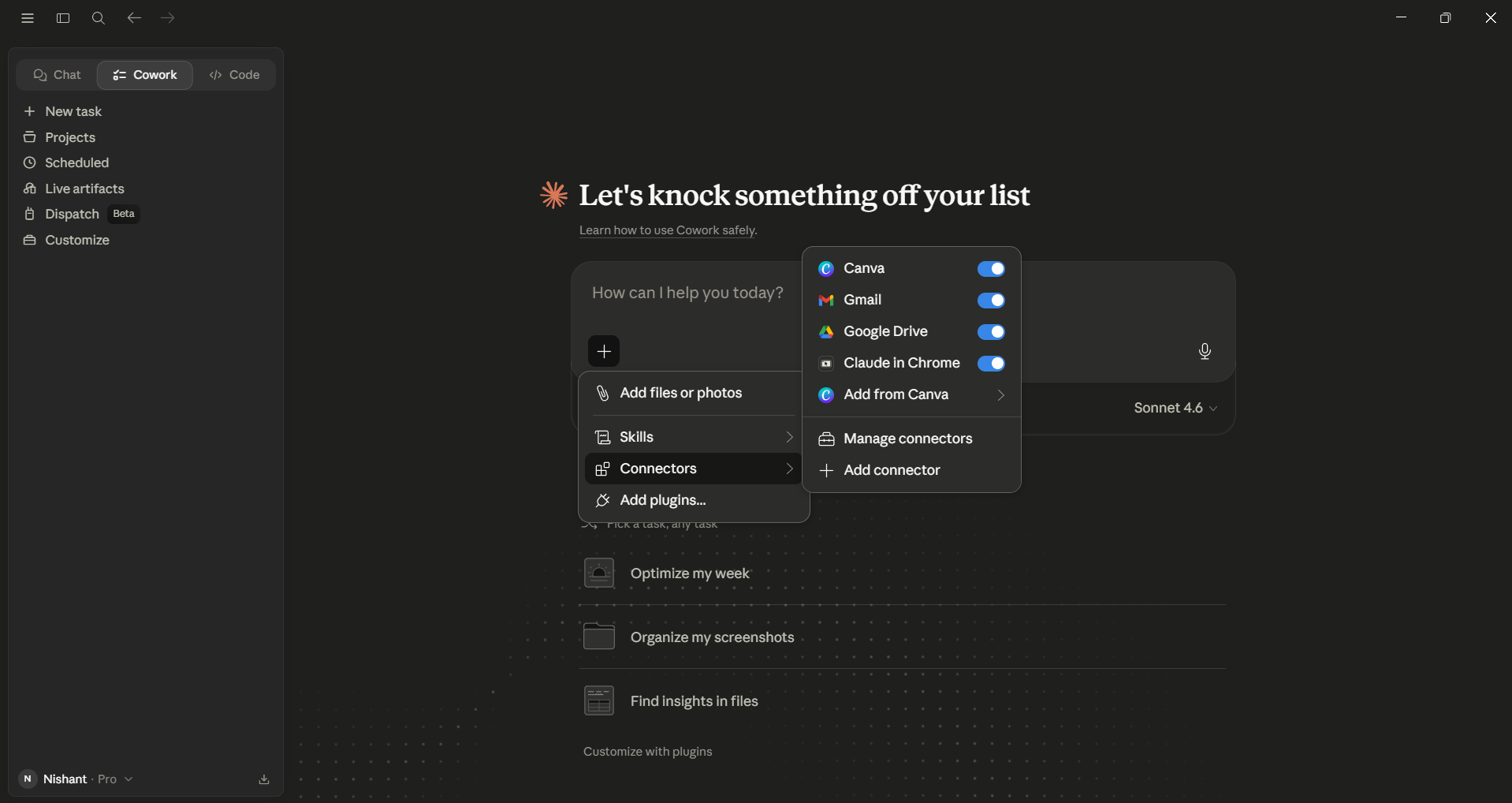
- Connectors and plugins: Cowork inherits Claude's connector ecosystem. There are two types of connectors available: web connectors that use browser-based APIs and desktop extensions that run locally and have deeper access to your system. The catalog includes hundreds of options like Slack, Gmail, Drive, n8n, AWS Marketplace, Honeycomb, Fellow.ai, and many others. If your tool isn't listed, you can also create custom connectors.
- Computer Use and the browser: When a connector isn't available, Cowork can fall back to your screen. It reaches for connectors and integrations first, falls back to your browser when needed, and only uses your screen as a last resort, because direct integrations are faster and more precise than navigating through pixels. When you pair with the Claude in Chrome extension, it can click buttons, fill forms, and navigate tabs, and it will ask permission before accessing each application.
- Live Artifacts: Cowork has added persistent, interactive HTML dashboards that Claude creates for you, refreshing with current data from your connected apps each time you open them. These live dashboards have their own tab, pull fresh data on opening, and maintain a full version history for comparison or restoration.
- Dispatch: A newer addition that essentially turns your phone into a remote control for your desktop. Dispatch is a workflow layer inside Claude Cowork that connects the Claude mobile app to the Claude Desktop app, letting Claude run tasks on your computer with access to local files, connectors, plugins, and apps. Triggered by the train, the work runs at home. Knowledge tasks route to Cowork; coding tasks route to Claude Code.
How to use Claude Cowork to automate your workflow:
Step 1: The setup is genuinely simple; you can be running your first task in a few minutes. Make sure you have the Claude Desktop app and are subscribed to a paid plan (Pro, Max, Team, or Enterprise).
- Look for the mode selector that toggles between Chat and Cowork. Click Cowork to switch into Tasks mode.
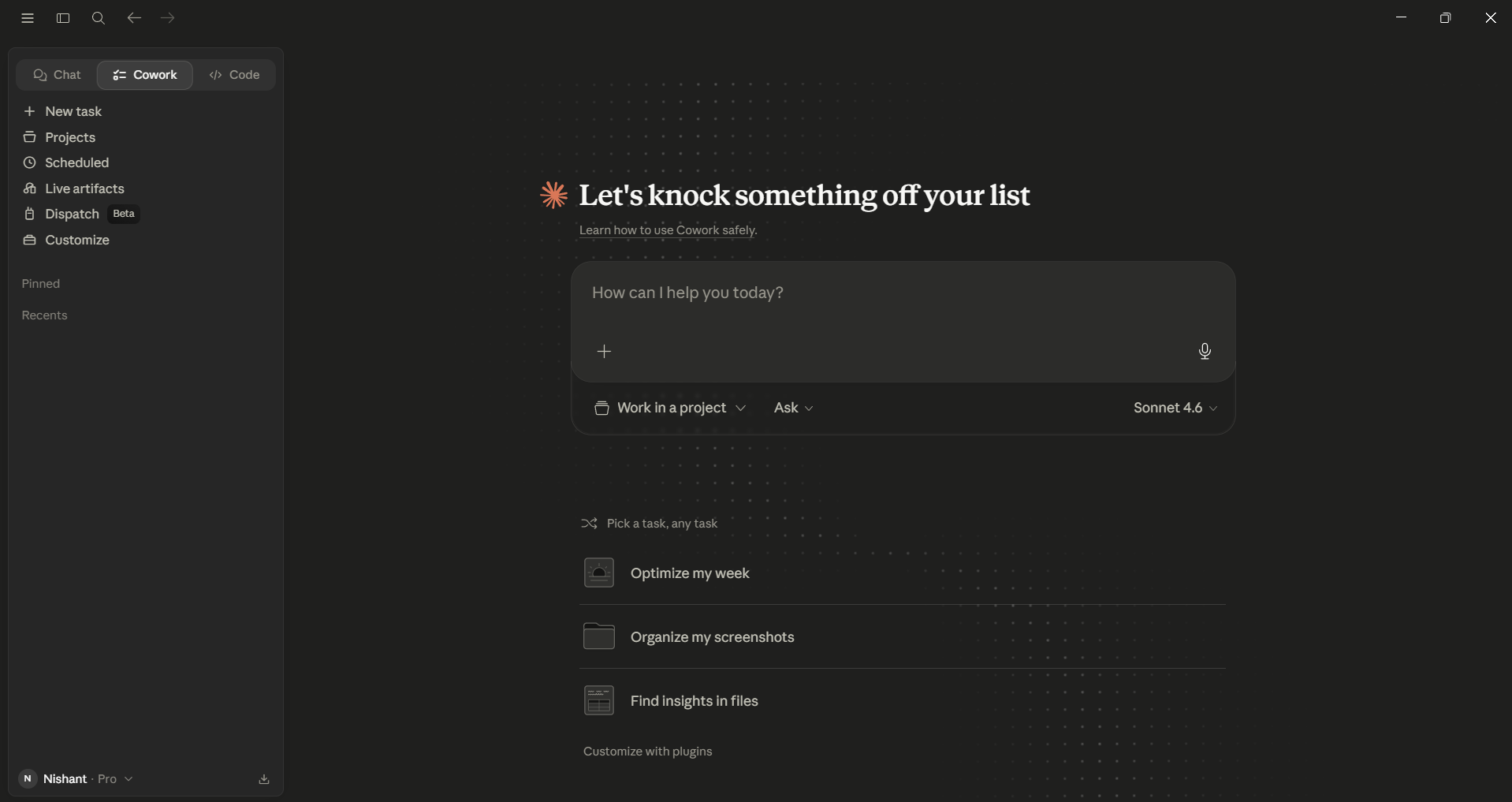
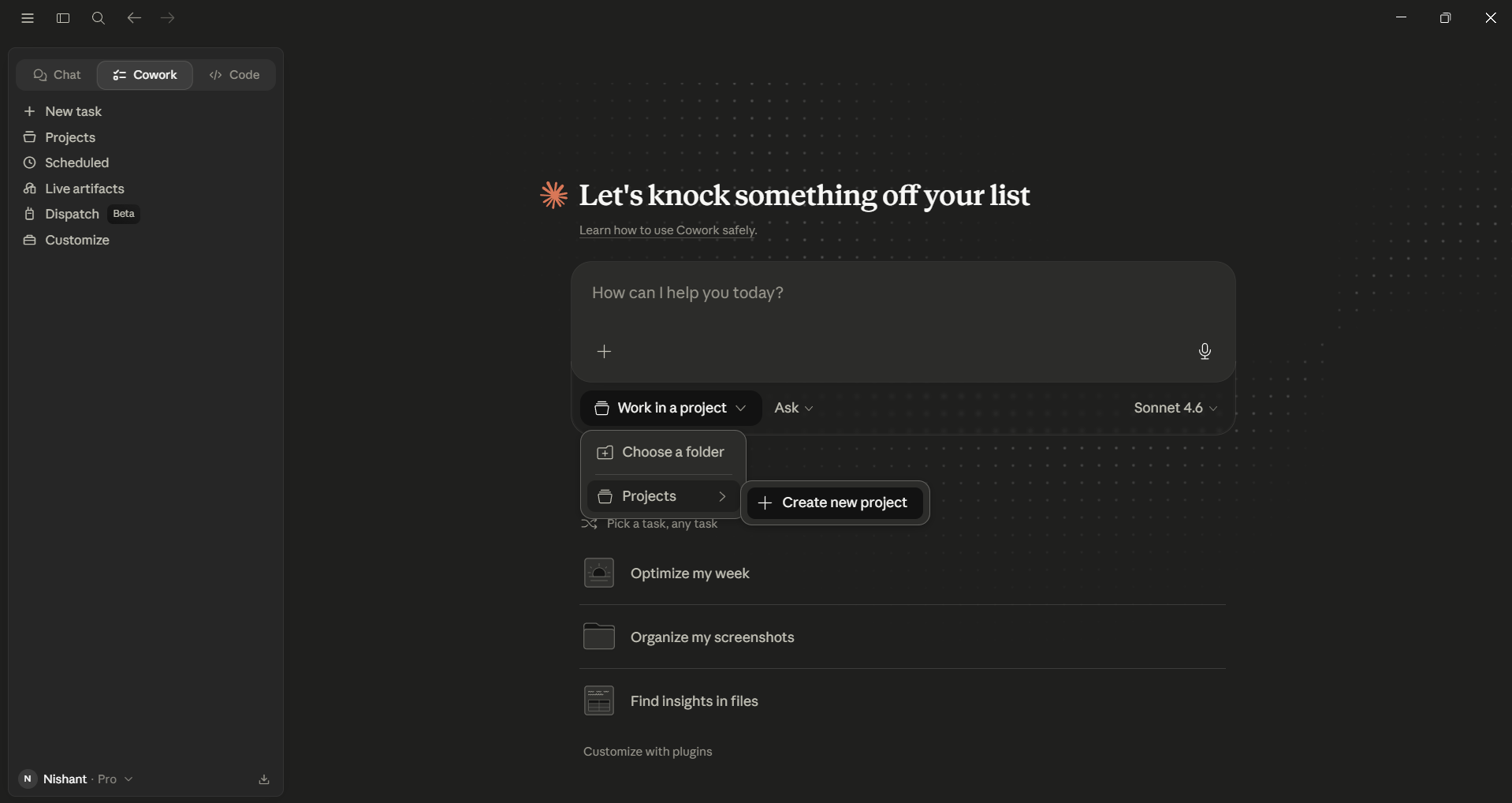
Step 2: If you have an ongoing area of work, set up a Project and link it to a local folder. Files, instructions, and memory all stay scoped to that workspace.
Step 3: Go to Customize → Connectors → Browse connectors. The pop-up has two tabs, which are Web and Desktop extensions. You can add the ones that match your stack. For me, it was Gmail, Canva, and Drive.
Step 4: Now it is time to use Claude Cowork, and don't just write a prompt; instruct Cowork what it must complete and what 'done' looks like.
Prompt I used: Go through my Downloads, group everything by file type, dedupe, and surface anything from the last seven days that looks work-related.
Follow-up prompt: Create folders and move the appropriate file type to that specific folder.
In Conclusion:
Autonomous AI agents can indeed be helpful if you know how to instruct them and make them complete tasks on your behalf. However, if you don't use AI agents carefully, they might cause you big damage. AI agents are at the point where they can do simple tasks on your behalf; however, they can be tricked, hence there is a need for a human to be in the loop to oversee the AI agent.
Even Claude warns users that using Claude Cowork without asking can be high risk, as Claude can act anywhere on the internet, which could put your data at risk. If you decide to go with Claude Cowork, make sure to use only non-risky data and trusted apps and sites.
💡 For Partnership/Promotion on AI Tools Club, please check out our partnership page.

