


Most people still think of Codex as a tool just for software engineers, something that writes pull requests and ships features. That picture is out of date. While ChatGPT Codex is still a tool for software engineers, it is no longer just for software engineers with the introduction of Codex for Work. OpenAI is now positioning Codex as a personal assistant that can do knowledge work like performing research, organizing, drafting, analyzing, and automating the repetitive work that fills up your week.
It is no longer just a coding agent; it is an autonomous AI agent that can sit on top of your email, spreadsheets, shared drives, and messaging tools, turning raw input into finished work your team can review. ChatGPT Codex for Work is a serious Claude Cowork competitor.
In this guide, I will walk through how to actually use ChatGPT Codex for Work, starting with getting the right plan and connecting your tools, all the way to giving it real tasks and letting it run them on your behalf. The goal is that by the end, you should be able to hand off recurring work to Codex with confidence, the same way you would to a junior teammate.
What Is ChatGPT Codex for Work?
Codex for Work is OpenAI's agent for everything else, the version of Codex that is aimed at knowledge workers, not just developers. ChatGPT Codex is available via web, IDE, terminal, and the Codex app; but if you are a non-technical professional, the Codex desktop app is the easiest way for you to use it for your everyday work. It is designed to take messy input from your day-to-day tools and turn it into structured output like briefs, decks, emails, reports, trackers, and follow-ups.
The core idea is similar to that of Claude Cowork. You give Codex context, which could give it access to projects (folders on your computer containing documents, PDFs, and screenshots) or connect it to an app you use every day. You then describe the outcome you want, and Codex will then plan the work, execute it, and ask for permission before taking actions (sending an email, posting in Slack, modifying a file). Codex does cite its sources, remembers preferences across sessions, and can even schedule itself to wake up and continue long-running work later.
Where it really differs from regular ChatGPT is in two places.
- First, Codex actually does the work; it isn't just answering a question, but it is producing the deliverable.
- Second, it has hands through plugins; it can read and write across Gmail, Google Drive, Slack, Linear, and a long list of other tools, with permission requests gating every action.
How to use ChatGPT Codex for Work as a non-technical professional:
Step 1: Get on a Plan That Includes Codex for Work
Before anything else, make sure your ChatGPT account is on a plan that gives you Codex access. As of writing, Codex is included with ChatGPT Plus, Pro, Business, and Enterprise/Edu. The free tier does not include it.
- If you are an individual, Plus or Pro will get you started. I am using ChatGPT Plus.
- If you are setting up Codex for a team, Business, or Enterprise, it is the right choice as it offers pay-as-you-go usage on top of the included allowance, and Enterprise also includes admin controls for managing users, plugins, and data access.
Plus and Pro users who hit usage limits can also buy additional credits, so you don't get stuck mid-task.
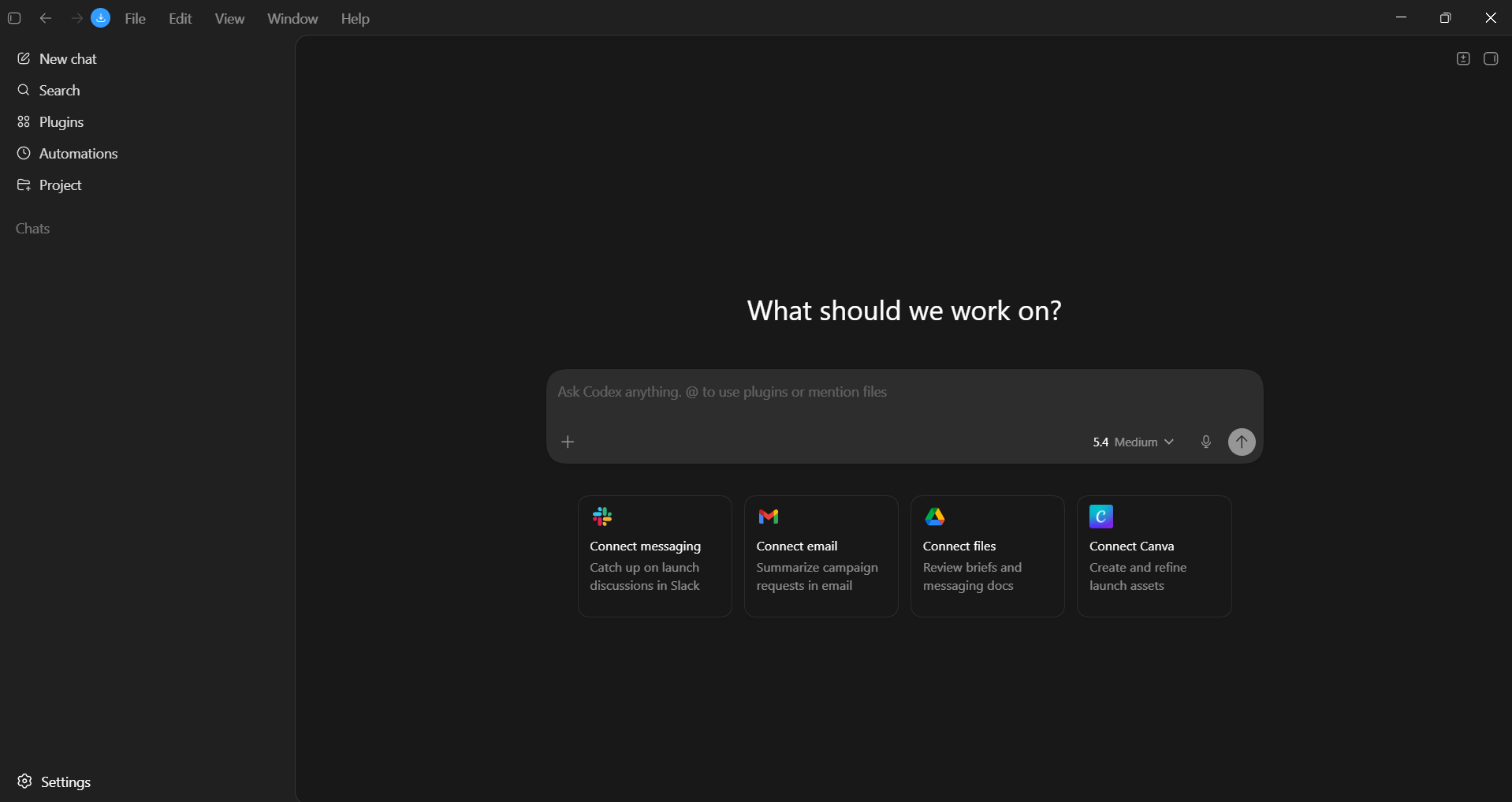
Once you are signed in with a Codex-enabled account, head to chatgpt.com/codex in your browser, or install the Codex app on macOS or Windows. There is also a VS Code/Cursor/Windsurf extension and a CLI for the terminal, but for everyday non-technical tasks, you are better off using the desktop app, since you'll spend most of your time there.
Step 2: Connect Your Work Tools With Plugins
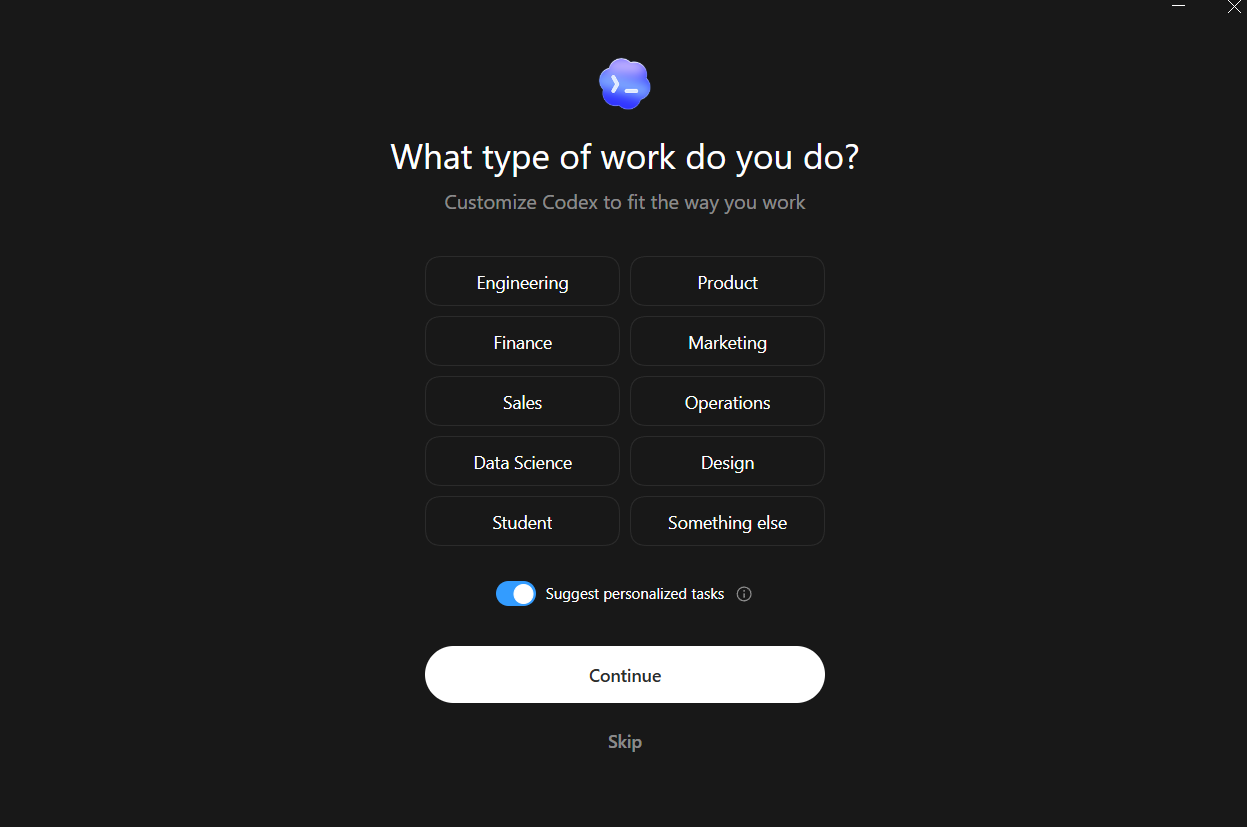
If you are new to Codex, it will ask you about your role/ what you will be using Codex for (Engineering, marketing, sales, or anything else). You can also set your work mode to "for everyday work" in the general settings.
Codex on its own is smart, but Codex with your tools connected is what actually replaces hours of busywork. The plugin ecosystem is the heart of Codex for Work, and it is the first thing to set up after you sign in.
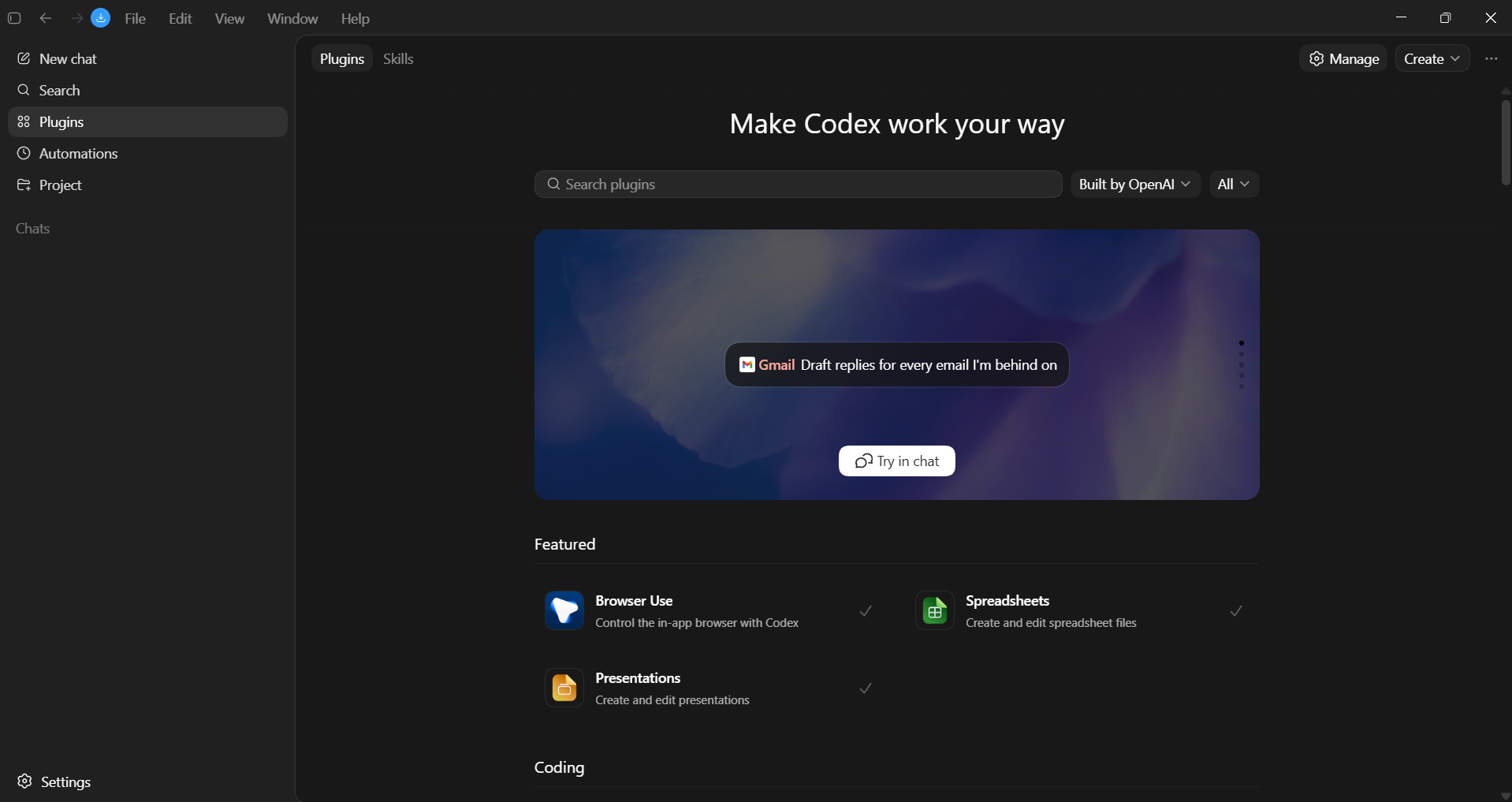
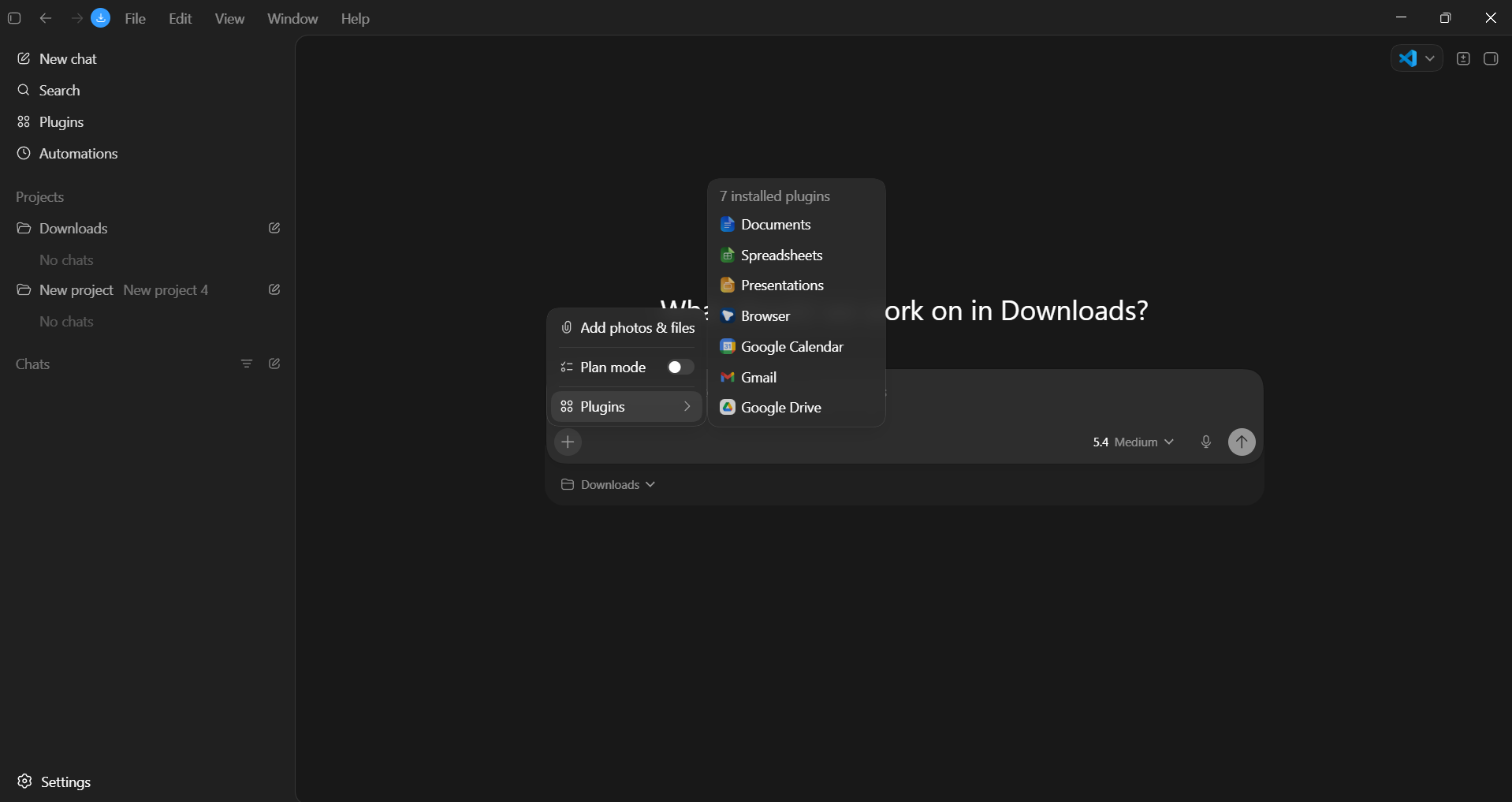
Open Codex, go to Plugins on the sidebar, and browse the catalog. Everyone's everyday work suite could be different; for some, it could be as simple as Gmail, Google Calendar, Google Drive, and Slack; for others, something else. Once these are connected, Codex can read your inbox, summarize channels, draft replies, pull data from a spreadsheet, or build a deck inside Slides, all from a single thread.
There are also connectors for project trackers like Linear and ClickUp, document hubs like Notion, and a growing list of business tools.
A practical tip: Only connect the tools you actually plan to use. Every plugin you add expands what Codex can do, but it also expands the surface area of what it could touch. Start simple and add more as you find concrete use cases.
Step 3: Set Up a Project and Give Codex Context
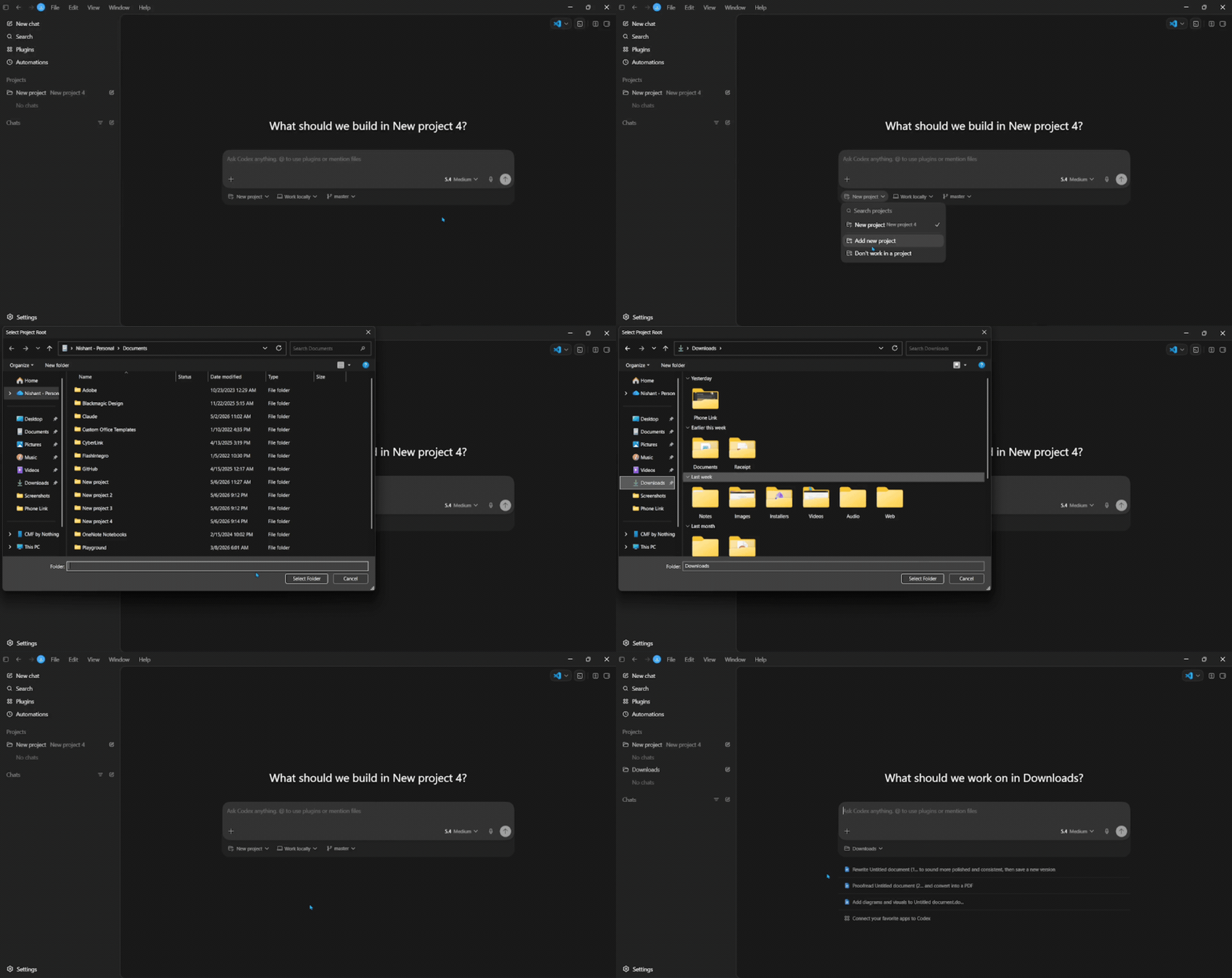
The single biggest mistake people make with Codex is treating it like a one-off chatbot. The better way to view Codex is more like a project workspace. For each ongoing area of work, whether it could be a product launch you're running, a customer you're managing, or a weekly report you publish, create a dedicated project so the context, instructions, and memory stay scoped to that work. You can either create a project from scratch or grant Codex direct access to a folder on your computer.
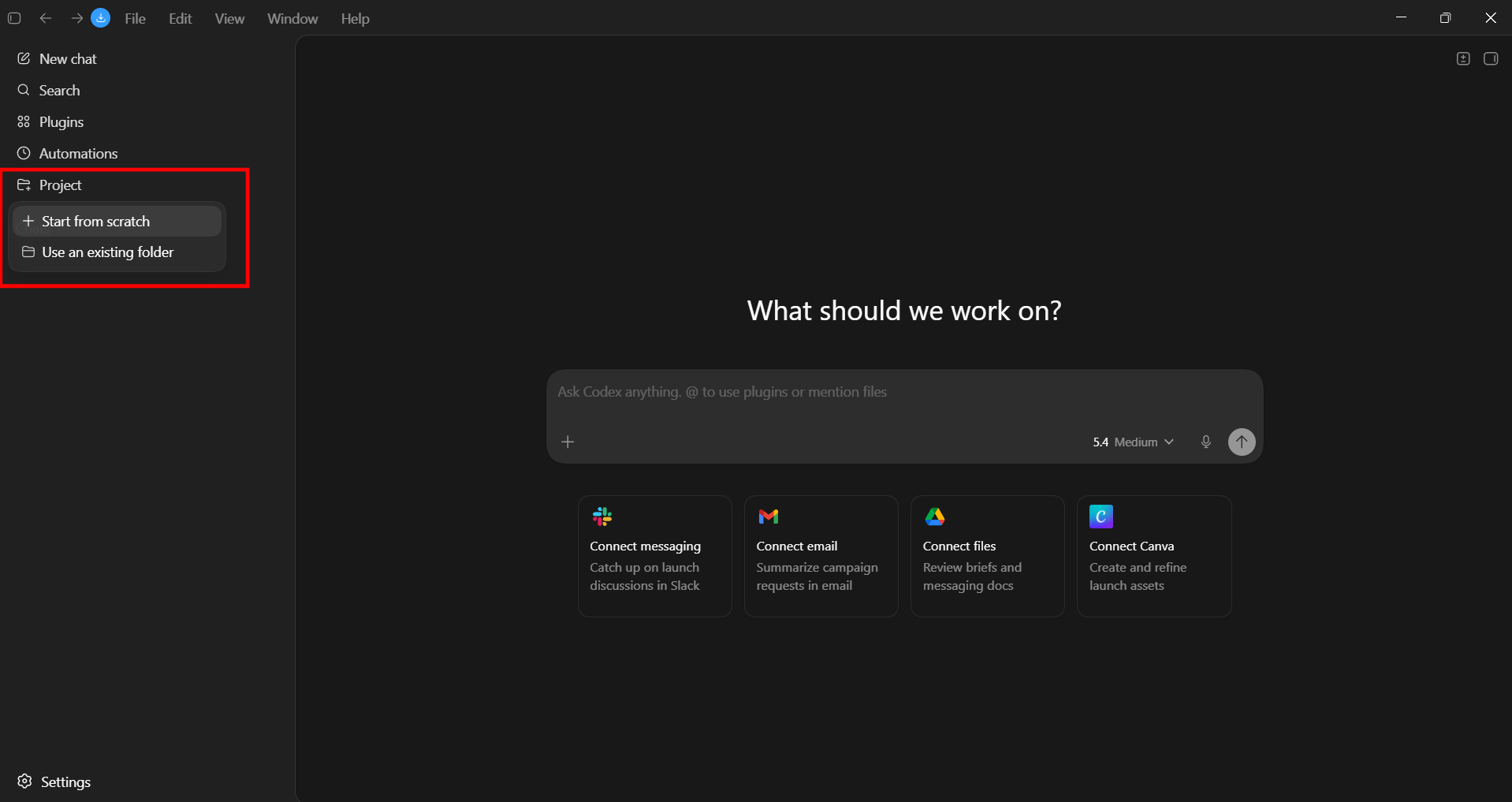
Inside a project, you can add the sources Codex should rely on. That can be a folder on your computer, a Google Drive folder, a Slack channel, a set of Sheets, or a mix of these. Codex can read these as the ground truth for the project, which means it stops hallucinating and starts producing output that actually reflects your reality.
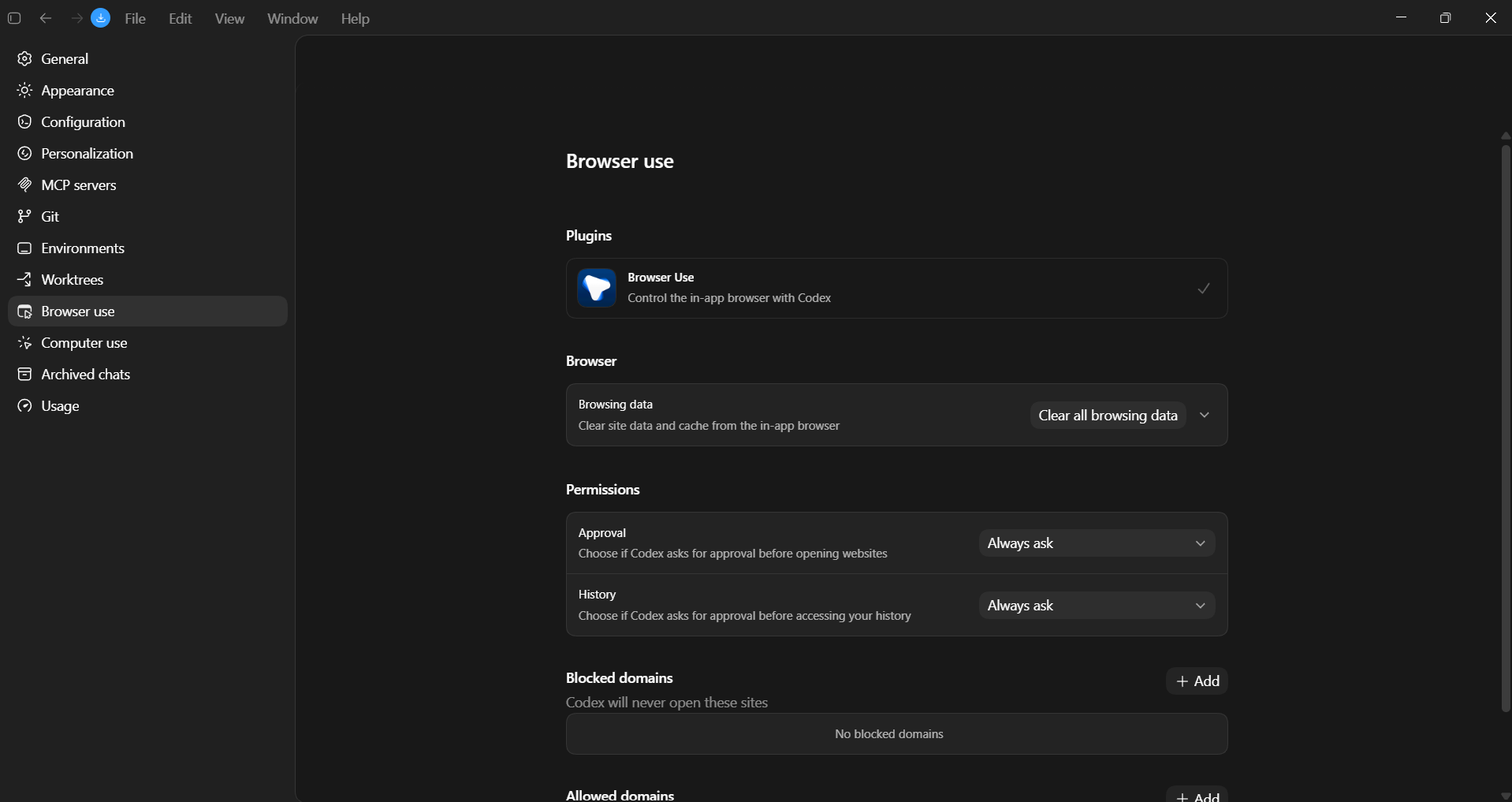
Go to settings and always make sure Codex asks for permission before doing anything on your computer or in your browser, whether it's opening sites, reading, or writing new files or content.
Step 4: Tell Codex What "Done" Looks Like
This is the step where most of the leverage is. A weak prompt to Codex will get you a weak output, the same way a vague brief to a teammate can create a vague deliverable. The trick is to describe the outcome, not the steps.
A good Codex task has four parts:
- The outcome (what output/outcome you want).
- The inputs (which sources to use).
- The format (file type, structure, length).
- The criteria for done (what you will check before approving it).
Simple example:
"Create a fun, interactive dashboard for me using my Download folder. Make it interesting."
That single instruction is doing the work that would normally take a long time to do manually, and even more time to create the interactive dashboard. Codex ran for 8 minutes and 17 seconds, where it planned the steps, fetched the sources, created the interactive dashboard, and saved it in the download folder.
You can also delegate repetitive work, ask Codex to create the weekly update every Wednesday morning, or to scan customer feedback every day and find anything urgent. When you schedule tasks, Codex wakes up on its own, runs the job, and either delivers the result or pings you for permission to perform the action that requires it.
Final Thoughts
In my experience, ChatGPT Codex has been very similar to Claude Cowork, and it seems like an attempt from OpenAI to create a Claude Cowork alternative. ChatGPT Codex for Work is simple to use and gives non-technical users a powerful agentic experience. Especially with the right plugins, skills, and a clear brief, you can get a surprising amount of work done.
An important thing for you to note is that while Codex is powerful, it is still an autonomous AI agent that acts on your tools and data. Hence, it is your responsibility to start with the lowest-permission setup that works. You must only connect the tools you need, grant write access only where you actually want Codex to take action, and use the permission prompts as a real review gate.
Always remember that Codex can be fooled by malicious input, the same way any agent, including Claude Cowork, can. If a document or message instructs Codex to do something that wasn't part of your task, it might try to comply. That is the case for Codex, for Claude's Cowork, and for every other generalist agent. Human oversight is still the safety net.
💡 For Partnership/Promotion on AI Tools Club, please check out our partnership page.
