


It doesn't matter what industry or department you are from; Microsoft Excel is used in almost all of them. Excel runs the world's back office. Finance teams, operations managers, and analysts spend more hours dealing with VLOOKUPs, pivot tables, and inherited formulas than they care to admit. While Excel is one of the most used office tools with plenty of useful features, it is often considered deeply complex, with a steep learning curve, and no rigid structure to prevent errors.
Thankfully, even if you are not an Excel expert, there are plenty of AI tools within Excel that can help you automate Excel tasks, and some are even capable enough to complete complex tasks for you. Previously, we mentioned Claude and ChatGPT for Excel; however, both needed users to be subscribed to a paid plan.
If you are an avid free AI user, there is a new AI assistant for Excel that is completely free to use: Genspark for Excel.
What is Genspark for Excel?
Genspark rolled out Workspace 4.0, embedding its Slides, Sheets, and Docs agents as native plugins across PowerPoint, Excel, and Word. Genspark for Excel is a newly launched AI assistant for Excel designed to make your work easier by allowing you to have plain-English conversations directly within the spreadsheet, without needing to switch tabs.
The AI assistant is an add-in that works within Excel. It can handle formulas, charts, and analysis, and you just need to describe what you need. The AI assistant can write the formula, build the chart, or find the insight directly in your cells.
Key Features at a Glance
- Plain-English formula writing: You describe the idea; get the formula. The AI assistant will handle VLOOKUP through complex array formulas, inserted directly into your cells.
- Native chart generation: You can select a range and tell the AI what chart/graph you want and get bar, line, pivot, or combo charts ready for your deck.
- Conversational data analysis: You can ask questions in natural language to get trends, outliers, and summaries without writing complicated formulas.
- Formula explainer: You can paste any tangled inherited formula, and Genspark breaks it down step by step, helping you debug and learn at once.
- Web-research-to-spreadsheet: Genspark can search the web and auto-fill cells with results, compressing an hour of manual copy-paste into a single prompt.
How to use Genspark for Excel:
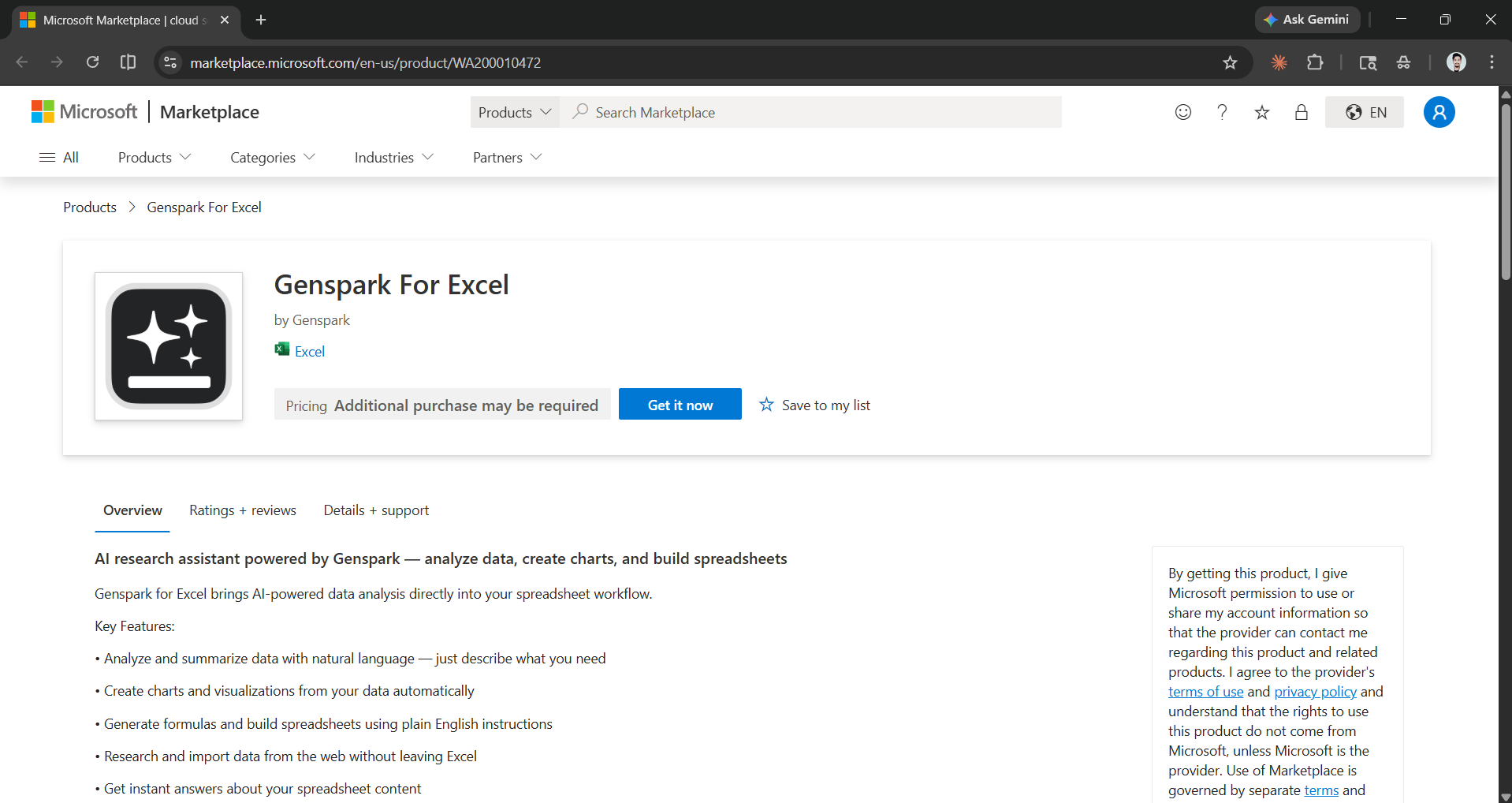
Step 1: You can either get Genspark for Excel from the Microsoft Marketplace or search and install it directly in Excel Add-ins.
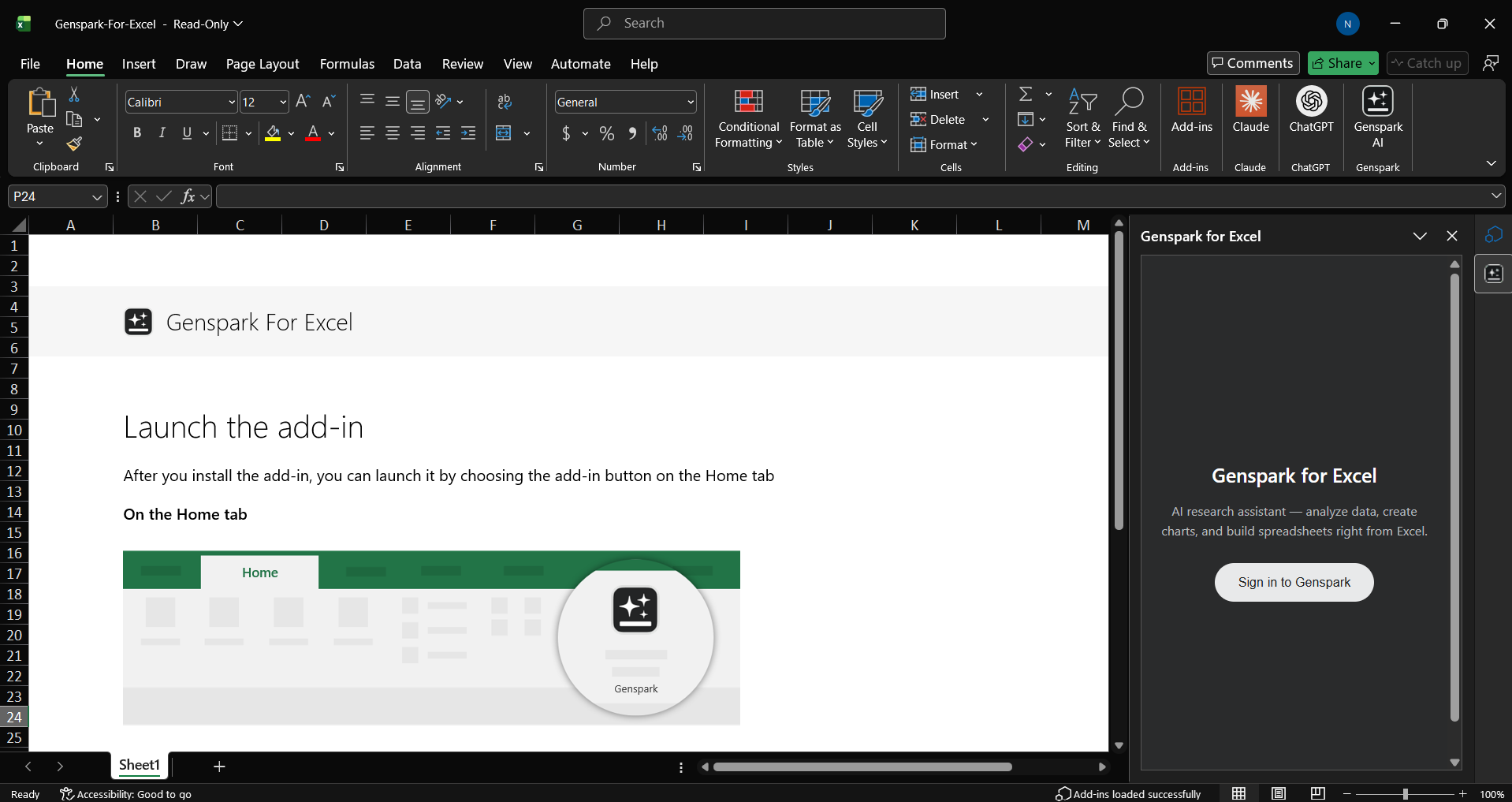
Step 2: Once you have installed the AI assistant, log in to your Genspark account.
Step 3: Get started with Genspark for Excel. You can prompt it to research and fill cells for you, or even create charts and give you insights.
Prompt: Find and compare the 2026 Q1 earnings reports of top tech companies against their earnings last year. Also, create charts to compare companies against each other and against their previous earnings results. Then give me insights on what you found.
In Conclusion:
We have seen an increase in AI companies targeting and integrating AI tools/features into everyday productivity tools like Excel. We have already seen ChatGPT, Griddy AI, and Claude for Excel, and now we have Genspark for Excel. All these tools offer similar features and have similar capabilities.
While we did mention that Genspark for Excel is free to use, in our tests, we couldn't get past one prompt, which means the initial credit limit is very low, and you can't ask follow-up questions without a paid plan. If you are interested, check out the AI assistant for free, and if you like its output, you can sign up for Genspark's paid plan too.
💡 For Partnership/Promotion on AI Tools Club, please check out our partnership page.

