


Claude for Chrome is Anthropic's browser-based AI agent that runs as a Chrome extension. It isn't like a regular chatbot in a side panel; Claude for Chrome can actually navigate websites, click buttons, fill out forms, and pull data from any open tab. Anyone with a paid Claude plan can install it as a Chrome extension and start using it today.
Previously, we showed you how you can get started with Claude for Chrome to automate your browser tasks. While Anthropic offers Claude Cowork, an amazing AI agent for desktop tasks, a huge portion of your workweek could be taking place in your browser; work related to dashboards, CRMs, inboxes, calendars, and competitor sites. That is exactly what Claude for Chrome is built for.
In this article, we will show you how to automate your entire browser workflow with Claude for Chrome with five real workflows and copy-paste prompts you can run as soon as you finish reading.
Getting Started with Claude for Chrome
Make sure you're set up.
- You'll need a paid Claude plan (Pro, Max, Team, or Enterprise). Claude for Chrome is currently in beta and not available on the free tier.
- Install the Claude extension from the Chrome Web Store and pin it to your toolbar so you can launch it on any tab with one click.
- Sign in with the same Claude account you use for Claude Desktop or Claude Cowork. Context flows automatically between them, so a research task started in Chrome can hand off to Cowork to produce a final deliverable.
A few things to keep in mind before you run the prompts below.
- Ask before acting: Make sure you have selected 'ask before acting' so that every time Claude takes an action on a new site (clicks a button, fills a form, etc.), it will ask for permission. If you choose to act without asking, it could be risky; Claude will act without seeking approval.
- Treat it like a beta product: Anthropic has been upfront about the unique risks browser AI faces, such as prompt injection. Start with a low-stakes task you can perform on familiar sites. Avoid running it on banking, password managers, or anything financial until you are very comfortable with how it behaves.
- Pair it with Cowork for deliverables: Claude for Chrome is excellent at gathering and acting on the web, but if you want a polished Excel model, PowerPoint deck, or Word report at the end, hand off to Cowork in the Claude Desktop app.
How to automate your entire browser workflow using Claude for Chrome (5 Copy-Paste ready prompts):
1. The Daily Analytics Pull
The problem:
If you work with analytics every Monday morning or every day, you have to log into Google Analytics, Mixpanel, or Stripe, go through the numbers, copy them into a spreadsheet, and write a two-line summary for your team on Slack. It is forty-five minutes of pure tab-switching before you have done any actual work.
The automation:
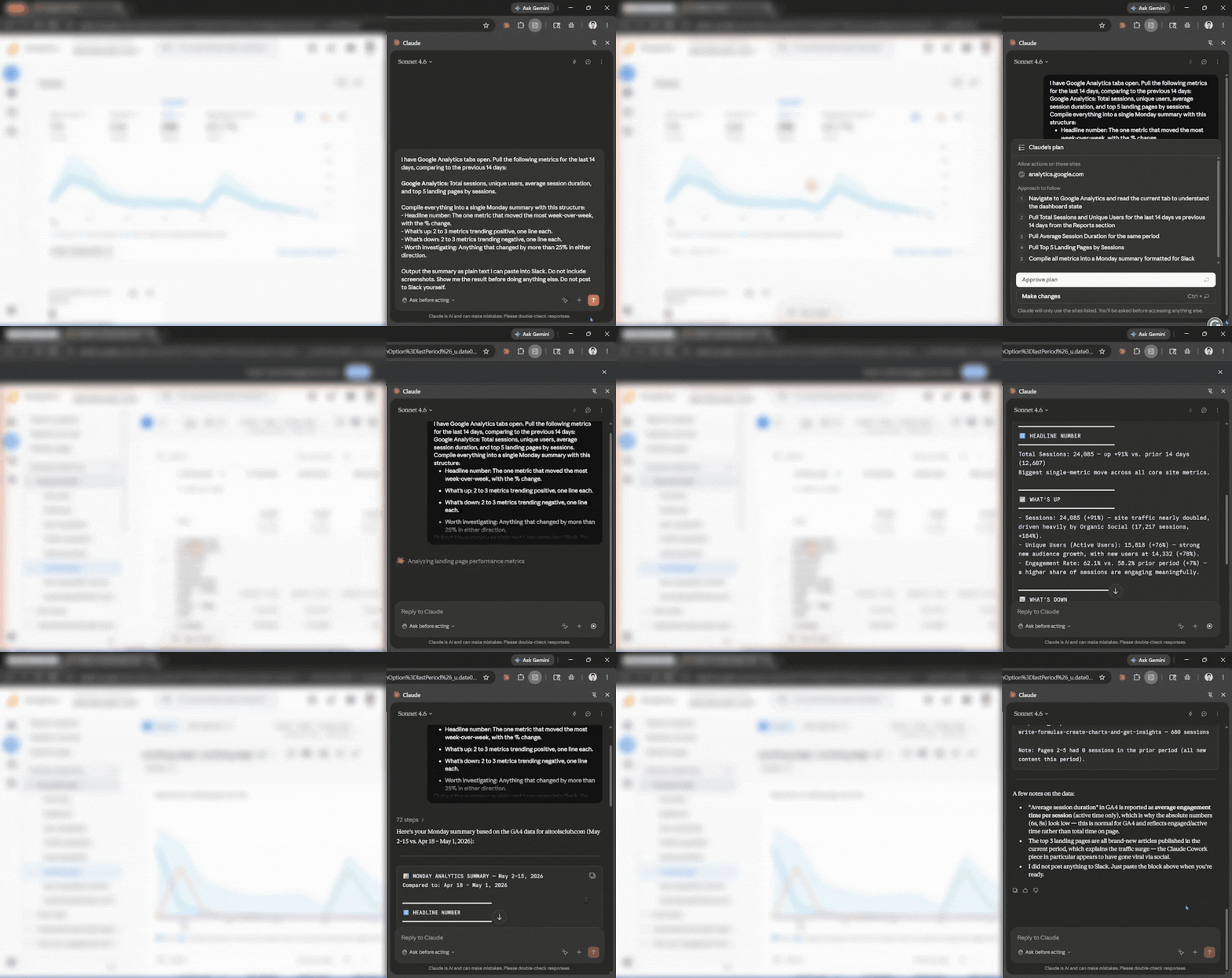
You can open the dashboards you usually check, but instead of going through everything yourself, you let Claude for Chrome visit each one, extract the data you are looking for, and compile them into a single summary you can paste anywhere.
The prompt:
I have analytics tabs open for Google Analytics, Mixpanel, and Stripe.

Visit each tab in order and pull the following metrics for the last 14 days, comparing to the previous 14 days:
Google Analytics: Total sessions, unique users, average session duration, and top 5 landing pages by sessions.
Mixpanel: Total signups, activation rate (defined as users who completed onboarding), and top 3 events by volume.
Stripe: New MRR, churned MRR, net new MRR, number of new paying customers.

Compile everything into a single Monday summary with this structure:
- Headline number: The one metric that moved the most week-over-week, with the % change.
- What's up: 2 to 3 metrics trending positive, one line each.
- What's down: 2 to 3 metrics trending negative, one line each.
- Worth investigating: Anything that changed by more than 25% in either direction.

Output the summary as plain text I can paste into Slack. Do not include screenshots. Show me the result before doing anything else. Do not post to Slack yourself.
Why is this one high-leverage?
It can be used weekly or daily, immediately saving you time (30–45 minutes every Monday), and it forces Claude to do the one thing browsers are uniquely good at: touching live data behind a login. After your first run, save the prompt and just edit the date range each week.
2. The Inbox Triage and Promotional Cleanup
The problem:
Your Gmail could have 14,000 unread emails. Most of them are newsletters, marketing blasts, calendar notifications, receipts you'll never read again, and you left something in your cart emails. Buried in there are maybe a dozen things that actually matter. You have been meaning to clean it up for two years.
The automation:
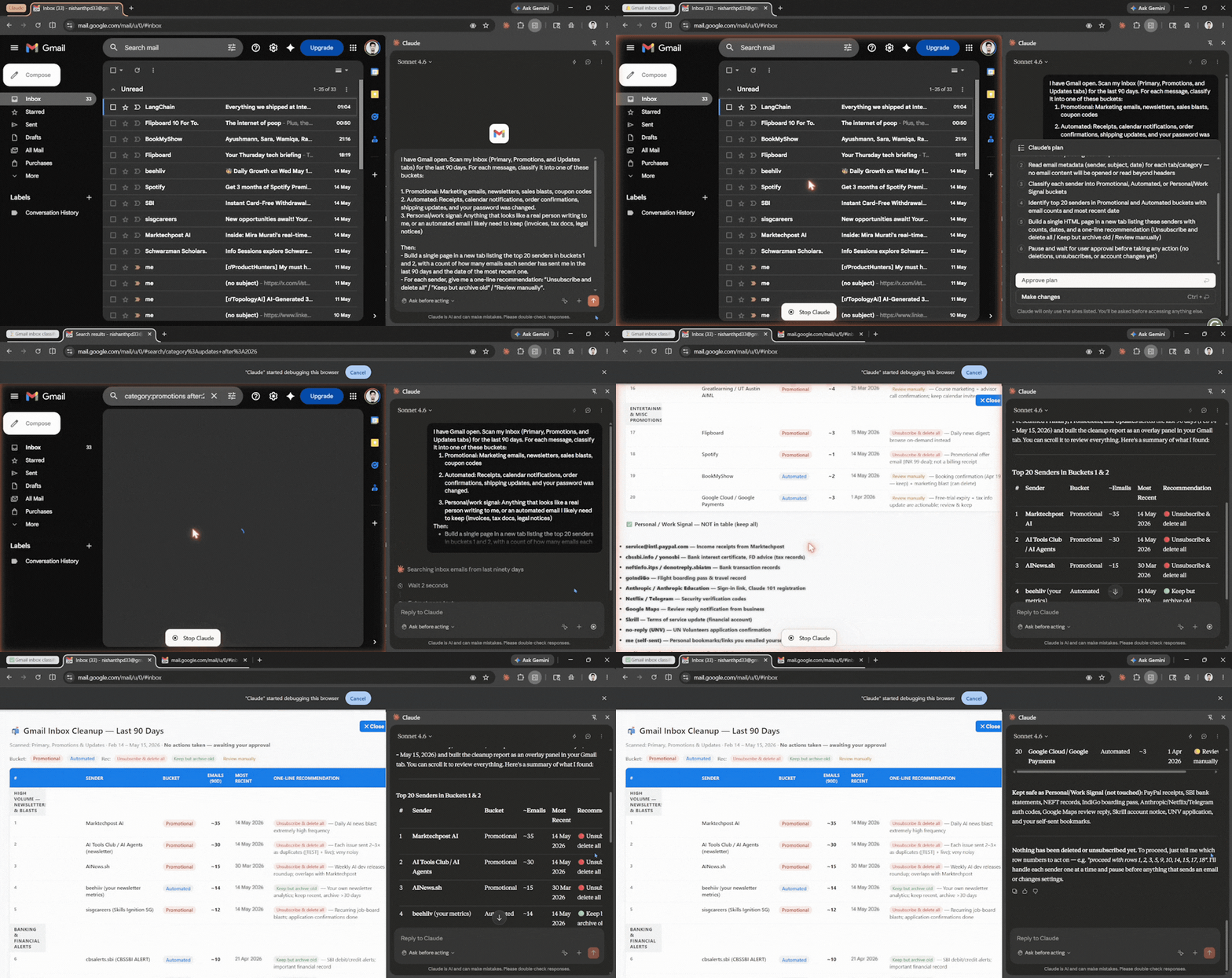
You start by opening Gmail in a tab and letting Claude for Chrome scan it for you. It can find the noise, find the signal, and pre-approve a bulk deletion in one click.
The prompt:
I have Gmail open. Scan my inbox (Primary, Promotions, and Updates tabs) for the last 90 days. For each message, classify it into one of these buckets:

1. Promotional: Marketing emails, newsletters, sales blasts, coupon codes
2. Automated: Receipts, calendar notifications, order confirmations, shipping updates, and your password was changed.
3. Personal/work signal: Anything that looks like a real person writing to me, or an automated email I likely need to keep (invoices, tax docs, legal notices)

Then:
- Build a single page in a new tab listing the top 20 senders in buckets 1 and 2, with a count of how many emails each sender has sent me in the last 90 days and the date of the most recent one.
- For each sender, give me a one-line recommendation: "Unsubscribe and delete all" / "Keep but archive old" / "Review manually".
- Do NOT delete or unsubscribe from anything yet. Wait for my approval on the list.

Once I approve, for senders, I confirm: Open each email from that sender in the inbox, mark them all, and move them to Trash in a single batch. For unsubscribes, click the unsubscribe link in the most recent email from that sender and confirm. Pause before any action that sends an email on my behalf or changes account settings
Why is this one high-leverage?
This is the I'll do it someday task that everyone has. Compressed from a Saturday afternoon into ten supervised minutes. It also teaches you a key pattern with Claude for Chrome: analyze first, get human approval, then execute in batches.
3. Competitor Research Into a Polished Comparison Deck
The problem:
Your VP needs a competitor comparison deck by the end of the week. You have five competitors to research, each with its own pricing page, features, positioning, and recent blog updates. You spend three days gathering information and putting it into a Google Doc. Then, you take another day to make it look professional in PowerPoint.
The automation:
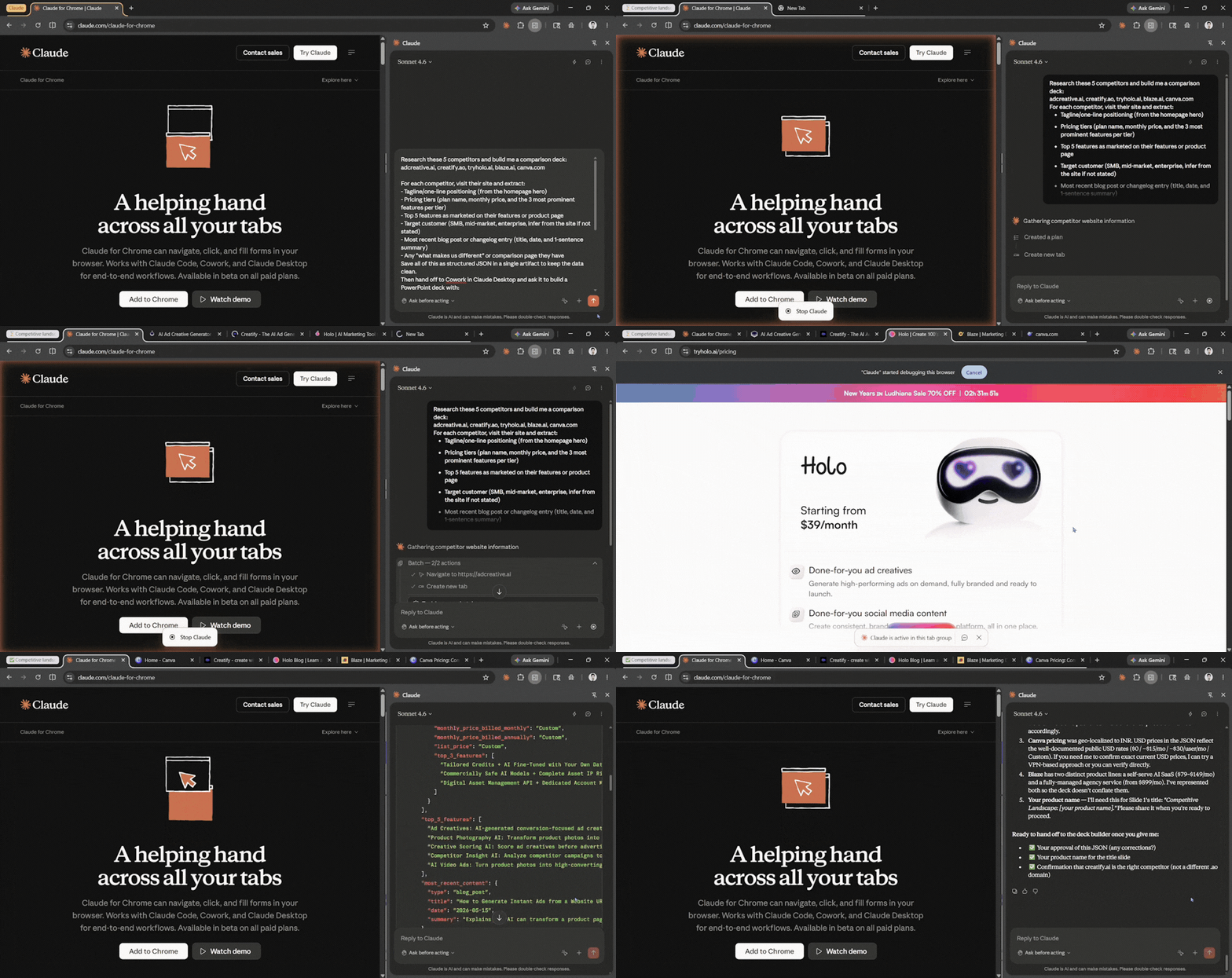
This is where Claude for Chrome and Cowork shine together. Chrome visits each competitor's site and pulls structured data. Then you hand off to Cowork in the Claude Desktop app to turn that data into a finished PowerPoint deck without any copy-paste.
The prompt:
Research these 5 competitors and build me a comparison deck:
[Competitor 1 URL], [Competitor 2 URL], [Competitor 3 URL], [Competitor 4 URL], [Competitor 5 URL]

For each competitor, visit their site and extract:
- Tagline/one-line positioning (from the homepage hero)
- Pricing tiers (plan name, monthly price, and the 3 most prominent features per tier)
- Top 5 features as marketed on their features or product page
- Target customer (SMB, mid-market, enterprise, infer from the site if not stated)
- Most recent blog post or changelog entry (title, date, and 1-sentence summary)
- Any "what makes us different" or comparison page they have

Save all of this as structured JSON in a single artifact to keep the data clean.

Then hand off to Cowork in Claude Desktop and ask it to build a PowerPoint deck with:
- Slide 1: Title slide "Competitive Landscape: [my product name]."
- Slide 2: Market positioning matrix (a 2x2 plotting price vs. target customer size)
- Slides 3–7: One slide per competitor with logo, tagline, pricing table, top features, and a "what they do well / where they're weak" bullet list
- Slide 8: Side-by-side pricing comparison table across all 5
- Slide 9: Feature parity matrix (rows = features, columns = competitors, checkmarks)
- Slide 10: Recommendations 3 bullet points on where we should differentiate

Pause for my review of the JSON before kicking off the deck build. Do not make assumptions about pricing. If a competitor hides pricing behind a contact sales gate, mark it as Custom rather than guessing.
Why is this one high-leverage?
A real competitive analysis can take 3-4 days per week. However, you can use Claude for Chrome to collect data and let Cowork handle production; that way, you can compress that 3-4 days' worth of work into a 90-minute supervised run plus 30 minutes of edits. It also shows off the single best feature in Anthropic's lineup right now, the seamless handoff from browser to desktop without copy-paste.
4. The Calendar-and-Inbox Morning Prep
The problem:
You walk into your 9 a.m. meeting cold, or you've barely skimmed the agenda and description. Someone is going to ask you something specific that you should have remembered but didn't, which can damage your professional reputation, and you leave the meeting with more unresolved questions.
The automation:
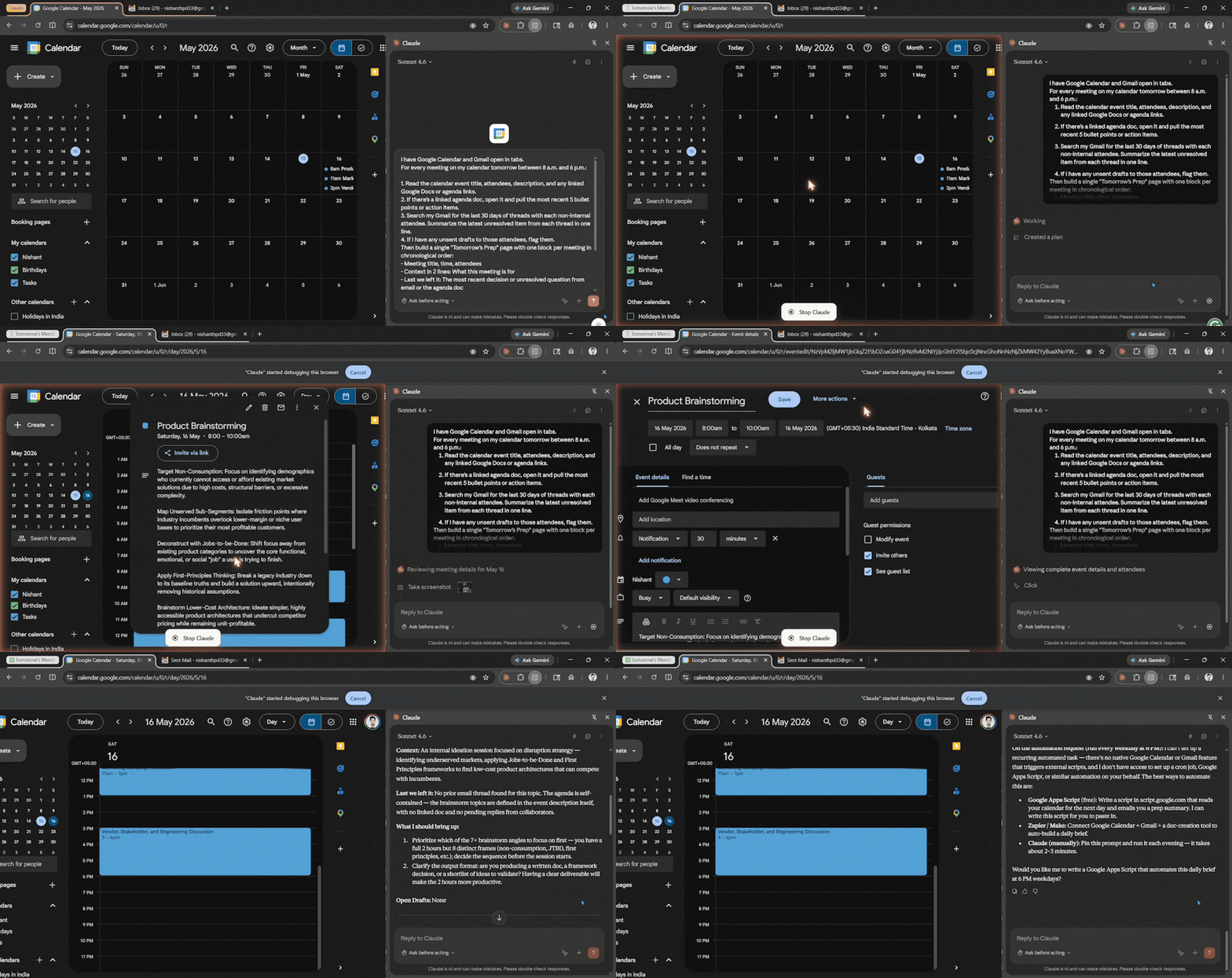
Claude for Chrome can read your Google Calendar, follow the linked agenda docs, pull the email threads for each attendee, and produce a one-page prep for every meeting on your day, every evening, without you having to trigger it.
The prompt:
I have Google Calendar and Gmail open in tabs.
For every meeting on my calendar tomorrow between 8 a.m. and 6 p.m.:

1. Read the calendar event title, attendees, description, and any linked Google Docs or agenda links.
2. If there's a linked agenda doc, open it and pull the most recent 5 bullet points or action items.
3. Search my Gmail for the last 30 days of threads with each non-internal attendee. Summarize the latest unresolved item from each thread in one line.
4. If I have any unsent drafts to those attendees, flag them.

Then build a single "Tomorrow's Prep" page with one block per meeting in chronological order:
- Meeting title, time, attendees
- Context in 2 lines: What this meeting is for
- Last we left it: The most recent decision or unresolved question from email or the agenda doc
- What I should bring up: 2 specific things, drawn from threads where I owe someone an answer
- Open drafts: Any unsent emails to attendees

Format as a clean, single-page document I can read in under 4 minutes. Schedule this to run automatically every weekday at 6 p.m. so it's waiting for me when I open my laptop in the morning.
Why is this one high-leverage?
You will show up to every meeting having read the relevant context, every single day, for the rest of your career. The compounding effect of being the most prepared person in every room is hard to overstate. And because Claude for Chrome supports scheduled workflows, you set it up once and never trigger it again.
5. The Google Drive Cleanup
The problem:
Most of us have a messy Google Drive with "Untitled document," dozens of "Copy of Copy of Q3 plan," and folders you abandoned three quarters ago. These may seem non-offensive, but they take up most of your Drive storage.
The automation:
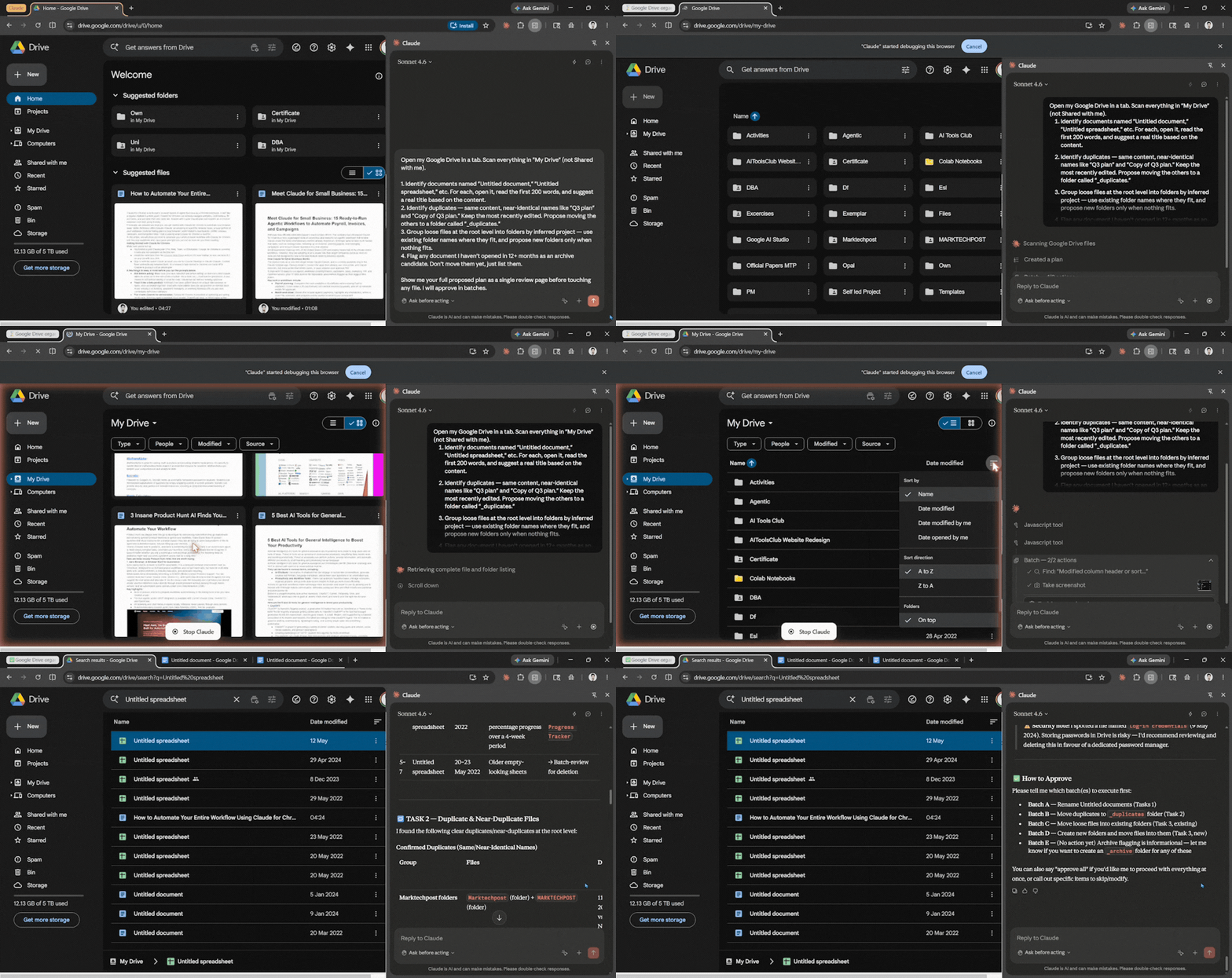
Manually managing and cleaning Google Drive can take up an entire Sunday (trust me, I have done it before). So, instead of you wasting your time on manual management, you can ask Claude for Chrome to sort your Google Drive for you.
Prompt:
Open my Google Drive in a tab. Scan everything in "My Drive" (not Shared with me).

1. Identify documents named "Untitled document," "Untitled spreadsheet," etc. For each, open it, read the first 200 words, and suggest a real title based on the content.
2. Identify duplicates — same content, near-identical names like "Q3 plan" and "Copy of Q3 plan." Keep the most recently edited. Propose moving the others to a folder called "_duplicates."
3. Group loose files at the root level into folders by inferred project — use existing folder names where they fit, and propose new folders only when nothing fits.
4. Flag any document I haven't opened in 12+ months as an archive candidate. Don't move them yet, just list them.

Show me your full proposed plan as a single review page before touching any file. I will approve in batches.
Why is this one high-leverage?
Drive cleanup is similar to Indox clean. A task you always leave for later that never actually gets done, because the cost of doing it manually (a full Saturday of clicking through hundreds of files) is just barely worse than the cost of living with the mess. Claude for Chrome changes that by reading and grouping in the background while you approve in batches, so an afternoon of dread becomes 15 minutes of review. Once you have run it on Drive, the same pattern works on Dropbox, Box, or any other web-based file system you use.
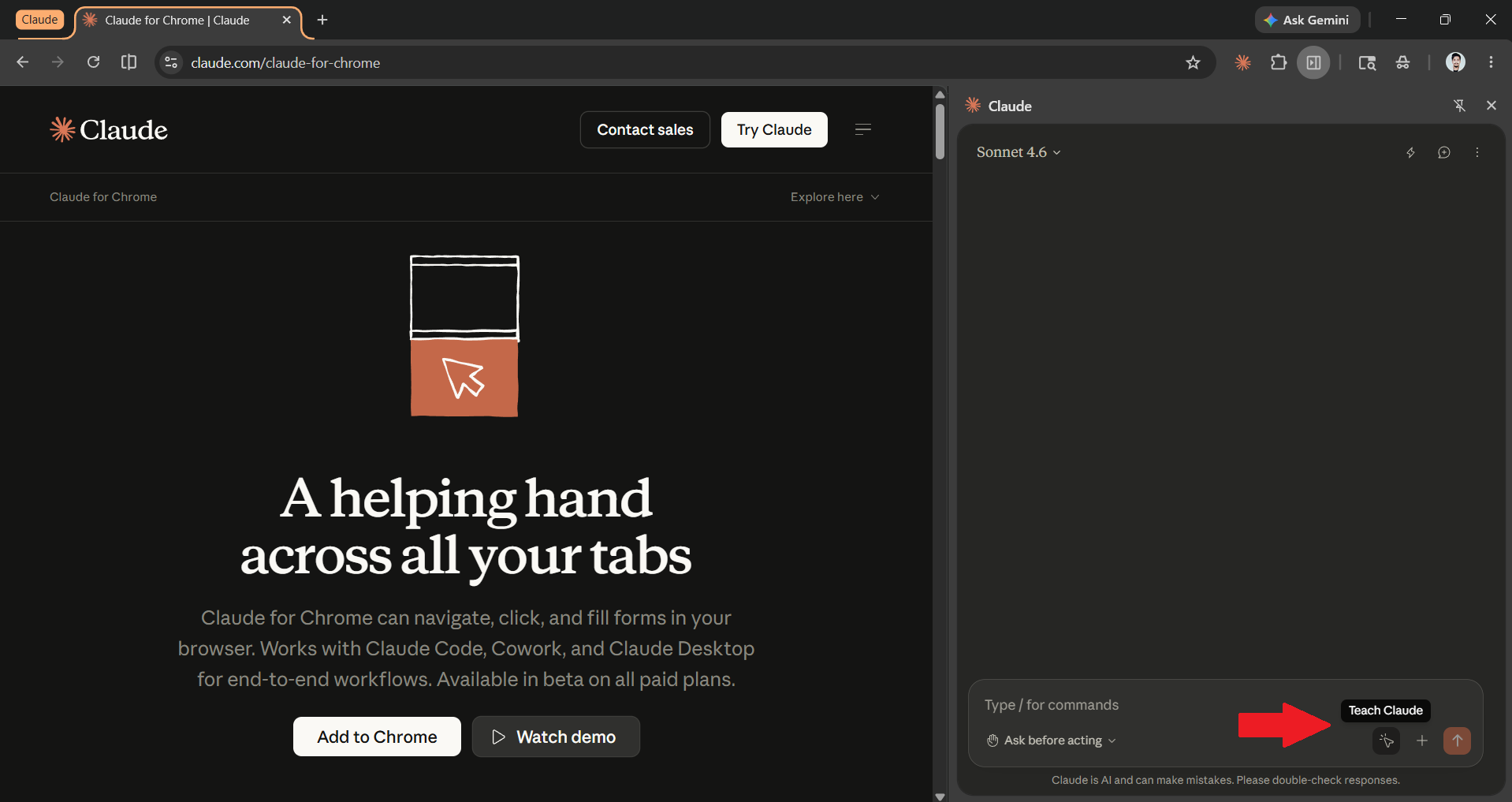
Bonus: Teach Claude Your Workflow
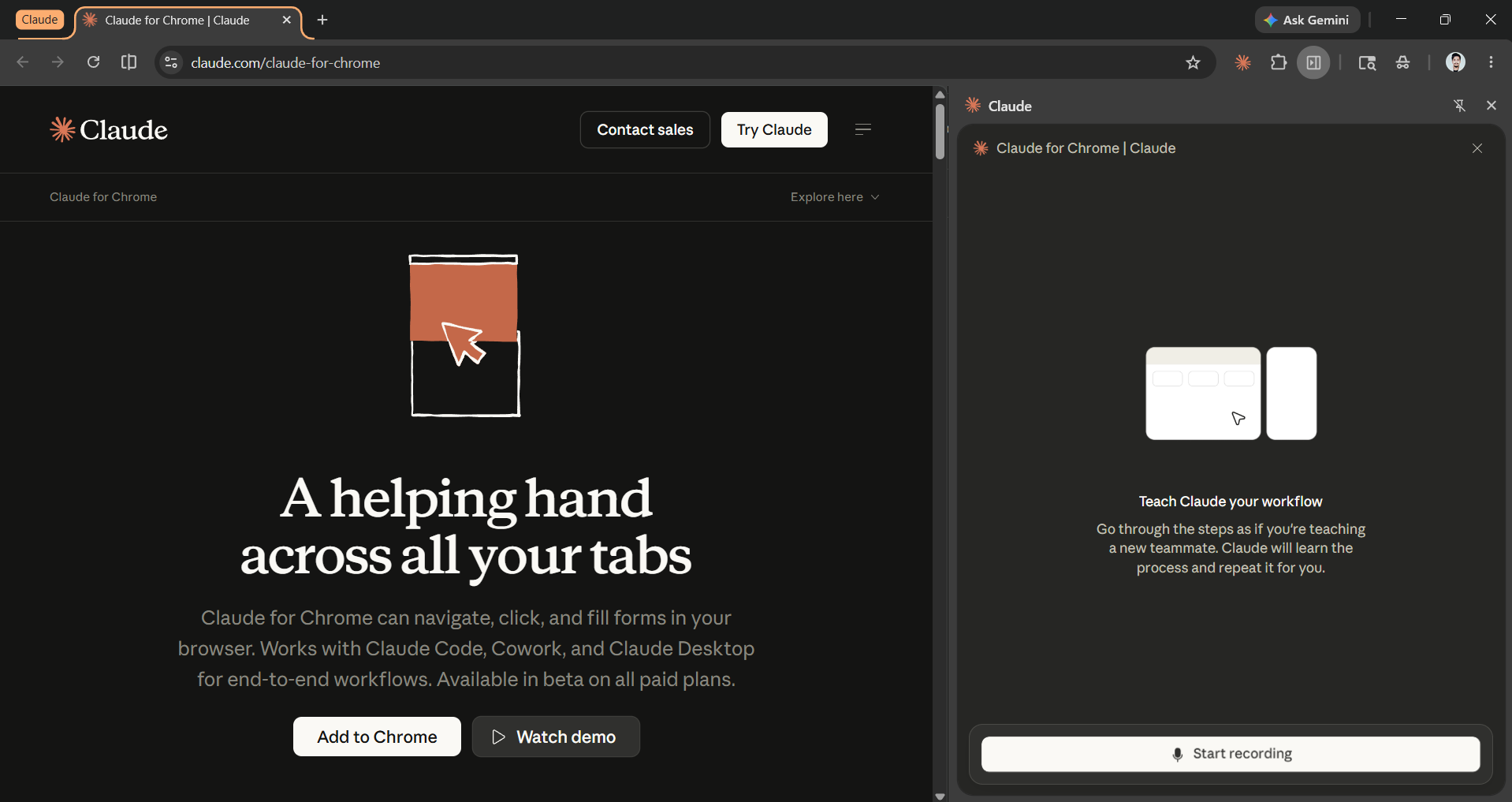
You can also teach Claude your workflow. How? You would first need to enable your microphone and narrate as you show Claude the workflow. You can go through the steps as if you were teaching a new teammate or intern. Claude will learn the process and repeat it for you.
Editor's Note:
Claude for Chrome is a beta product with both strengths and weaknesses. The strengths include its ability to interact with your live dashboards or CRM like a human would. The weaknesses are that it sometimes hallucinates buttons or information that aren't there, and may pause on obvious steps. You can fix these issues by using it only on familiar, well-structured sites and by keeping the "ask before acting" mode switched on for any actions that require writing or editing data to important systems.
We can't promise Claude for Chrome will automate every browser task you do. We can promise that, for the right tasks like live-data pulls, inbox cleanups, and multi-tab research, it will be genuinely transformative. The other thing worth saying is that Claude for Chrome is at its best paired with Cowork. Chrome is the hands that touch the web. Cowork is the workshop that turns what you collected into a finished deck, spreadsheet, or report. Run them together, and you have a complete agent, one that can both go get the information and produce the deliverable, with you in the loop only when it actually matters.
Start with one of the five prompts above this week. Run it on a low-stakes task first. Once you have built the trust, the rest of your browser workflow follows.
💡 For Partnership/Promotion on AI Tools Club, please check out our partnership page.
