


Most of us live inside a browser with tabs, dashboards, inboxes, CRMs, Drive folders, spreadsheets opened in a web app. It is surprising how much real work is just moving information between these tabs, where you copy a number from one place, paste it into another, click the same five buttons every Monday morning, repeat. The actual thinking part of the job often takes less time than the clicking around that surrounds it. What if there were a plugin that completely automates the boring task for you?
Anthropic already has a few of the best AI tools and agents in its arsenal, with Claude as an everyday AI assistant, Claude Code for agentic coding, and Claude Cowork as a no-code AI agent for everyone. I have been using Claude myself for a long time, and we have also shared many tutorials on Claude. However, many people, including myself, have slept on one of Anthropic's best tools.
Claude for Chrome is an underrated tool that not many people are talking about, while it can quietly change how you work in your browser. In this article, we'll show you how you can get started with the Claude for Chrome plugin that lets Claude navigate the web, click buttons, fill forms, and actually carry out work on the pages you already use, and automate your everyday tasks.
AdCreative.ai: An AI-powered platform that automates the creation of high-performing ad creatives for social media and display campaigns
What is Claude for Chrome?
Claude for Chrome is a browser extension that brings Claude's agentic capabilities directly into Google Chrome. Once you have installed the plugin, Claude can see the page you're on, navigate to other pages, click links and buttons, fill out forms, and pull information across tabs, just like a person would, except it doesn't get bored or distracted.
It's currently available in beta on all paid Claude plans (Pro, Max, Team, and Enterprise) and works alongside the rest of the Claude lineup. You can run it standalone in the browser, trigger it from Claude Desktop, hand off browser research to Claude Cowork to build the final deliverable, or pair it with Claude Code for browser-based testing and iteration.
The key change is that Claude is no longer a chat window you copy and paste into; it's now a teammate in your browser that can act on what's there. You stay in control. Claude asks for permission before doing anything irreversible, and you can pre-approve which sites and actions it's allowed to take.
Claude for Chrome features and capabilities
When you actually start using Claude for Chrome, you'll realize it is not like your typical AI in your browser plugin; it's something much more capable and powerful.
- Page-aware assistance: Claude can read whatever page you're on and answer questions about it, summarize it, extract structured data from it, or compare it against another tab. You no longer need to copy and paste loads of text into a chat window.
- Take real actions in the browser: This is the headline feature. Claude can navigate to URLs, click buttons, fill forms, submit them, and move between tabs. If you can do it with a mouse and keyboard, Claude can usually do it too.
- Permissions you control: You decide which sites Claude can act on and which actions require manual approval. Sensitive or irreversible actions (like making a purchase) get an explicit confirmation prompt by default, even on sites you've trusted.
- Background tasks: You can start a workflow and switch to something else, and Claude will keep clicking, scrolling, and filling in the background while you focus on your real work, then give you the result when it's done.
- Works with Cowork, Desktop, and Code: This is what makes it more than a glorified web scraper. Chrome plugin does the browser-side gathering and clicking, then hands off to Cowork to build the Excel model, PowerPoint, or report. Claude Desktop can start browser tasks without you having to switch windows. Developers can use Claude Code to drive Chrome for testing and iterating on browser-based projects.
- Teach Claude: Claude for Chrome doesn't randomly complete tasks on your behalf. You can also teach Claude your workflow by enabling your microphone to narrate as you demonstrate it. Claude will learn the process and repeat it for you.
How to use Claude for Chrome to automate your workflow:
The setup is short. You can run your first task within 5 minutes.
Step 1: Install the extension.
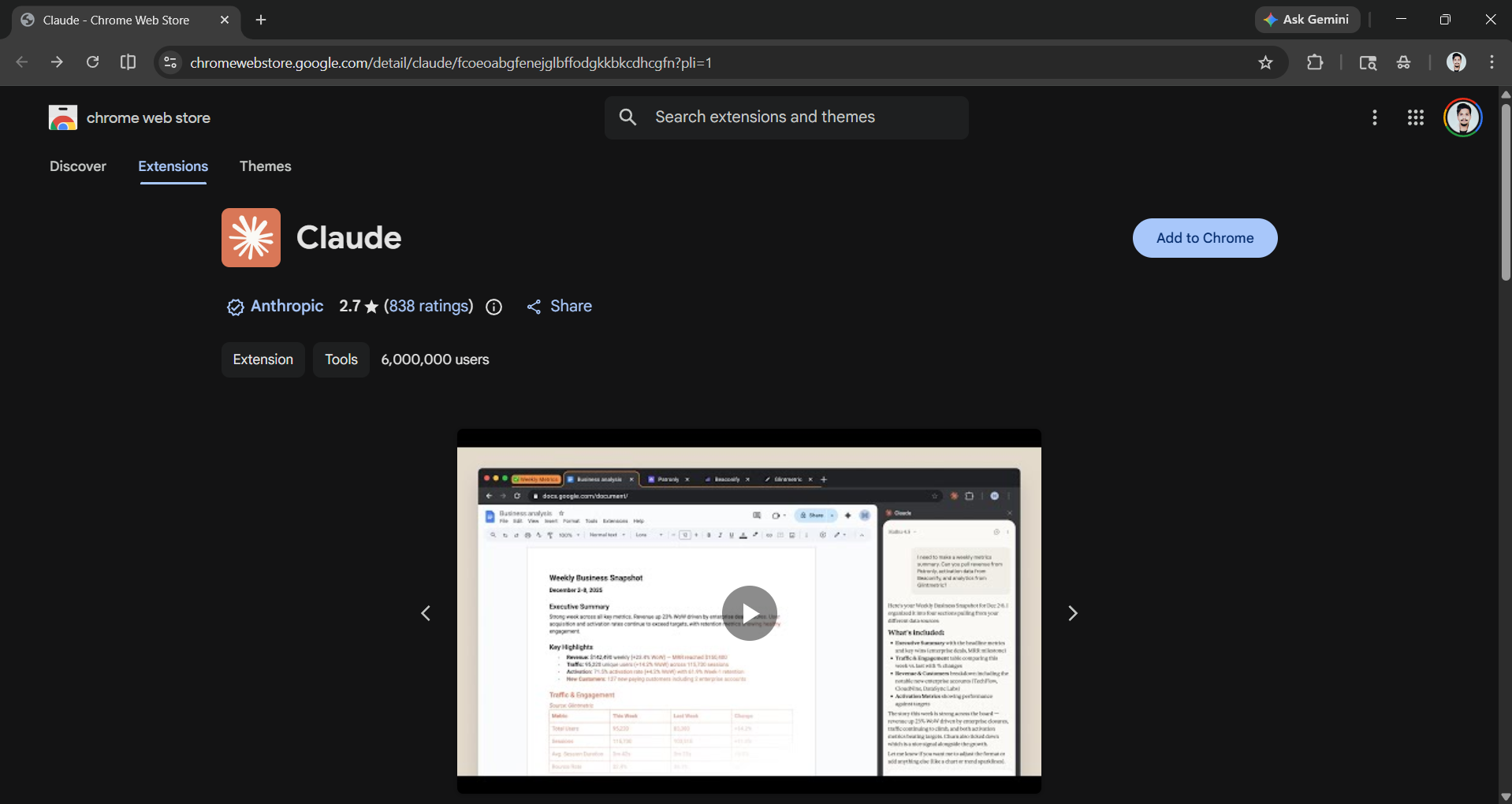
Go to the Claude for Chrome listing on the Chrome Web Store, then click Add to Chrome to start installing the plugin. You'll need to be signed into a paid Claude account (Pro, Max, Team, or Enterprise), and after installing, pin the extension to your toolbar so it's one click away.
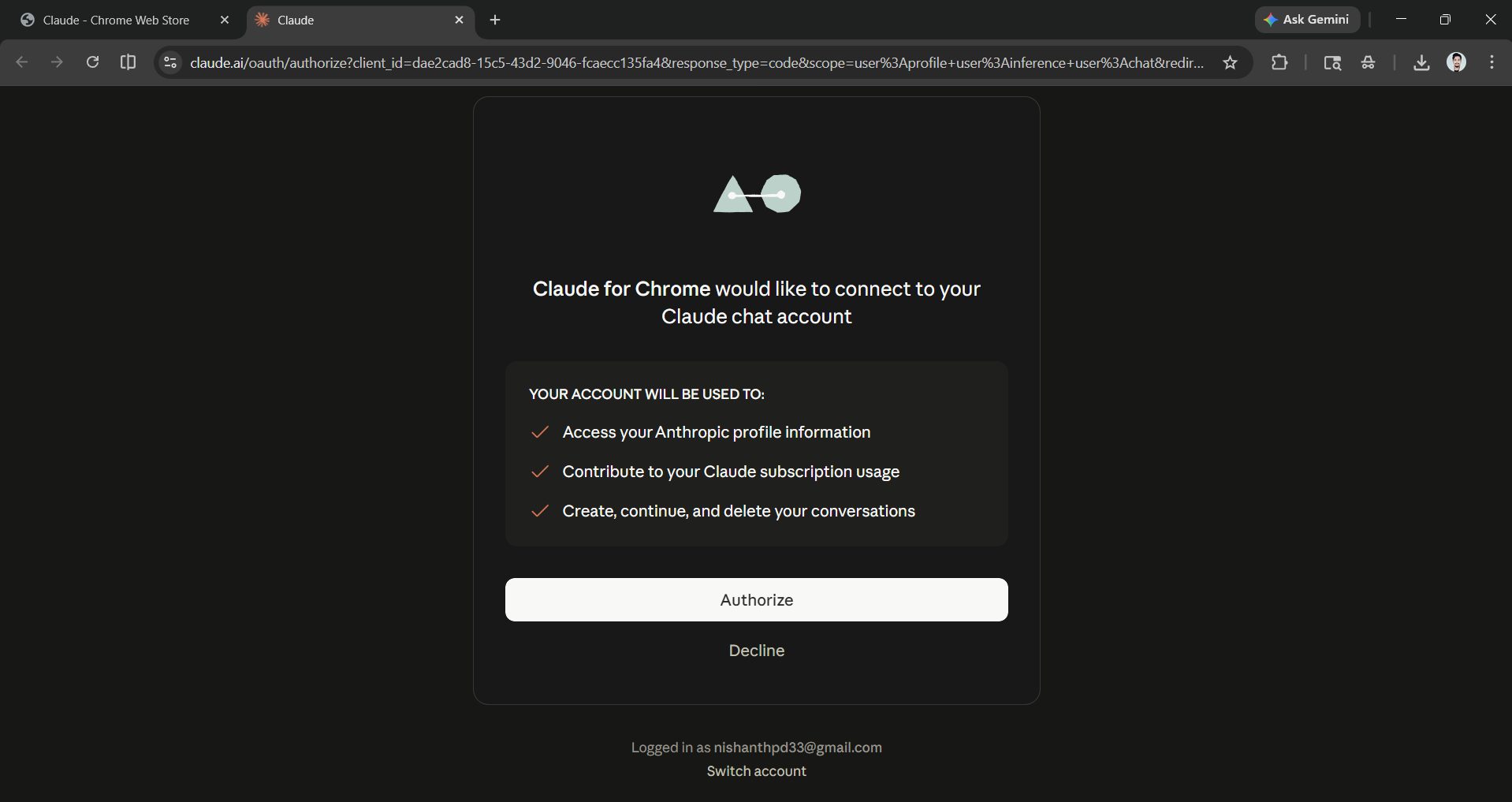
Step 2: Sign in and review the permissions screen.
The first time you open the extension, it'll walk you through what it can and can't do, plus the beta safety warnings. Read them. Seriously. This isn't a "I accept" speed run, because the warnings actually change how you should use the tool.
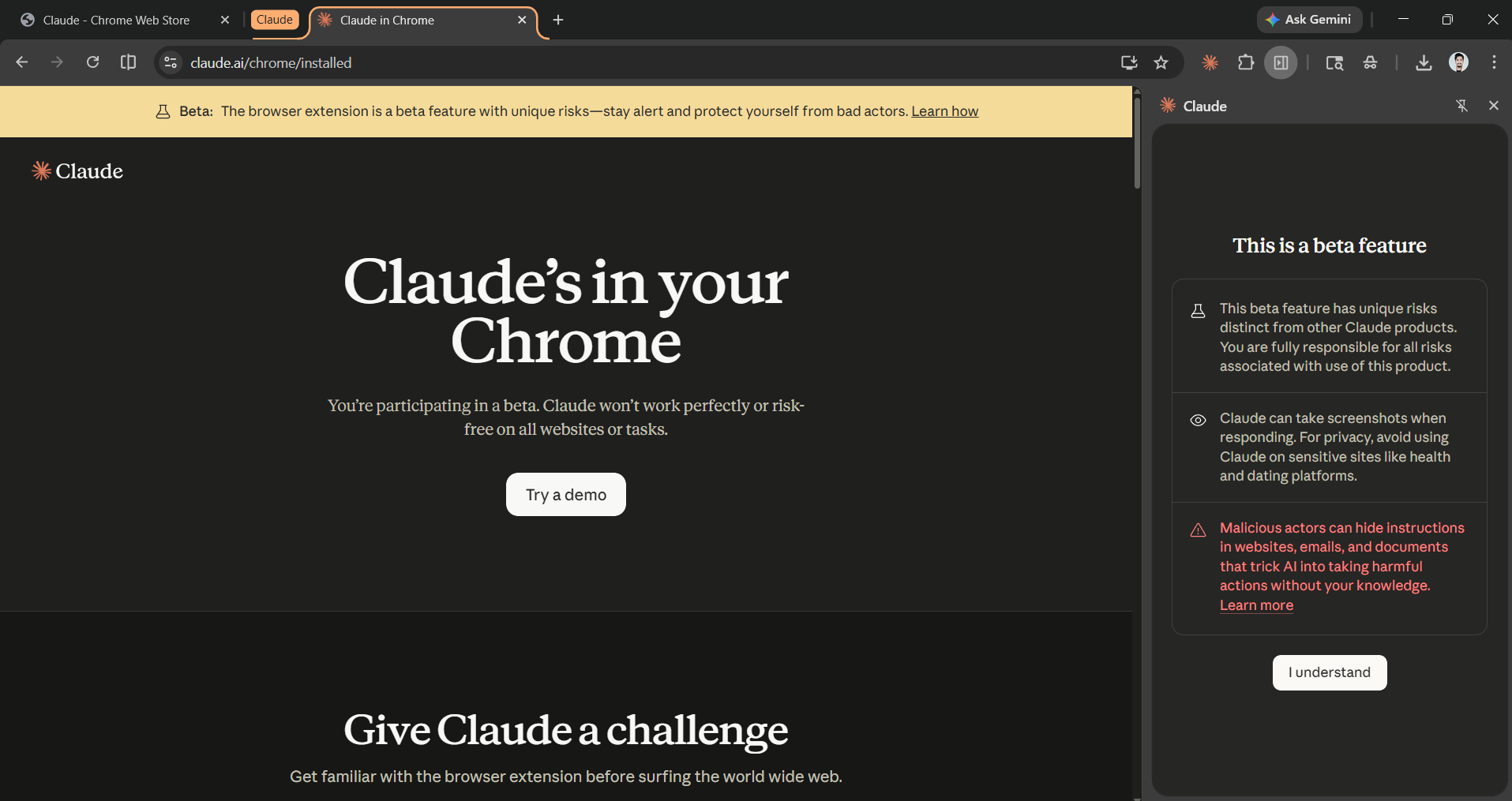
- The short version: Start with trusted sites, watch the early runs closely, and don't hand it sensitive financial or password tasks until you're comfortable.
Step 3: Ask before acting and Group tabs
When you start, the plugin Claude will automatically put the tab in Group, and any other tab Claude for Chrome uses will be part of that Group, so you can easily organize and review them.
Before running any task, you can choose whether you want Claude to ask you permission before it can actually take action on your browser. Or you can choose Act without asking, where you won't ask for permission to start working. We recommend that you use Ask before acting, so you know what Claude plans to do.
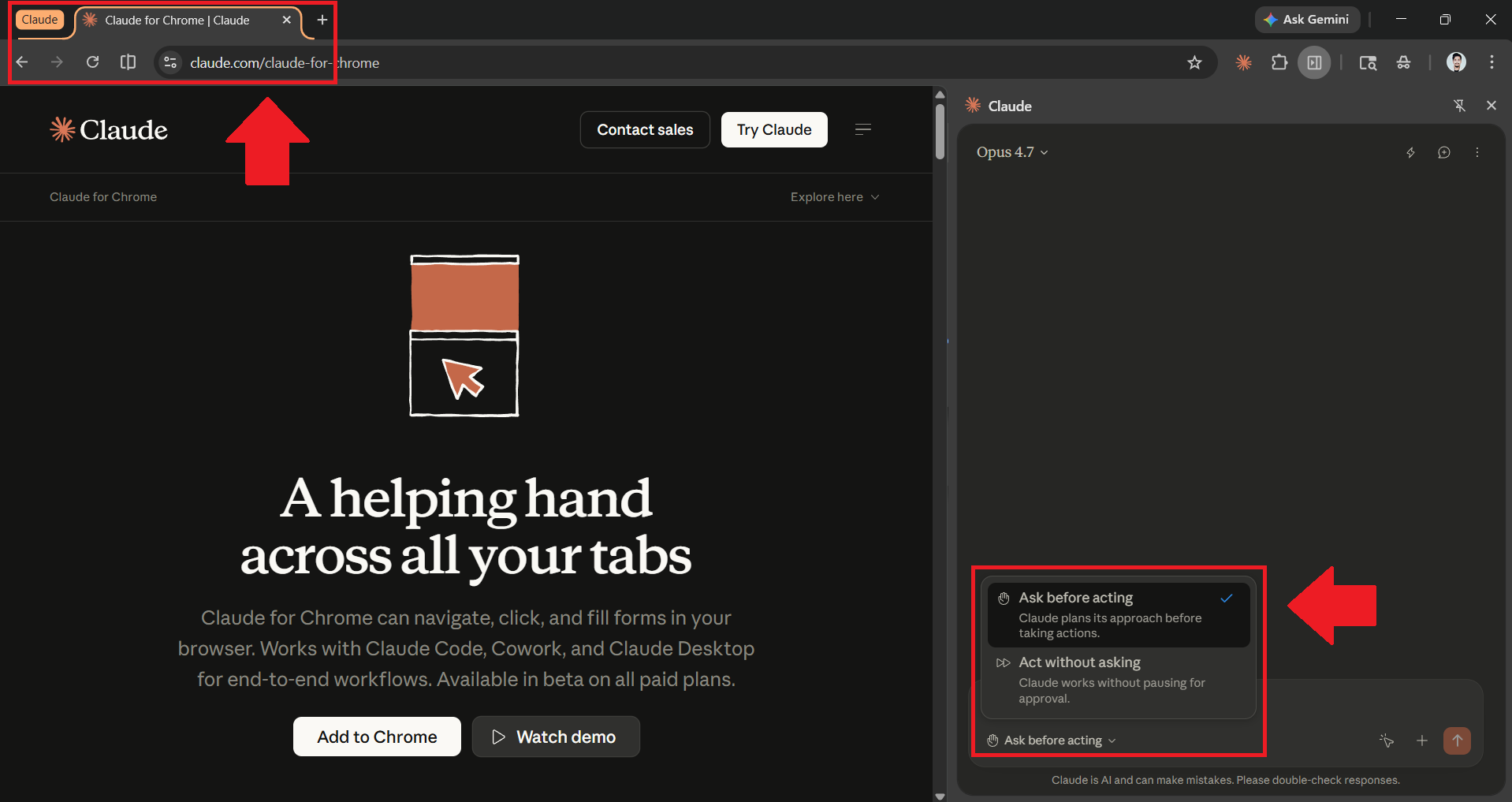
You can also visit Claude's web or desktop app to add blocked sites. These are the sites on which Claude in Chrome cannot be used.
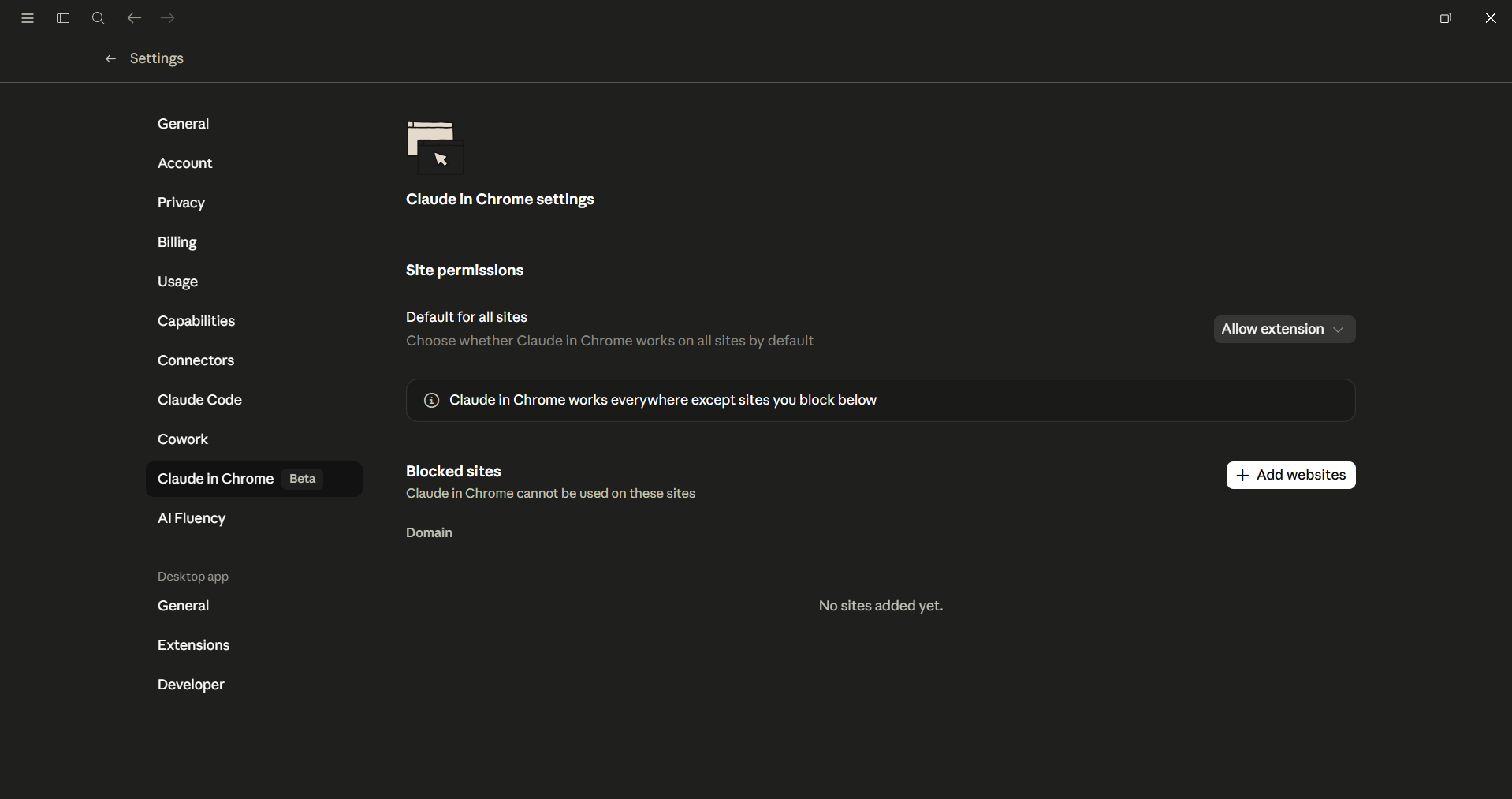
Step 4: Decide what to automate, and write the prompt like an instruction, not a question.
The biggest mistake people make is treating the extension like a chatbot. It's not. Tell Claude what the outcome looks like. "Done" should be unambiguous.
Prompt I used (research task): Open the pricing pages for OpenAI, Claude, Gemini, Grok, Meta AI, Kimi AI, and Deepseek, pull their plan names, monthly prices, included seats, and any 'most popular' badges. Then open Google Sheets and build a clean comparison table.
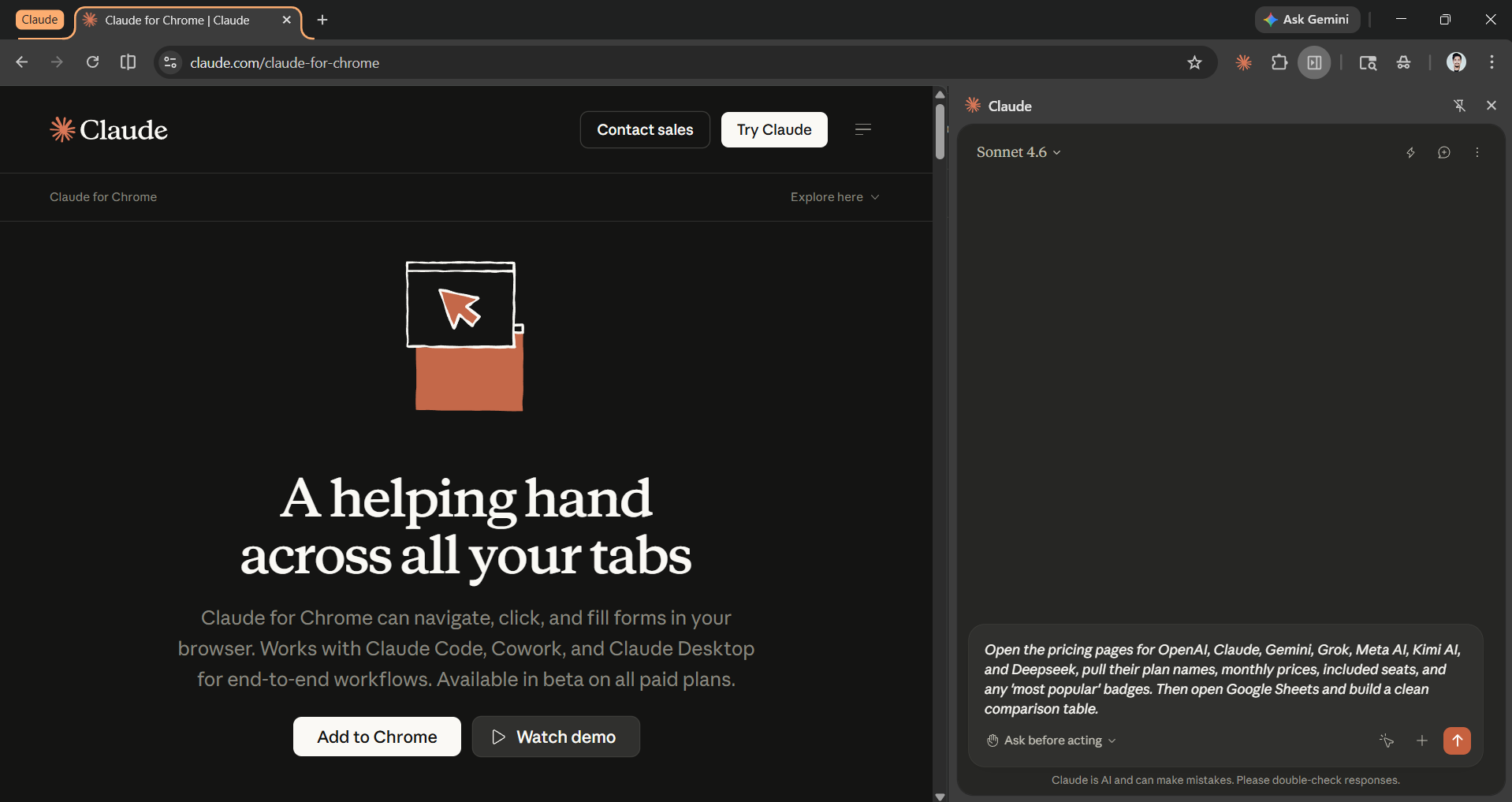
Step 5: Let it run
For the first few tasks, sit and watch. You'll see Claude narrate what it's about to do, click through the page, and pause for confirmation on anything that looks risky. Finally, it will present to you a completed output.
In Conclusion:
Claude for Chrome is like Claude Cowork but for your browsers. It is one of the most useful AI browser extensions I've used so far, mostly because it actually takes action rather than just narrating what you can and should do. That said, this is a beta product with real risks. Browser agents face a unique attack called prompt injection, where a malicious webpage hides instructions trying to convince Claude to do something you didn't ask for, like leaking data or clicking through a transaction.
Anthropic has built in guardrails, but they aren't bulletproof. Stick to trusted sites at the start, leave sensitive tasks (banking, password managers, anything financial) to a human, and always keep yourself in the loop on irreversible actions.
Treat it like a sharp, eager new hire. Brilliant on the tasks you've trained it on, dangerous if you hand it the keys on day one. When used carefully, it can quietly take a real chunk of the busywork off your week.
💡 For Partnership/Promotion on AI Tools Club, please check out our partnership page.

