


NotebookLM is one of Google's most popular and widely used AI tools that allows you to talk to your resources (uploaded documents, PDFs, websites, and YouTube videos), and the responses will be grounded. Google wants users to use NotebookLM as an AI research tool and thinking partner that can analyze your sources, turn complexity into clarity, and transform your content, unlike regular AI chatbots like Gemini, ChatGPT, and Claude.
Previously, NotebookLM was limited to the NotebookLM web app and the Mobile app as separate tools. However, that is no longer the case as Google added NotebookLM inside Gemini, their most popular generative AI assistant. Google calls its Notebooks in Gemini to help everyday users easily keep track of their projects.
What are Notebooks in Gemini?
Notebooks in Gemini are personal knowledge bases shared across Google products (Gemini and NotebookLM), keeping conversations about a topic organized in one place. You can give Gemini custom instructions and add relevant files, such as documents and PDFs, to provide more context. You have added all your resources; you can start chatting with Gemini to get grounded responses, combined with web search, to provide uniquely helpful responses.
Notebooks in Gemini are like ChatGPT and Claude Projects features, with the difference being that notebooks sync across the Gemini app and NotebookLM; any source you add in one place automatically appears in the other. That means with a single click, you can go from Gemini to NotebookLM to access NotebookLM's unique features like Video Overviews and Infographics.
AdCreative.ai: An AI-powered platform that automates the creation of high-performing ad creatives for social media and display campaigns
How to get started with Notebooks in Gemini:
Step 1: Open the Google Gemini web app. On the left-hand panel, you'll see the Notebooks feature options. Click on New Notebooks to get started with a new Notebook/Project.
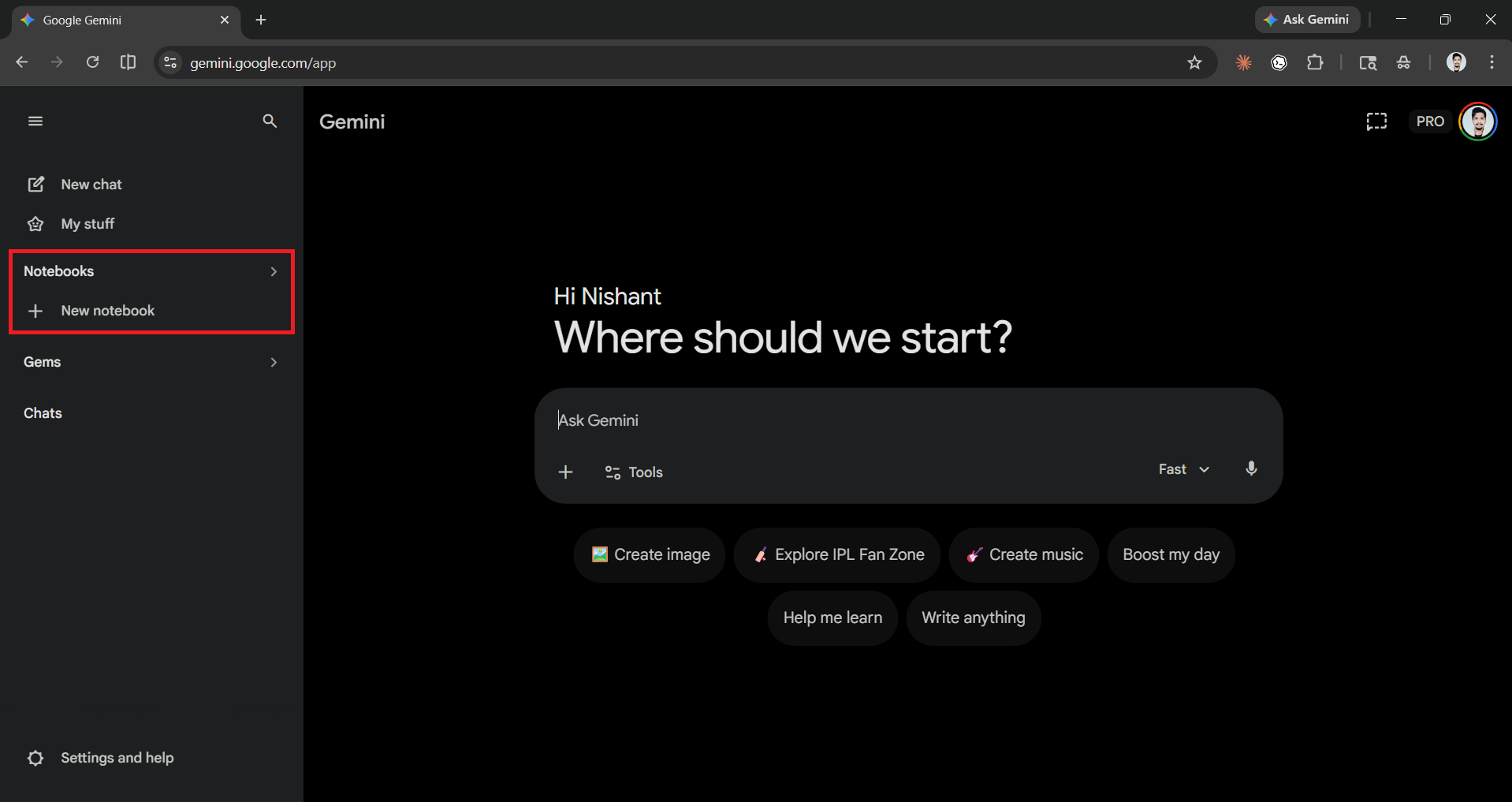
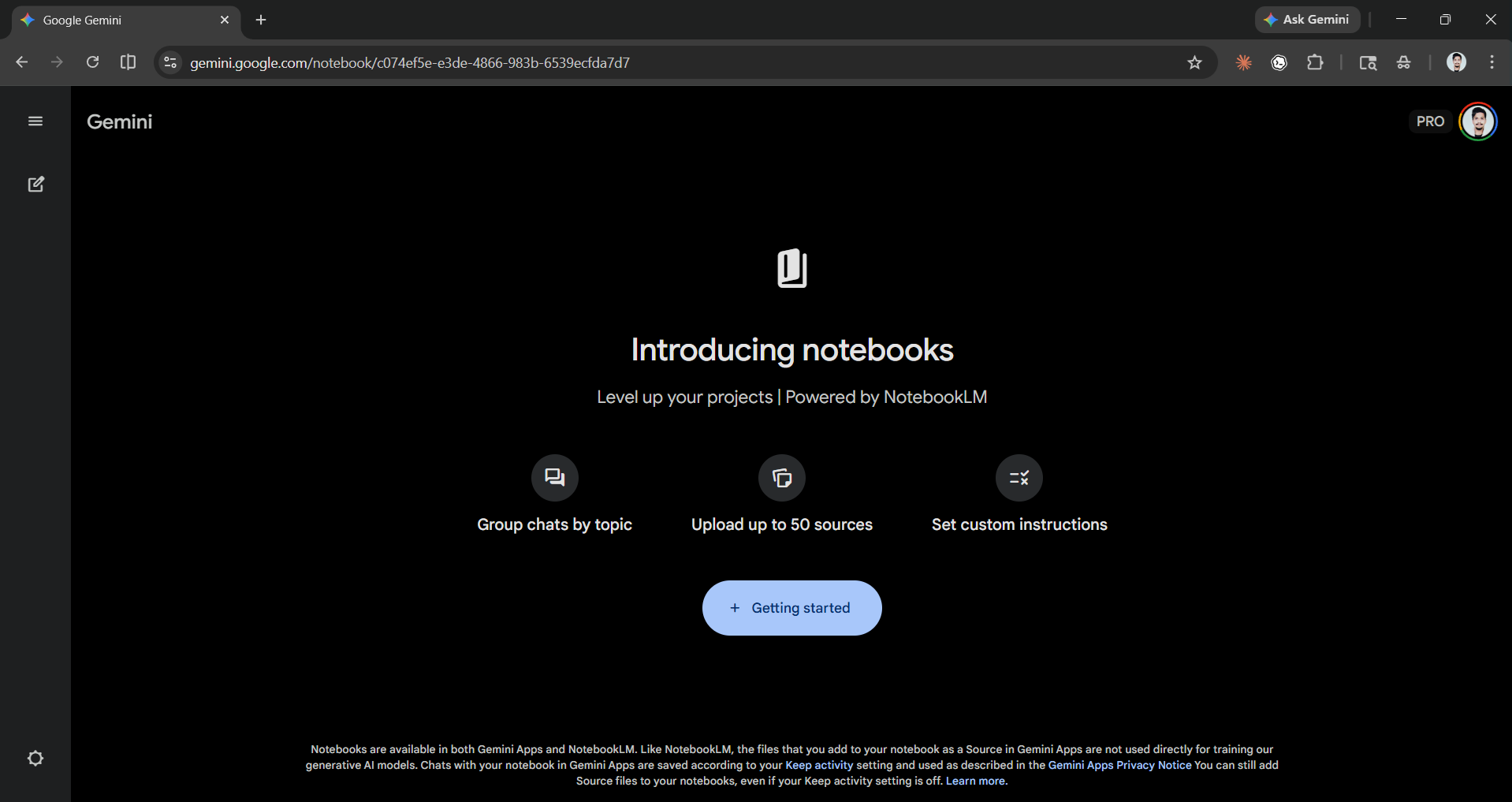
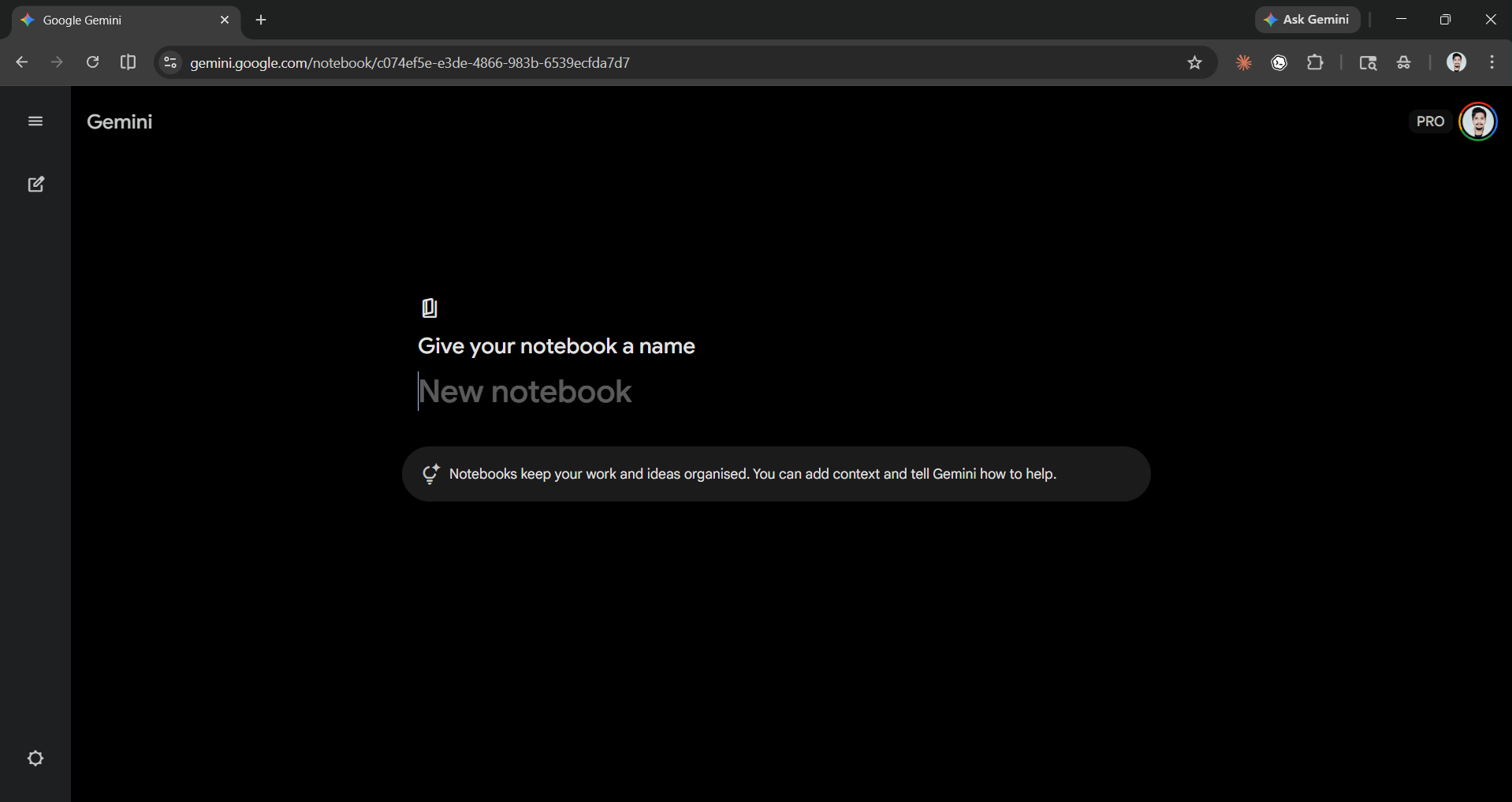
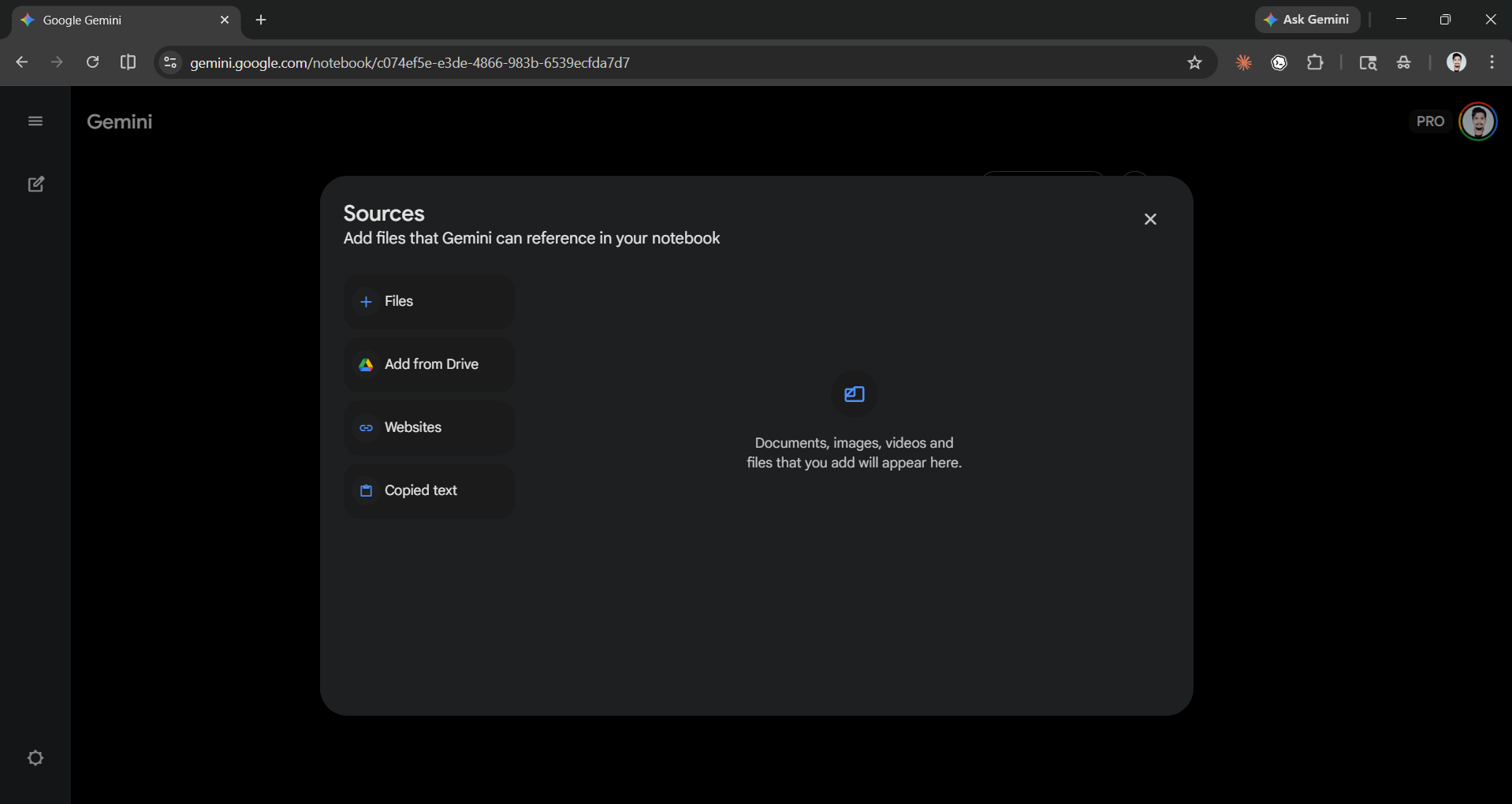
Step 2: Start by giving your Notebook a name that will help you be more organized. Once you have done that, click on Add sources to add all the information you have. It could be files from your computer, Google Drive, websites, or plain text.
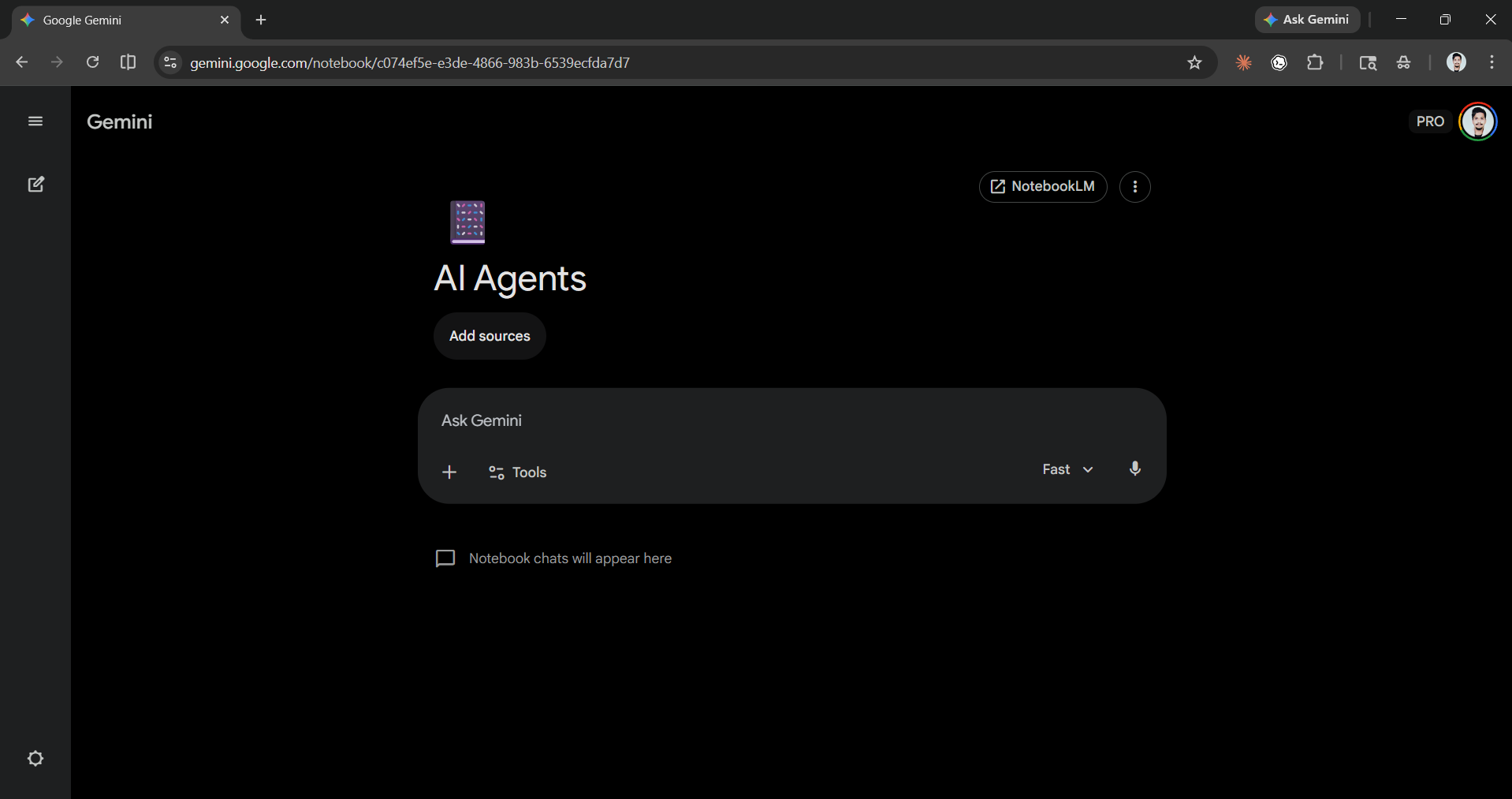
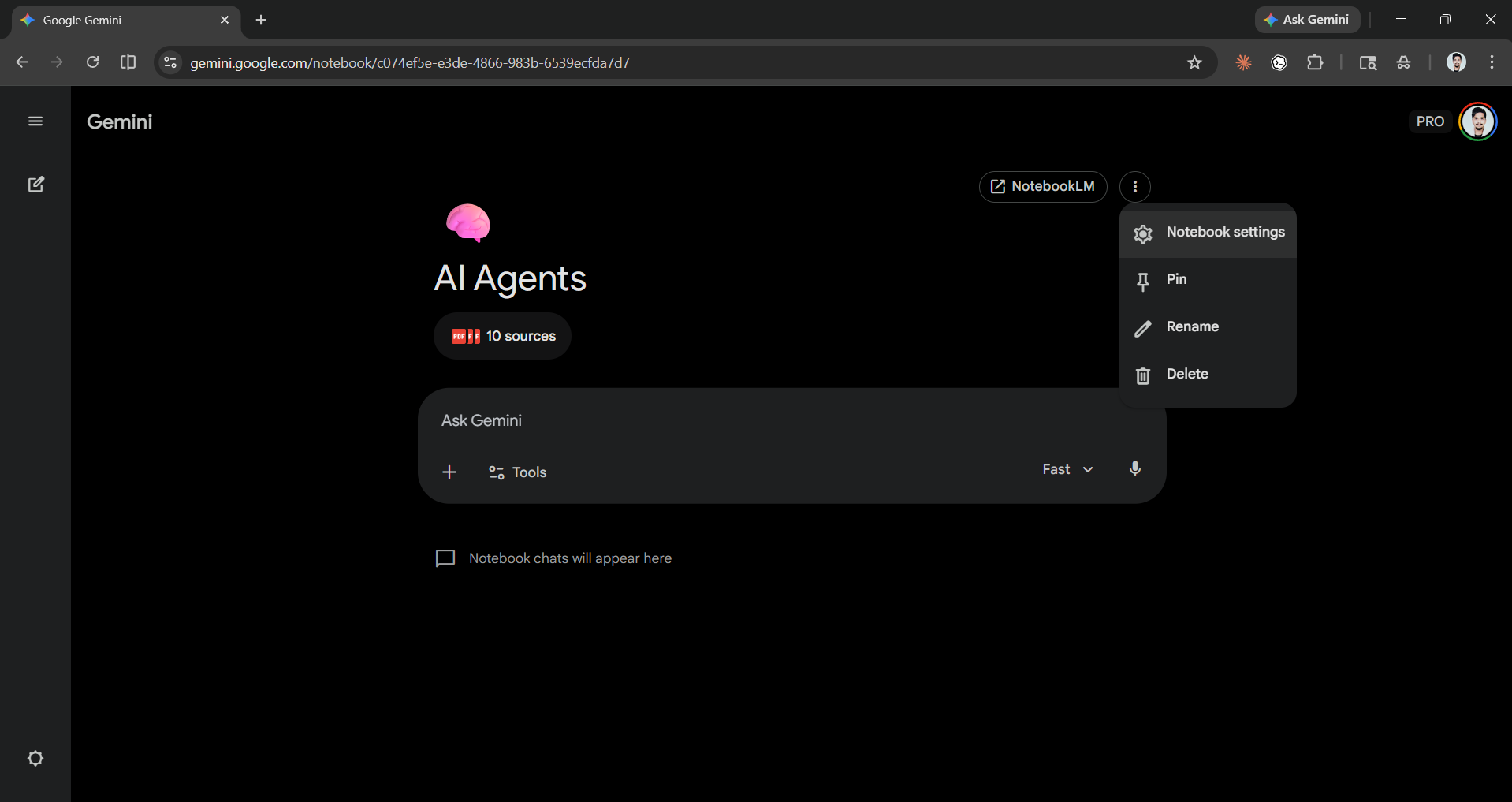
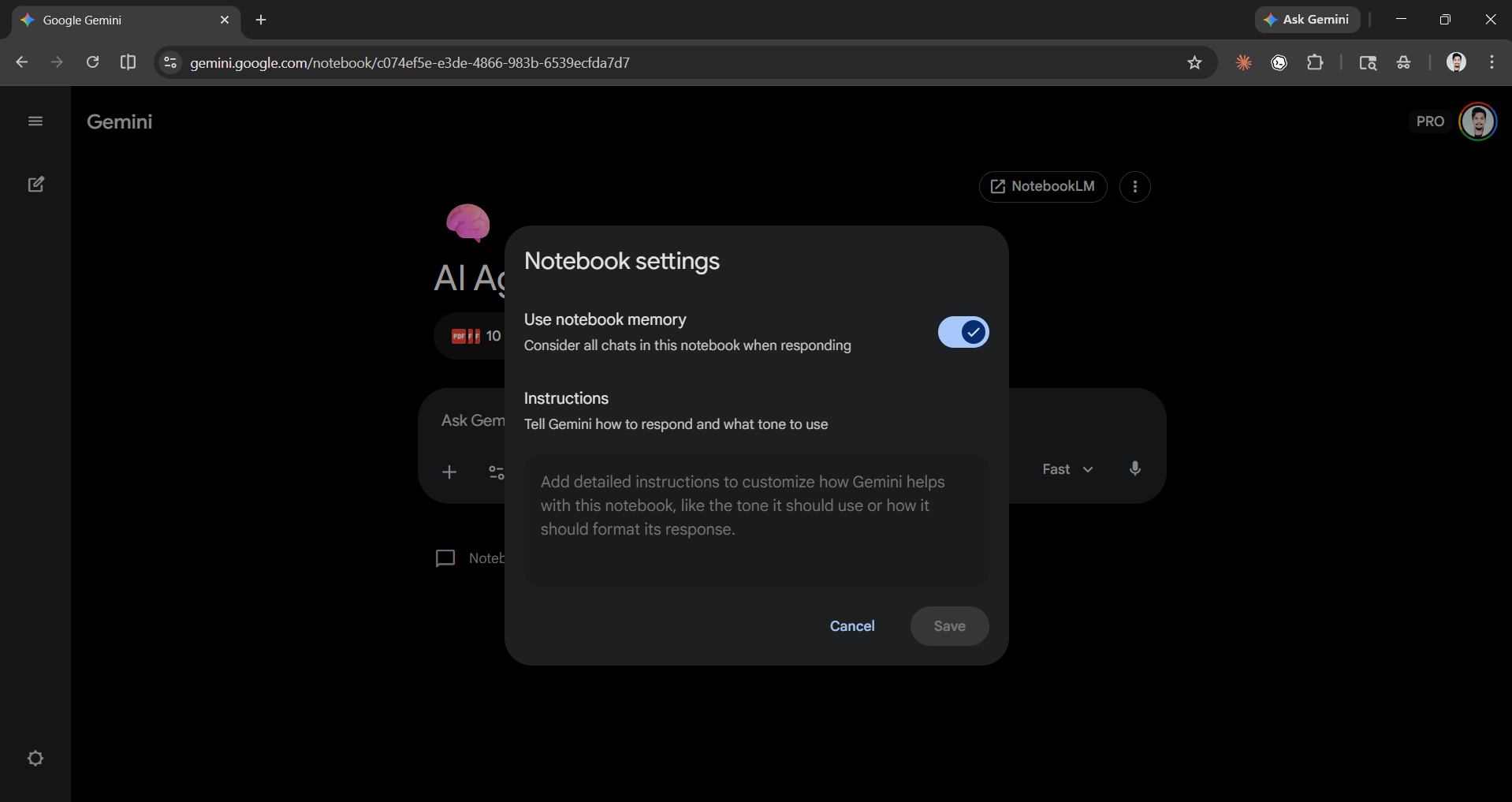
Step 3: To add custom instructions, click the 3 dots next to NotebookLM, then choose Notebook settings. Once that is opened, you can see the Use notebook memory toggle and the Instructions option, where you can add your custom instructions to tell Gemini how to respond and what tone to use.
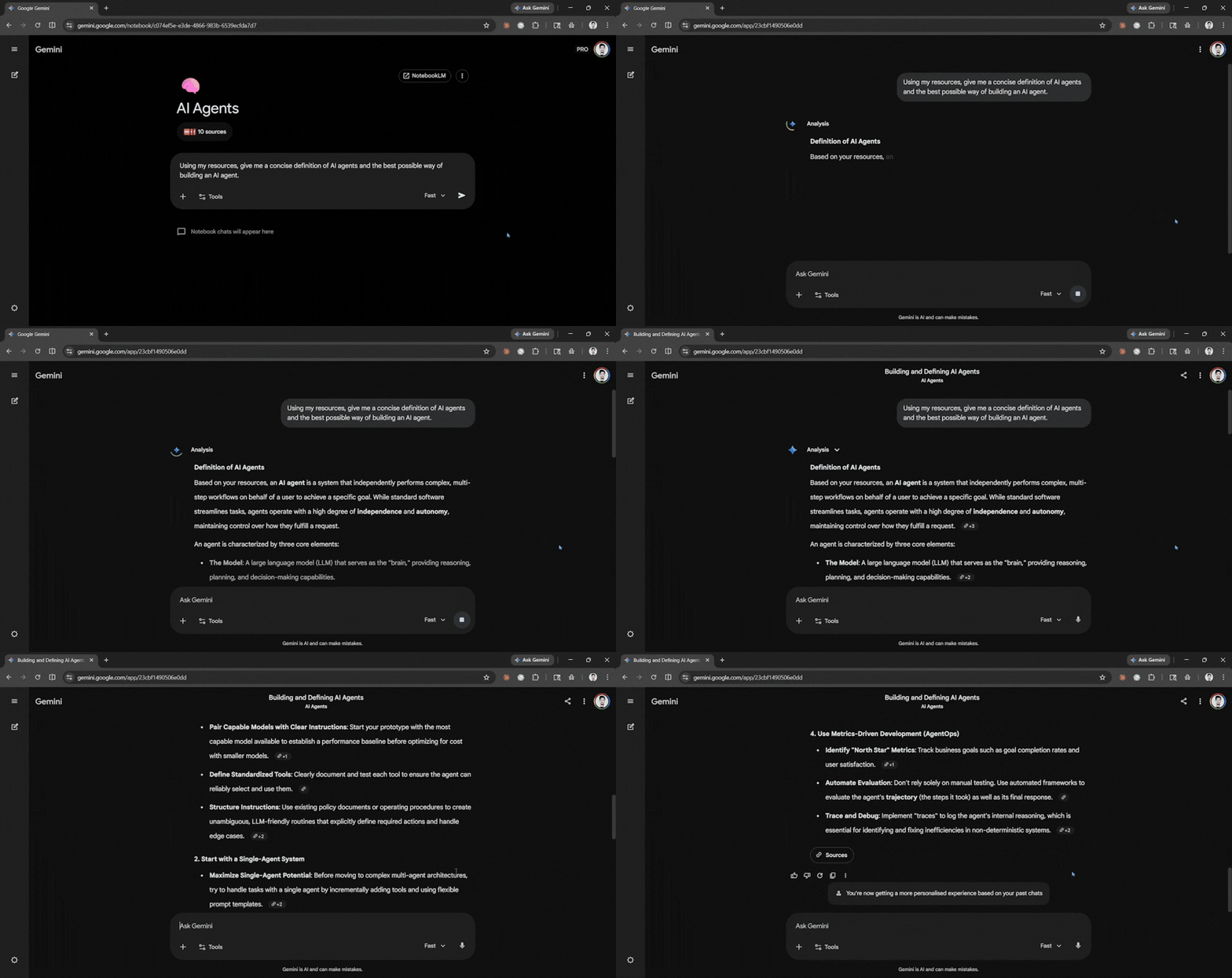
Step 4: Start chatting with your Notebook like you would normally do with Gemini. You can use regular Gemini features like Create image and Canvas, and you have an additional model selection option. You can also always move to NotebookLM and continue where you left off.
In Conclusion:
As we said, Notebooks in Gemini is exactly like ChatGPT and Claude Projects with the additional NotebookLM option. If you are someone who wants grounded information or works on multiple projects, Notebooks can be a game-changer for you. Although the feature is similar to that of the competition's existing features, the added value from NotebookLM alone can be your reason to move to Gemini, especially for students. The feature is great and works well, but only time will tell whether it stays or whether Google keeps Notebooks exclusive to NotebookLM.
💡 For Partnership/Promotion on AI Tools Club, please check out our partnership page.

