


Anthropic's Claude Cowork is one of the best AI agents you can use to get things done on your computer. Claude Cowork is an AI agent for non-technical professionals who want to automate their tasks and get polished deliverables. In the past, we have shown you how to get started with Claude Cowork and how to automate your workflow using the AI agent. In this article, we will show you a powerful trick you can use to get even better outputs from Claude Cowork. You will be able to take full advantage of your Claude subscription and an underrated Claude product that most people overlook.
Most people use the Claude AI chatbot for most of their tasks. While Claude is very capable, it cannot take action on your behalf; to have Claude complete work on your behalf, most people use either Claude Code or Claude Cowork. Claude Cowork, as we said, is a very capable AI agent that can connect to a folder and have it complete tasks on your computer efficiently.
However, what if you need to extract information and complete research? Claude Cowork isn't as good as Web Agent, and that is where you can use Claude for Chrome. Claude for Chrome is the underrated Claude AI agent that not many people talk about. Claude for Chrome can navigate, click, fill forms, and complete web research in your browser.
Now, you might have a question. How are Claude Cowork and Claude for Chrome related? Basically, you can trigger Claude for Chrome from Cowork, let it perform web research, and then pass the information to Claude Cowork, which can then turn it into a document, Excel, or PowerPoint file.
How to use Claude Cowork and Claude for Chrome to get the best output:
Step 1: To use Claude Cowork and Claude for Chrome, you will need to be subscribed to Claude Pro or Max.
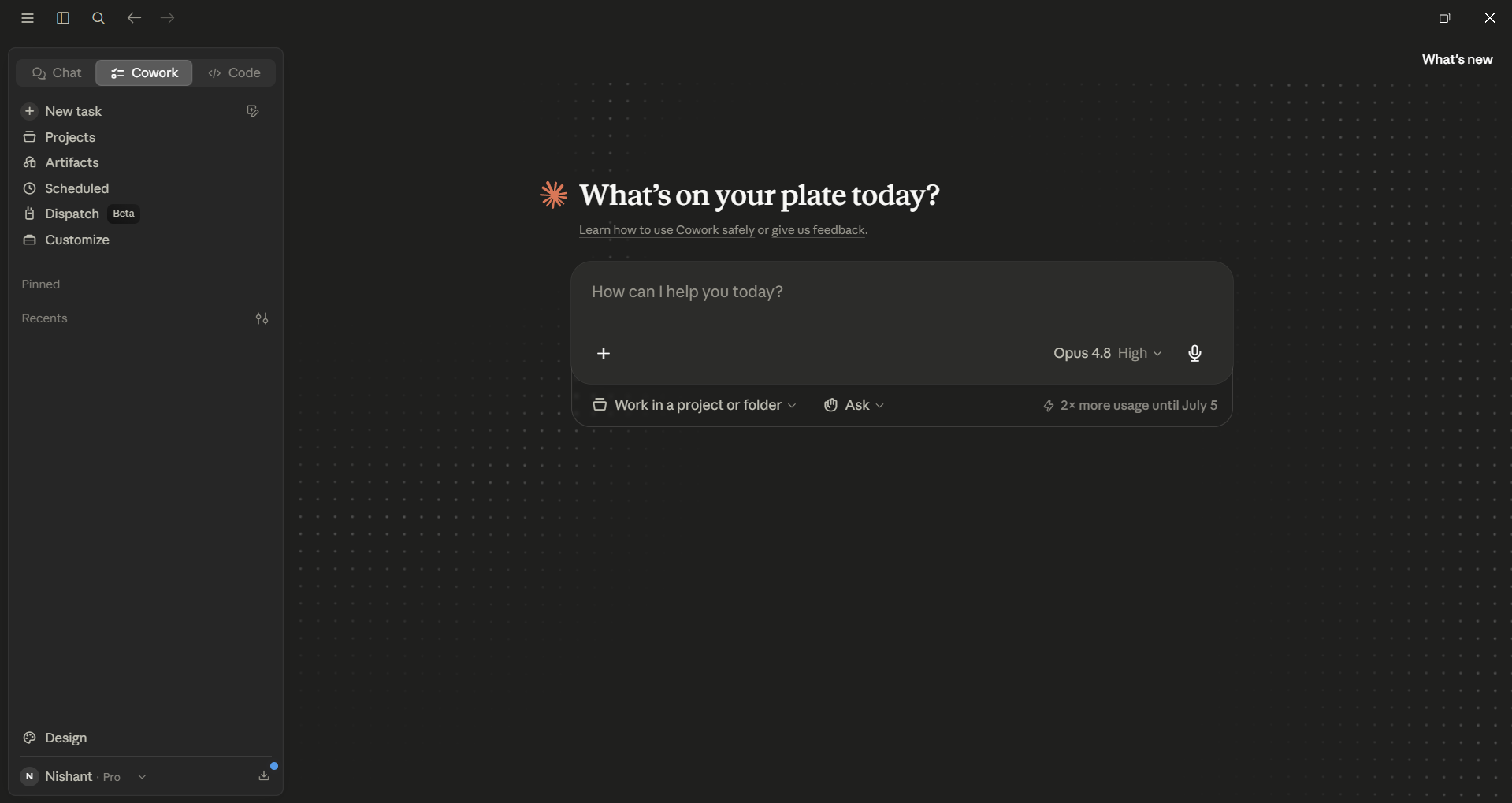
Step 2: If you are a Claude Pro or Max subscriber, open Claude Cowork in the web app to get started. Make sure your task involves web research.
Prompt:
I want the list of the top 5 AI models released in June 2026. Use Claude for Chrome to extract the most accurate information.
Resources:
- https://aideveloper44.com/
- https://www.marktechpost.com/
Output:
Create a new Word document with the list of the newly launched AI models and a short description of each.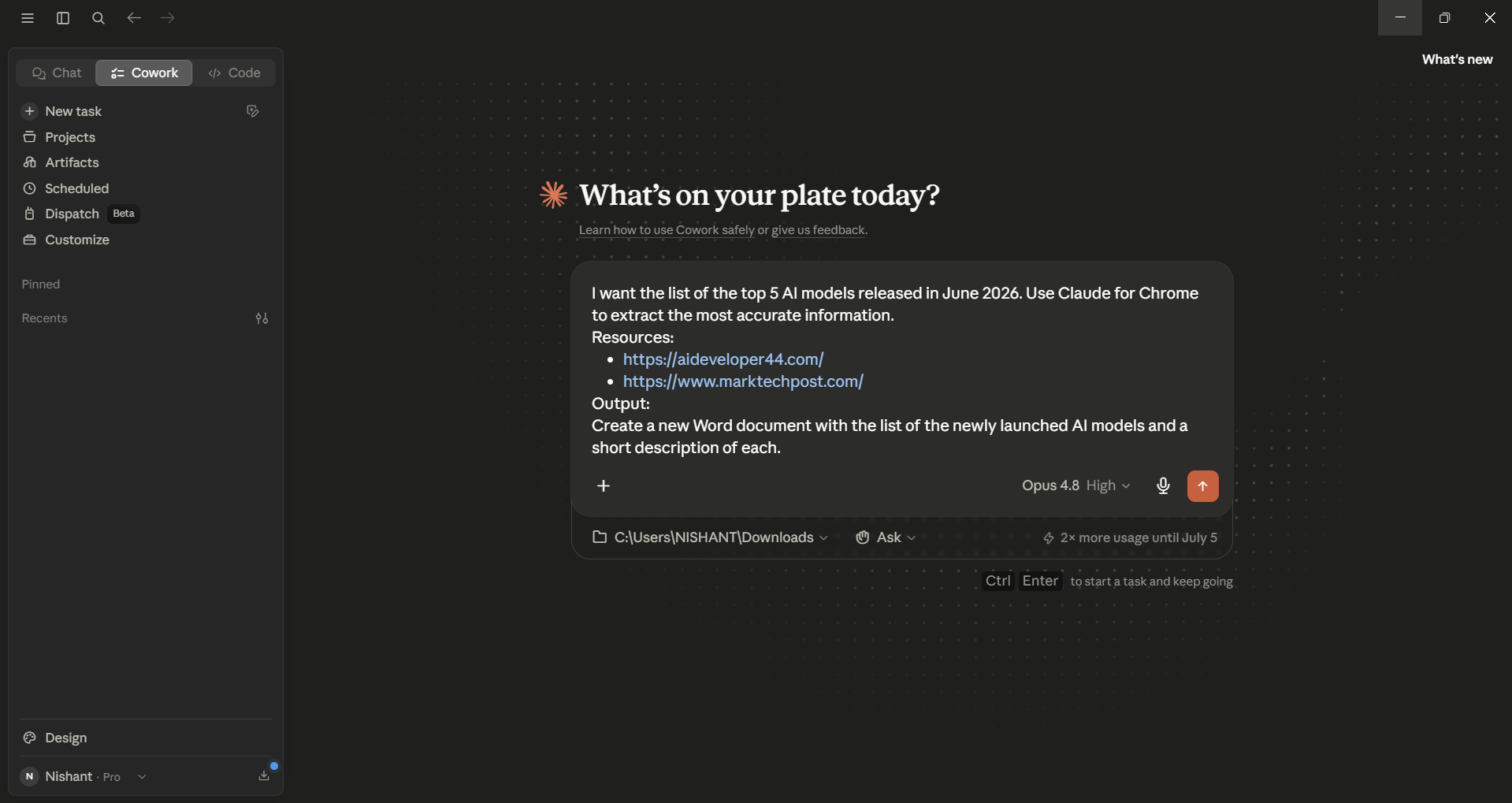
AdCreative.ai: An AI-powered platform that automates the creation of high-performing ad creatives for social media and display campaigns
Step 3: Once you hit send. Claude will think for a few minutes, then ask for your permission to use Claude for Chrome. You can see exactly what permissions it is asking you for, and you can accept or deny.
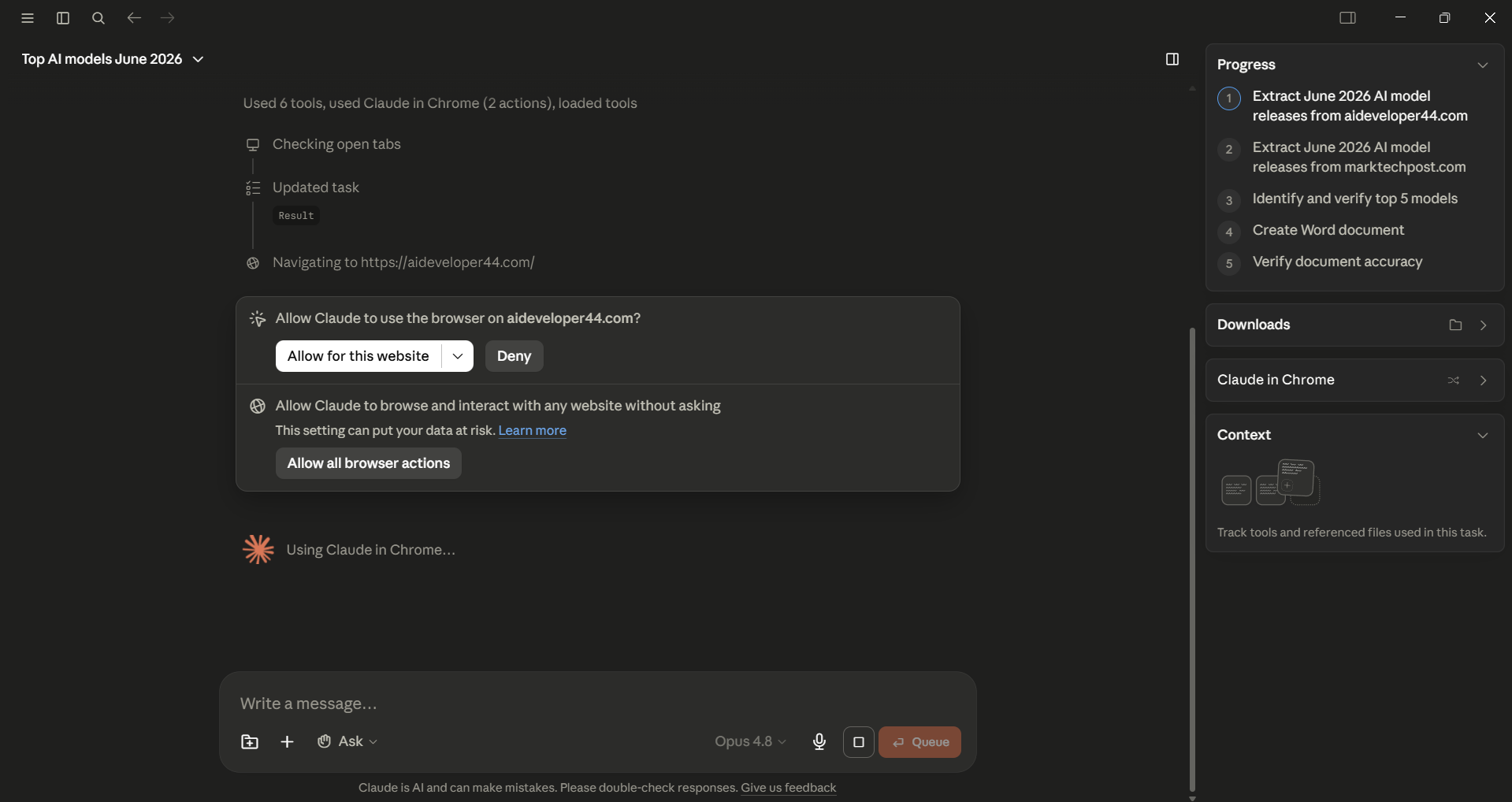
- If you accept, Claude for Chrome will start performing the web search, and if you provide the websites you want it to base its information on, it can do that.
Step 4: Once all the information has been collected, it will create the Word document or whatever output you asked for, which you can review.
In Conclusion:
I find this workflow very useful, as not only does Claude create the exact output I want, but it can also extract information from the specific websites I want it to use to search. If you are a Claude Pro or Max user, it is a no-brainer. You can use Claude Cowork to create the output you want, and you can use Claude for Chrome to extract the information you can rely on. Anthropic AI has integrated its AI tools and agents really well and created a strong ecosystem that I don't think many AI assistants can match.
💡 For Partnership/Promotion on AI Tools Club, please check out our partnership page.

