


Most of us still use artificial intelligence (AI) in the same old way. We open a chat window of an AI assistant like Claude or ChatGPT, ask a question, copy the answer into a doc, and move on. That works fine for quick stuff like quick research on a basic topic. However, it never uses the most useful thing modern AI can do, completely untouched, and that's actually getting work done on your machine, with your real files, start to finish. That's the whole idea behind Claude Cowork, Anthropic's agentic desktop tool for knowledge work.
Anthropic promotes Claude Cowork as an AI agent for the rest of us, i.e., non-technical professionals and knowledge workers. That is because you don't need to know how to code to use this AI agent. In this article, I'll walk you through what Cowork actually is, how the task loop works, how to set it up, and how to run it productively.
Atoms: A comprehensive vibe coding platform that uses AI agents to turn your ideas into functional apps and acquire customers (no-coding required).
What is Claude Cowork (and how is it different from Chat)?
Here's the cleanest way to frame it: Chat is a conversation. Cowork is a working session.
In Chat, you go back and forth, you paste things in, you copy things out. In Cowork, you give Claude a goal and a folder on your computer, and it goes and does the task, reading files, editing them, running code in a sandbox, and handing you a finished deliverable. It's not telling you how you can clean up your messy spreadsheet; it's cleaning it up and giving you the file back.
A few things make this work:
- It runs on your desktop, where you work every day, in the local files, folders, and apps you use throughout the day.
- You can point Cowork at a workspace folder, and Claude can read, edit, and create files in that folder (and only that folder) so it can complete real tasks instead of just talking about them.
- It has a sandboxed environment for running code, generating documents, and processing data behind the scenes.
The kinds of tasks it's built for are the high-effort, repeatable ones, for example, when you need to reorganize a folder of PDFs, turn a pile of source files into a structured report, extract data from dense contracts, or stitch together output from several apps. You do not need any technical background, which is the entire point.
Quick note on availability: Claude Cowork is currently available on all paid Claude plans through the desktop app.
🔗 Getting set up
The whole setup process is extremely short and simple. You just need to download the Claude desktop app, sign in with a paid plan, and switch into Cowork mode.
![Claude Cowork [AI Tools Club]](https://storage.ghost.io/c/71/a2/71a292cc-6628-490c-8b4c-3e5a55b86af8/content/images/2026/06/data-src-image-ac31cbfa-90df-47fb-adaa-e31f3cf1345f.png)
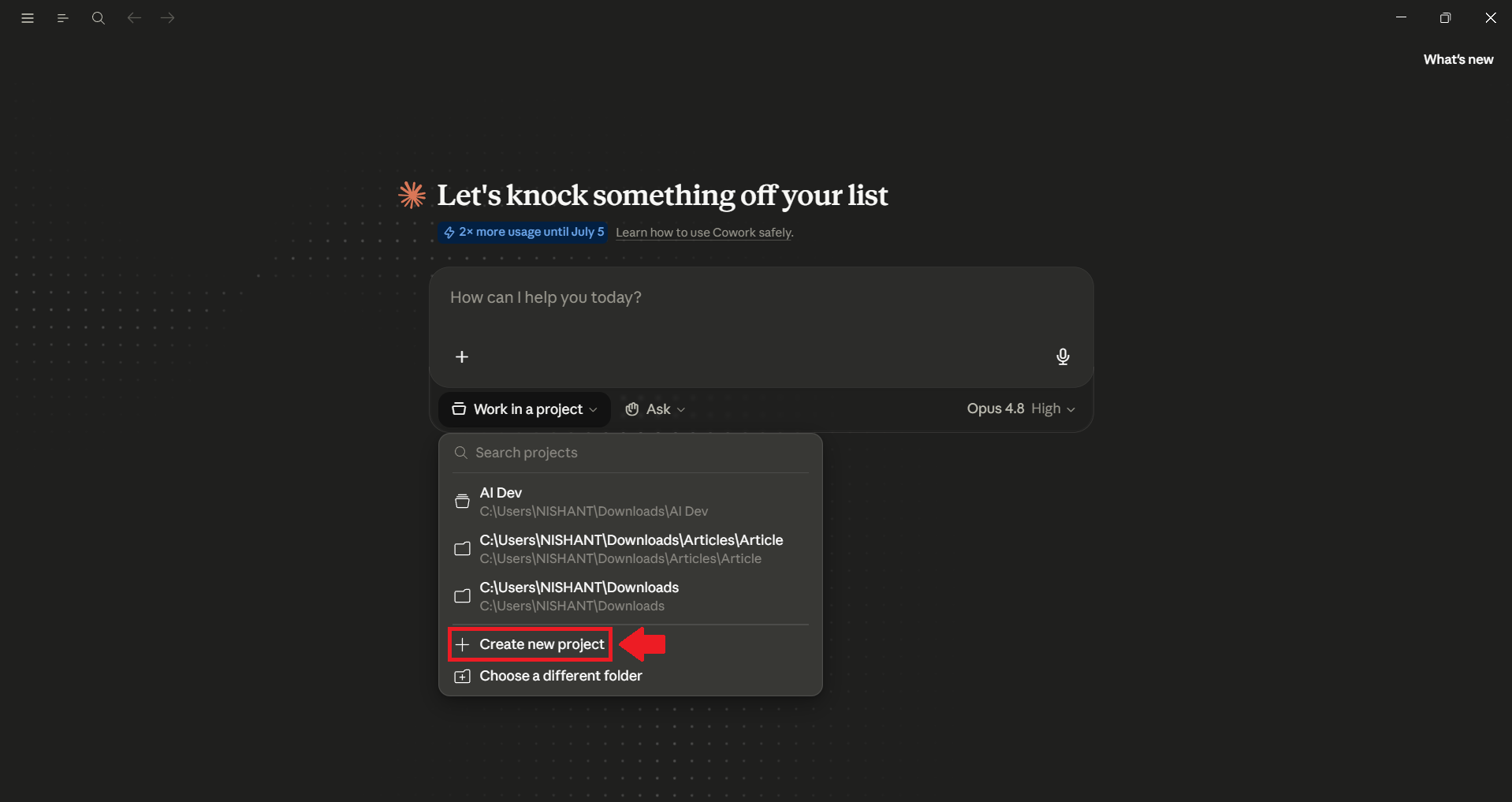
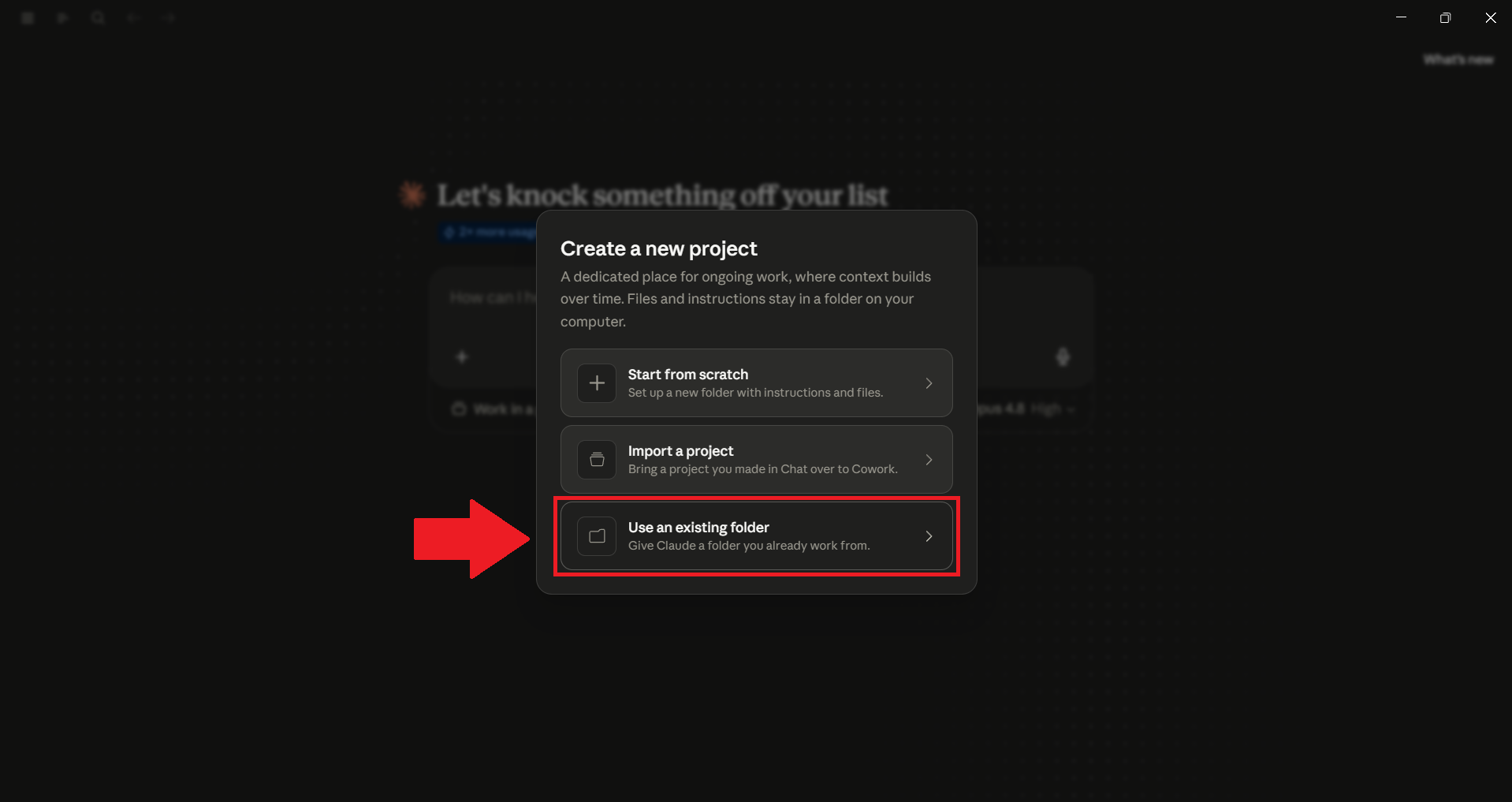
The one step beginners tend to skip is the most important one: you have to give Cowork a folder to work in. That folder is its world. Claude can see and touch what's inside it and nothing else, which is exactly what you want the first time you hand an AI agent the keys to your file system.
- My advice from going through this is to start with a single, low-stakes folder, a project's working directory, a downloads dump, a folder of drafts, and not your entire desktop on day one.
Running your first task and the task loop
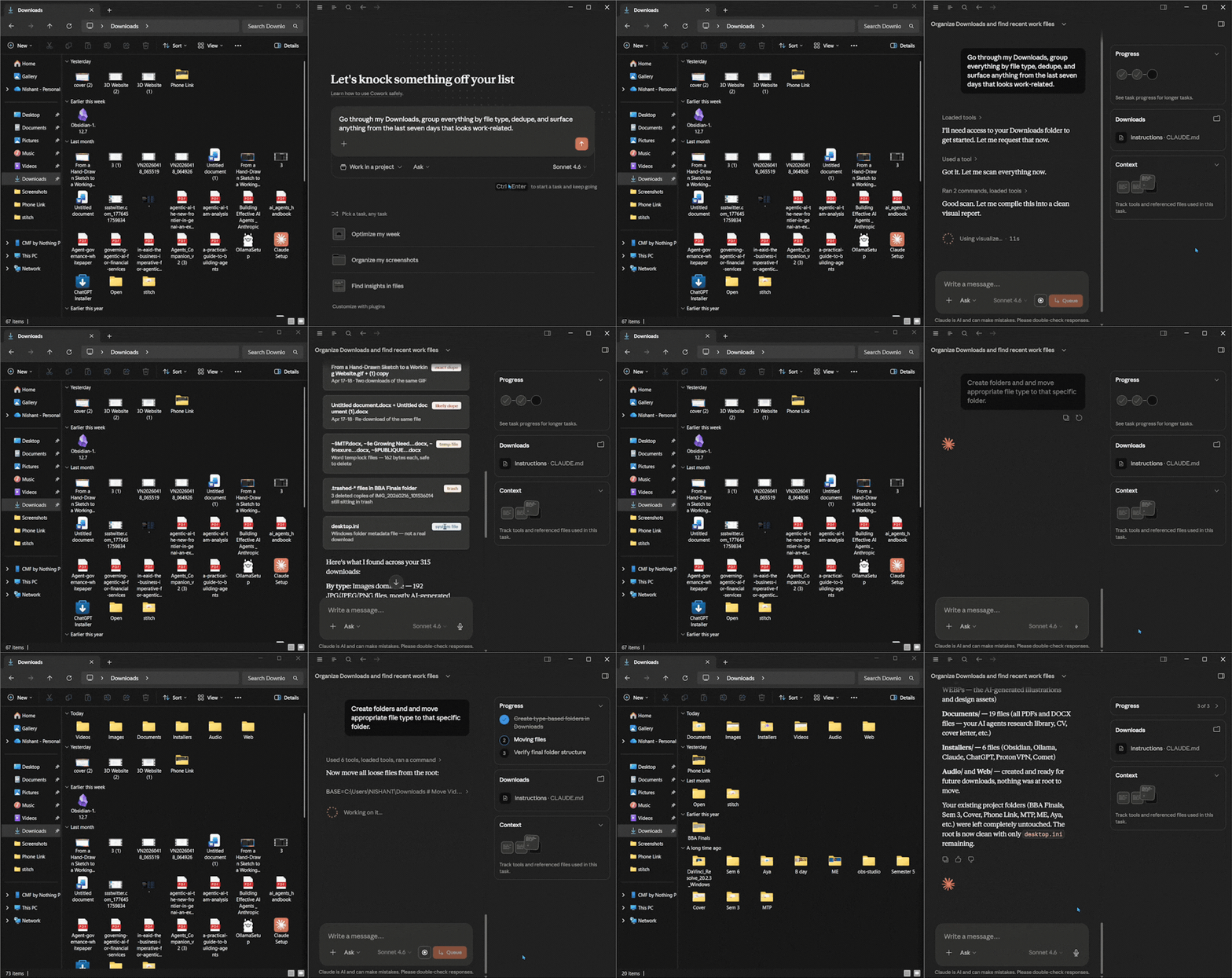
When you give Cowork a task, it doesn't just blurt out a result. It runs a loop:
- You describe the task in plain language ("organize this folder of invoices by month and flag any duplicates").
- Claude makes a plan and, for anything consequential, shows it to you before acting.
- You approve, or you steer, by tweaking the plan, narrowing the scope, or saying "skip that part."
- Claude executes, step by step, and you can watch it work and stop it at any point.
- It hands back a deliverable you can review, and you iterate from there.
This whole process shows that you are no longer a prompter, you're a manager. Your job is to set a clear goal, glance at the plan, and course-correct. The quality of your output will depend far more on how well you describe the task and steer the loop than on finding some magic prompt.
- A weak first task looks like: Clean up my folder.
- A strong one looks like: In this folder, rename every PDF to the format YYYY-MM-VendorName, move anything older than 2024 into an /archive subfolder, and give me a list of files you weren't sure about instead of guessing.
Same tool, wildly different result, just because the second one tells Claude the goal, the format, and what to do when it's uncertain.
Giving Cowork context
The single biggest lever on output quality is context. Claude only knows what you tell it and what's in the folder you opened. Hence, the more relevant context you provide up front, the better the plan.
In practice, that means:
- State the goal and the audience: "A one-page summary for a non-technical exec" will create something very different from "detailed notes for the engineering team."
- Drop reference files in the folder: Brand guidelines, a past report you liked, and last quarter's numbers that Claude can use.
- Tell it your preferences once: Tone, format, and what done looks like.
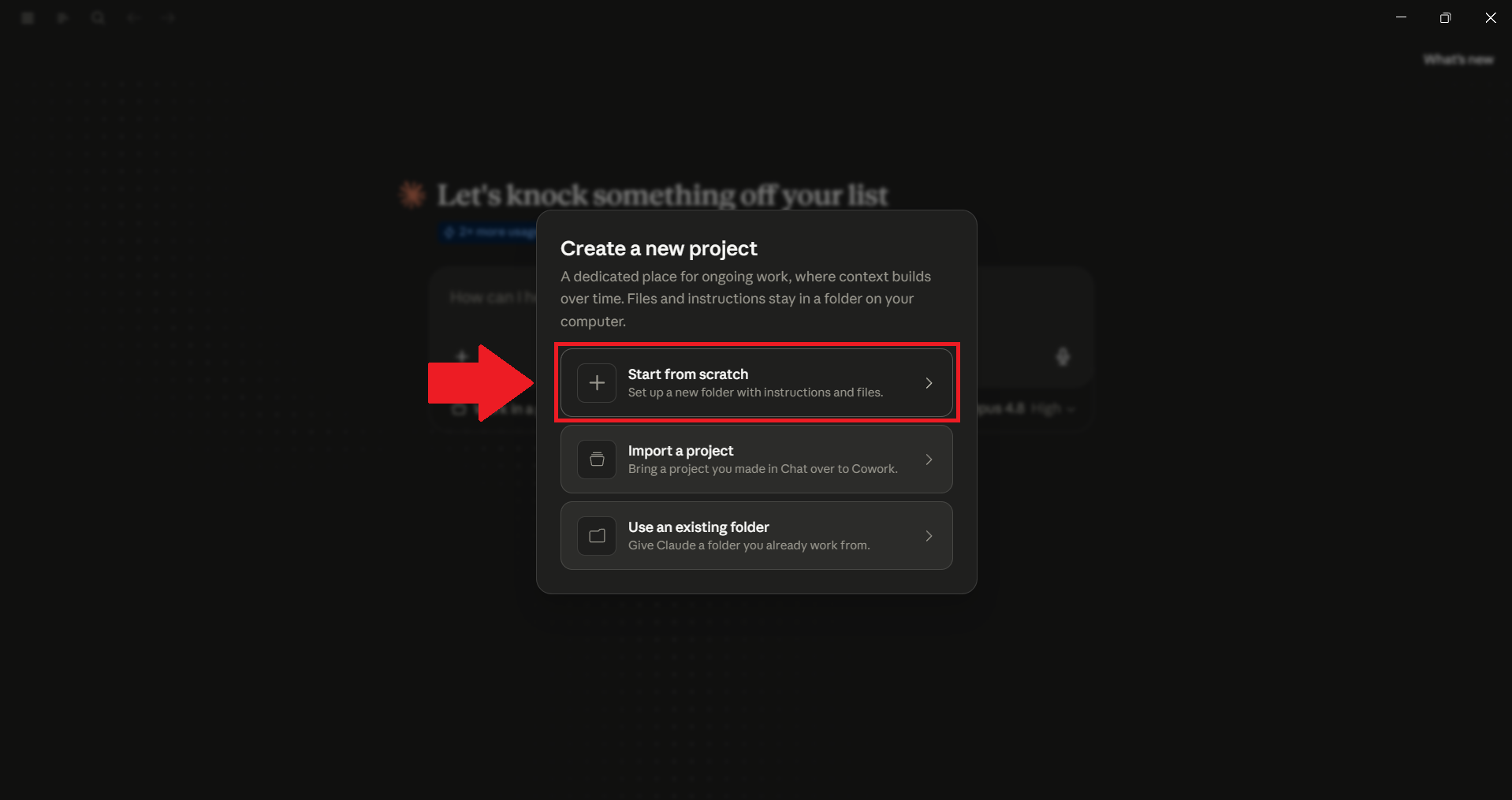
This is also where you can use Projects to keep the necessary files, instructions, and context in one place so you don't need to re-explain everything every single session. You can create a project for each ongoing topic (a client, a launch, a recurring report), and every task inside it will start with pre-loaded context.
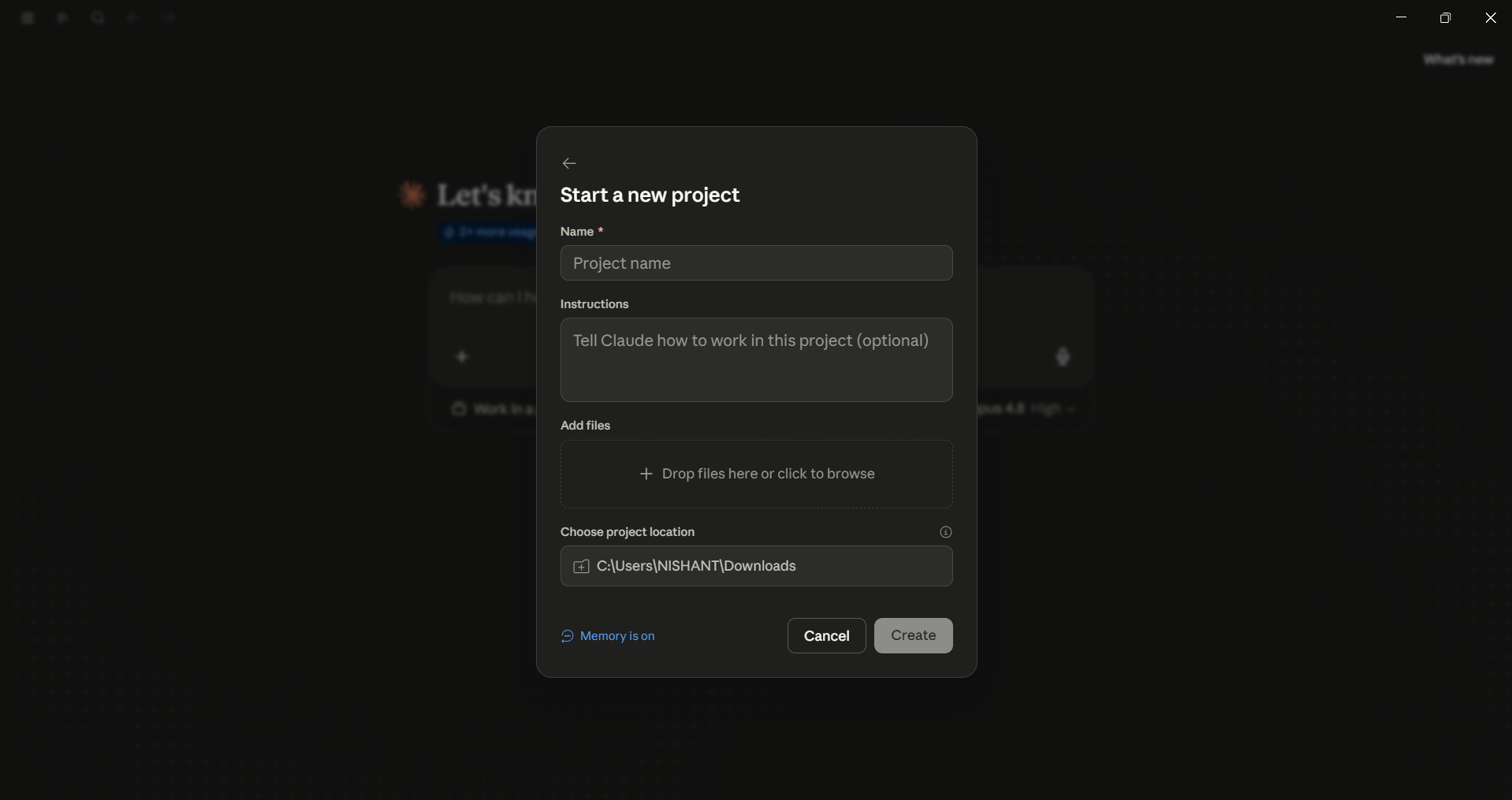
Making Cowork yours: plugins, skills, and scheduled tasks
Out of the box, Cowork is a capable generalist. However, the idea is to make Claude Cowork yours and turn it into your specialist.
Skills
Skills are sets of instructions and helper scripts that Claude uses automatically when a task fits. You might already have some skills without knowing it, which is why asking for "a deck on Q3 results" gives you a well-organized response instead of a list of bullet points. You don’t need to turn on skills yourself; they activate when needed. It’s helpful to know they exist, and you can add skills that match your brand, voice, or style.
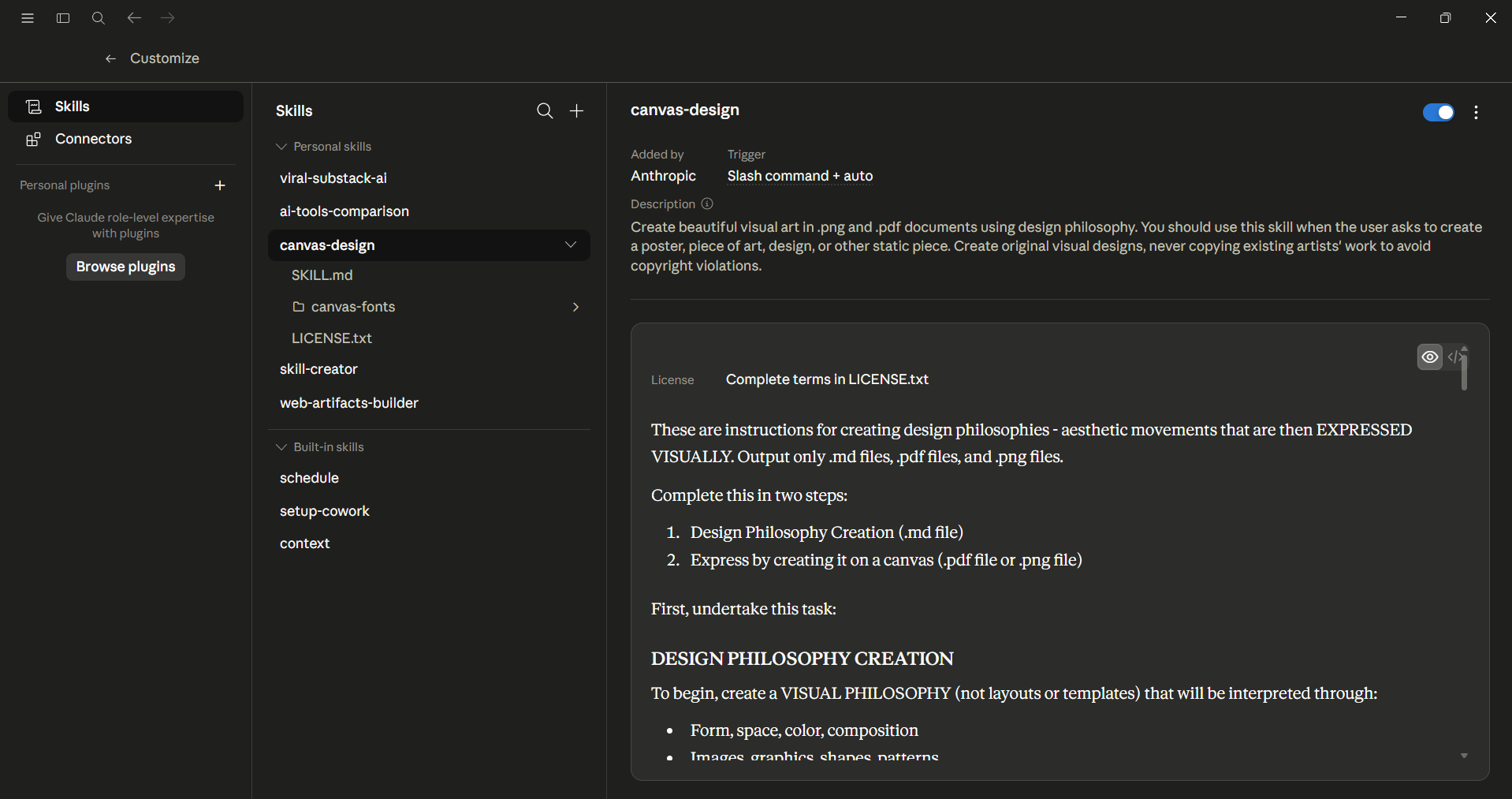
Plugins
Plugins can help Cowork become a true specialist. They are sets of tools, connectors, and skills that you can choose based on your role or industry. If you truly want Cowork to become a specialist, install the plugin set that matches what you do. This way, the tool will fit your workflow better.
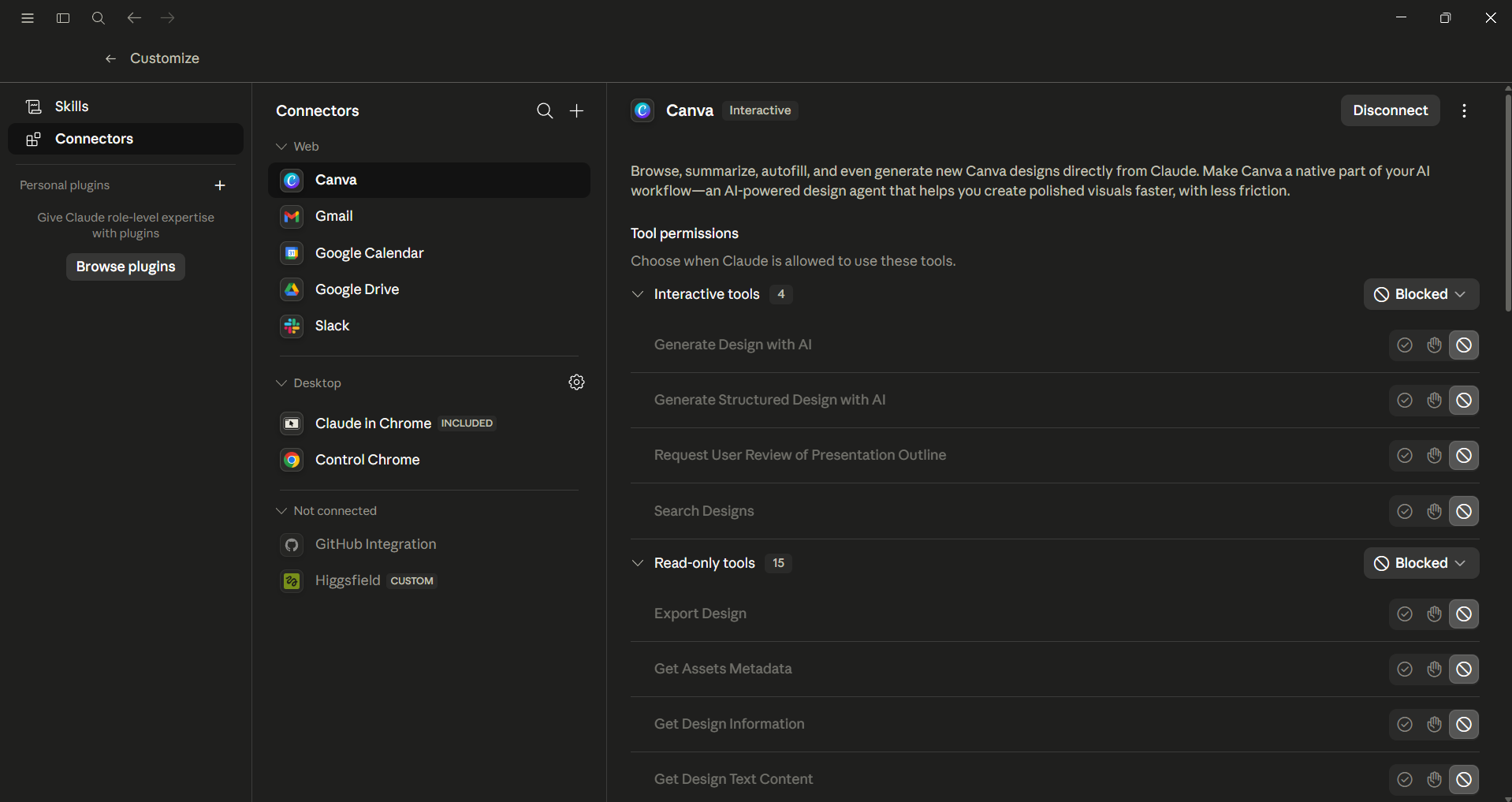
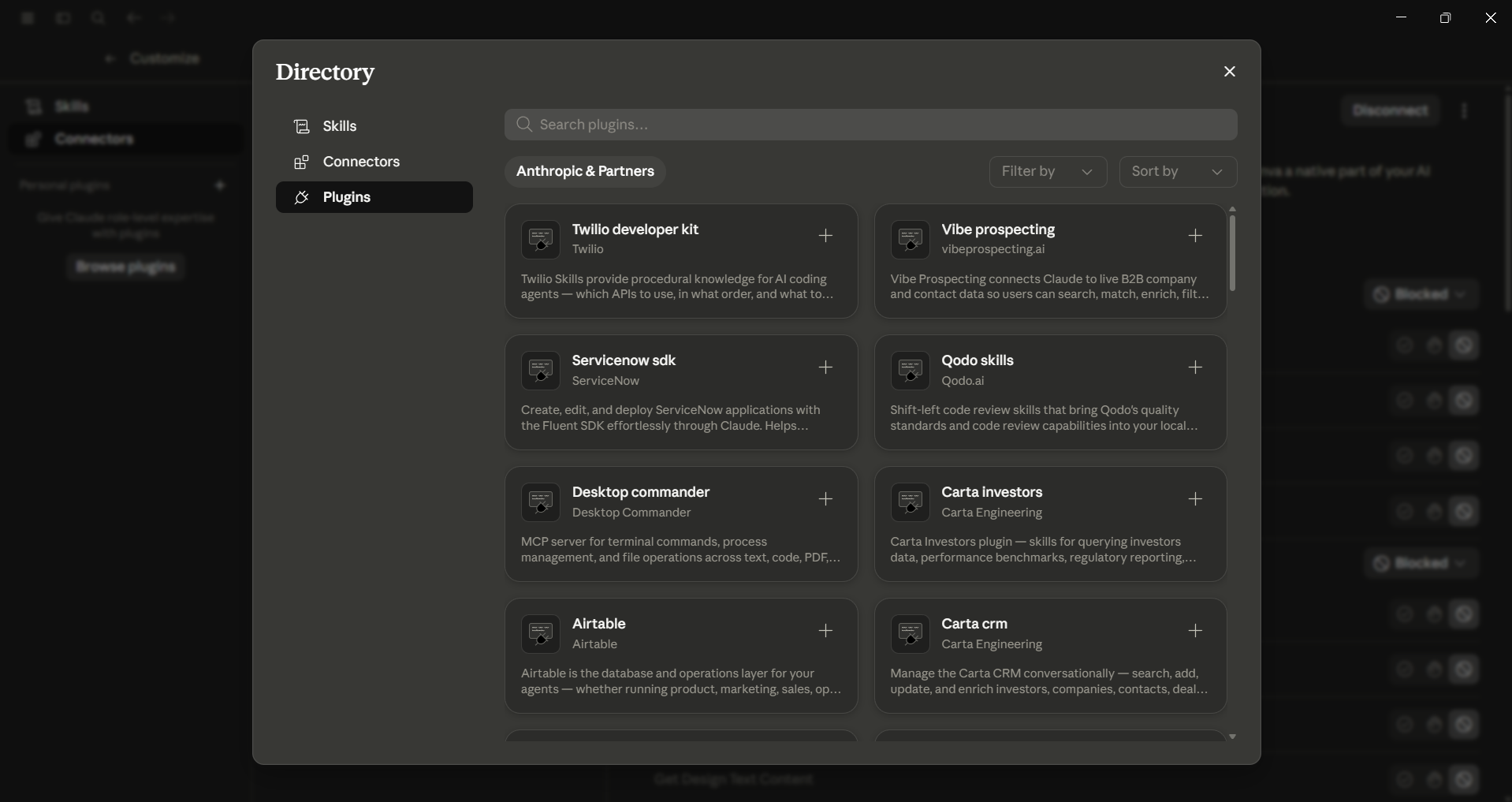
Scheduled tasks
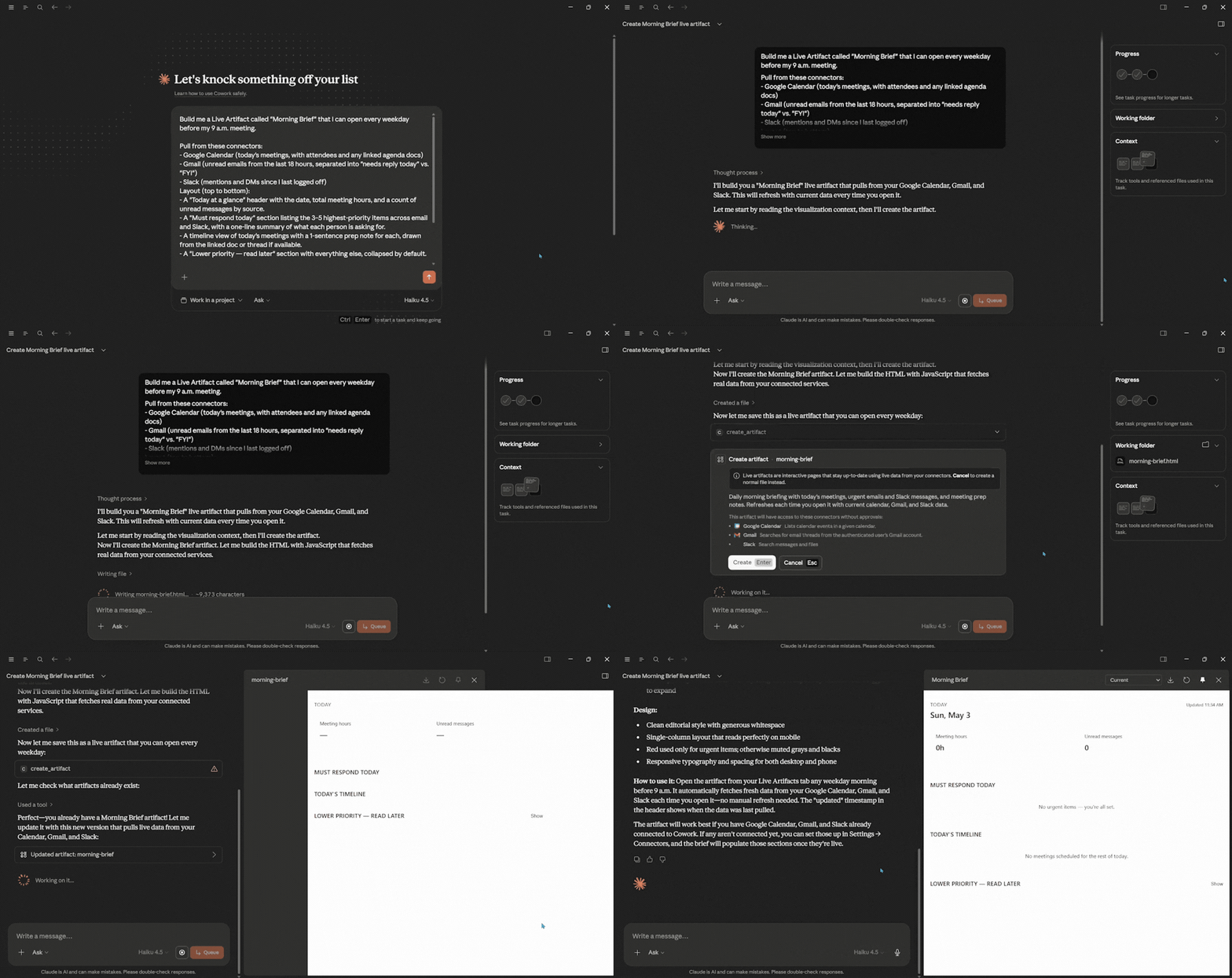
You can set Cowork to run a task automatically at specific times, like every morning, every Monday, or at a certain time later. A common use is to get a "what's on fire" update that collects information from your tools and shows it to you at 6 a.m., before your first coffee. If a task needs to be done regularly, you won’t have to remember to do it anymore.
Atoms: A comprehensive vibe coding platform that uses AI agents to turn your ideas into functional apps and acquire customers (no-coding required).
🔗 Claude Cowork in practice
File and document tasks
Cowork is very effective for organizing your files. You point it at your source files, and it will create a clear draft. It can rename, sort, remove duplicates, and highlight what’s important in a messy folder. Plus, when you ask it to build a spreadsheet, it generates a real .xlsx file with formulas and formatting. You can then modify it by asking it to add a variance column or pivot the data by region.
Research and analysis at scale
The other big use case is reading more than you ever could by hand. You can hand Claude a question and a set of sources (or let it pull from the web and your connected apps), and it works agentically, running searches that build on one another and synthesizing everything before returning a report. It's the move when you'd otherwise block out half an afternoon for competitive research, due diligence, or a literature review.
Working responsibly: Permissions, usage, and choosing your model
Handing an AI agent access to your files and apps is indeed as serious as it sounds.
The safety model relies on your oversight. Claude will show you its plan before it takes action, ask for your permission before using each new application, and limit its access only to the folder you provided. Consequential decisions stay with you. You can stop it at any step. You are in the driver's seat, controlling everything and allowing Claude to work on files; however, remember that you must review what matters before it is finalized.
In terms of permissions, usage, and choosing your model. The short version: lighter, faster models are great for routine, well-scoped tasks, while the heavier models earn their keep on complex, multi-step reasoning. You need to match the model to the job to achieve a better balance of speed, cost, and quality.
Troubleshooting and where to go next
The most common early mistakes are the ones you can easily avoid. These include forgetting to open a folder, giving a vague task, or not reviewing the plan before approving it. Almost every Cowork did-the-wrong-thing moment can be traced back to unclear context or goals that are not specific enough. Both of these issues are easy to fix once you understand the task loop.
How to actually start
If there's one key takeaway from the article, it is that you shouldn't try to learn every feature all at once. You can pick one task that bothers you, it can be a weekly report you dislike or the folder that needs organizing, and create a simple project around it. It is always recommended to give Cowork a folder, set a clear goal, review the suggested plan, and keep track of it. Once you see how you're spending your time, you can add a connector or a scheduled task.
After a couple of weeks, the gap between AI as a smarter search box and AI as a teammate that does the work will become obvious fast, and hard to give up.
If you are interested in learning about Claude Cowork, Anthropic does offer a free, hands-on Introduction to Claude Cowork course that concludes with a quiz to check your understanding. You don't need to finish it before you start, but it's the fastest structured path from first launch to confident daily use. Open Claude, point it at a folder, and give it something real to do.
💡 For Partnership/Promotion on AI Tools Club, please check out our partnership page.

