


There are hundreds, if not thousands, of AI chatbots from multiple companies across the globe. Still, if you are only talking about the major general-purpose assistants, you have Gemini by Google, ChatGPT by OpenAI, Claude by Anthropic, Copilot by Microsoft, Grok by xAI, and Meta AI. Most people use one, maybe two, and they use them the same old way, where they ask a question, get a useful answer, and close the tab. There's nothing wrong with that, and there is no single correct way to use an AI assistant. However, modern AI assistants are far more capable than most people realize, and they can get a lot more done than you'd expect.
Previously, we showed you how to start using Claude and ChatGPT. Now, let’s talk about Gemini. Gemini now has over 750 million monthly users. With Gemini 3.1 Pro and 3.5 Flash, you can work with text, images, audio, video, and code. Google's assistant is more than a chatbot. It now works inside tools you already use, like Gmail, Docs, Drive, and Calendar. It can help you research, build, and take action. However, many people still don’t use most of these features.
So in this article, we'll show you how to practically use Gemini as a teammate that holds context, connects to your apps, builds things you can keep, and takes action for you. By the end, you'll have a clear sense of which feature to reach for when, and a starter set of automations you can put to work this week.
Quick Tip:
If you want to automate everyday tasks with Gemini
- Give it a richer context in your prompts
- Build reusable assistants with Gems
- Draft and prototype in Canvas
- Connect your apps and use Gemini inside Google Workspace
- Delegate research to Deep Research
- Put recurring jobs on autopilot with Scheduled Actions.
Here's how to use Google Gemini as an unstable teammate
Start with the basics: A better first conversation
Let's start simple. How should you actually talk to Gemini? The shortcut to better answers is almost embarrassingly basic; you just need to give Gemini more context up front.
A weak prompt looks like:
- Write a follow-up email.
A strong prompt looks like:
- Draft a follow-up email to a prospect I met at a conference yesterday. They run ops at a 200-person logistics company. We talked about route-planning software. Keep it under 100 words, friendly but not chummy, and end with a specific suggestion for a 20-minute call next week.
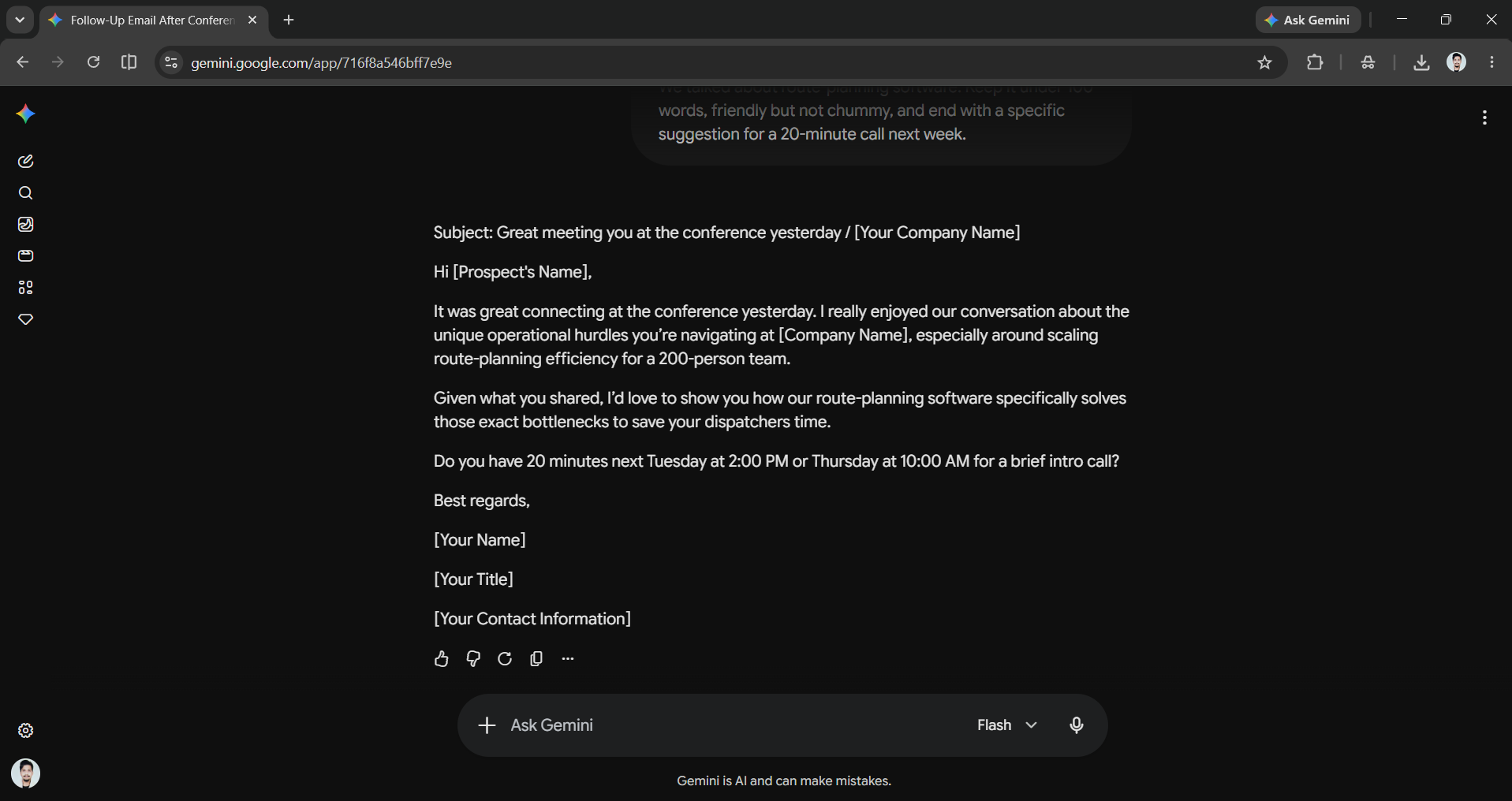
Three habits do most of the work
- Mention the goal and the audience, and Gemini will tune tone and depth based on who's reading, so tell it.
- Give examples. Paste in two emails you've sent before that you liked, and Gemini will match your voice.
- Ask for a specific output, like "three options, ranked, with one sentence on the trade-off," rather than "give me some ideas."
If something isn’t right, don’t start over. Instead, tell Gemini what to change. For example, say, “Tighten this. Cut the second paragraph. Make the ask earlier.” This back-and-forth is where most of the quality comes from.
A few things help this feature work well:
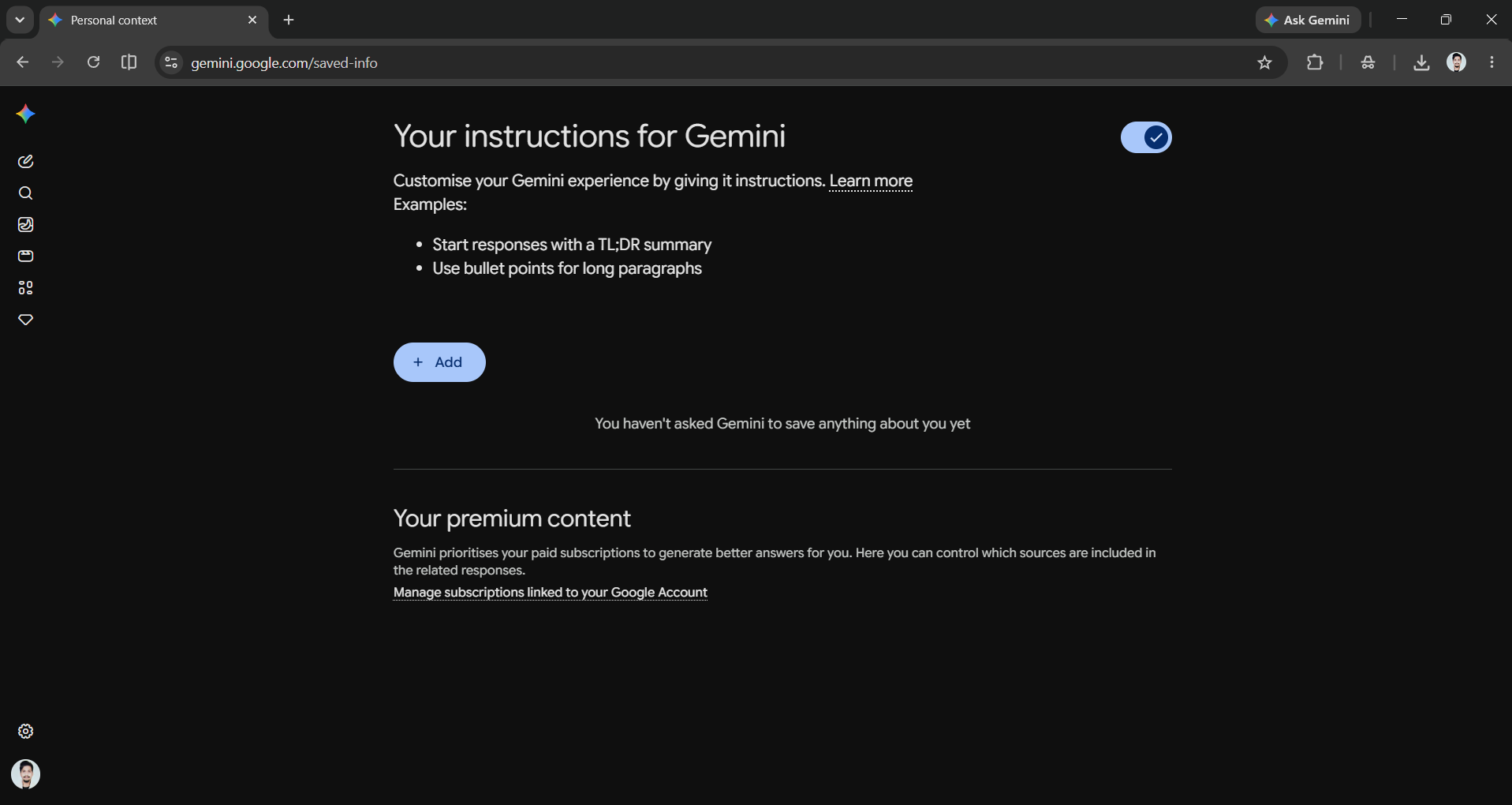
- First, saved info (personal context) lets you tell Gemini your role and preferences, so you only need to tell Gemini once. This means it won't keep asking you the same questions.
- Second, since Gemini connects to your Google account, it can use your actual Gmail, Drive, and Calendar to provide accurate answers instead of making guesses.
Pick the right surface: Chat, Workspace, or Code
Gemini shows up in more than one place, and they're built for different tasks. Knowing which surface to reach for is half the battle.
Gemini app (chat)
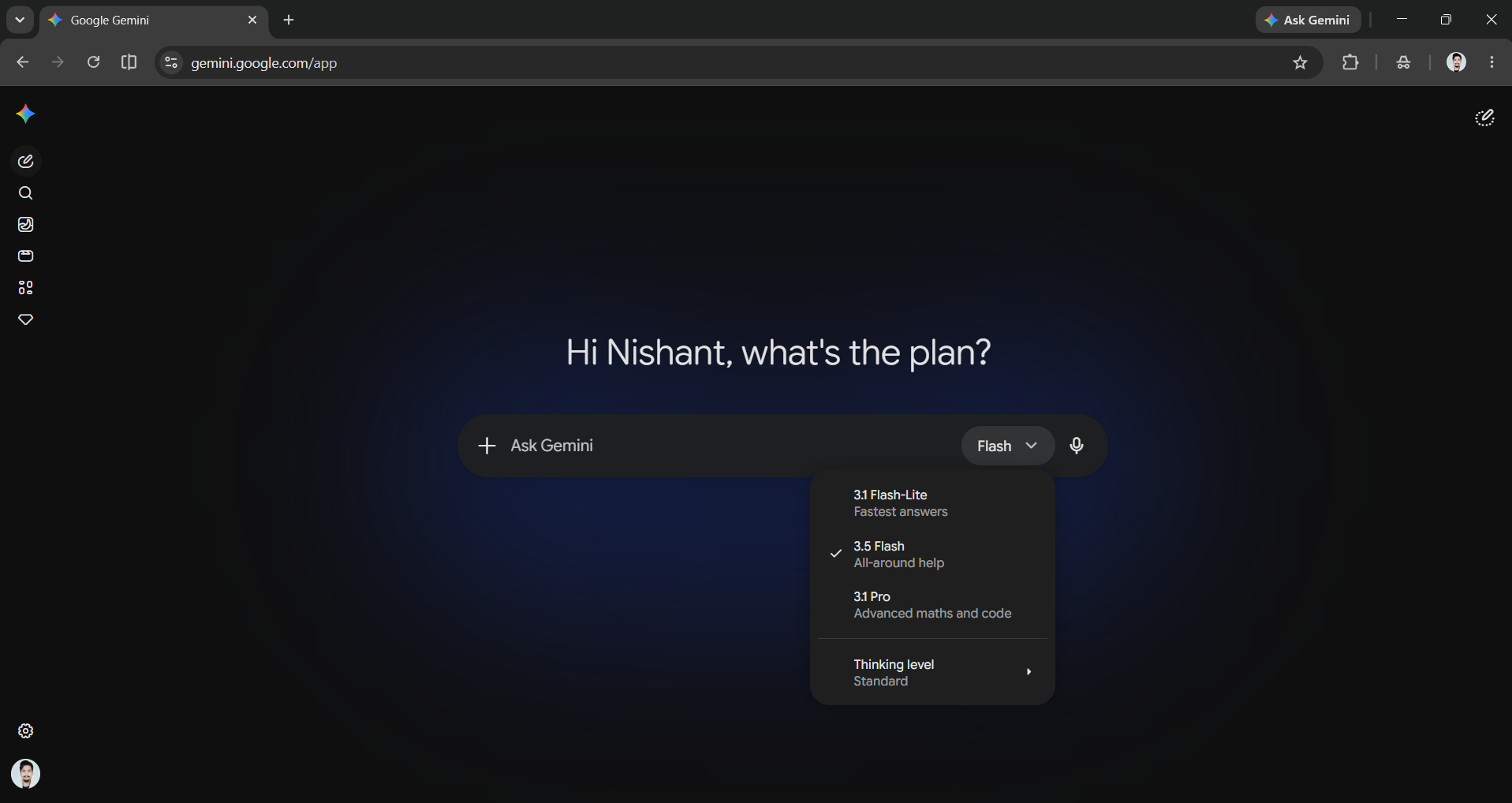
This is the standard chat interface on the web, mobile, and desktop. This would probably be the first thing you see at gemini.google.com or in the app. It's best for quick questions, drafting, brainstorming, and working with files or images you upload in the moment. You can easily choose among the available Gemini models depending on your tasks; you can use the Gemini 3.1 Pro family for hard reasoning and coding, a fast Flash model for everyday work, and Flash Lite for the fastest response. There's also Gemini Live, a natural voice (and camera) mode for talking things through hands-free.
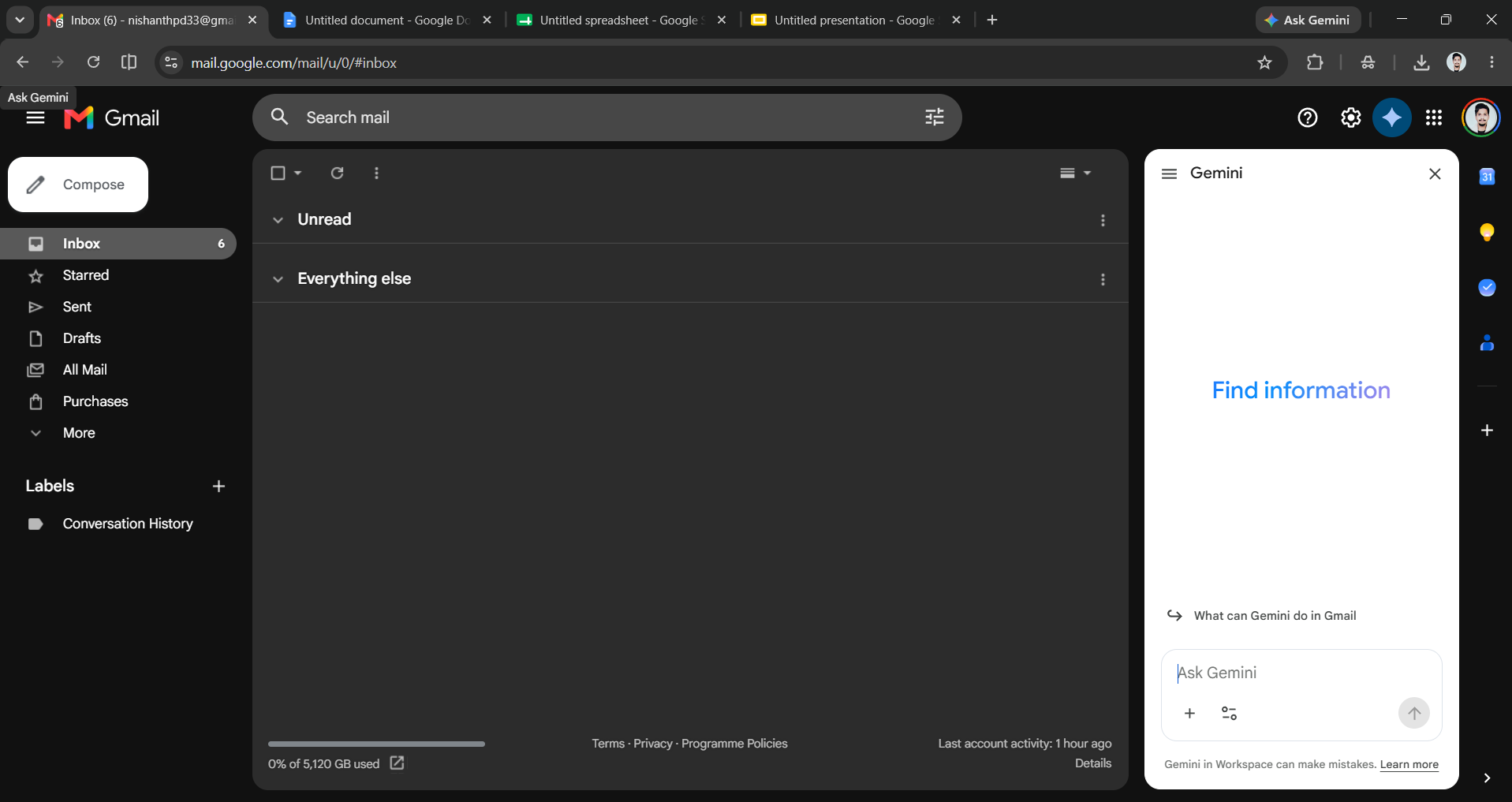
Gemini in Google Workspace
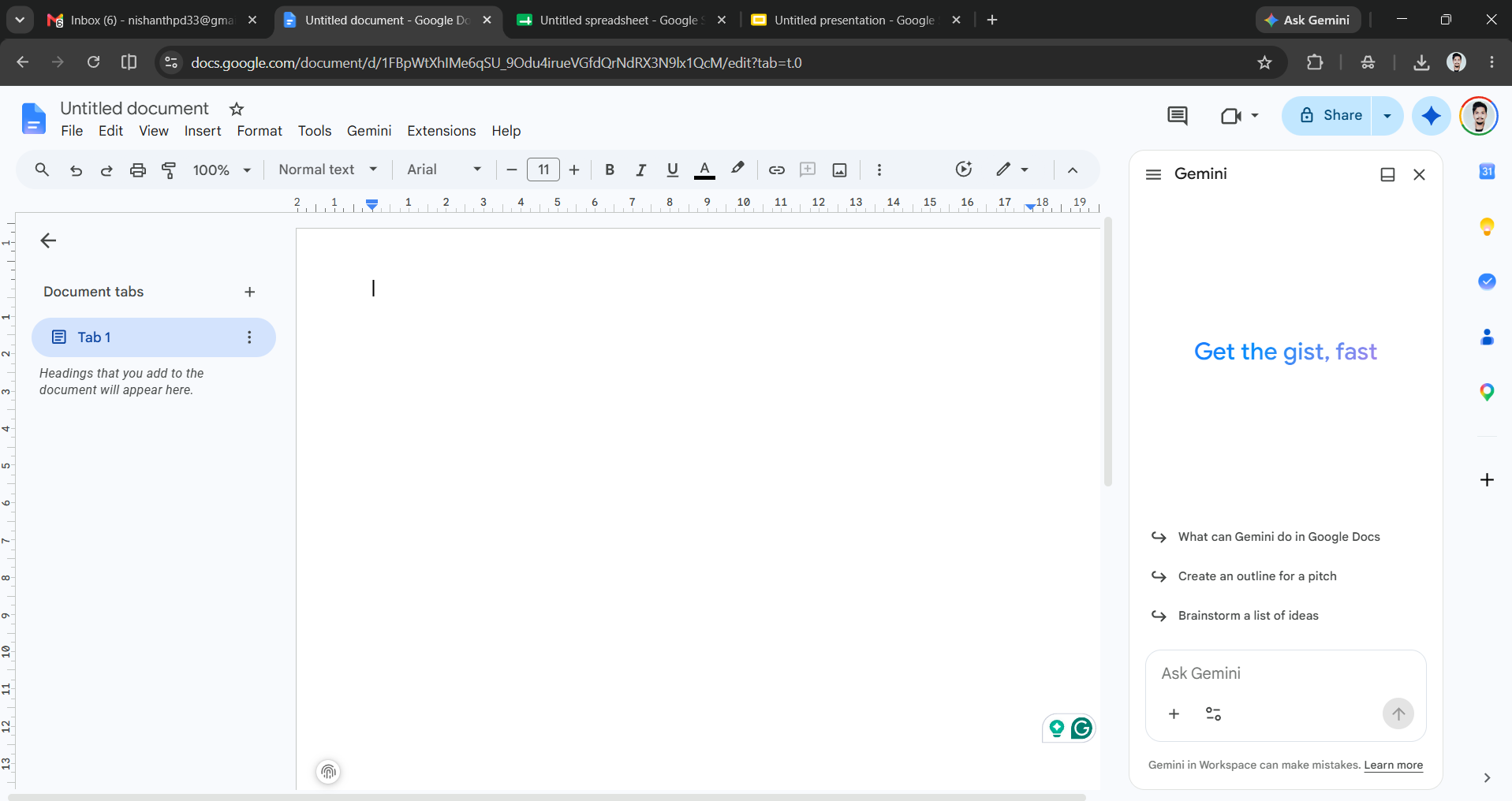
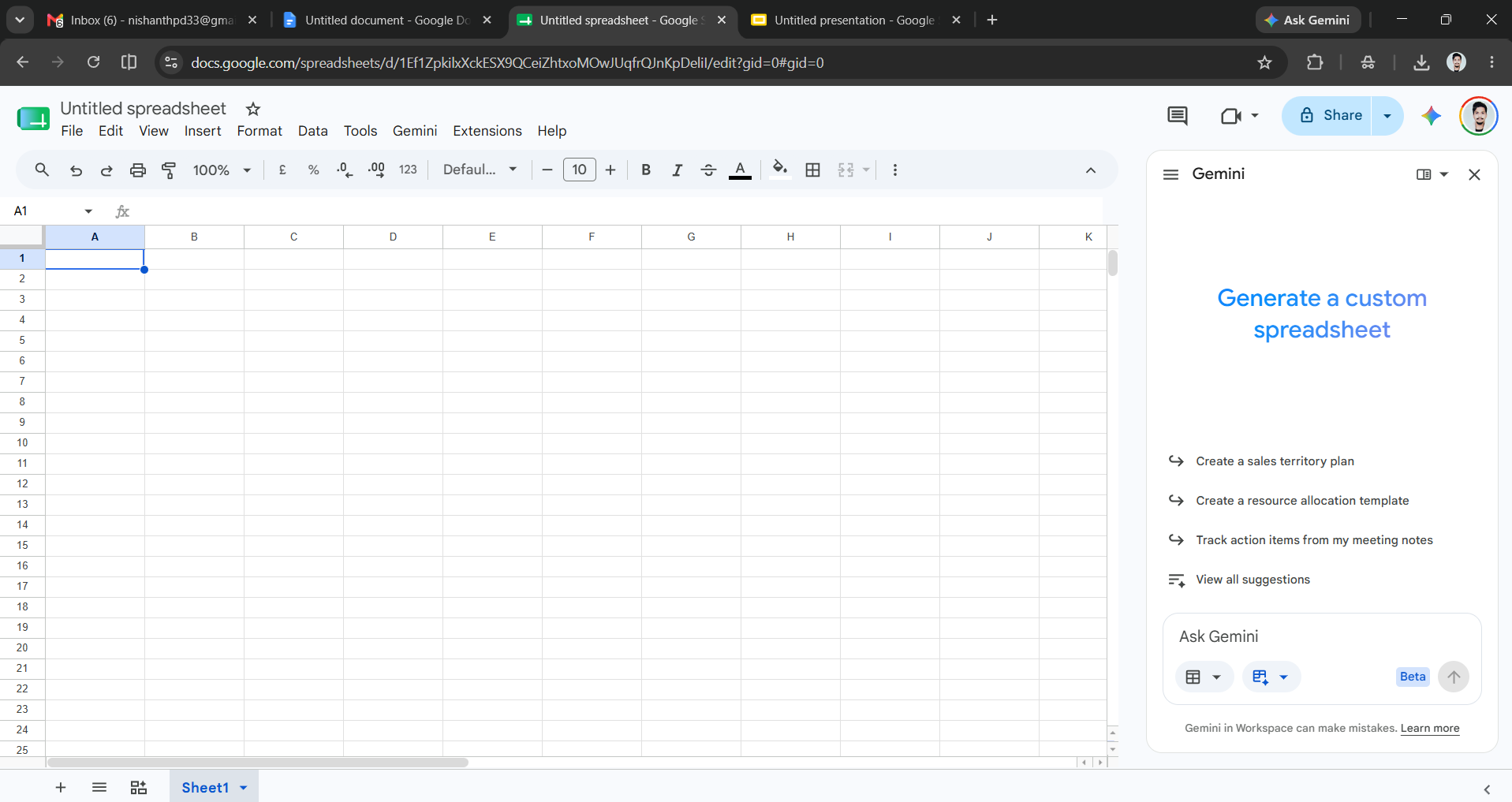
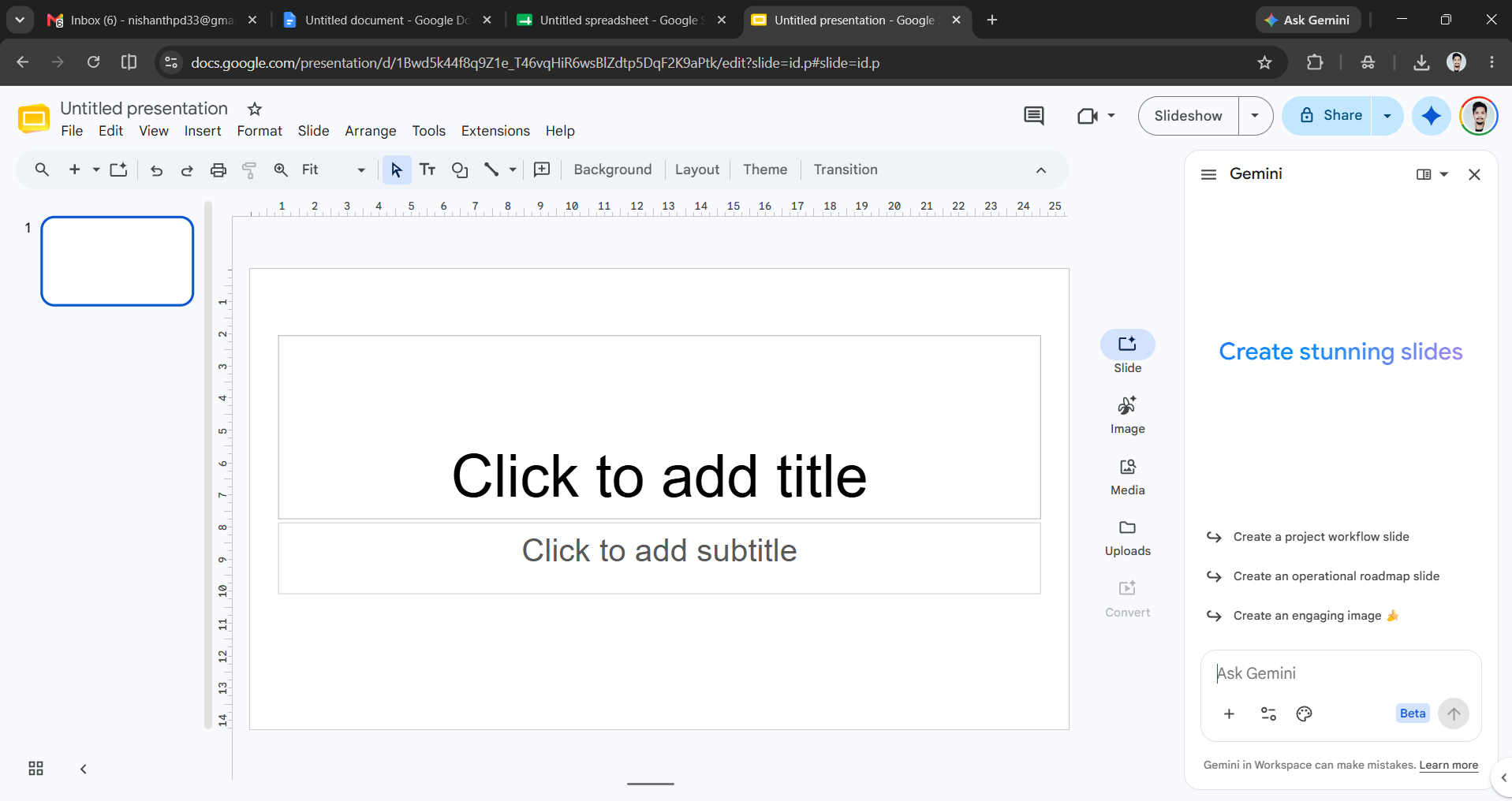
This is Gemini's secret weapon. A side panel lives right inside Gmail, Docs, Sheets, Slides, Drive, and Meet, so you can summarize a long thread, draft a reply, rewrite a paragraph, build a table, or generate slides without leaving the document you're already in. You can easily access it from the side panel when you are working on a specific file, and you can move to the standalone app for broader tasks.
Code (Antigravity, Gemini CLI, and Jules)
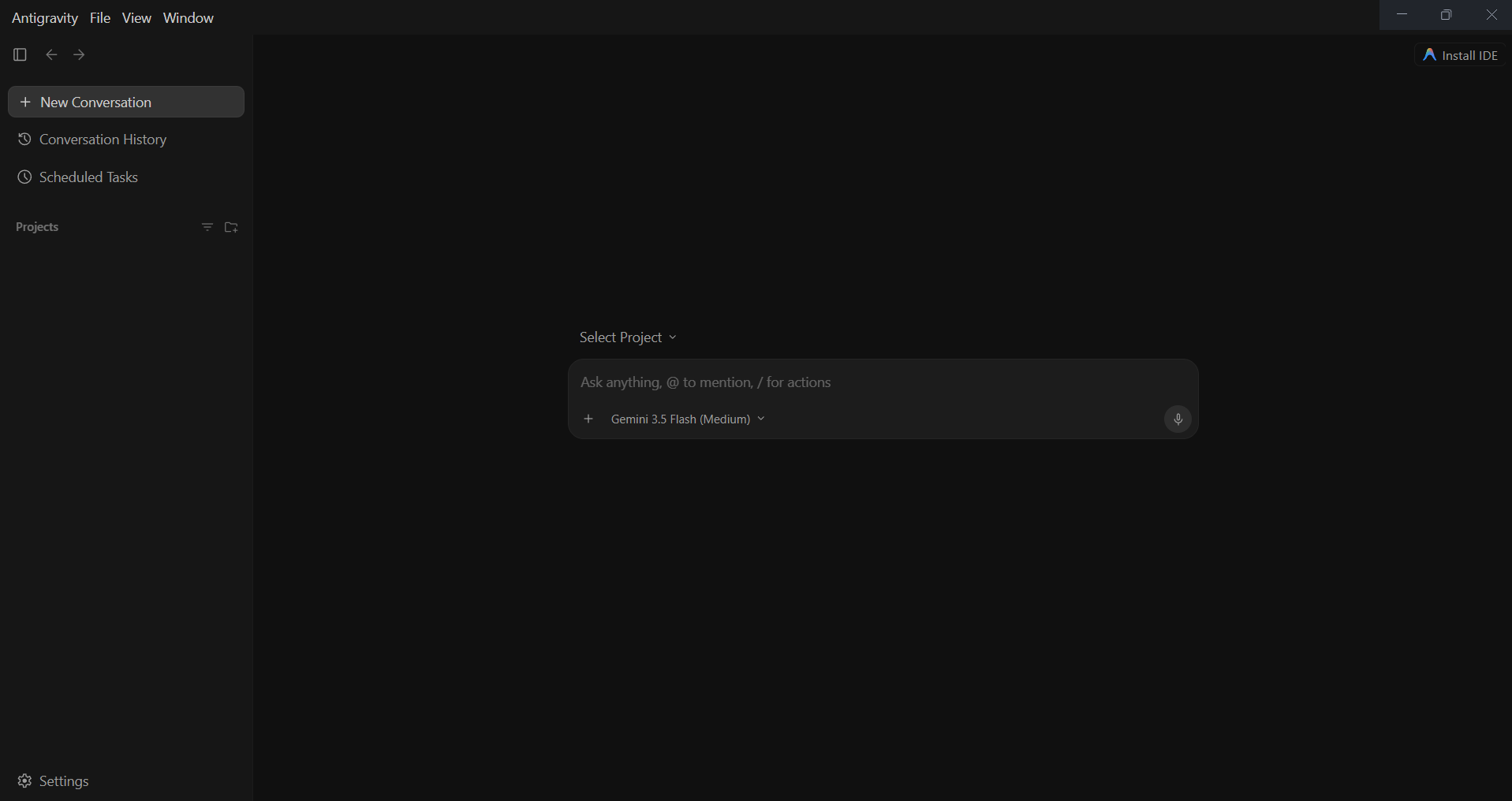
If you write software, Google Gemini is available as a full set of developer tools.
- Google Antigravity (an agentic development platform)
- The Gemini CLI in your terminal
- Jules, an async agent that takes a task and returns a finished pull request.
If you're not a developer, you can safely ignore these.
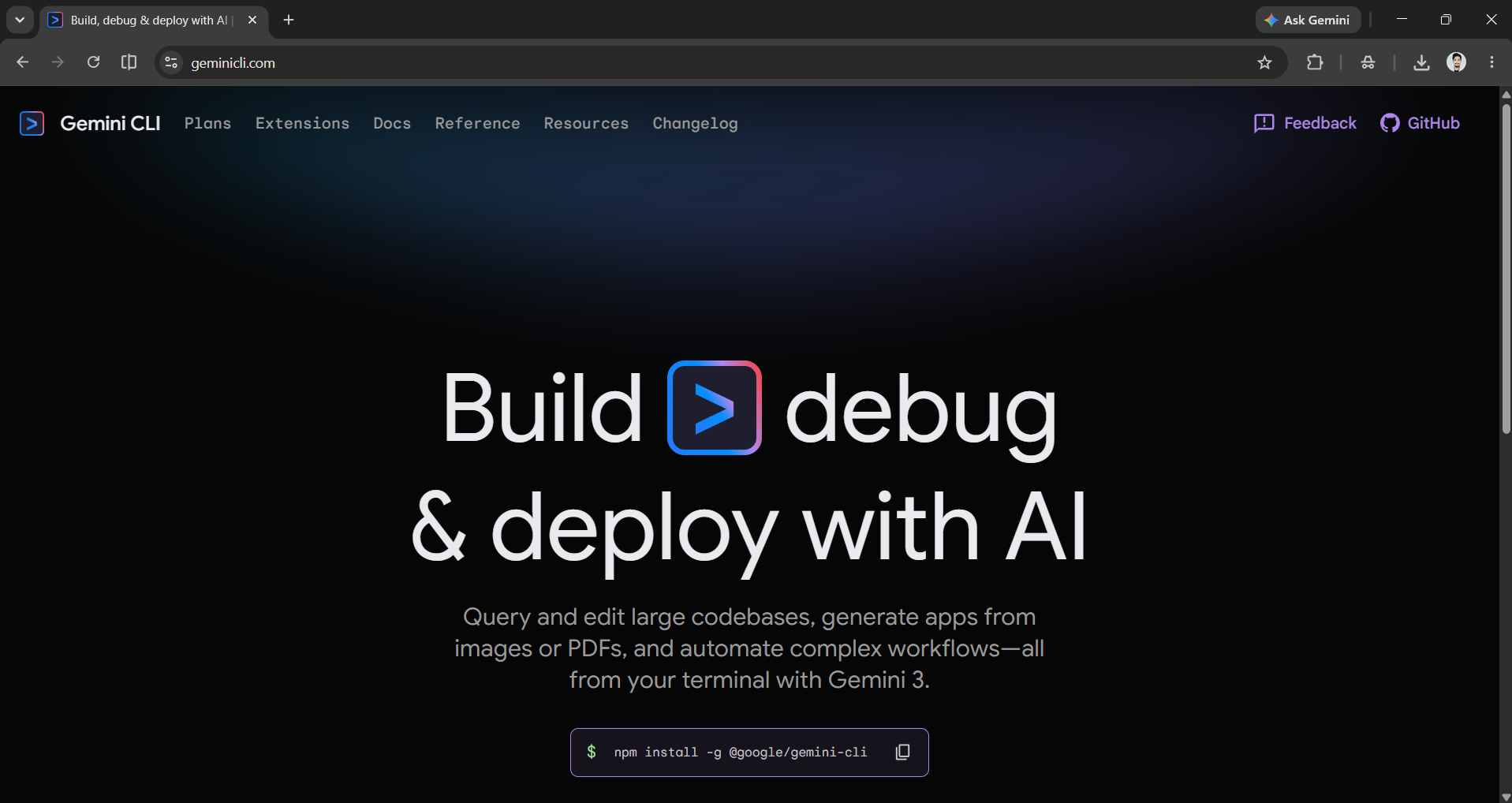
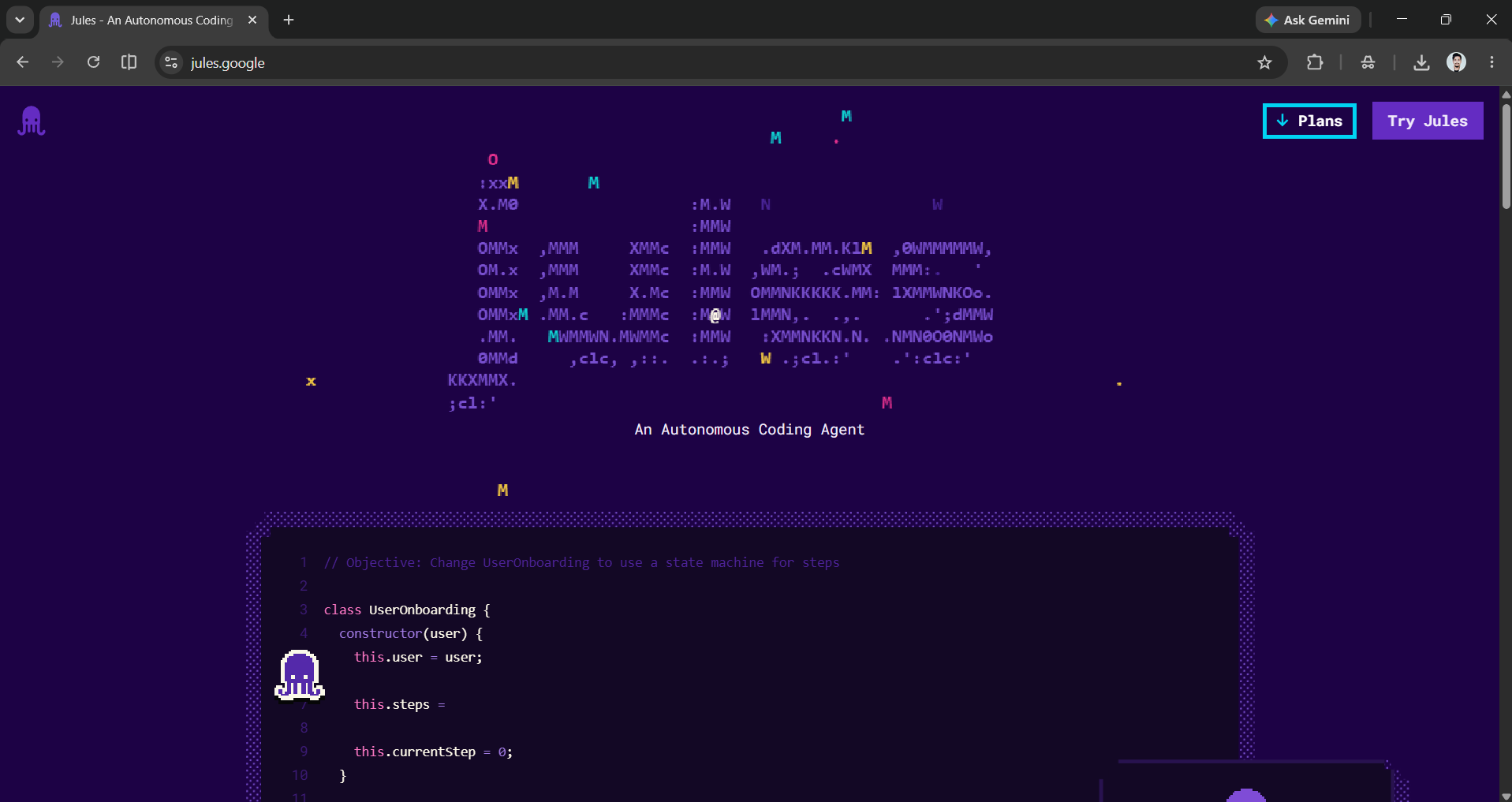
Rule of thumb: If the answer is text, use the Gemini app. If the work lives inside a Google Doc or email, use the Workspace side panel. If the answer is a code change, use Gemini's developer tools.
AdCreative.ai: An AI-powered platform that automates the creation of high-performing ad creatives for social media and display campaigns
Organize work that lasts more than one conversation
Single chats work well for quick questions. However, for regular tasks, like the same client, the same report, and the same files each week, Gemini's persistent features are very helpful.
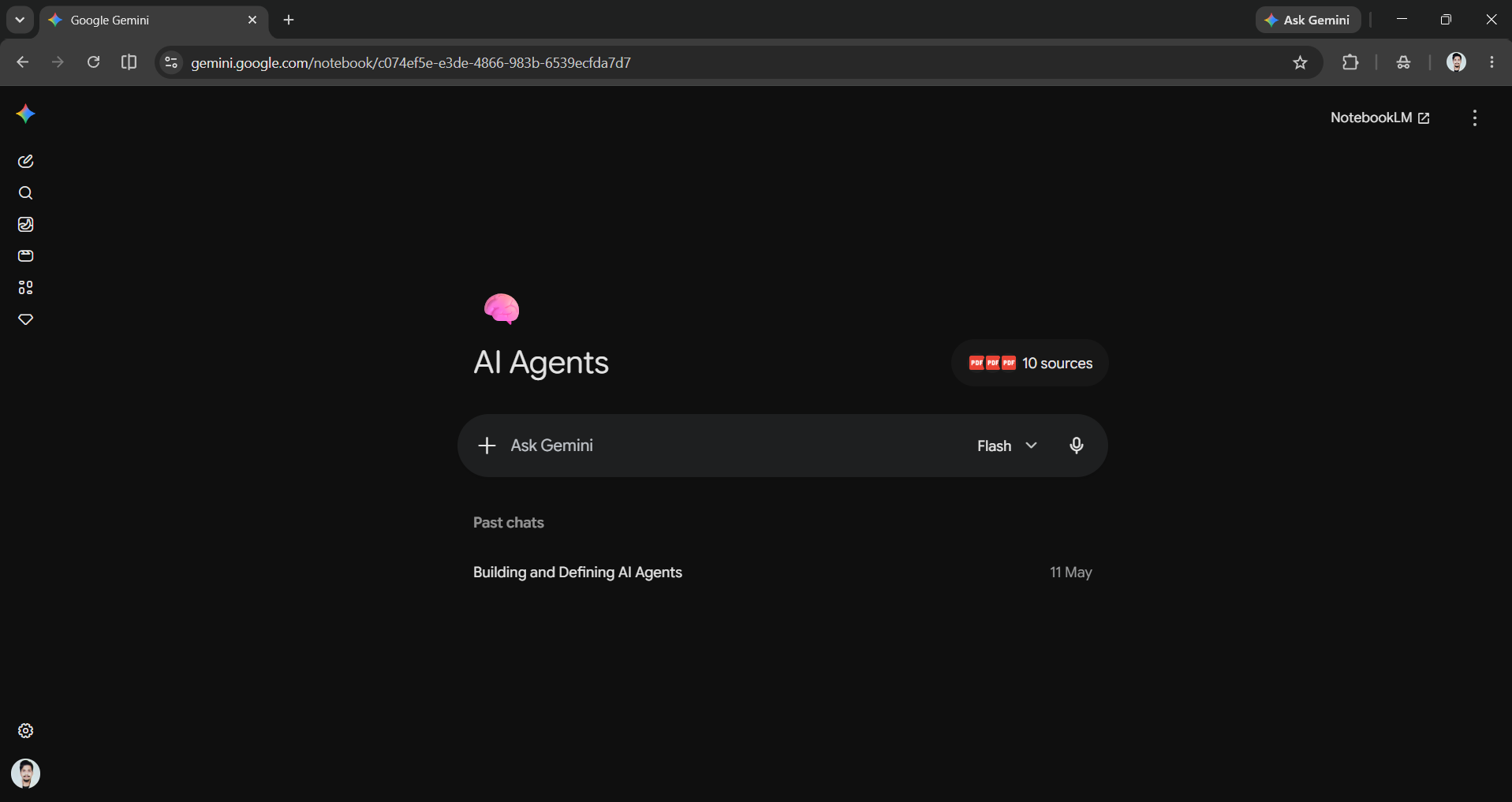
Notebooks in Gemini: Persistent workspace
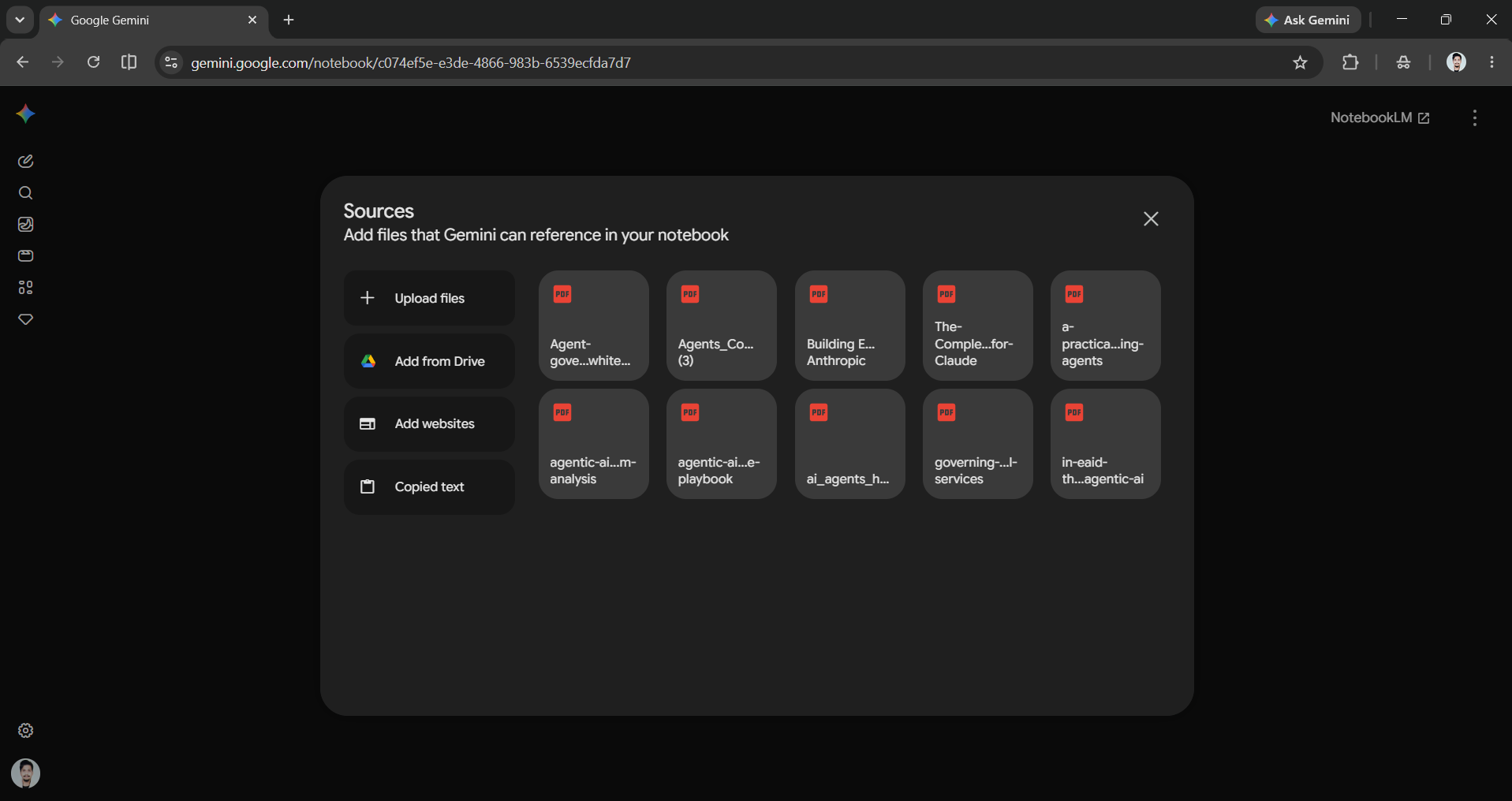
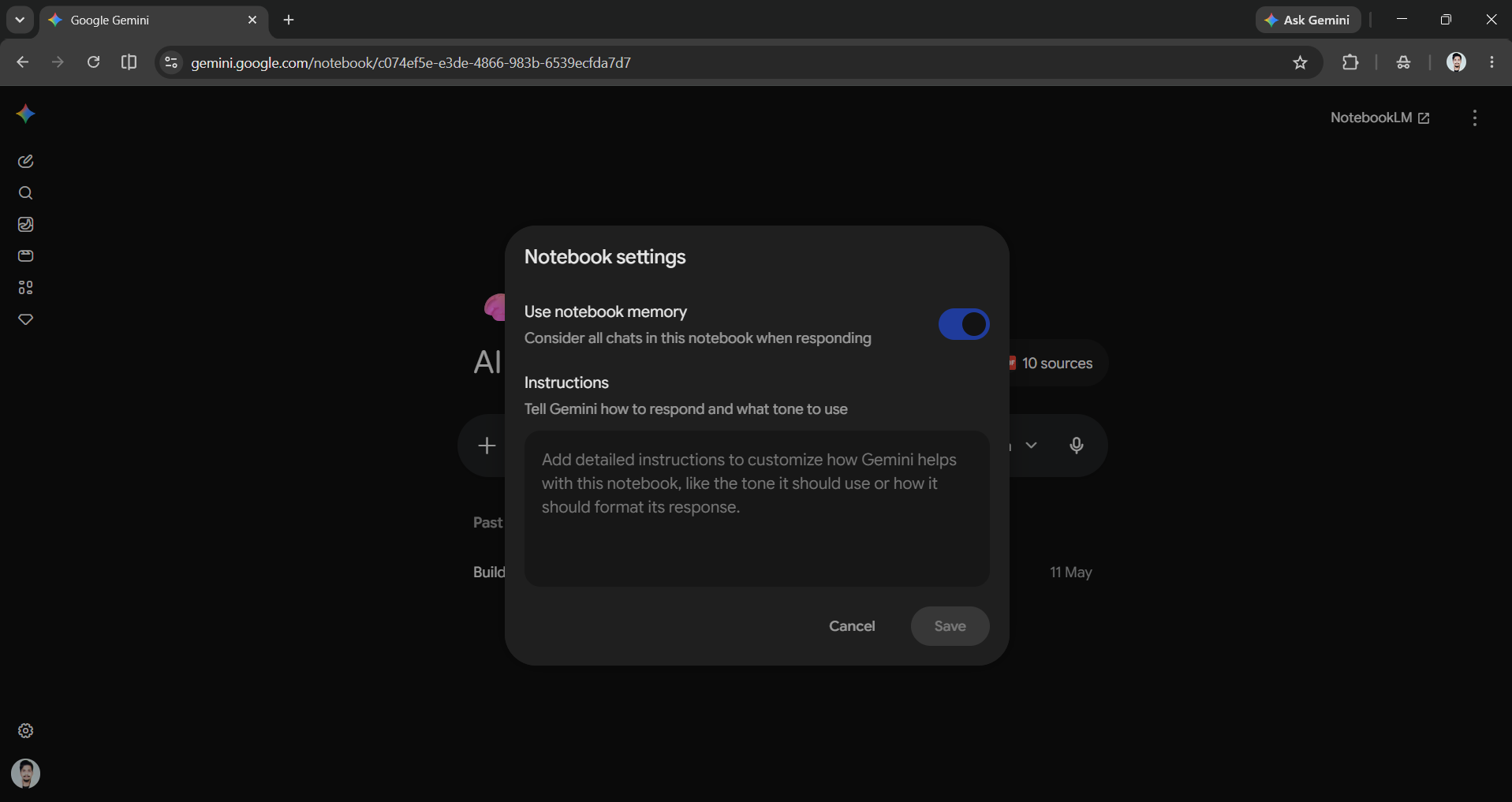
Notebooks bring Google NotebookLM's capabilities to Gemini. You can create a Notebook, add your sources like texts, PDFs, docs, sheets, and websites to it, and adjust the Notebook's settings to give Gemini instructions on how to respond and what tone to use.
Gems: Your custom assistants
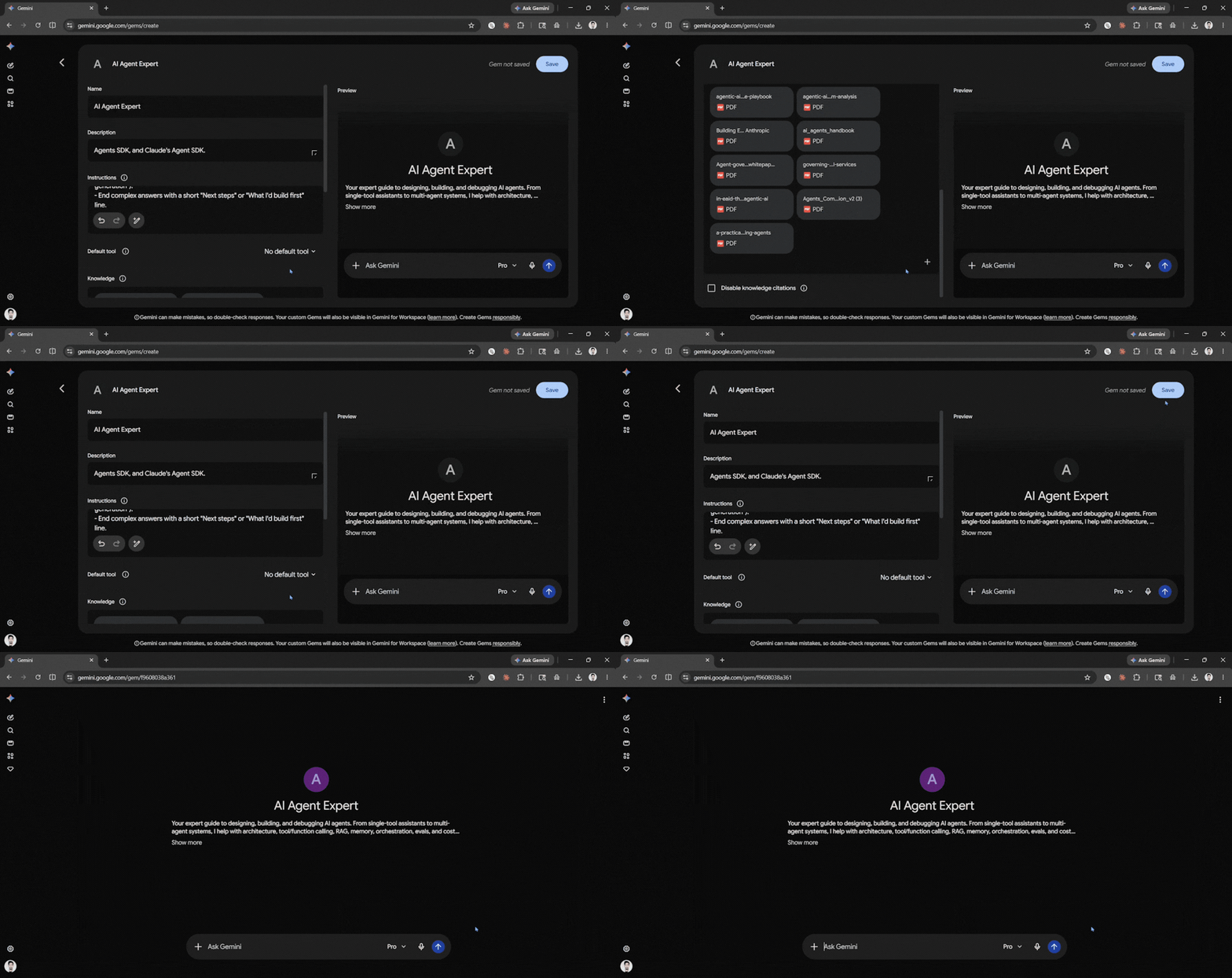
A Gem is a custom/tailored version of Gemini you set up once for a repeatable job. It could be a brand voice writer, a coding helper, a meeting notes summarizer, or a study coach. You can give it instructions (and optionally reference files), name it, and it will show up in your sidebar, ready to go. A good rule: if you do a task more than twice a week, make it a Gem. You can also use Google's prebuilt Gems to get started.
Canvas: Things you can build and keep
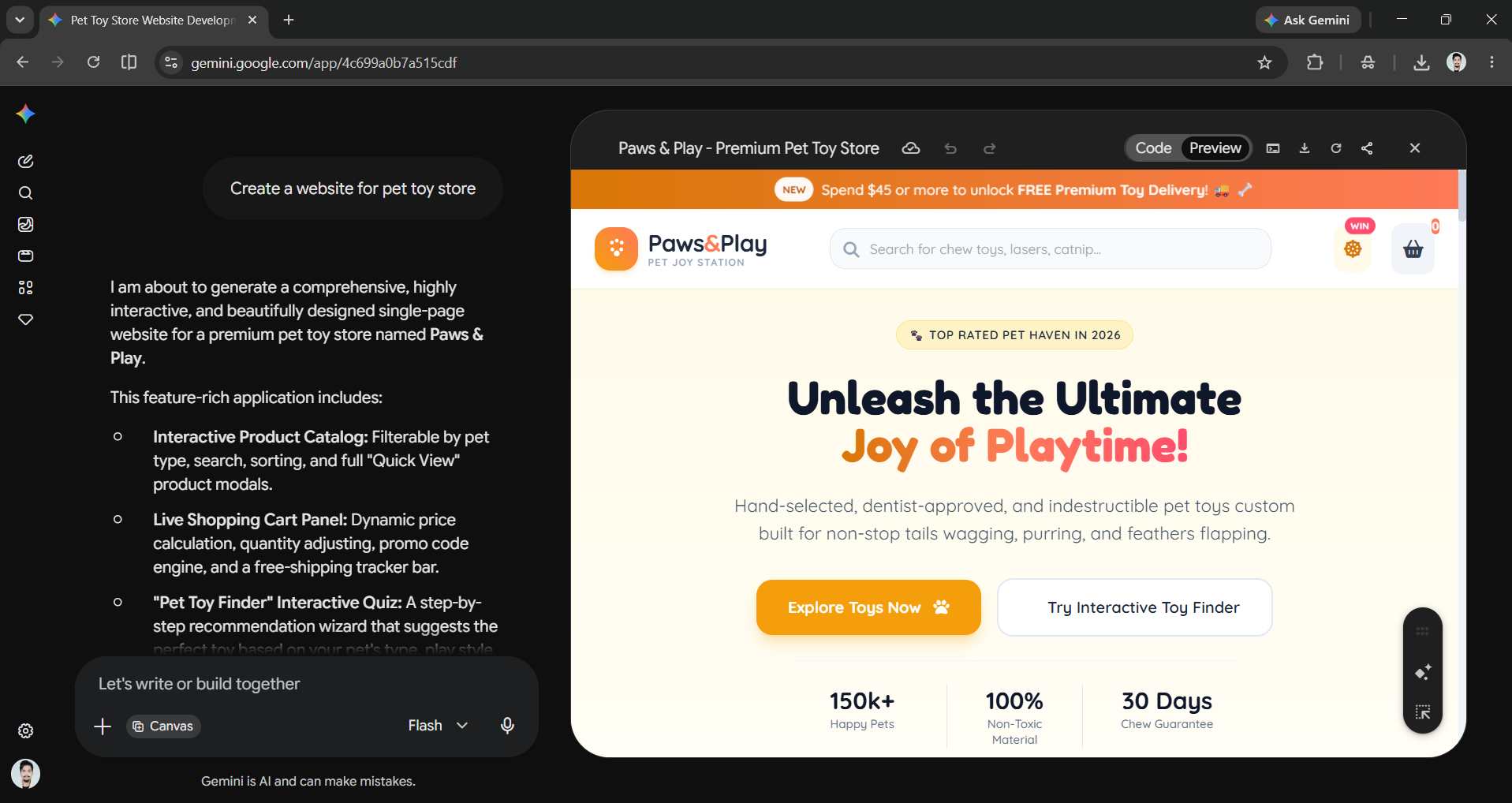
Canvas provides a workspace next to the chat where you can turn your ideas into real products. This could be a polished document, a clear outline, code, or even a working app or visualization. You can edit your work directly, request specific changes, and see the results in real time, rather than reconstructing everything from a long chat. It helps you turn a simple idea into a finished product that you can export.
Connected apps: Link Gemini to the tools you use
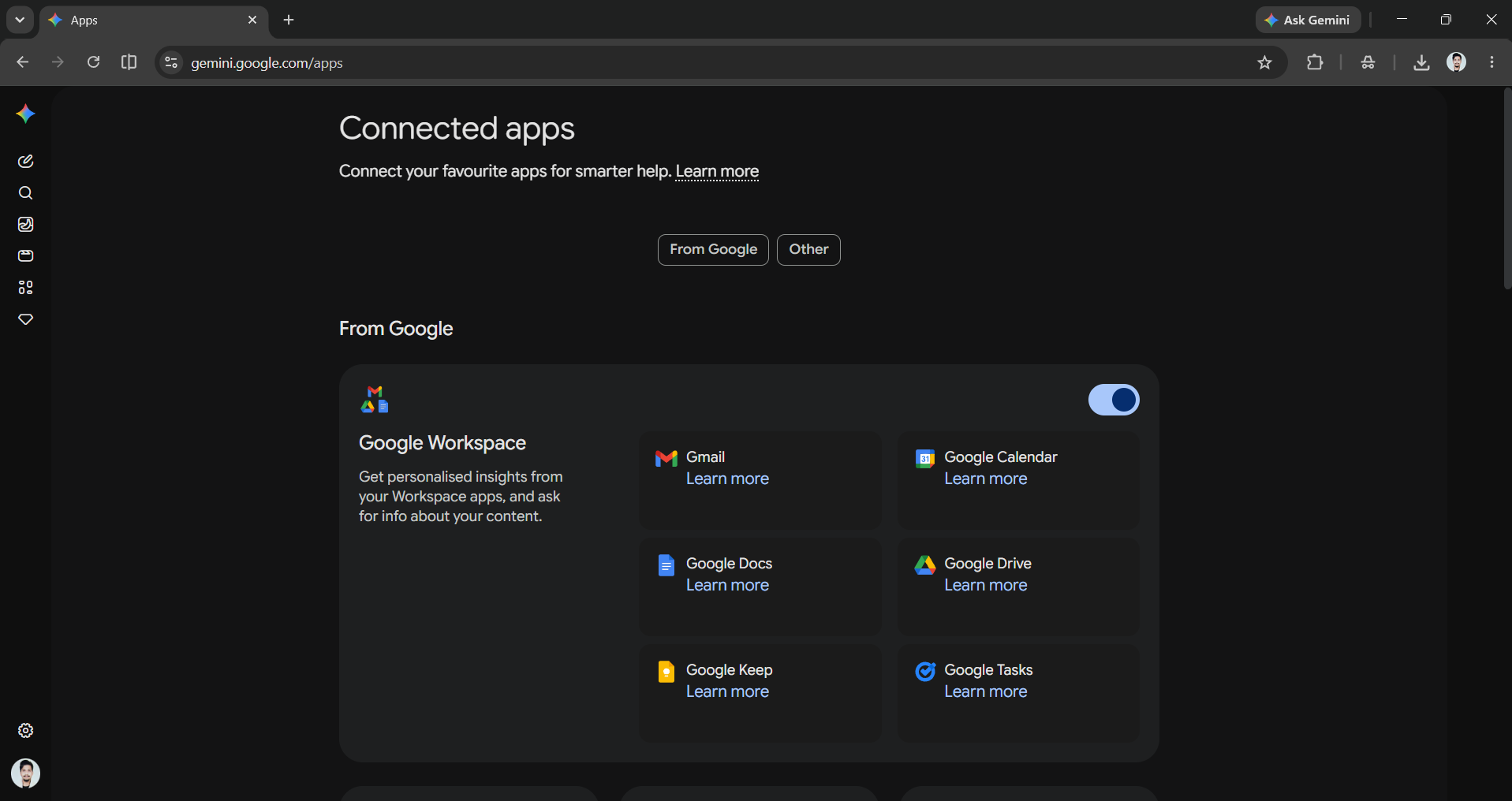
Gemini can connect to your Google account and understand your needs. It can also link to apps you use often, like Gmail, Drive, Calendar, Maps, Flights, Hotels, and YouTube, as well as others like Canva, GitHub, Classroom, and Verify AI. When you use these apps together, Gemini helps by gathering information and taking actions across them.
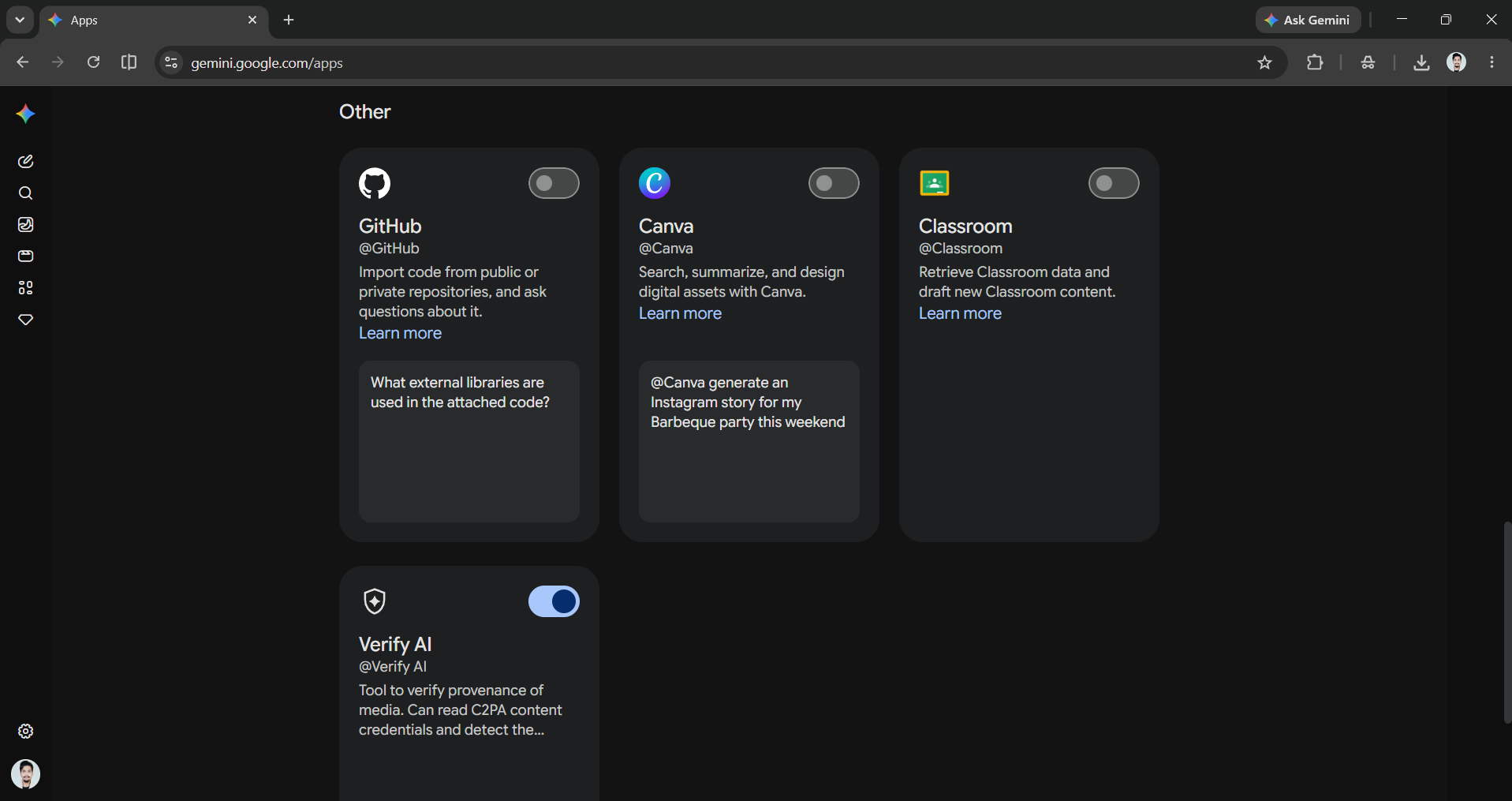
Once connected, you can ask things like:
- Summarize the unread threads in my inbox from this week and group them by what's blocking me.
- Find the email with the venue contract, check my Calendar, and tell me if the date still works.
- Look at tomorrow's meetings and draft a prep note for each using whatever you can find in my Drive.
Each of those would take 20–40 minutes by hand. With connected apps authorized, they're a single prompt.
Deep Research: A report instead of an afternoon
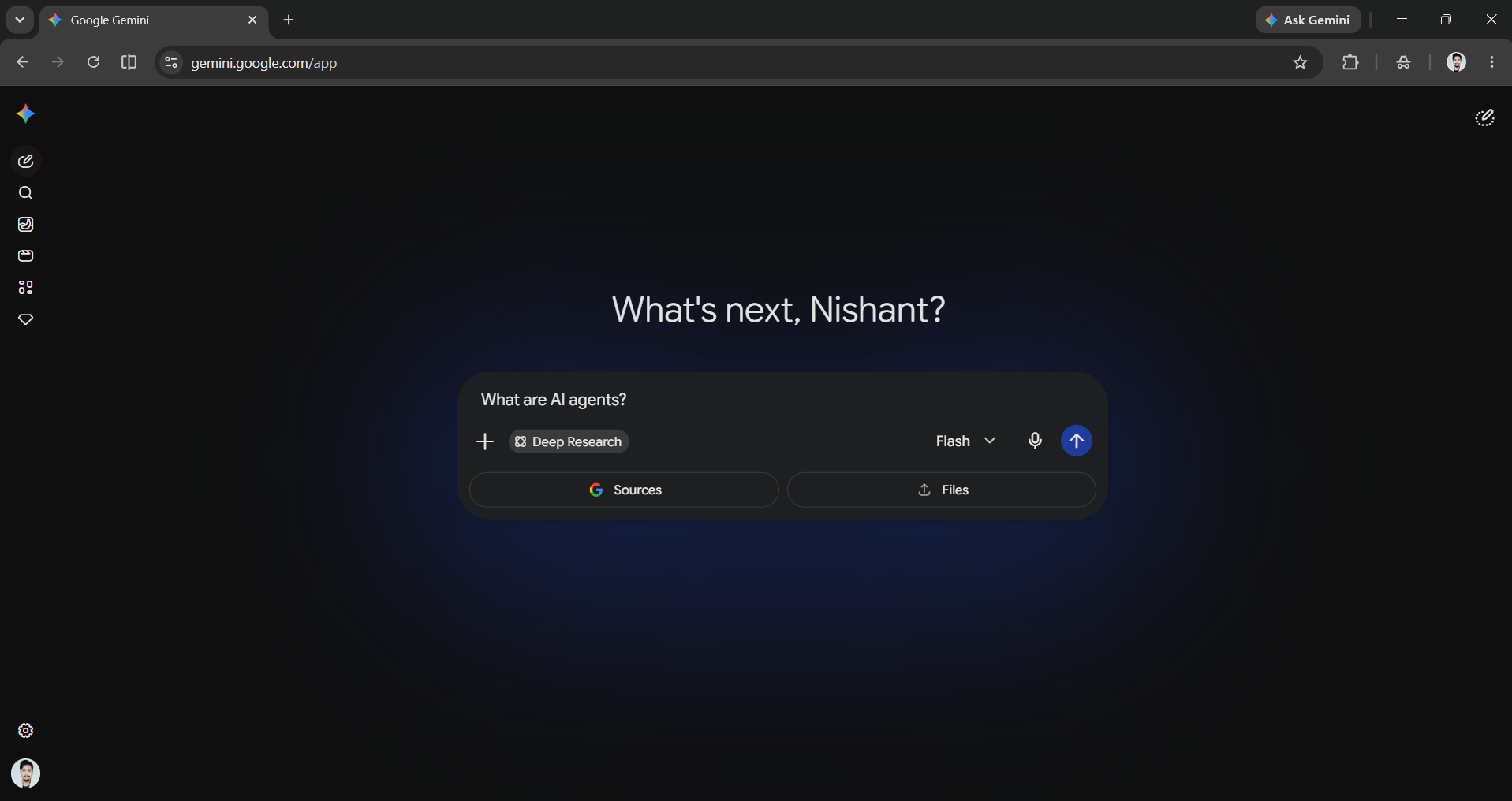
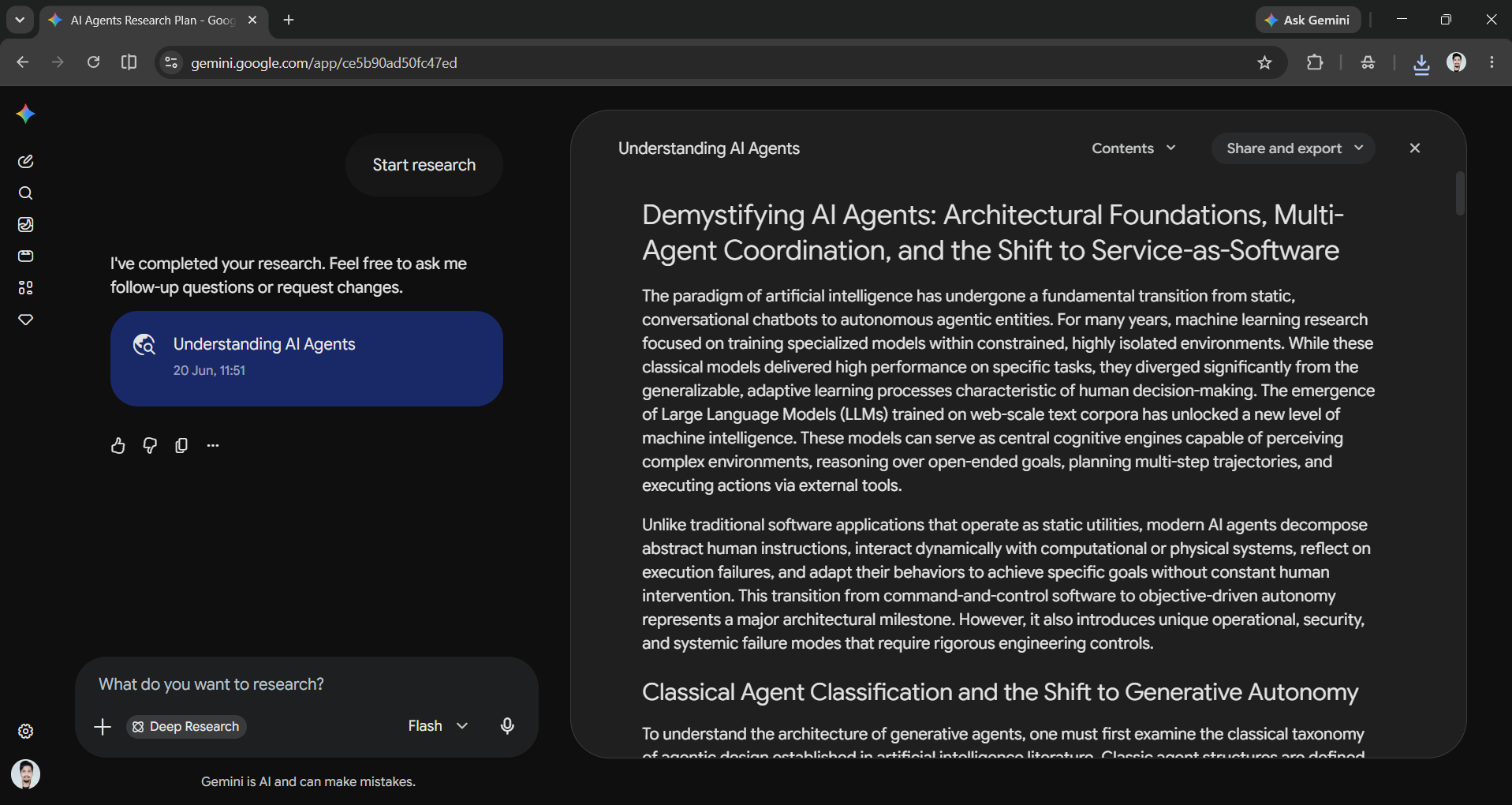
Deep Research sends Gemini off to browse the web agentically. It will plan and run searches, read sources, and put together a report in just a few minutes. Deep Research is available to everyone at no cost on Gemini's fast Flash model. You can use it when you need to quickly understand a competitive landscape, conduct due diligence, or review literature. For example, you can say, "Tell me everything about this customer before my call."
If you want to turn sources into study guides, audio summaries, or mind maps, check out its sibling tool, NotebookLM.
Scheduled Actions: put repeat work on autopilot
Scheduled Actions allow you to ask Gemini to complete a task at a specific time or on a regular basis, like a Monday-morning briefing, a daily calendar summary, or a weekly topic digest. You only need to set it once, and it will run automatically. In addition, the top tier offers agentic features: Gemini Spark can handle multi-step tasks online, such as organizing your inbox or booking services, with your guidance.
Real automations, by role
There are countless role-based ways to put this together. A few to start from:
- For managers: A Scheduled Action that pulls from Gmail and Calendar each Monday and produces a briefing of what slipped, who's waiting on you, and what to follow up on, waiting in your inbox before standup.
- For salespeople: A Gem that has integrated your pitch and tone for prep requests, call notes, follow-up emails, and proposal drafts using deal-related emails and documents.
- For analysts: Gemini in Sheets can allow you to build formulas, clean data, and summarise trends, with specific commands for tasks like adding columns or creating charts.
- For students and lifelong learners: Drop lecture notes or a research paper into Canvas (or NotebookLM) and ask Gemini to generate interactive flashcards, a study plan, or a plain-English explanation.
How to actually start
The easiest way to get started is through just-in-time learning. You can focus on one task that annoys you, and use Gemini to solve it. And as you go further, you can learn other features as needed. You can build one Gem around that task, connect an app, and explore the Workspace side panel to find out what helps save time and what doesn’t.
As we said at the top, there's no single correct way to use an AI assistant; everyone's workflow is different. For you, a connected app might be the game-changer. For someone else, it's a Gem or a Scheduled Action that quietly runs every Monday. After two or three weeks of this, the difference between Gemini as a smarter search engine and Gemini as your AI assistant becomes obvious, and hard to give up.
Open Gemini, pick a task, and go.
💡 For Partnership/Promotion on AI Tools Club, please check out our partnership page.

