


Claude Design is one of the more interesting Anthropic products. Claude Design is an AI vibe coding tool that allows you to create designs, interactive prototypes, presentations, and more. It isn't like your regular Claude chat and artifacts; it is a dedicated tool for designing better websites and UIs with Claude. If you are a new user, you shouldn't make the mistake most people make while using Claude Design, which is that they put in a prompt, get a result, and call it done, leaving a lot on the table.
I've spent some time digging into how Claude Design actually works by testing it myself, going through the support docs, and the blog posts. In this article, I will give you the top 5 Claude Design tips that can consistently separate your good outputs from others' generic ones. Here they are.
Here are the top 5 Clade Design tips to get better outputs:
1. Set Up Your Design System Before You Do Anything Else
I can't stress this enough: do not skip the design system setup.
When you first visit claude.ai/design, you can define your brand (colors, typography, component styles, and tone). This is the single highest-leverage step in the entire workflow. Once it's set up, every project you create will automatically inherit your brand, and you will no longer get generic outputs. You start getting something that actually looks like your product.
For teams on Team or Enterprise plans, an admin can lock down a single approved design system across the org. That means every designer, PM, and marketer is generating on-brand work, without a single Figma handoff.
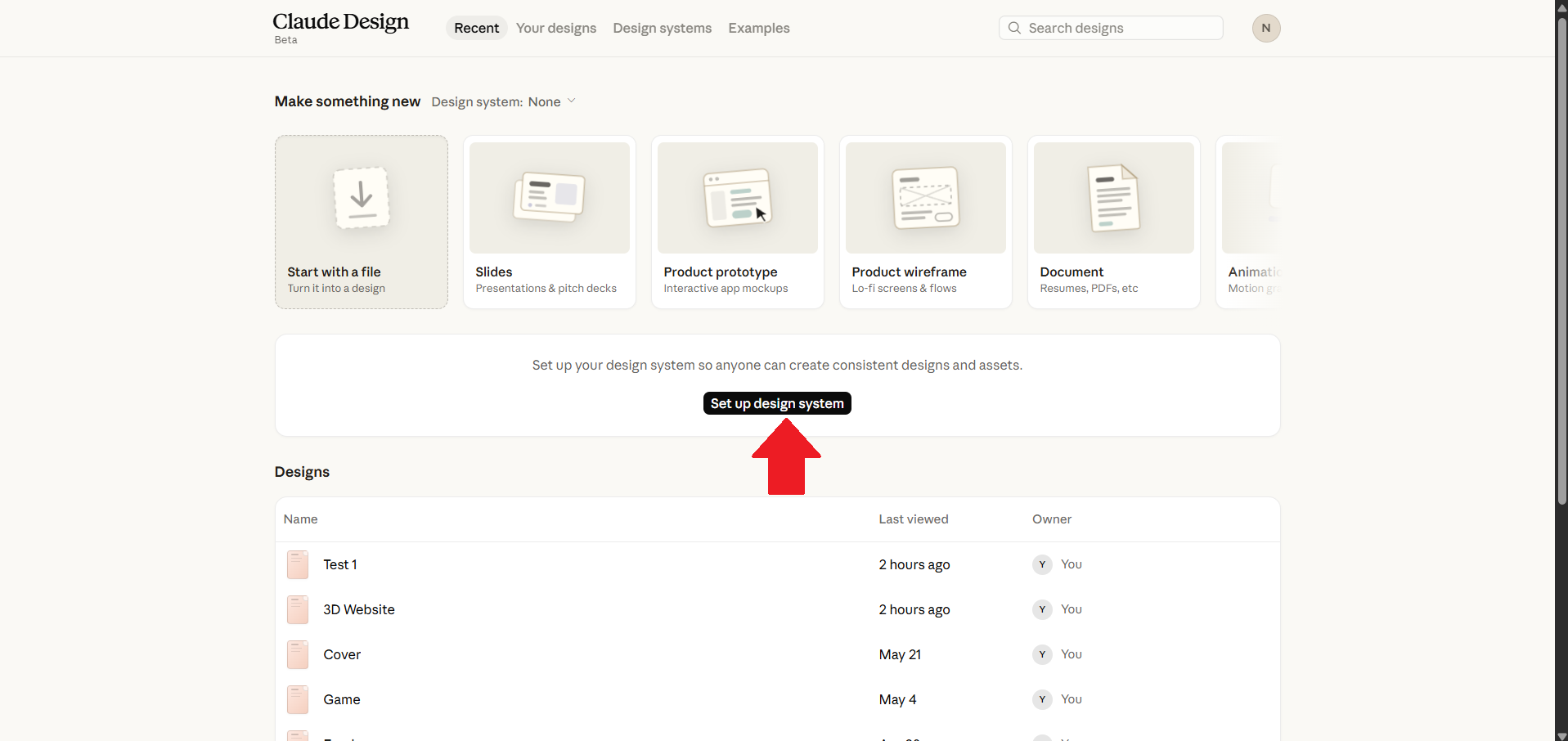
The tradeoff? It takes 15–30 minutes to set up properly. Do it once. You'll thank yourself on every project after.
2. Use the Tweaks Panel for Precision Adjustments
Here's something most people miss: Claude Design has a Tweaks panel that works like a customizable properties window.
You can select any element, open the Tweaks panel, and adjust things like dark mode toggles, corner radius, color selectors, glow sliders, and spacing, without writing a single chat message. What makes this genuinely powerful is that you can ask Claude to add new properties to the Tweaks panel. Need a custom font-weight toggle or an opacity slider for a hero section? Just ask. Other AI design tools give you a fixed property panel. Claude Design is extensible.
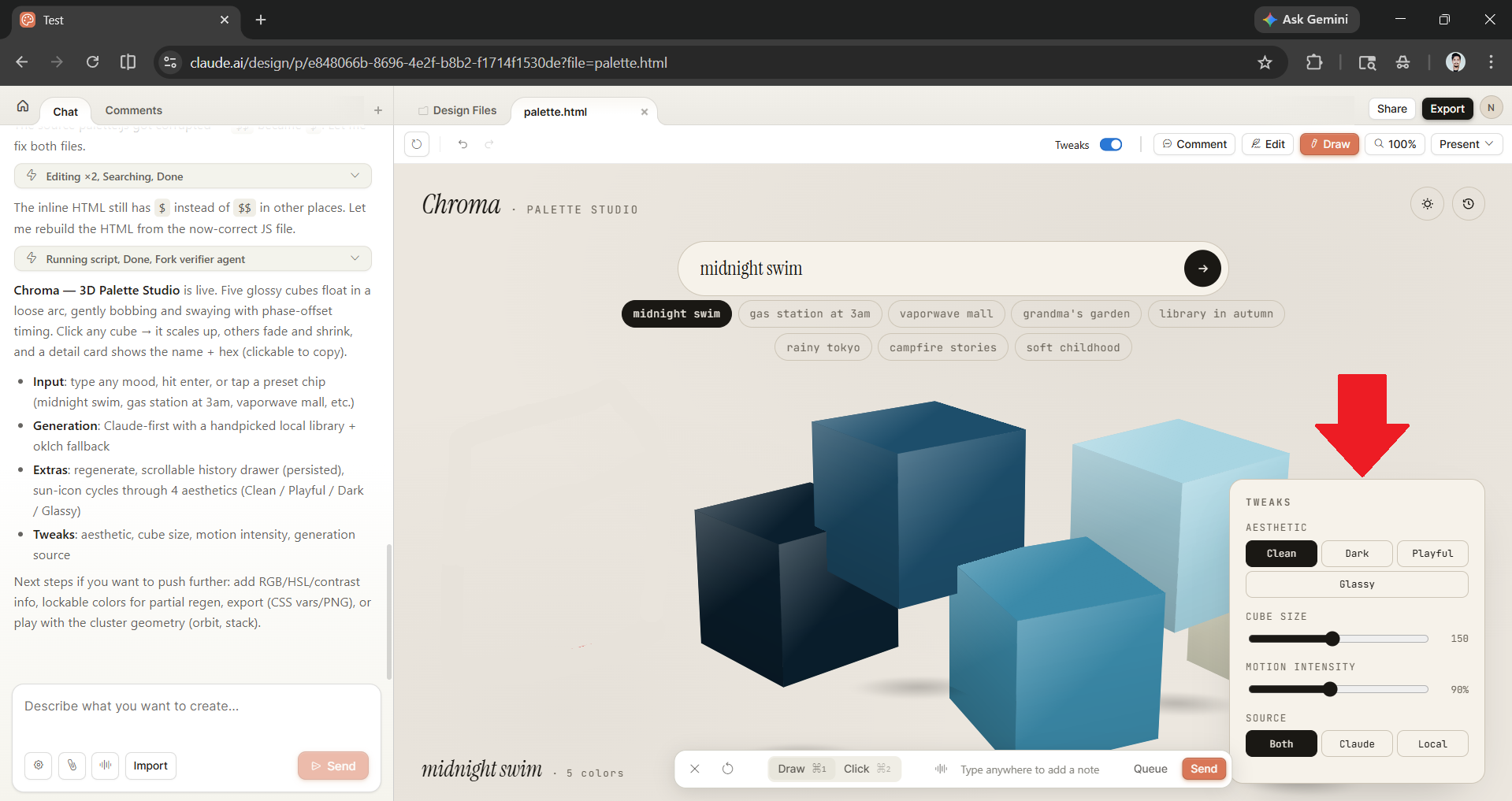
One important note: When editing sections through chat, make sure to turn off the Tweaks panel. If the panel is open, Claude might confuse its options with your design instructions. This is a known issue that could waste your tokens.
3. Ask for Variations Before You Commit to a Direction
This tip comes straight from Claude's own documentation, and it's one of the most underused features in the tool.
Instead of iterating on one design until it's right, you can ask Claude to generate 2–3 alternative layouts up front. Something like: "Show me 3 different directions for this landing page, I want to compare before picking one."
When you can compare different options, it will make it much faster for you to take a direction than to guess what to do next. You can see all the possibilities right away and choose the one that fits your goals best. This is how professional design sprints work: first, you explore many ideas, and then you focus on one.
Fair warning: When you generate multiple options, it can use a decent amount of your tokens and can be slightly buggy sometimes. However, I prefer to use the tokens to go in the right direction rather than spending five more turns fixing a wrong choice.
AdCreative.ai: An AI-powered platform that automates the creation of high-performing ad creatives for social media and display campaigns
4. Know When to Use Chat vs. Inline Comments
Claude Design gives you two ways to request changes (chat and inline comments), and using the right one for the right job can save a lot of unnecessary back-and-forth.
- Use chat for broad changes: Restructuring the layout, changing the color direction, adding a new section, and changing the overall tone, as these tasks need context. Chat can handle that well.
- Use inline comments for targeted fixes: Click directly on a button, a text field, or a spacing gap and leave a note like "increase padding here" or "swap this for a dropdown." It's faster and more precise than describing a location in chat.
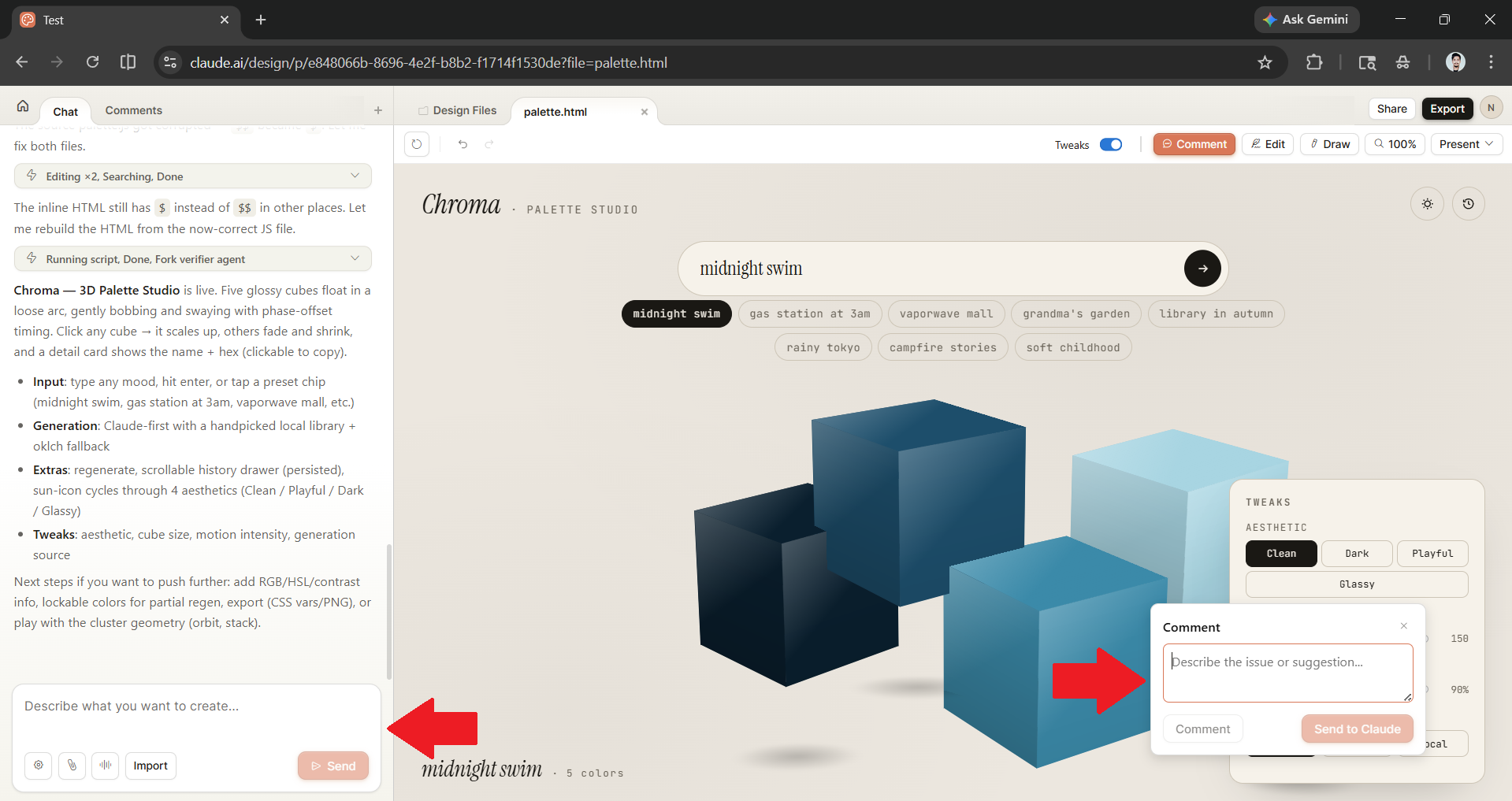
If your inline comments aren't being picked up (a known intermittent bug), paste the feedback directly into chat instead. The outcome will be the same, but it is a slightly less elegant workflow.
5. Tell Claude to Ask You Questions Before It Builds Anything
This tip can change how you start every project.
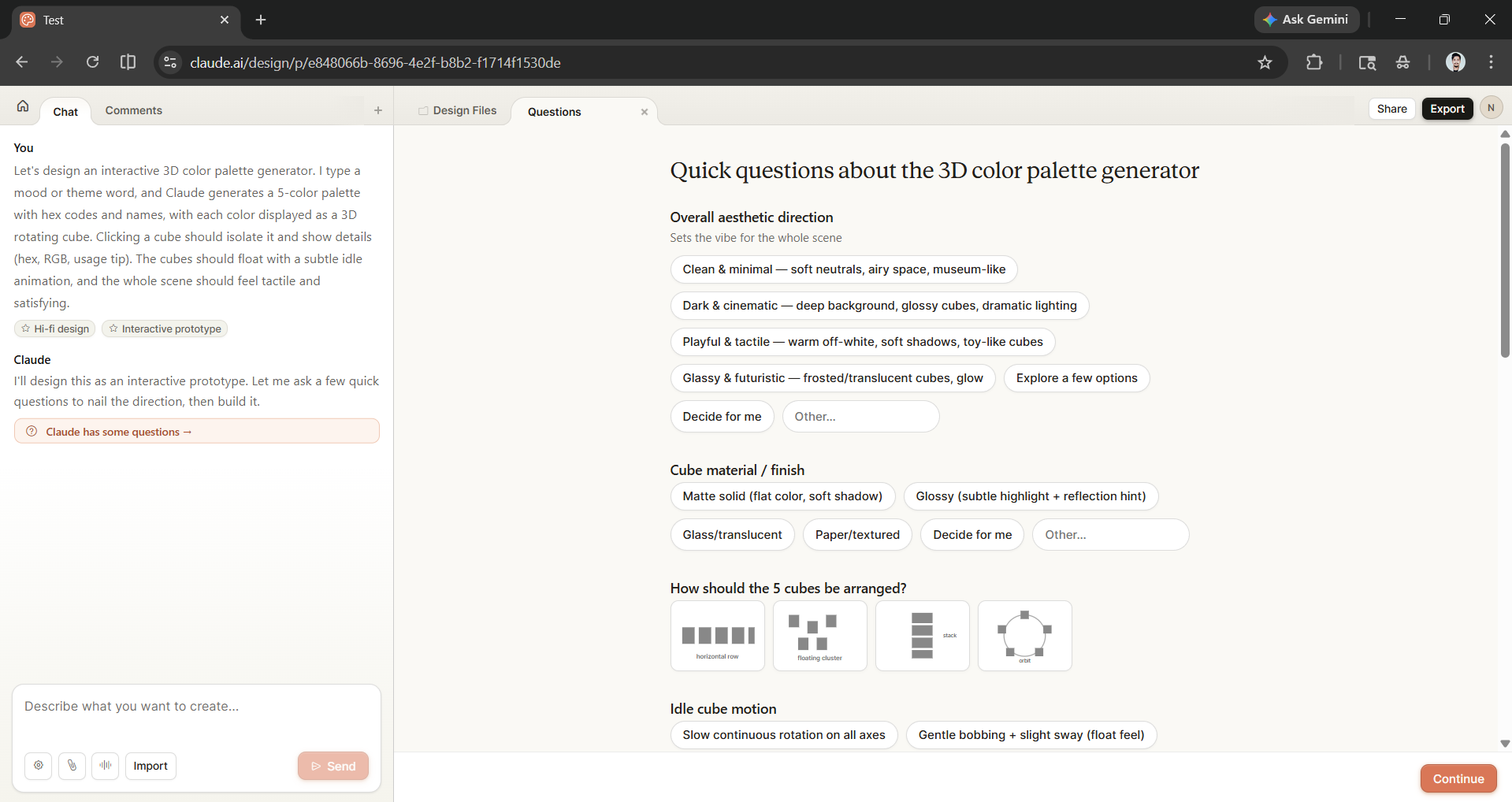
Before you describe what you want to build, add this instruction: "Before you create anything, ask me questions until you have everything you need to get this right on the first try."
Claude will switch into discovery mode and ask you several questions about your vision, design in mind, your audience, the goal of the design, layout preferences, tone, and content hierarchy, whatever it needs to close the gap between your mental image and the output. Once you have answered, it will start building.
The result of the first draft will be much closer to what you actually wanted, with fewer correction rounds and fewer wasted tokens. Think of it as a quick design brief, except Claude writes the brief by asking you the right questions.
In Conclusion:
Claude Design is still in Beta and available to Pro, Max, Team, and Enterprise plans. Artificial intelligence (AI) can make mistakes; you need to do your due diligence when it gives you an output, and you must feed it clear input to get the best output from it. Garbage in, garbage out.
- First, start by setting up your design system
- Ask Claude to ask you questions before it builds
- Ask for variations on the output it has generated
- Use the right refinement tool for the task.
That's the workflow. You can find it at claude.ai/design or in the sidebar of the Claude desktop app.
💡 For Partnership/Promotion on AI Tools Club, please check out our partnership page.

