


One of the most powerful yet most overlooked Claude features is Projects. If you are a working professional or a student, Claude Projects can quietly change how you work or get things done. Let's assume you are using Claude normally; what you end up doing is scrolling through an endless wall of past conversations just to find that one prompt or that one answer you know is in there somewhere. Is that the right way of working or getting things done? Absolutely not. While you might sometimes find what you are looking for in seconds, other times it can easily take half an hour or more.
Claude Projects can solve that problem for you for good. Projects are self-contained workspaces, each with its own chat history and its own knowledge base. It can contain your work (a client account, a research thread, a book draft) in one place, rather than having everything scattered across hundreds of loose chats.
I've been using Projects for almost everything, and it keeps me more organized than just putting ideas into random chats and hoping to find them later. In this guide, I'll show you how to set up Claude Projects the right way, customize them to fit your style, and avoid common mistakes many make that can lead to a messy workspace.
AdCreative.ai: An AI-powered platform that automates the creation of high-performing ad creatives for social media and display campaigns
TL;DR Key Takeaways
- Projects are self-contained workspaces that group related chats, project knowledge, and custom instructions in one place, so Claude stays on-topic across days or weeks of work.
- Project instructions let you set the role, tone, format, and rules that apply to every chat in that workspace, so you don't need to repeat your brief.
- Project knowledge turns uploaded documents, text, and code into a persistent reference library that every chat in the project can draw on.
- On paid plans, projects automatically scale with RAG when your knowledge base gets large, expanding capacity by up to 10x; free users can create up to five projects.
- One important quirk: chats within a project do not automatically share context with each other; only the knowledge base is shared.
- Best practice is to have one project per task, with clear names, sharply written instructions, upload only what's current, and archive it when it's done.
How to use the Claude Project the right way in 2026:
Creating a Project (and Why Naming It Properly Matters)
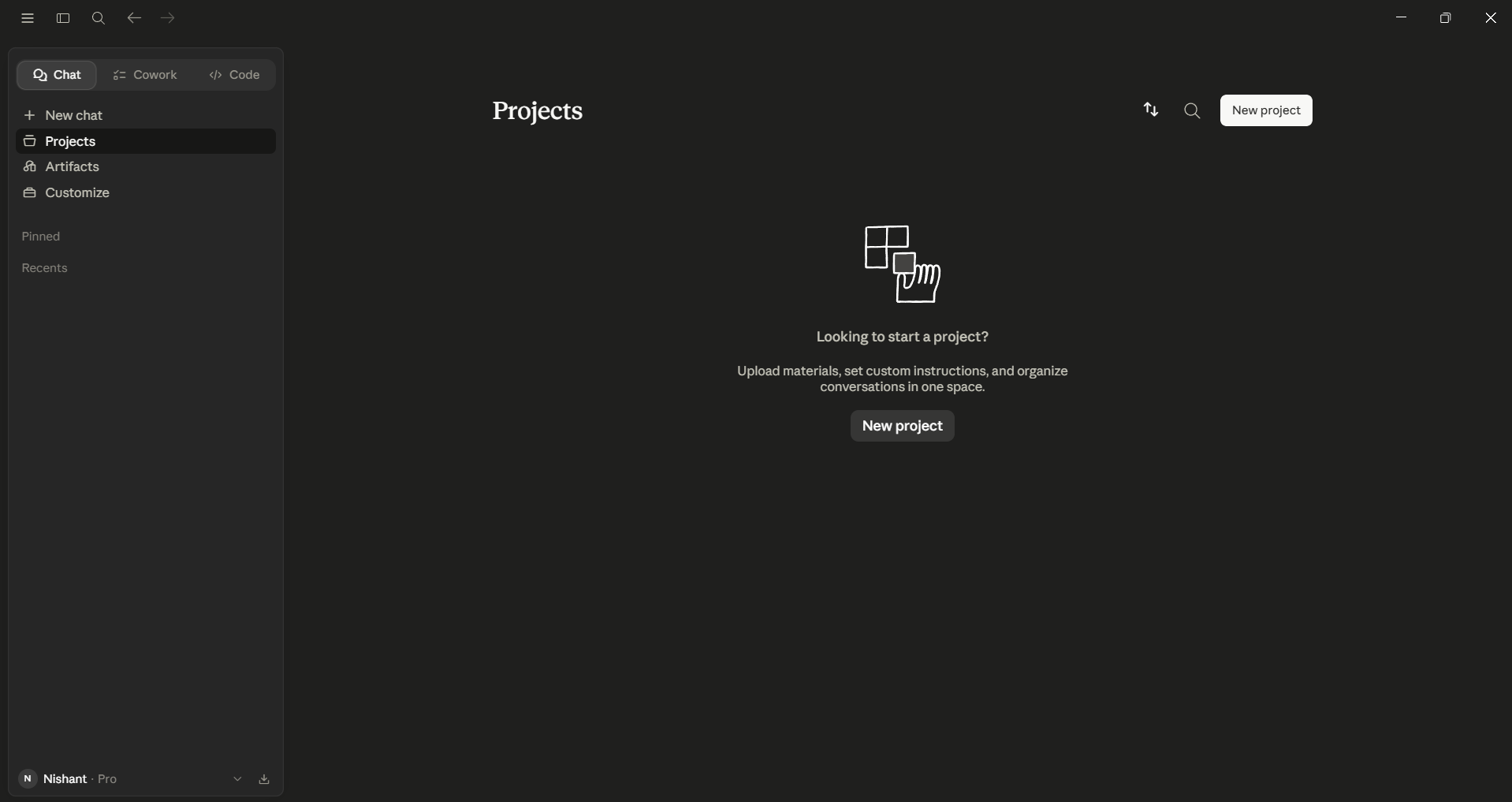
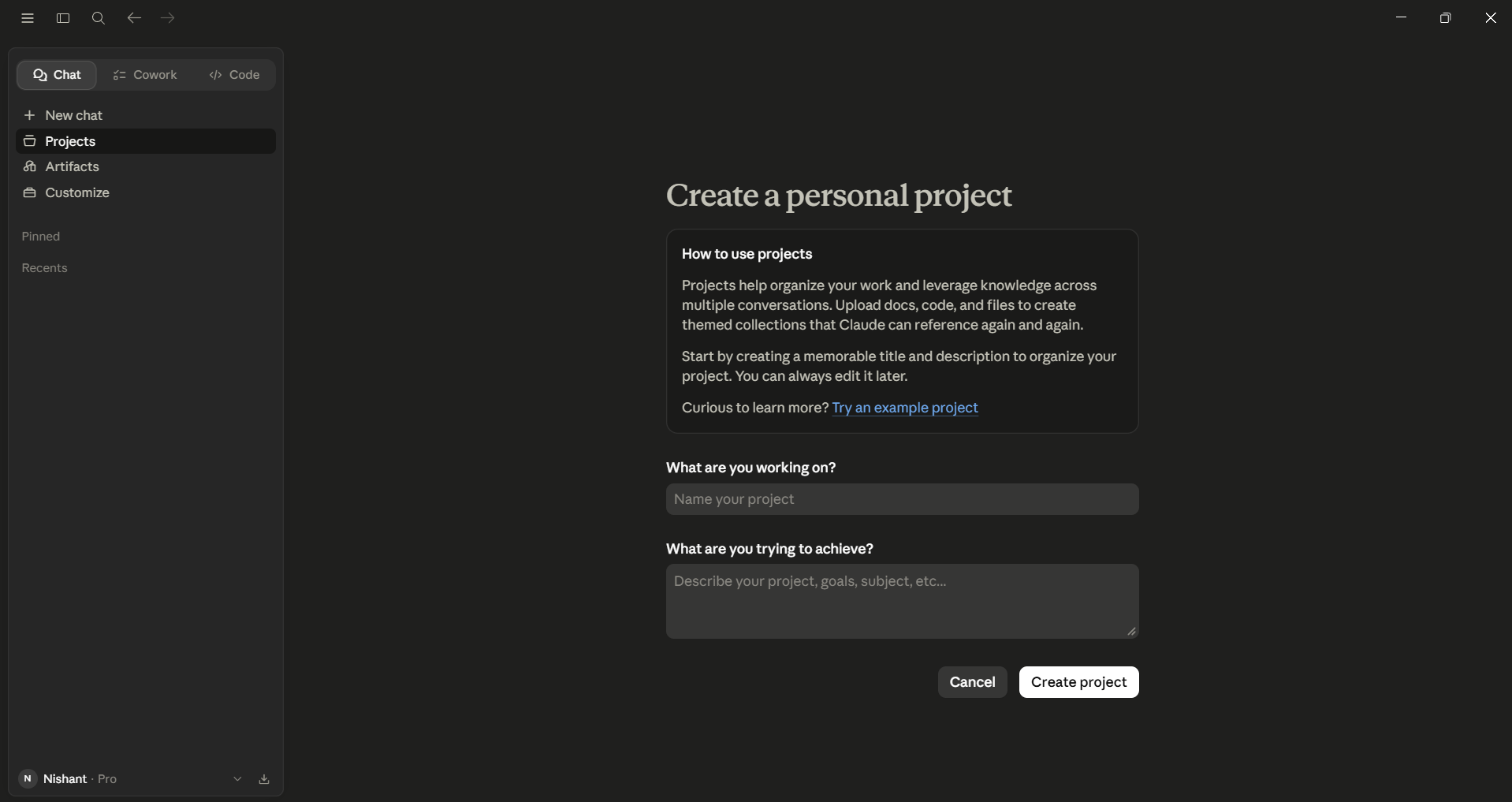
To create a new project, open Claude on the web or desktop app. On the left side, you'll see Projects; click it, or go straight to claude.ai/projects. Click New Project in the upper-right corner. You'll be asked for a name and an optional description, and this is the step most people rush. Don't.
A project named "Marketing" is no help six months later when you have three marketing projects. A good name is descriptive enough to be recognized at a glance, something like "Q3 2026 Product Launch — Email Sequence." Treat the name the way you'd label a folder on your computer. One thing worth knowing: the name and description are for you, not for Claude. Claude does not read the project name or description, so the actual context still needs to live in your instructions and knowledge base.
When you're deciding what deserves its own project, my rule of thumb is simple: if the work has its own set of files, its own tone, or its own deadline, it deserves its own workspace. Things like
- Client work
- A thesis chapter
- A job search
- A book draft
- Recurring reports
They all can have their own projects. Don't combine your personal finances project into the same project as your startup pitch deck. The entire point of Projects is to keep Claude focused on one topic at a time.
If you're on a Team or Enterprise plan, you'll also be asked to choose visibility when you create the project. You can keep it private to you and people you invite, or share it with your broader organization. You can change this later.
Customizing Instructions for Sharper Responses
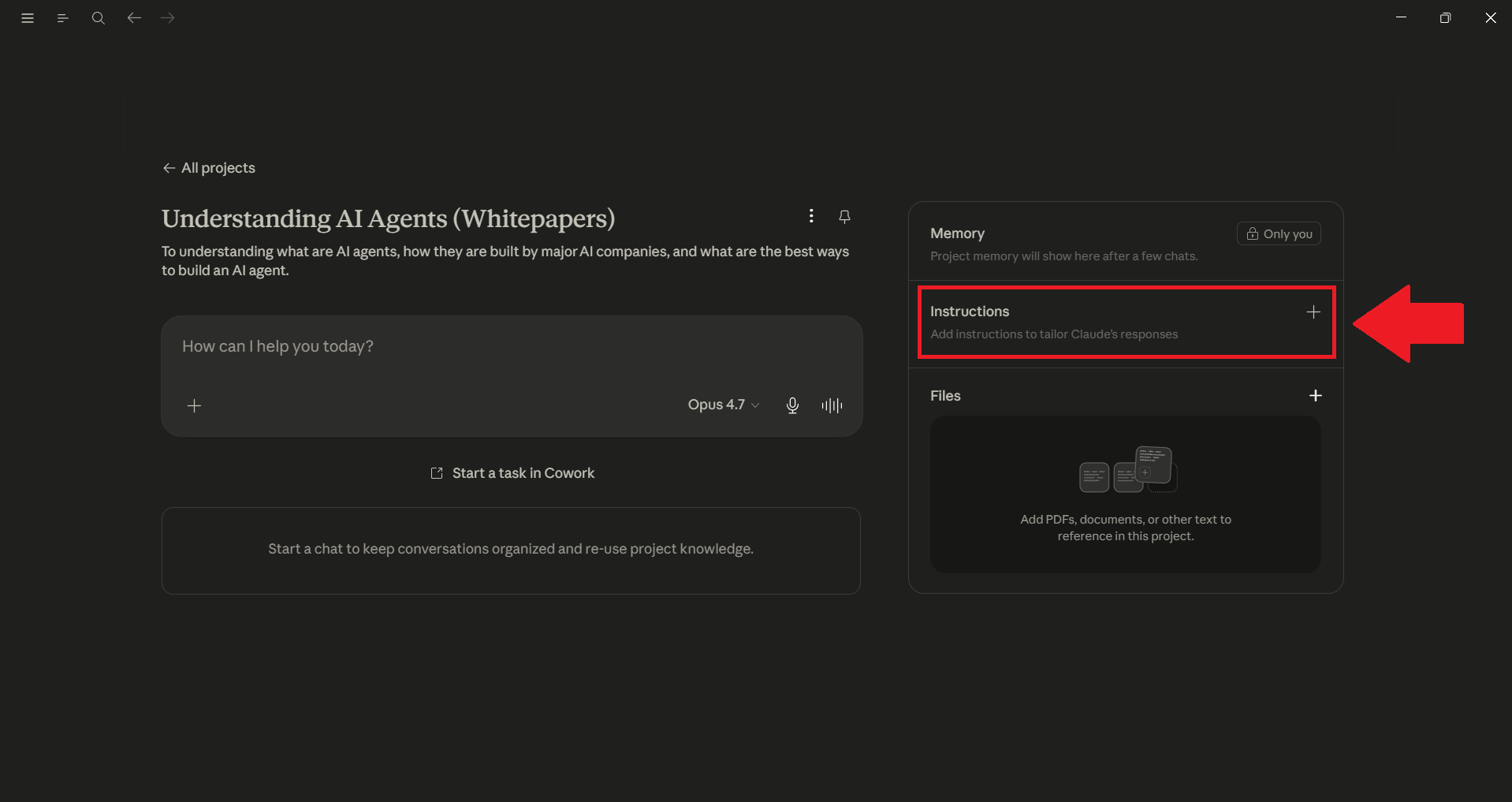
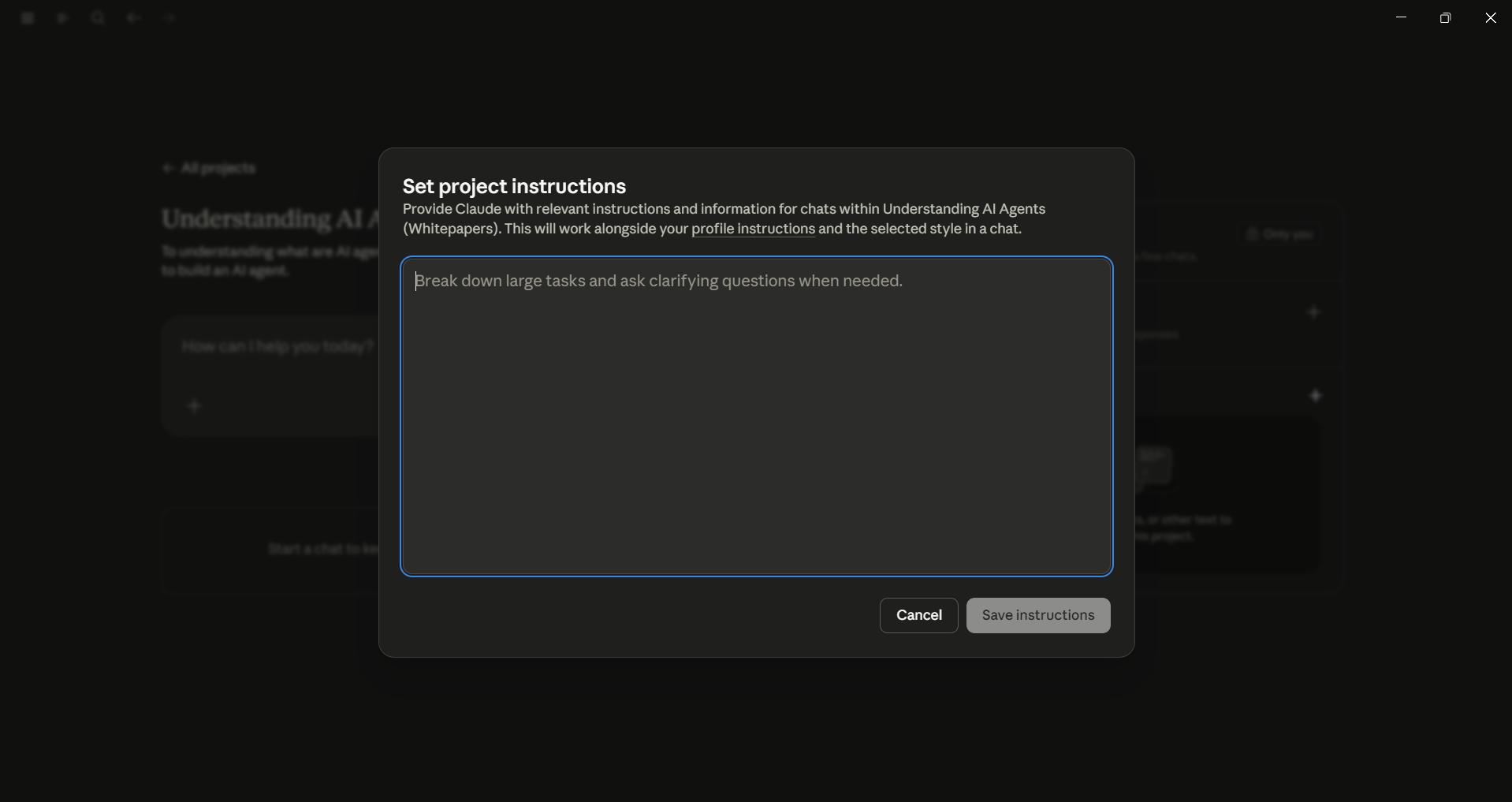
Once you have created a project, open it and click Instructions to set custom project instructions. This is where Projects start to feel genuinely powerful. Anything you add here will apply to every chat in that project. You only need to explain your ideas once, instead of repeating them at the start of each conversation.
Project instructions are like the briefing you'd hand a new employee on day one. The more specific you are, the better the output will be. I usually cover four things:
- Role and audience: Tell Claude who the audience is. "You are writing for senior engineering managers, not generalists," can produce very different output from a vague request.
- Tone: Formal, conversational, technical, or plain-language.
- Format: Bullet points versus prose, response length, and whether to include headings or code blocks by default.
- Rules of the road: Things like "never invent citations," "ask before assuming," and "use US English."
For example, for a project you use for drafting blogs, you can add instructions like: "Default to roughly 1,200 words, use H2 and H3 headings only, avoid em dashes, and end each section with a one-sentence takeaway." Once you save these instructions, you won't need to repeat them. Every new chat in that project will start with the same rules. If Claude makes the same mistake twice, the solution is to update your instructions instead of correcting it every time in new chats.
Building a Reference Library with Project Knowledge
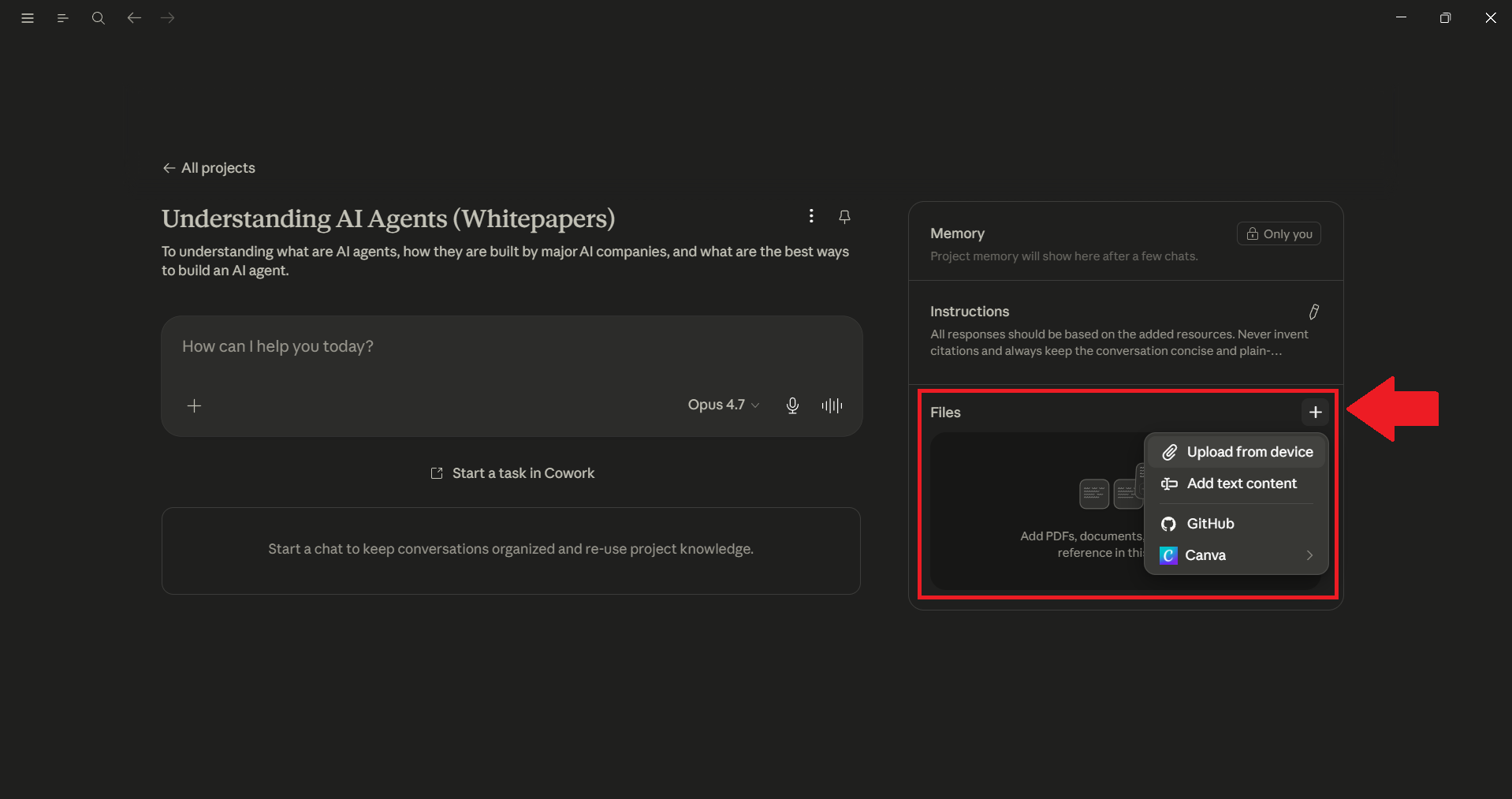
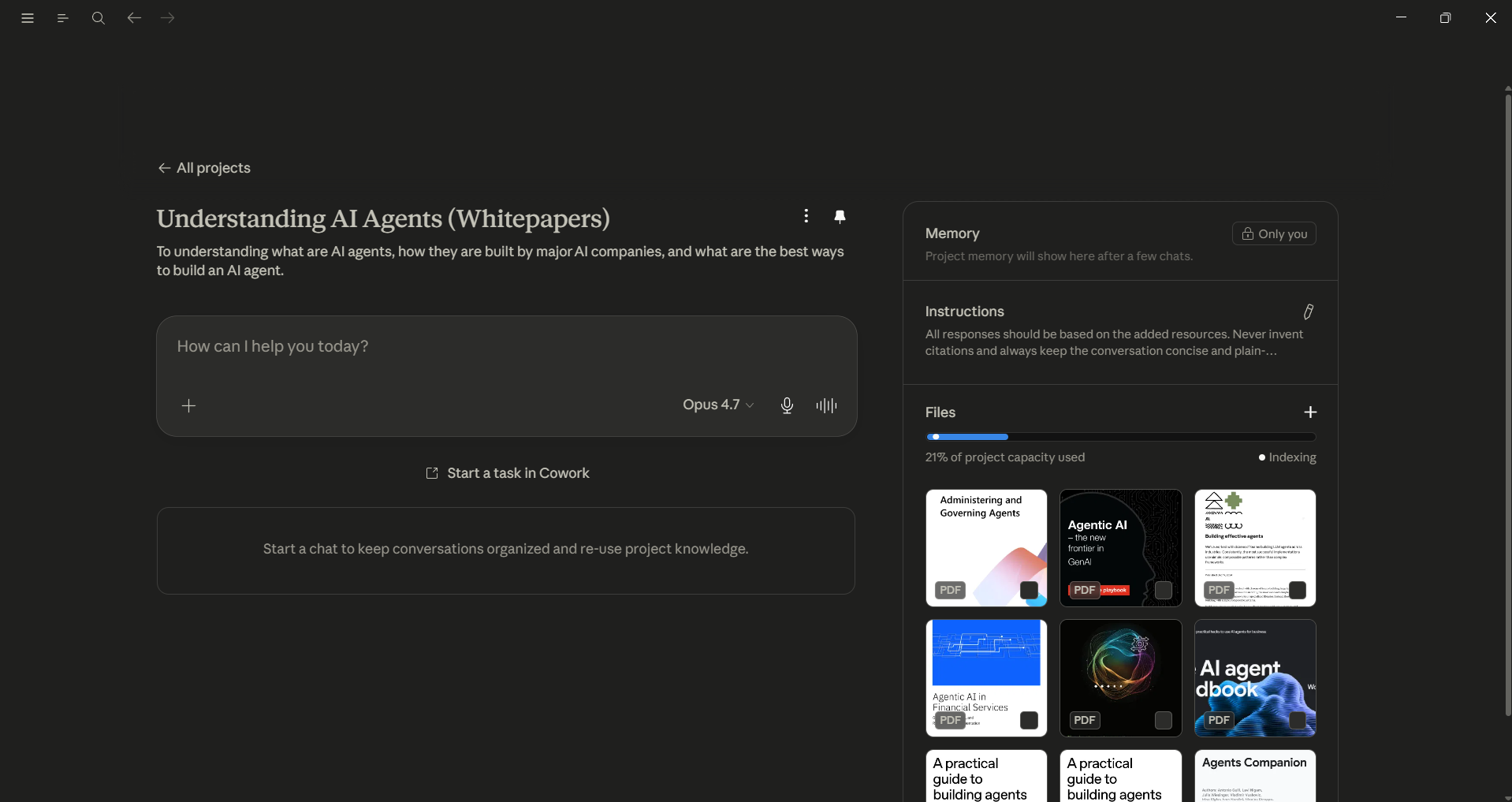
Every project has a knowledge base, which you'll find right below the instructions, labeled Files, on the project's main page. Click the + button to add content like PDFs, Word docs, spreadsheets, code, plain text, and more. Whatever you upload becomes available to every chat inside that project, so you can add your brand style guide, research notes, or codebase once, not at the start of every conversation.
This is where Projects pulls ahead of plain chats: Claude can quote, cite, and reason over your uploaded material instead of guessing. On paid plans (Pro, Max, Team, and Enterprise), there's an extra advantage. When your knowledge base grows large enough to approach the context window limit, Claude will automatically switch on RAG (Retrieval Augmented Generation) mode to expand your project's effective capacity by up to 10x while keeping response quality intact. Free users don't get RAG, so on a free account, it's worth keeping the knowledge base small.
A few habits that have saved me from frustration:
- Upload only what's relevant to you right now. Outdated versions of your files will only confuse Claude more. If a document has been superseded, replace it rather than piling the new one on top.
- Use clear filenames for all your content so you can easily find them when Claude cites them. A PDF named Q3-pricing-final.pdf is much easier to reference in a prompt than pricing_v7_REAL_final.pdf.
- A focused library of five strong documents is way better and easier to manage than a junk drawer of forty. Choose content quality over quantity, every time.
Keeping Chats Organized Inside a Project
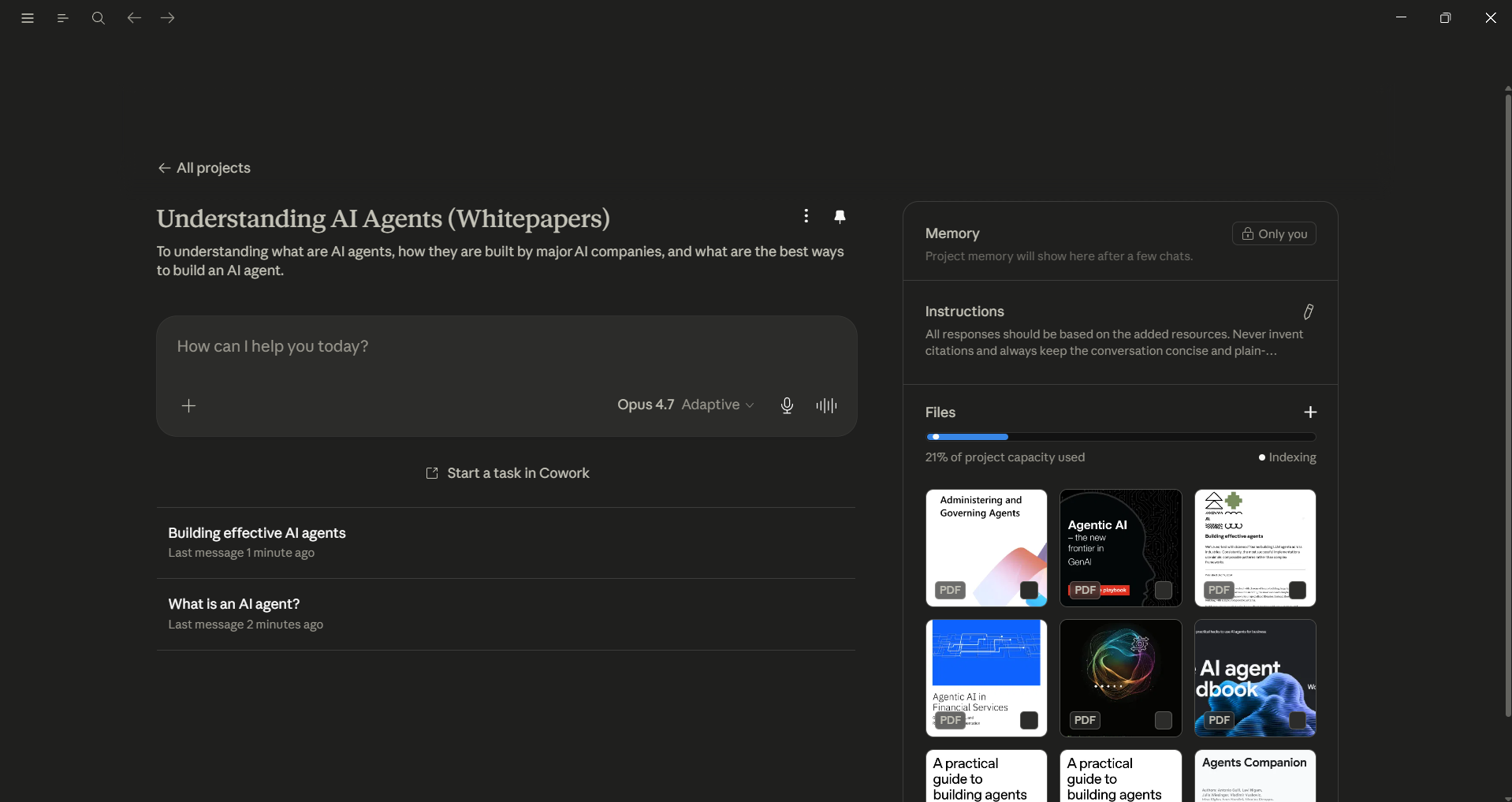
When you start a chat in a project, it automatically gets grouped under it. This makes it feel more like a folder instead of just a long list. However, it's important to note that chats within the same project do not share information with each other.
Each conversation is independent. The only thing shared across all of them is the project knowledge base and the project instructions. If a useful conclusion comes out of one chat and you want other chats to build on it, you can add it to the knowledge base; don't assume the next chat already knows.
With that in mind, here's how I keep a project tidy:
- Start a new chat for each different task. Create one chat for the outline, another for editing the introduction, and a third for drafting social media posts. Having focused chats makes it easier to navigate and understand than a long, mixed conversation.
- Rename chats as the project grows. Claude does auto-generate titles, but a quick manual rename can pay off once you have a dozen conversations.
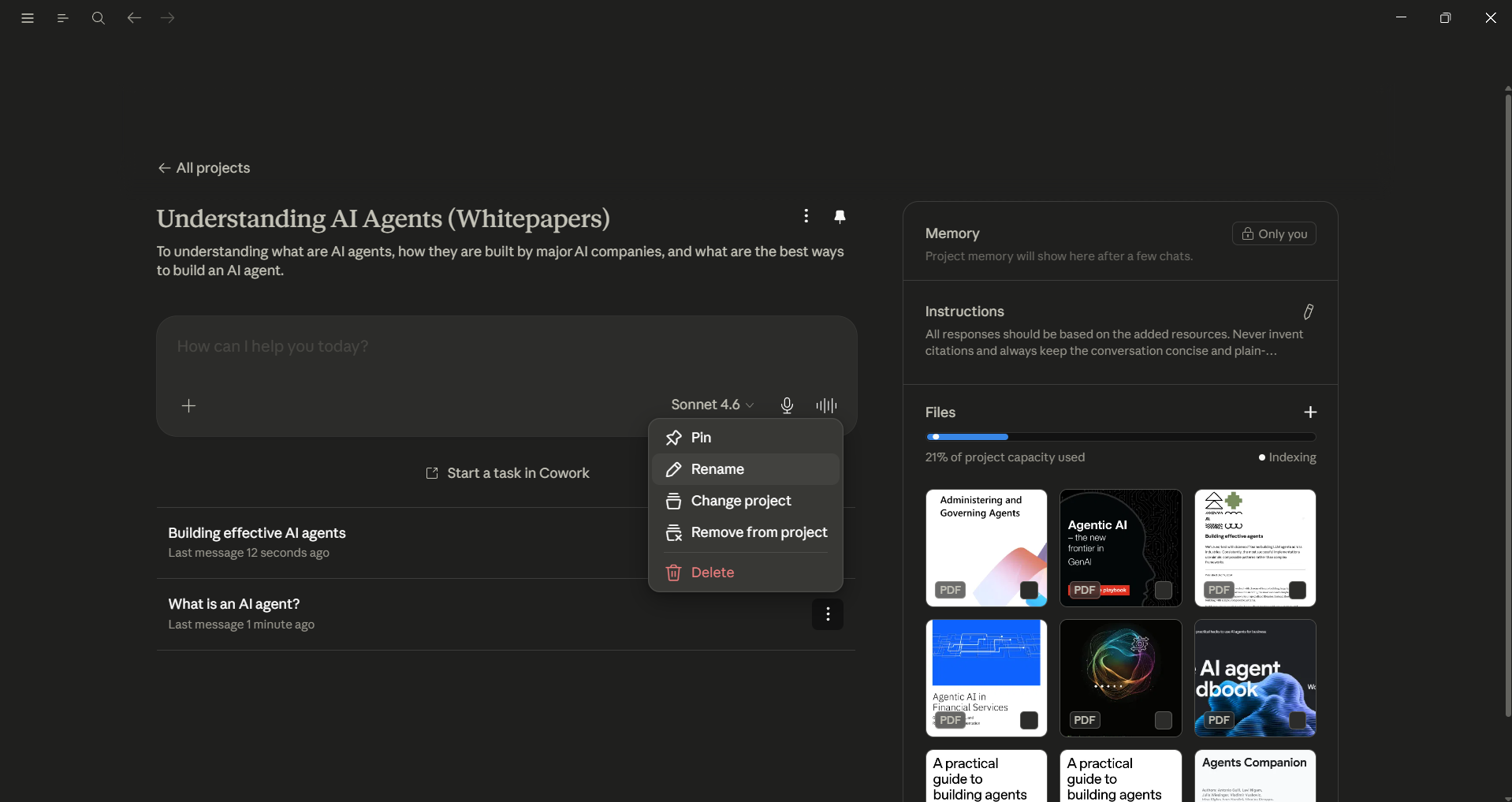
- Pull in stray chats. If you started a conversation outside a project and realize it belongs in one, click the dropdown arrow next to the chat name and choose Add to project. You can also move chats in bulk from your chat history page.
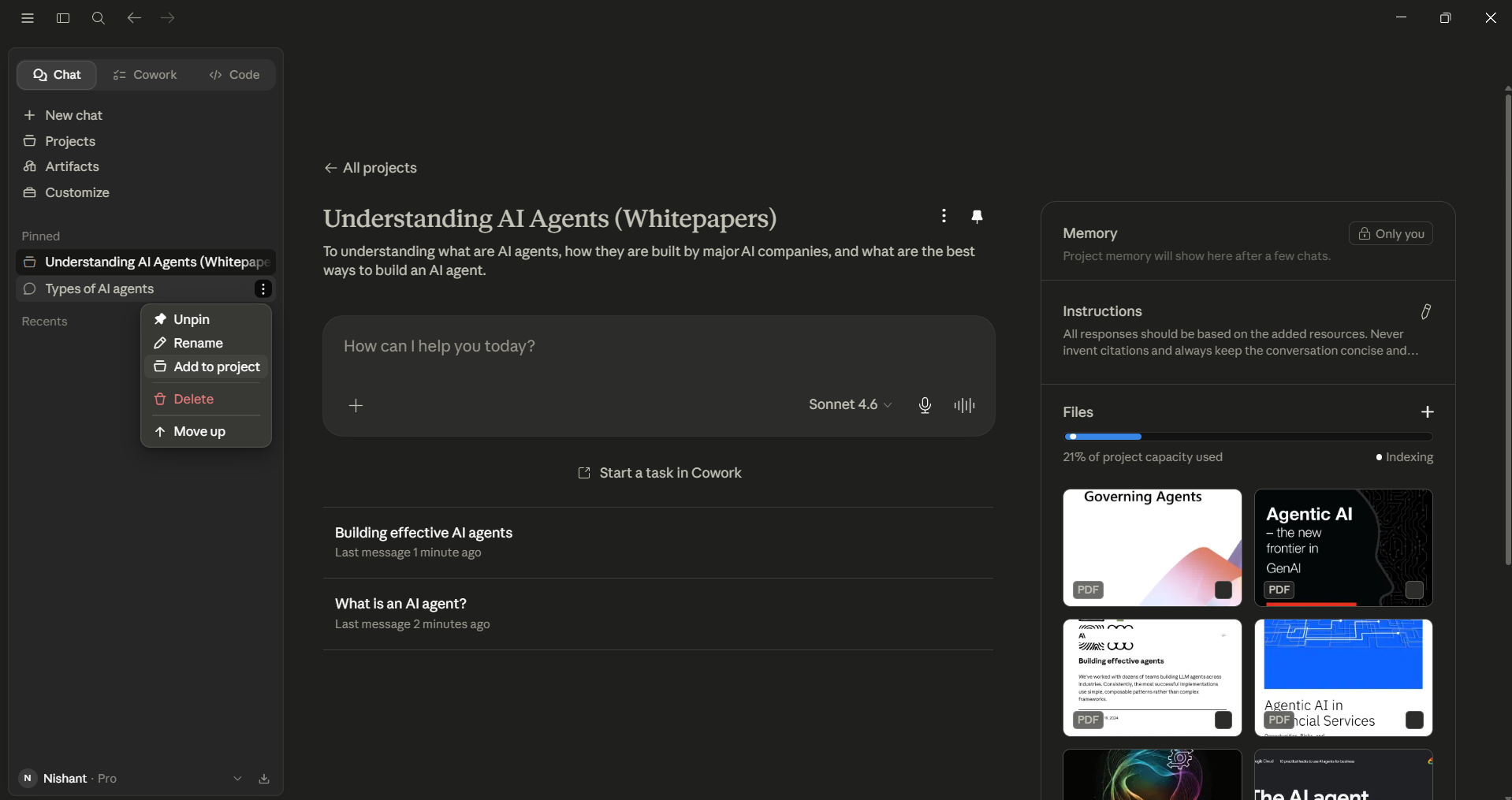
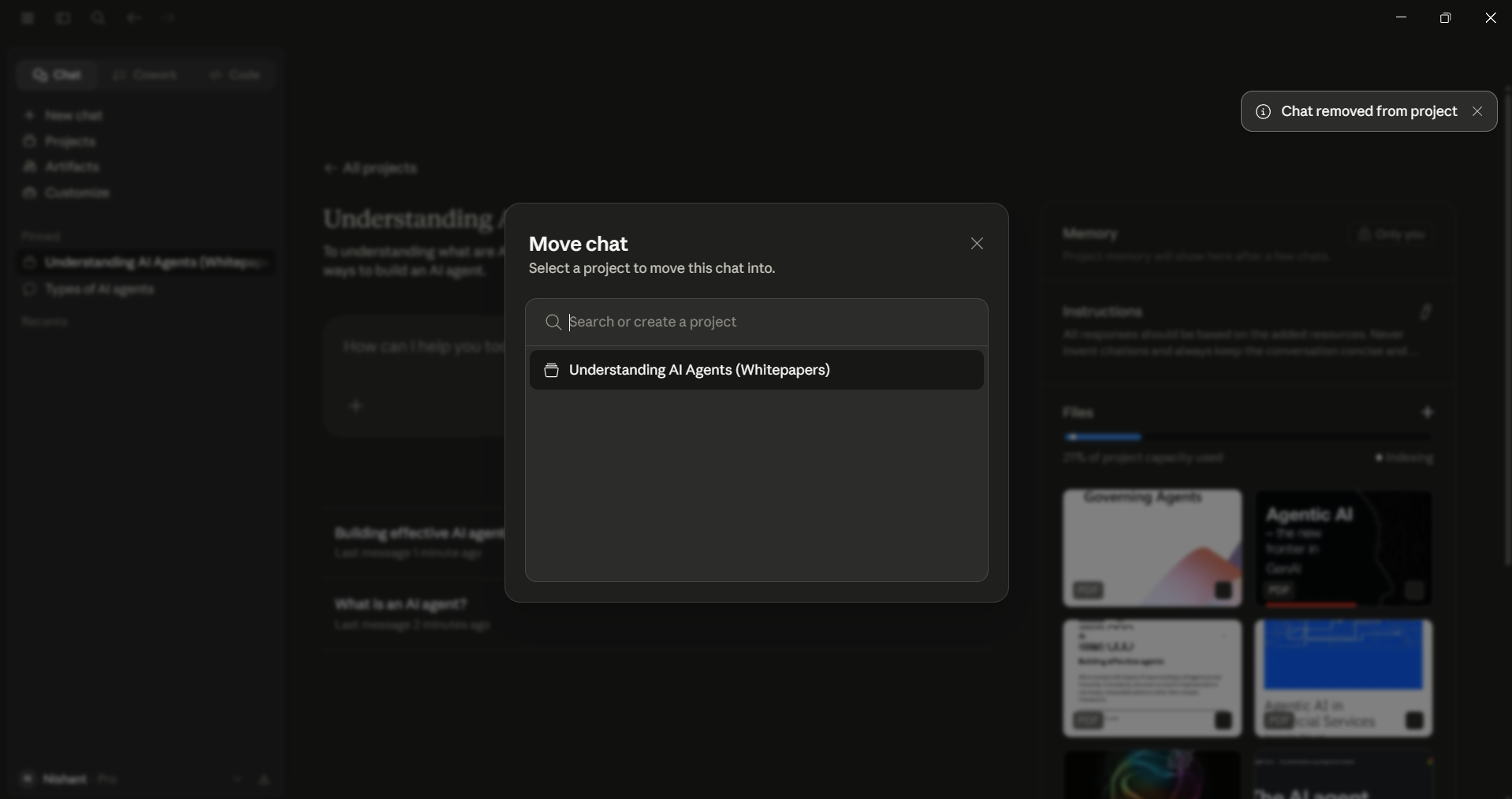
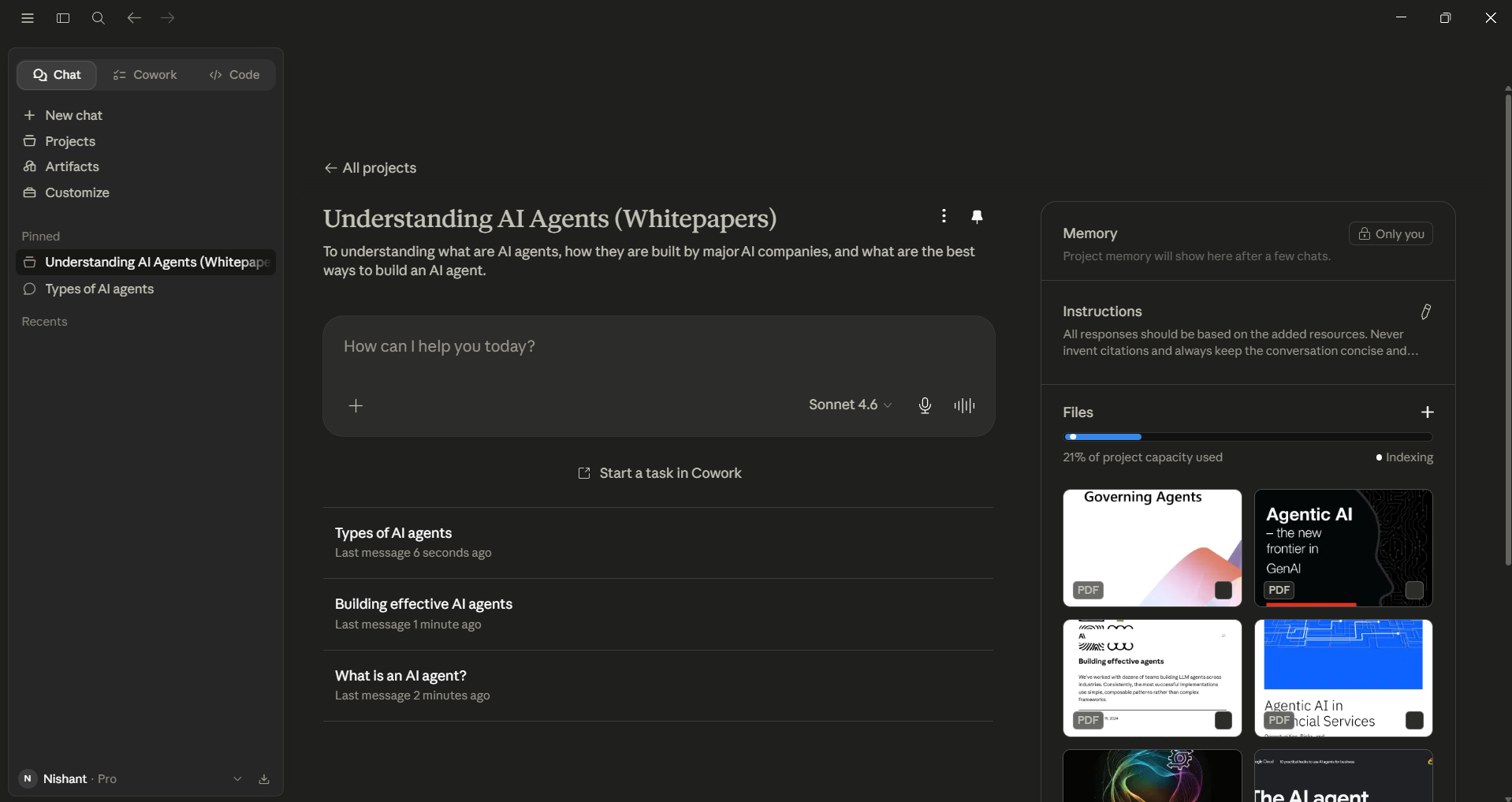
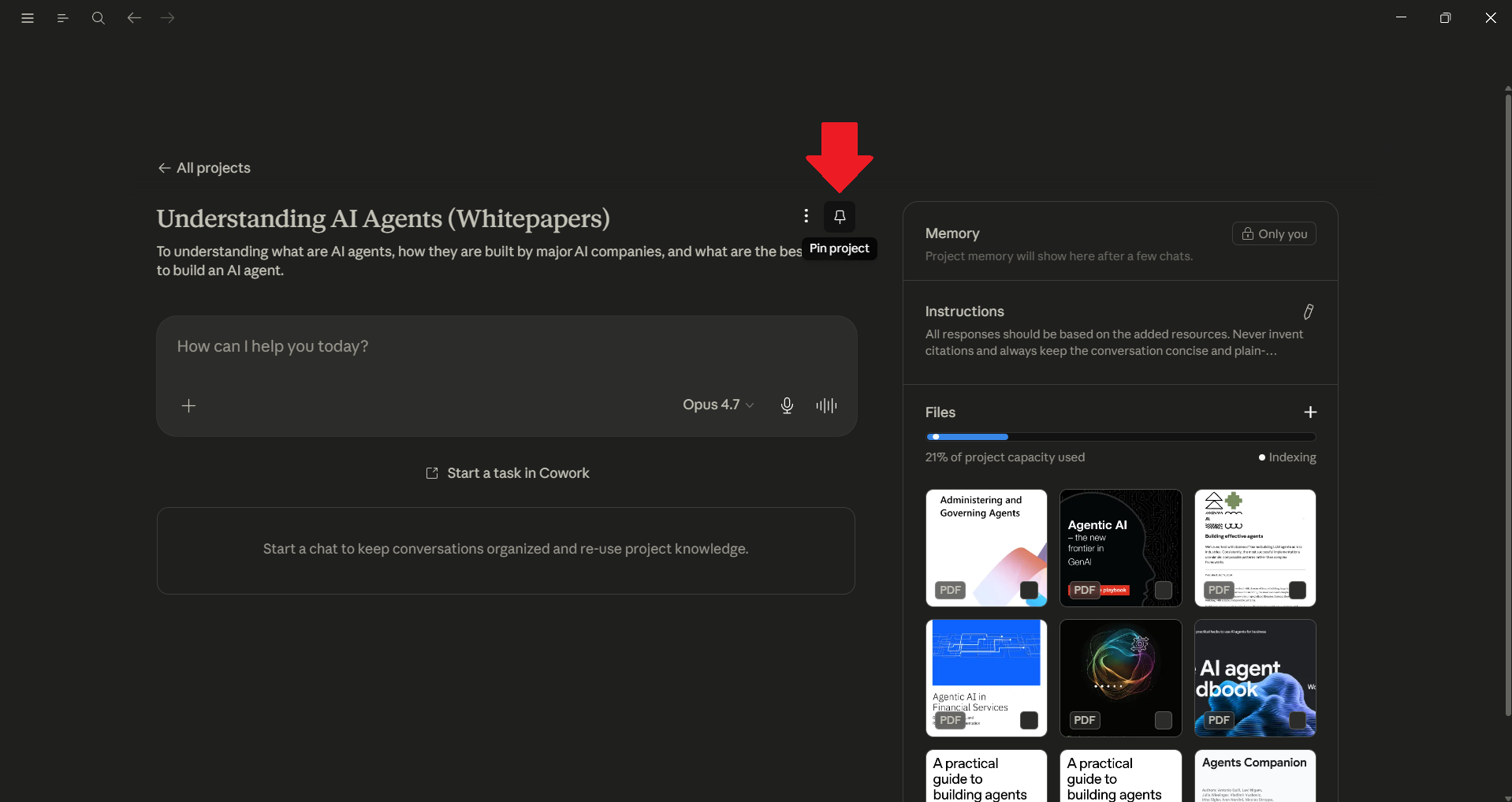
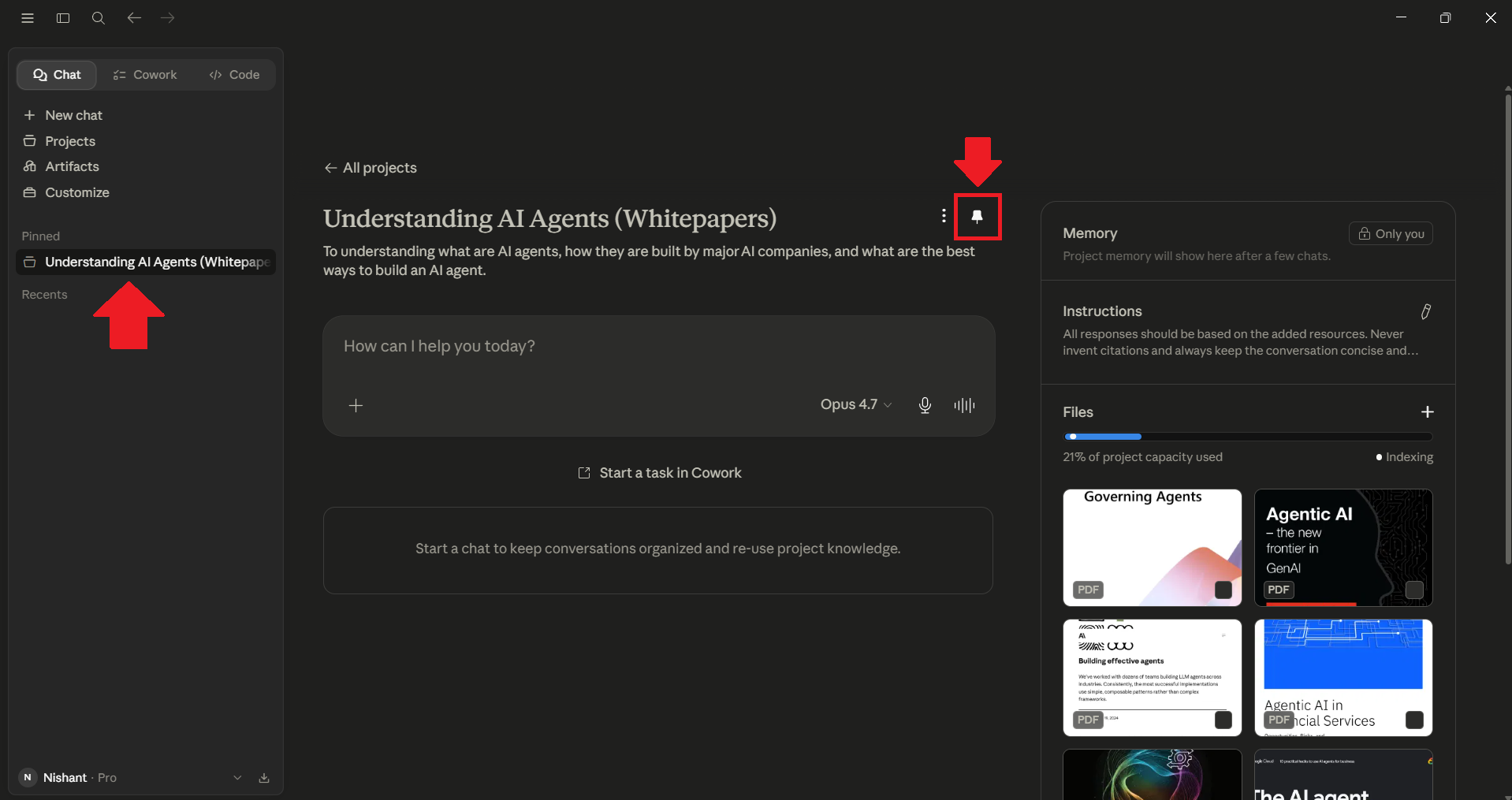
- You can pin the projects you live in. When you pin a project, it gets pinned to the left-side panel for quick access.
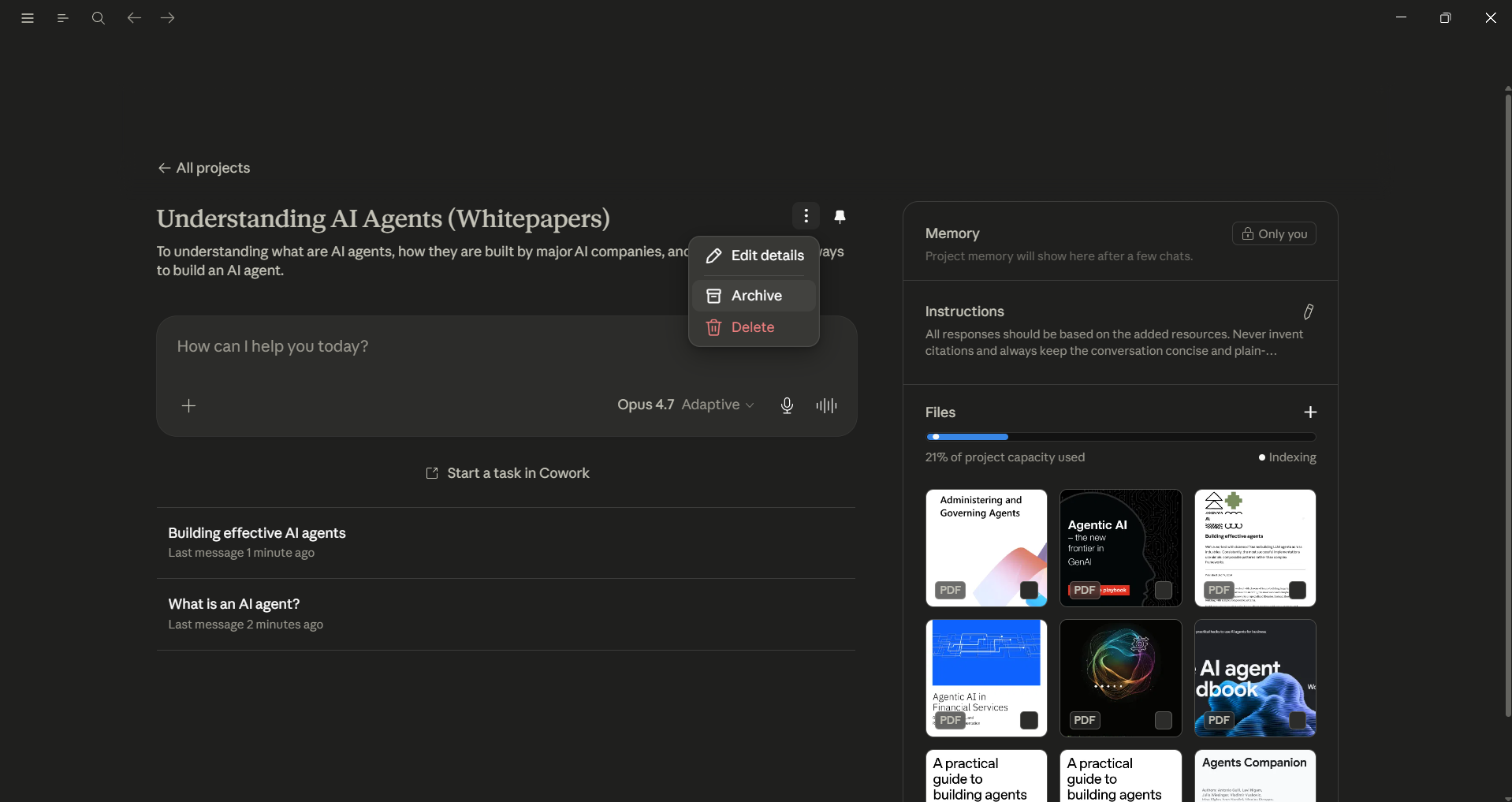
- You can archive a project you no longer need at the moment, but need to revisit later. Even if it is a pruned project, it is still useful.
Sharing and Collaboration
If you are on a Team or Enterprise plan, you can share a project with your colleagues. To do this, open the project and click "Share project" next to the project name. You can add people one by one or paste a list of email addresses to share the project with multiple people at once.
Each member gets one of two permission levels:
- Can use, where they can see the project's knowledge, instructions, and chats, and work within it, but can't change the setup.
- Can edit, where they can modify instructions and knowledge, and manage members.
When someone shares a project with you, it will appear under the "Shared with me" tab on the Projects page. You will also receive an email notification. This is helpful for teams, like a marketing group working on a campaign from a single brief or a research team using the same data. There's no need to forward messages or copy answers anymore. Remember, if you archive a shared project later, all sharing permissions will reset to private.
Best Practices to Get the Most Out of Projects
After using Projects daily, here's what I'd tell anyone setting up their first one:
- One project, one task. Resist the urge to build a single general-purpose project, as that defeats the entire point.
- Write instructions like a brief. Keep them detailed and specific. Vague in, vague out.
- Treat the knowledge base as a curated library, not a dumping ground. Focus on quality over quantity.
- Remember, chats don't talk to each other. If a result matters for more than one conversation, promote it into the knowledge base.
- Iterate the instructions, especially when Claude gets something wrong twice. Update the project instructions rather than correcting them by hand each time.
- Archive when you're done. You can still open archived projects to reference old chats, but inactive ones shouldn't crowd your sidebar. (You'll need to unarchive a project before you can delete it.)
Editor's Note:
Claude Projects can turn Claude from a chat tool into something closer to a personal operations system. People all over the internet love to post about lists of top prompts for this and that, and those are fine; however, they're nowhere near as useful as a workspace where you've set the instructions once, loaded the right reference material, and grouped every related chat in one place. Your instructions, your files, and your chat history all work together to produce grounded, consistent answers.
Set up your first project properly with a clear name, a sharp set of instructions, and a curated knowledge base, and you'll feel the difference in the very first chat.
💡 For Partnership/Promotion on AI Tools Club, please check out our partnership page.

