


For most professionals, the blank PowerPoint slide is one of the most familiar forms of work-related dread. When you're creating a PowerPoint presentation, you aren't just copying and pasting information from a report onto the slides; you need to take care of the outline, find numbers buried in email threads, format bullet points, and then do it all again when the meeting agenda changes. All that just to capture the attention of the people you are presenting to; you need to strike a balance between how much content to put on the slides and how you present your findings and research.
There are already plenty of AI tools for presentations available in the market, including two from Anthropic AI: Claude for PowerPoint and Claude Design. However, OpenAI has now entered the field with ChatGPT for PowerPoint.
AdCreative.ai: An AI-powered platform that automates the creation of high-performing ad creatives for social media and display campaigns
What is ChatGPT for PowerPoint?
ChatGPT for PowerPoint allows the AI assistant to create PowerPoint presentations, edit your slides, turn source material into presentation-ready content, and polish slides directly in PowerPoint. OpenAI already has a massive ChatGPT userbase, and now that userbase can use that AI assistant as an active PowerPoint tool.
ChatGPT for PowerPoint is currently available as a beta add-in directly in Microsoft PowerPoint, allowing users to draft, edit, and refine presentations through plain-language prompts.
What It Actually Does
The integration can take the form of a ChatGPT sidebar that is available alongside the PowerPoint canvas. You don't need to export an outline from a chat window and paste it into a slide; instead, describe what you want in natural language, and ChatGPT produces editable slides in place.
ChatGPT can create an entirely new presentation from nothing, edit or rewrite your existing slides, and update your presentation content as the project develops. The output is in PowerPoint format, so designers and analysts can adjust layouts, fonts, and charts using the standard tools they are familiar with.
What makes the feature powerful is its ability to draw on the user's existing context, meaning you can upload your notes, documents, spreadsheets, images, and prior presentations, and it can reach into connected services such as Gmail, Outlook, and SharePoint to pull relevant material. Basically, it will make your task easier; for example, your quarterly review deck can be created partly from figures and messages, so the user never has to manually copy and paste.
Key Features and Functions
- In-app sidebar: ChatGPT is running as a panel inside PowerPoint, so slide creation and editing happen without switching applications.
- Natural-language slide generation: Users prompt in everyday language to create new decks or individual slides.
- Edit and update existing slides: The assistant can rewrite, restructure, and refresh content in existing presentations.
- Editable native output: Generated slides remain standard PowerPoint objects that can be reformatted manually.
- Multi-source input: It can use notes, documents, spreadsheets, images, and earlier presentations as source material.
- Broad availability: The beta is open to ChatGPT Free, Go, Plus, and Pro users as well as Business, Enterprise, Edu, Teachers, and K-12 plans.
How to use ChatGPT for PowerPoint to create a new presentation:
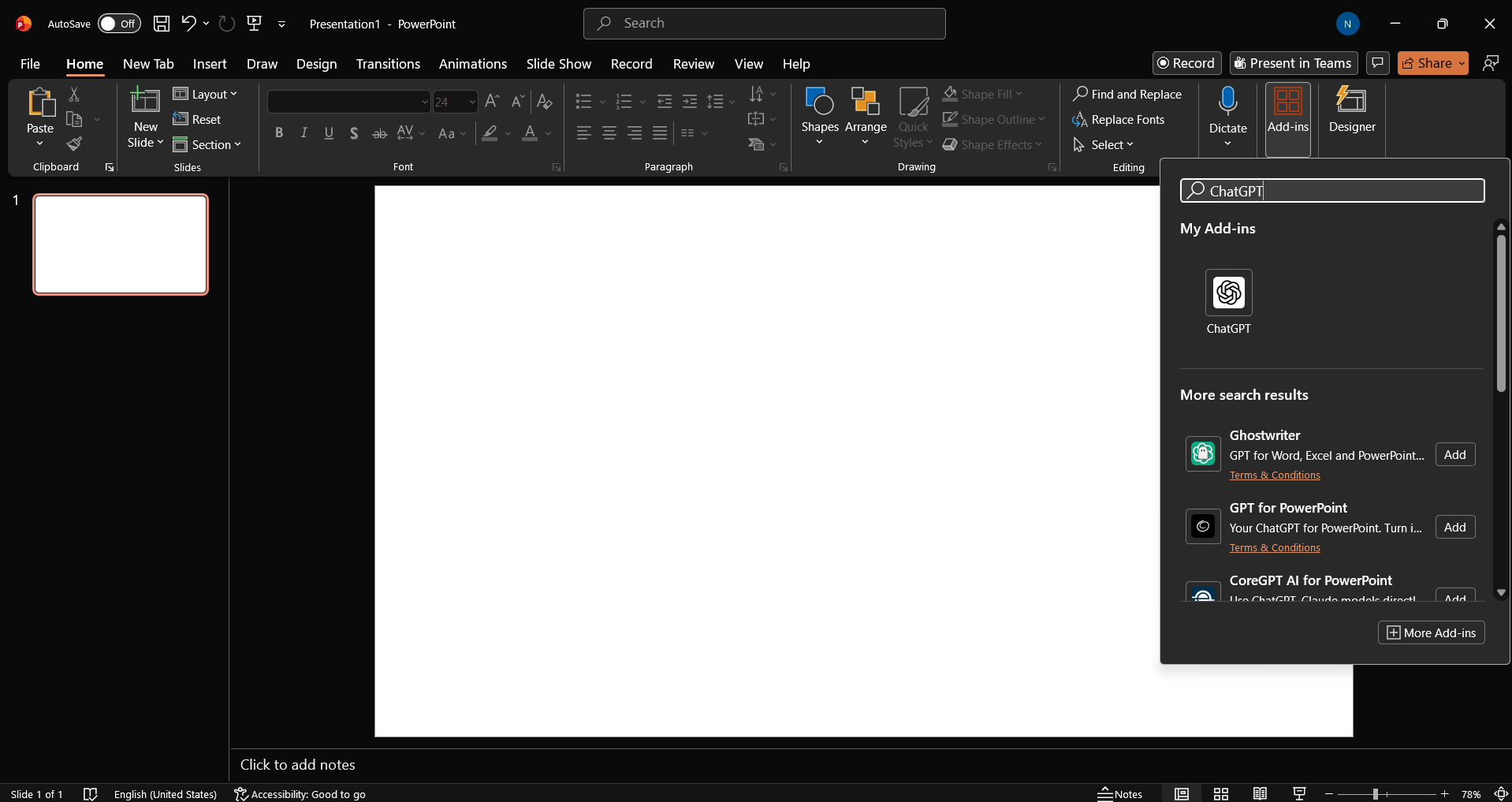
Step 1: Open PowerPoint, then click Add-ins to add ChatGPT. Just type ChatGPT, and it will pop right up.
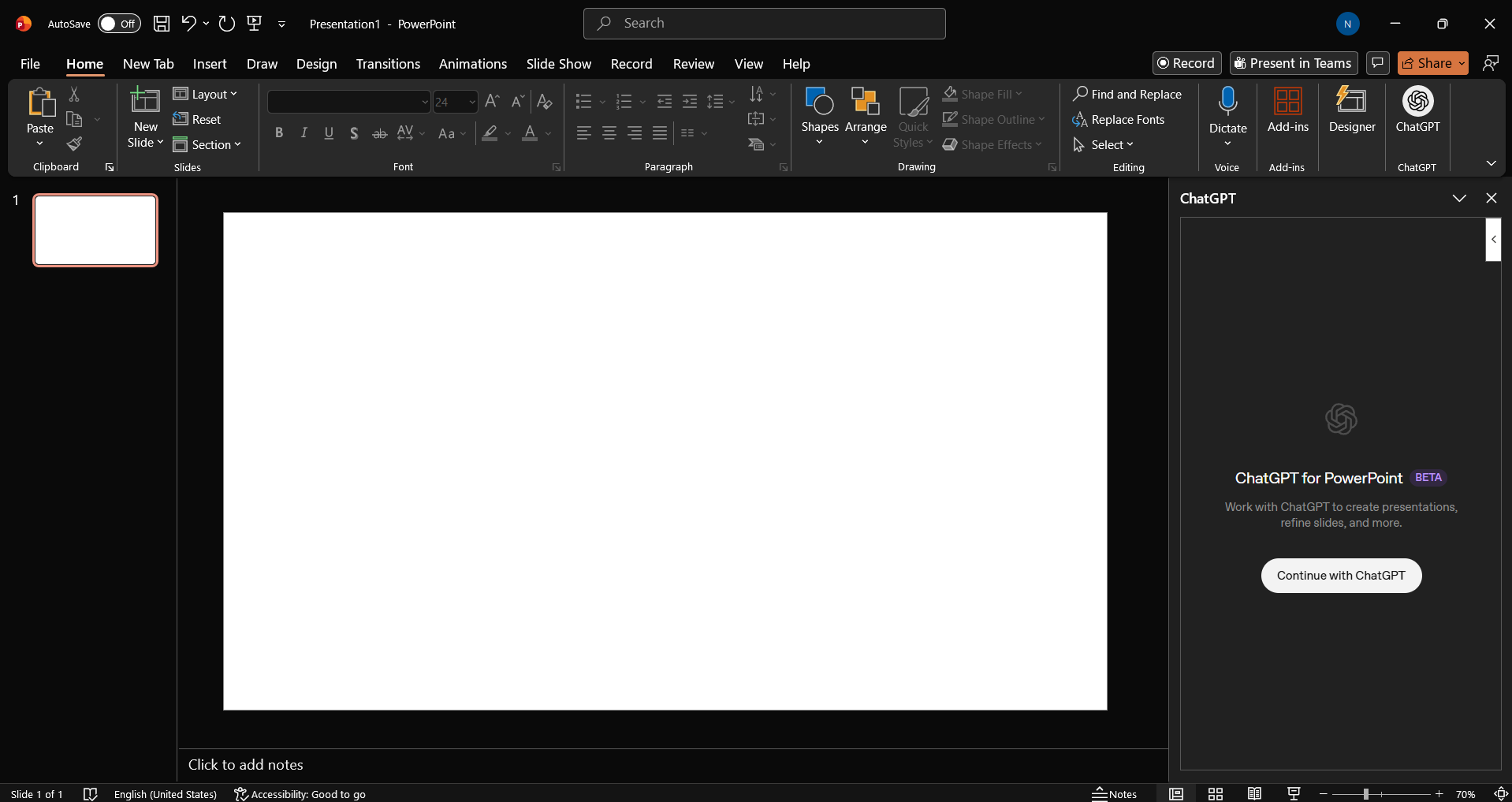
- Click on Continue with ChatGPT to log in to your ChatGPT account.
- It will ask you some basic questions that you can answer or just skip.
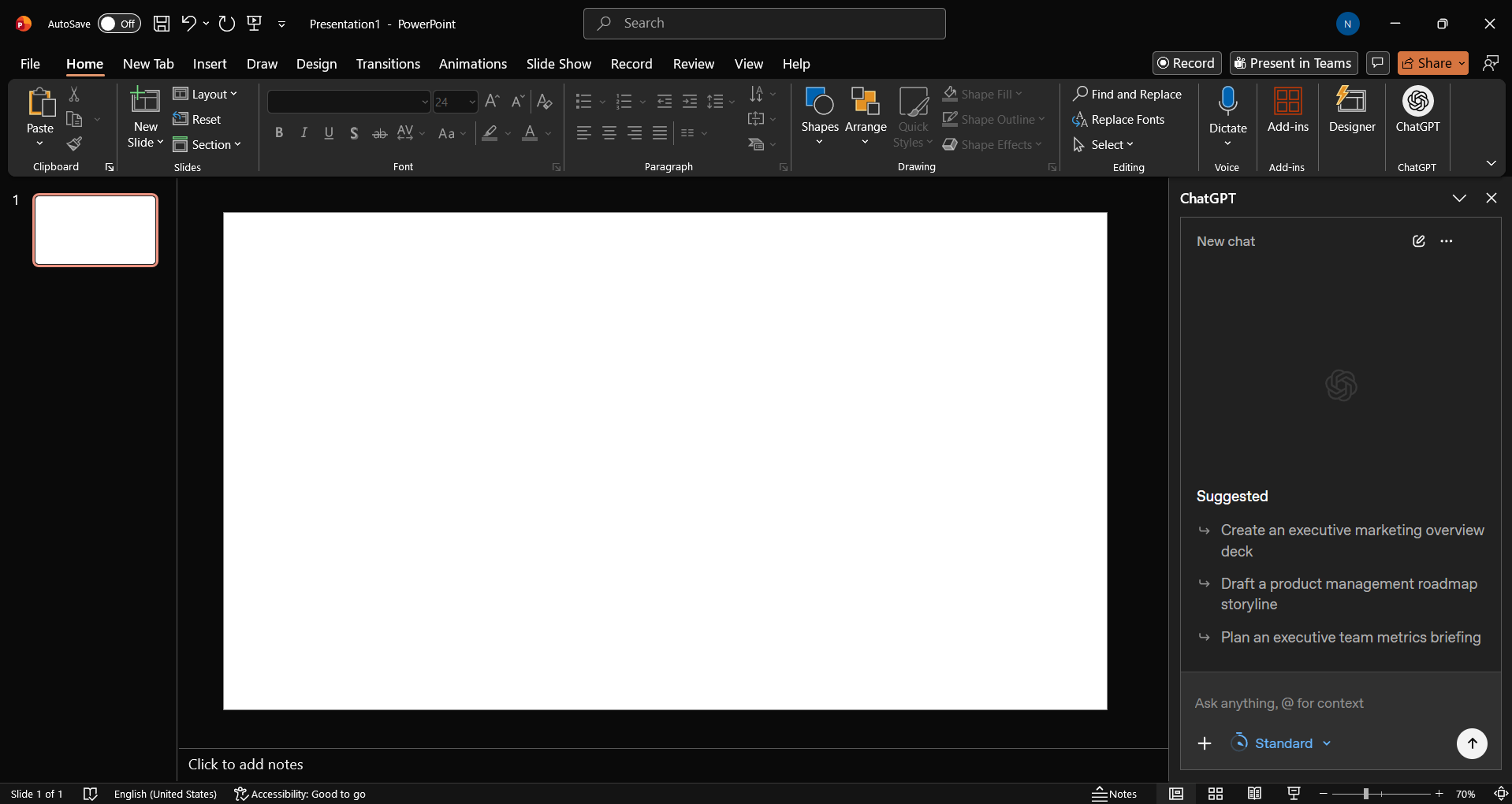
Step 2: Add a prompt of your choice. If you are just testing it, you can start with something simple and then move to something more complex and try other features.
Prompt I used:
Create an 8-slide presentation titled 'The Rise of AI Agents.' Use a bold, vibrant design with a dark background, bright accent colors (electric blue, purple, neon green), and modern sans-serif fonts. Cover:
(1) A punchy title slide
(2) What AI agents are vs. plain chatbots
(3) The core loop: perceive, reason, act, learn
(4) Real-world use cases across coding, customer support, and research
(5) A comparison table of agentic capabilities
(6) Risks and limitations
(7) Where agents are headed in the next 2 years
(8) A closing call-to-action slide.
Keep each slide to a clear headline plus 3–4 concise bullets, and suggest a simple icon or visual concept for every slide.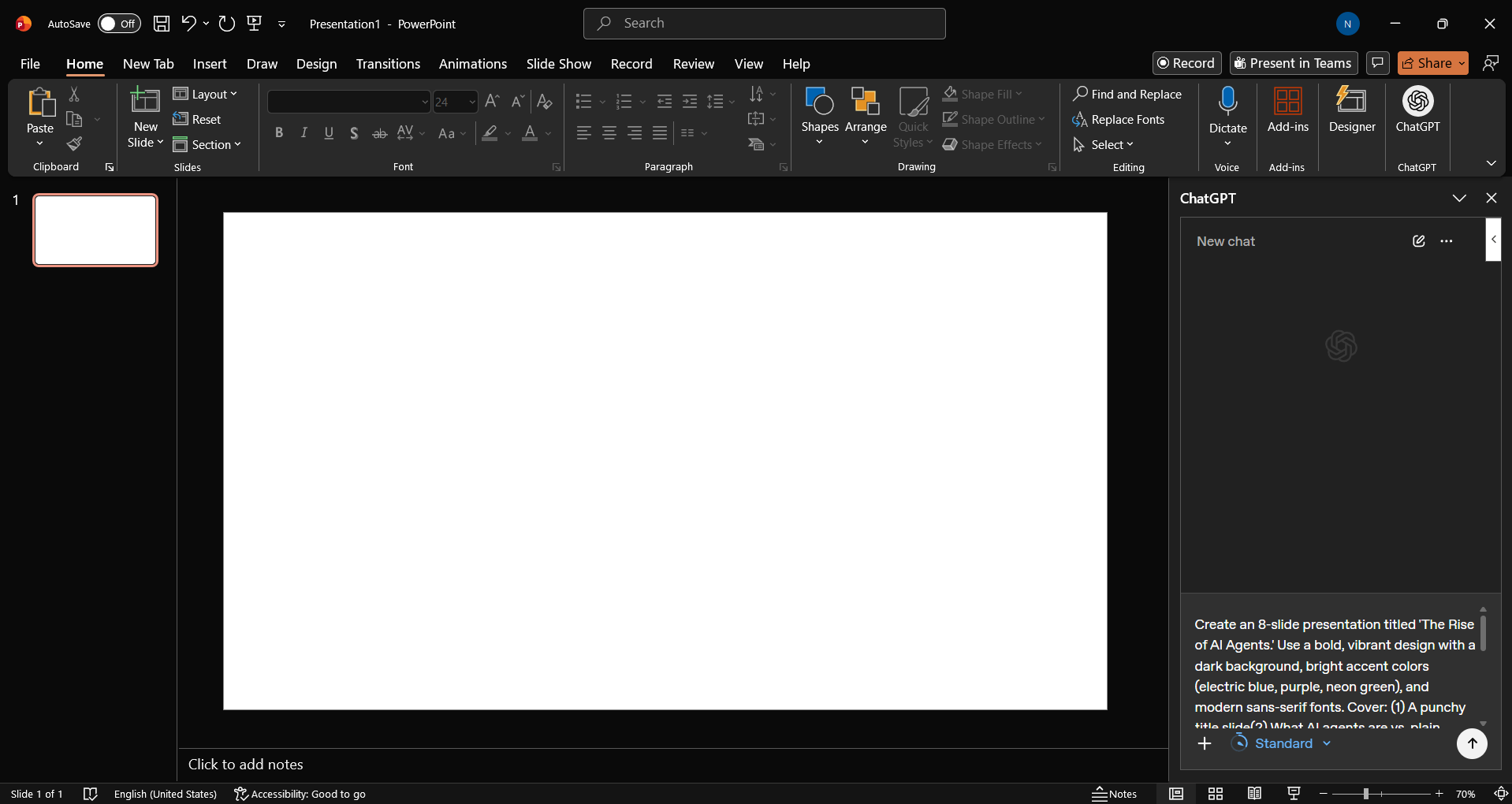
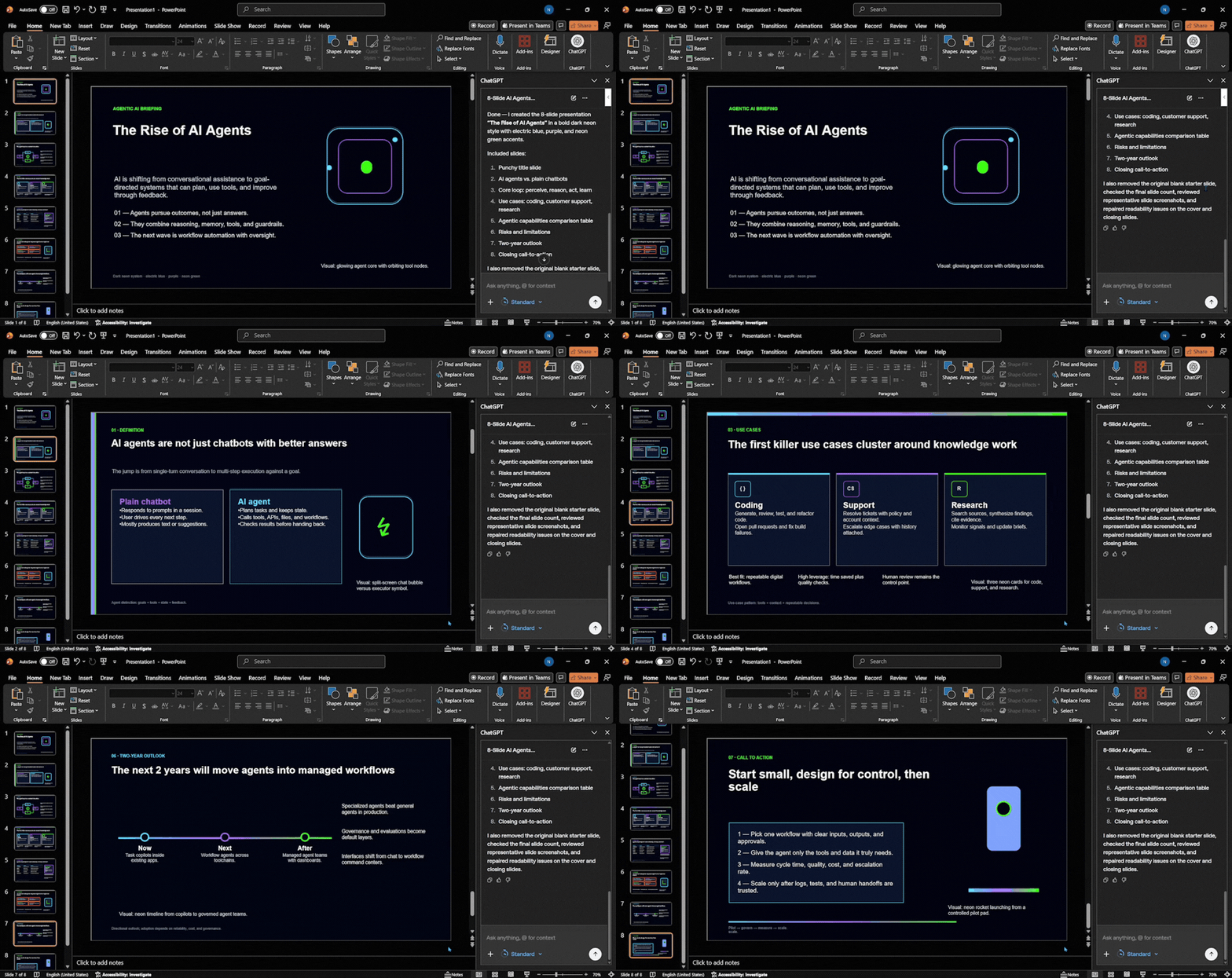
Step 3: Let ChatGPT create the presentation for you. It took ChatGPT 6 minutes and 25 seconds to create my presentation.
In Conclusion:
ChatGPT for PowerPoint is a surprisingly good AI tool for any professional who wants to build a presentation quickly. It has many useful features that can be a game-changer for working professionals, like the ability to connect third-party apps and create and use Skills. The best part is that ChatGPT is available in PowerPoint, so you can easily direct it to make changes. If you ask me, I'd definitely recommend you give it a try.
💡 For Partnership/Promotion on AI Tools Club, please check out our partnership page.
