The browser has quietly become the operating system of modern work. We use multiple tabs, log in to dozens of services, and spend hours clicking through forms and inboxes. However, you may have noticed that some browser tasks take up much more of your time than they should. A few months back, I would have suggested 5 different AI tools to you, but now we have AI agents capable of handling your browser tasks. We have shown you how to use Claude for Chrome and how to use it for your browser tasks. For the longest time, it was the AI agent for browser automation, but there is a new contender for the title: Manus Browser Operator.
What is Manus Browser Operator?
Manus, as we know, is an autonomous AI agent built by Singapore-based Butterfly Effect (the team behind Monica AI), and it is now extending that workspace with a capability called the Manus Browser Operator. Manus Browser Operator is available to all users, and its Chrome extension lets the Manus agent take direct control of the user's browser session, executing multi-step tasks within the websites they already use and trust.
Manus Browser Operator can run in your local Chrome environment rather than a cloud-hosted agent that opens a fresh, anonymous virtual browser. This is important because the operator uses your real IP address, cookies, and active logins. As a result, websites see their activity as a real human session.
AdCreative.ai: An AI-powered platform that automates the creation of high-performing ad creatives for social media and display campaigns
The benefit of that is the AI agent encounters fewer or no CAPTCHA, fewer security blocks, and reliable access to platforms like Gmail, Google Calendar, LinkedIn, Notion, Amazon, and Google Maps without you ever having to share passwords or paste credentials into third-party services.
Once you have installed it, you can enable the integration from the Manus connector tab, grant per-session access, and then give it a task prompt. Manus plans the workflow, navigates pages, fills fields, clicks through interfaces, and reports back, all while the user can monitor the activity or stop it instantly by closing the assigned tab.
- From a technical standpoint, this approach solves one of the most persistent challenges of a browser-based agent, which is the trust boundaries.
- For business users, that means reaching previously off-limits sources such as gated research portals, internal SaaS dashboards, and authenticated company tools.
Conventional automation used to break when it hits anti-bot defenses or login walls; the Browser Operator side-steps that by piggybacking on the user's already-trusted environment.
Key features and functions of the Manus Browser Operator include:
- Autonomous multi-step execution: The agent can perform tasks on multiple websites without you having to prompt every step. It can automatically plan, navigate, click, type, and gather information.
- Local browser context: It works in the user's own Chrome environment, using their local IP and active sessions. There's no need for a separate workspace or sharing credentials.
- Per-tab authorization: Each session is explicitly authorized, and the agent operates only within the tab assigned to it.
- Instant kill switch: When you close an assigned tab, it can immediately halt the running task, giving you a hardware-level stop button.
- Permission-aware data access: The agent can read or act on pages only if the user already has the right to view them, preserving access controls and audit trails.
- Declared data handling: The Chrome Web Store listing says that it handles data like web history, user activity, and website content. The team also claims that your data is not sold to other companies outside of the approved use cases.
How to use the Manus Browser Operator:
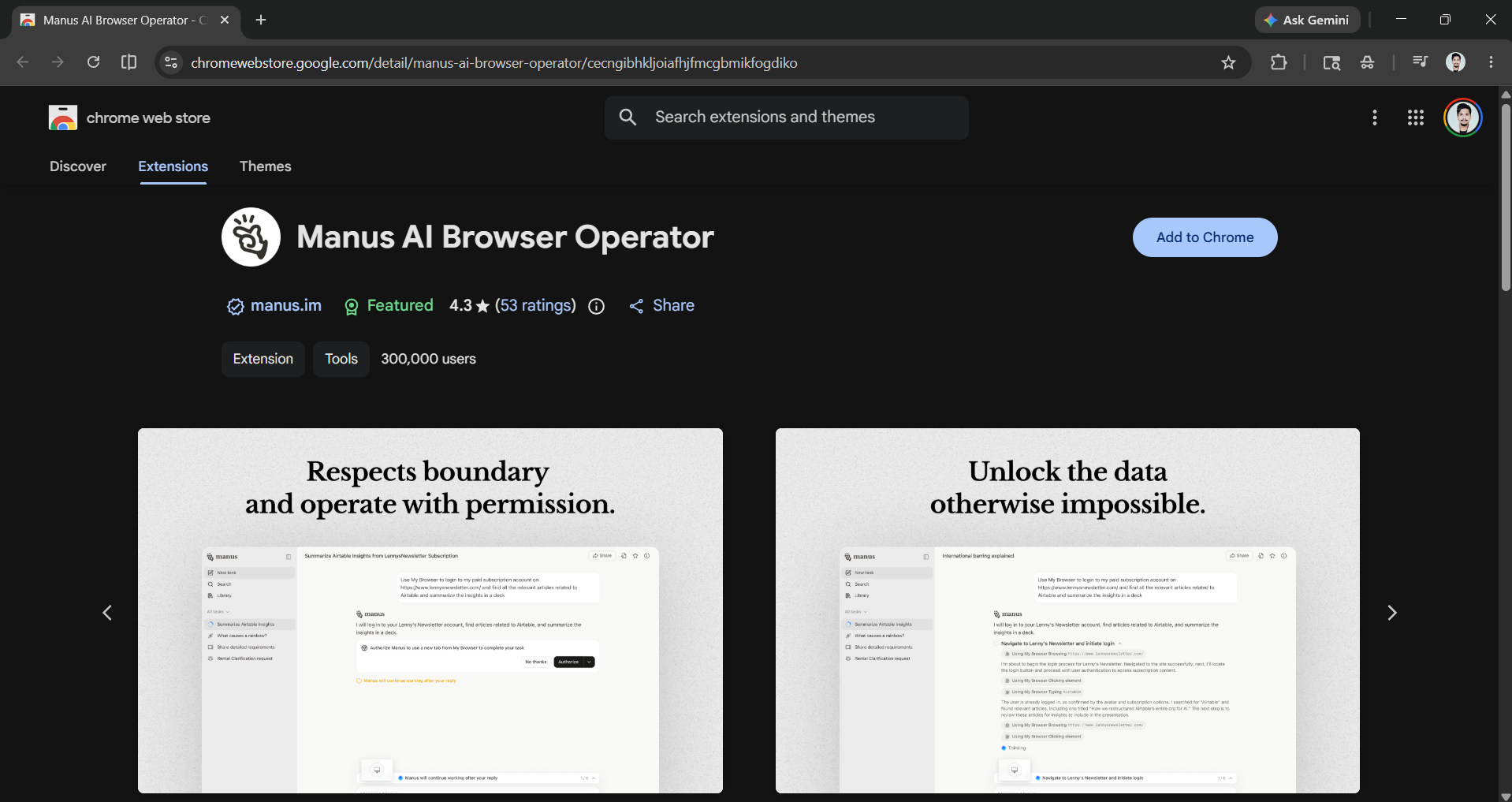
Step 1: To get started, open the Chrome Web Store to download the Manus AI Browser Operator extension. Once you have downloaded it, it will direct you to the Manus browser app.
Step 2: Manus will give you an example prompt to try and test, and will ask whether you want to connect apps like Gmail, GitHub, and others. I recommend that you wait until you are comfortable using it.
![Manus Browser Operator [Manus Web App]](https://storage.ghost.io/c/71/a2/71a292cc-6628-490c-8b4c-3e5a55b86af8/content/images/2026/05/data-src-image-965f2315-e14a-4c0e-a413-728d1127b437.png)
Step 3: You can either use the existing prompt or enter your own, and let Manus AI Browser Operator run.
Prompt I used:
Go to the [Meta, LinkedIn, or Google] Ad Library: [https://www.facebook.com/ads/library/ or https://www.linkedin.com/ad-library/or https://adstransparency.google.com/]

Apply these filters:
Advertiser: [Company to research]
Country/Region: [Country/Region]
Date range: [Date range]

Load all ads by scrolling and paginating until no new results appear.

For each unique ad, extract:
Ad ID (if available)
Primary text (creative copy)
Headline
CTA text
Ad format (image/video/carousel)
First-seen date (if available)
Landing page URL

Deduplicate ads with identical creatives.
Output results as a clean table (CSV or markdown).Editor's note:
I personally quite like the Manus AI Browser Operator. It is similar to Claude for Chrome, which we tried recently, but it does things differently. While Claude for Chrome opens in a side panel when you click on the extension, and there is zero involvement of the Claude desktop or web app, you need to add a prompt in the Manus web app to authorize it to use the Chrome extension and do things on your browser. The output was solid, but the real test will be when we compare it head-to-head against Claude for Chrome.
💡 For Partnership/Promotion on AI Tools Club, please check out our partnership page.