


For a really long time, we had to switch between apps while working, which degraded productivity. You had to open a new tab, open the right application, scroll, and find the exact file or information you needed, causing users to lose hours on a weekly and monthly basis. However, that has changed, as AI assistants now let you connect with everyday apps you already use; for example, ChatGPT has Apps, and Claude has Connectors.
In this article, we will focus on Claude AI's connectors, the MCP-powered apps that connect with Claude, allowing it to bring your productivity apps directly into the conversation interactively and in real time.
Claude's interactive tools let users open and use connected third-party apps without leaving the Claude interface. This means that Claude doesn’t just talk about your tools; it works with them and shows live interfaces right in the conversation window.
You can create structured projects, tasks, and timelines using Asana, prepare a formatted Slack message, and even visualize a Figma flowchart within Claude. Claude's Connectors is especially useful for knowledge workers, product managers, and growth teams as it turns Claude into an active collaborator embedded in your tool stack.
How to connect MCP apps to Claude AI:
There are two ways to connect an MCP app with Claude.
1. Claude Connectors
- Open Claude, click Customize, then Connector.
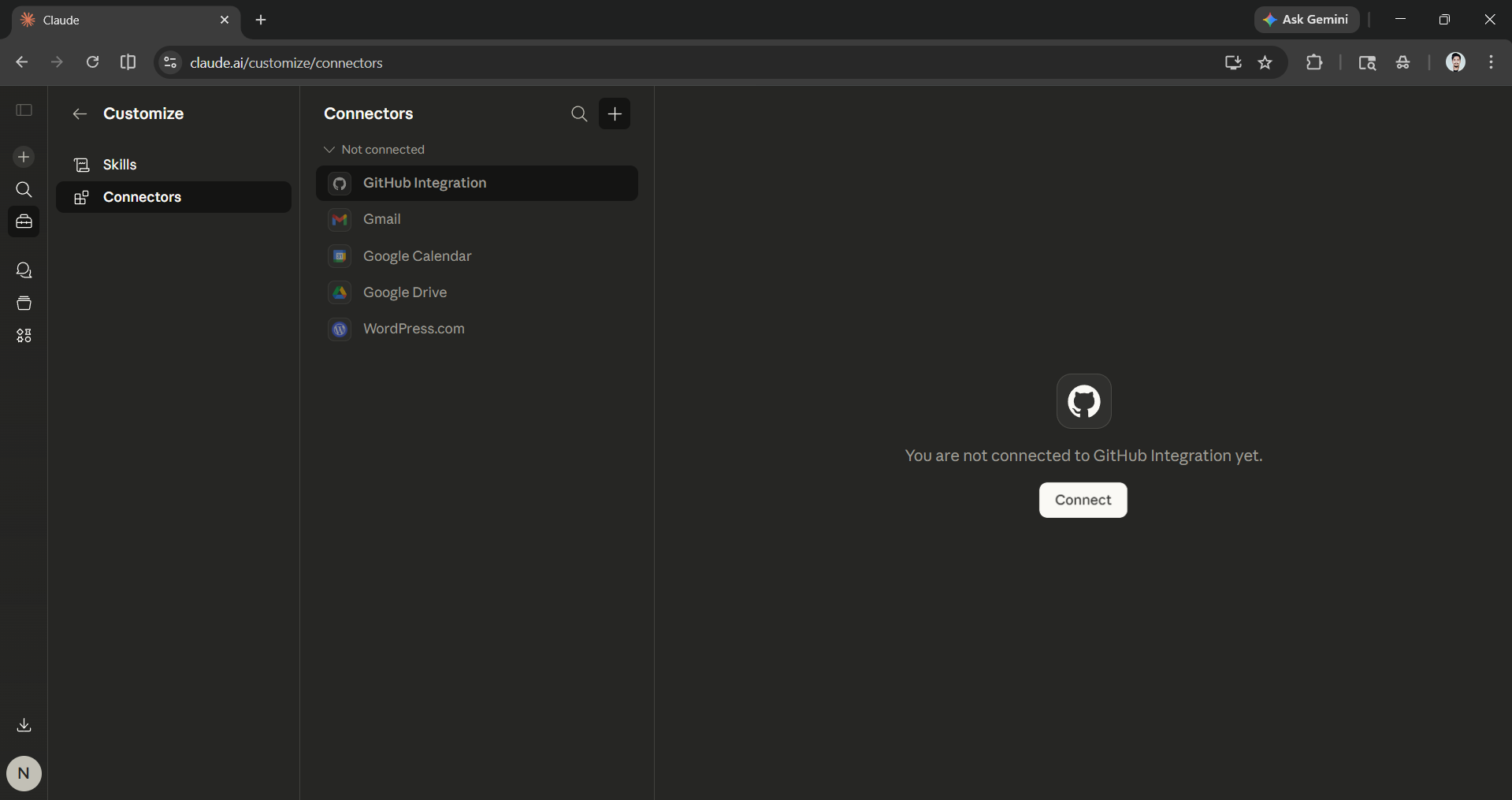
- Click on the (➕) button and browse connectors to connect with official Anthropic partner apps. You can click on any and connect with them.
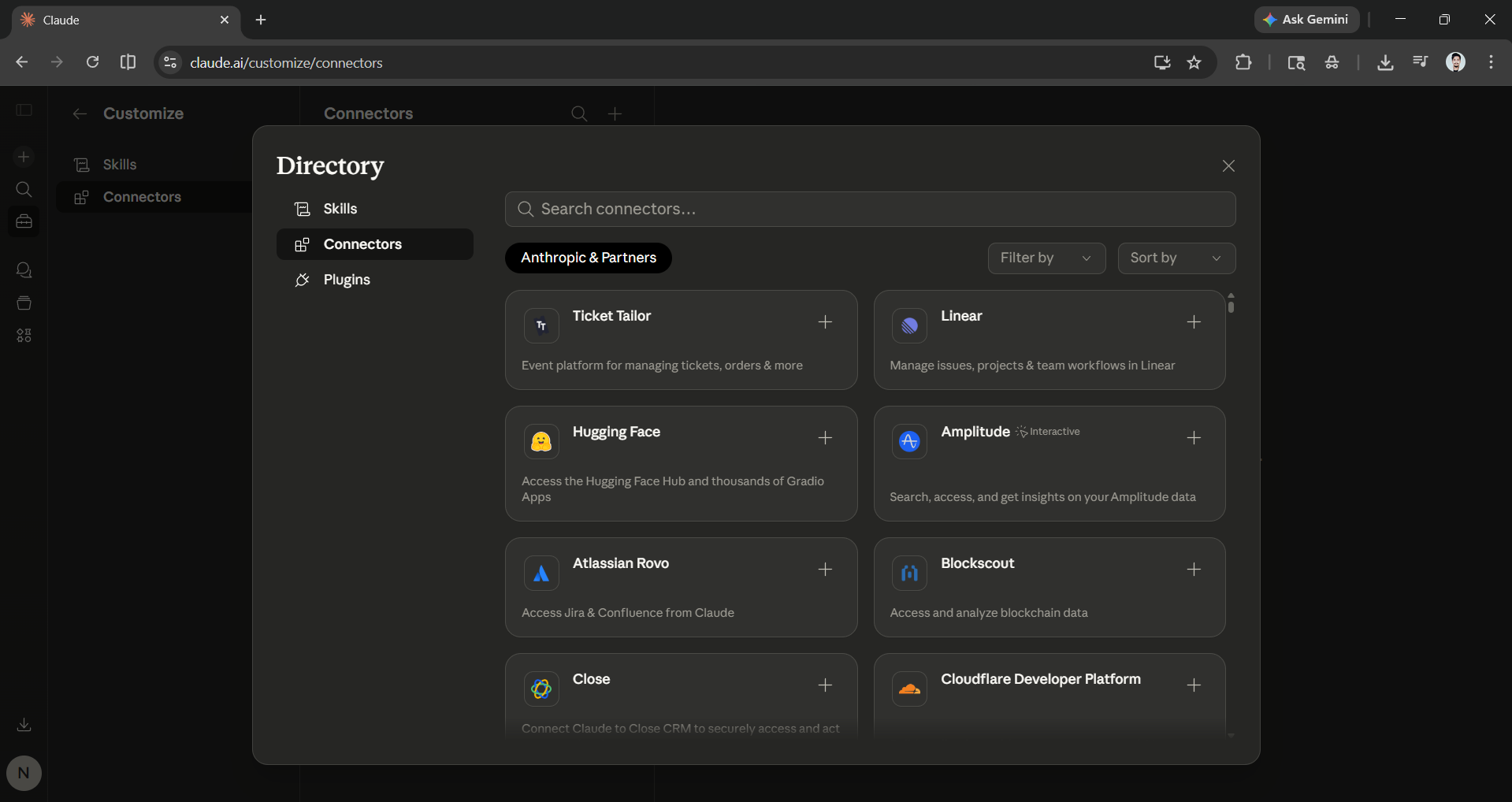
Side note: Only the apps with "Interactive" written next to them allow you to interact with tools within Claude.
2. Adding Custom Connectors
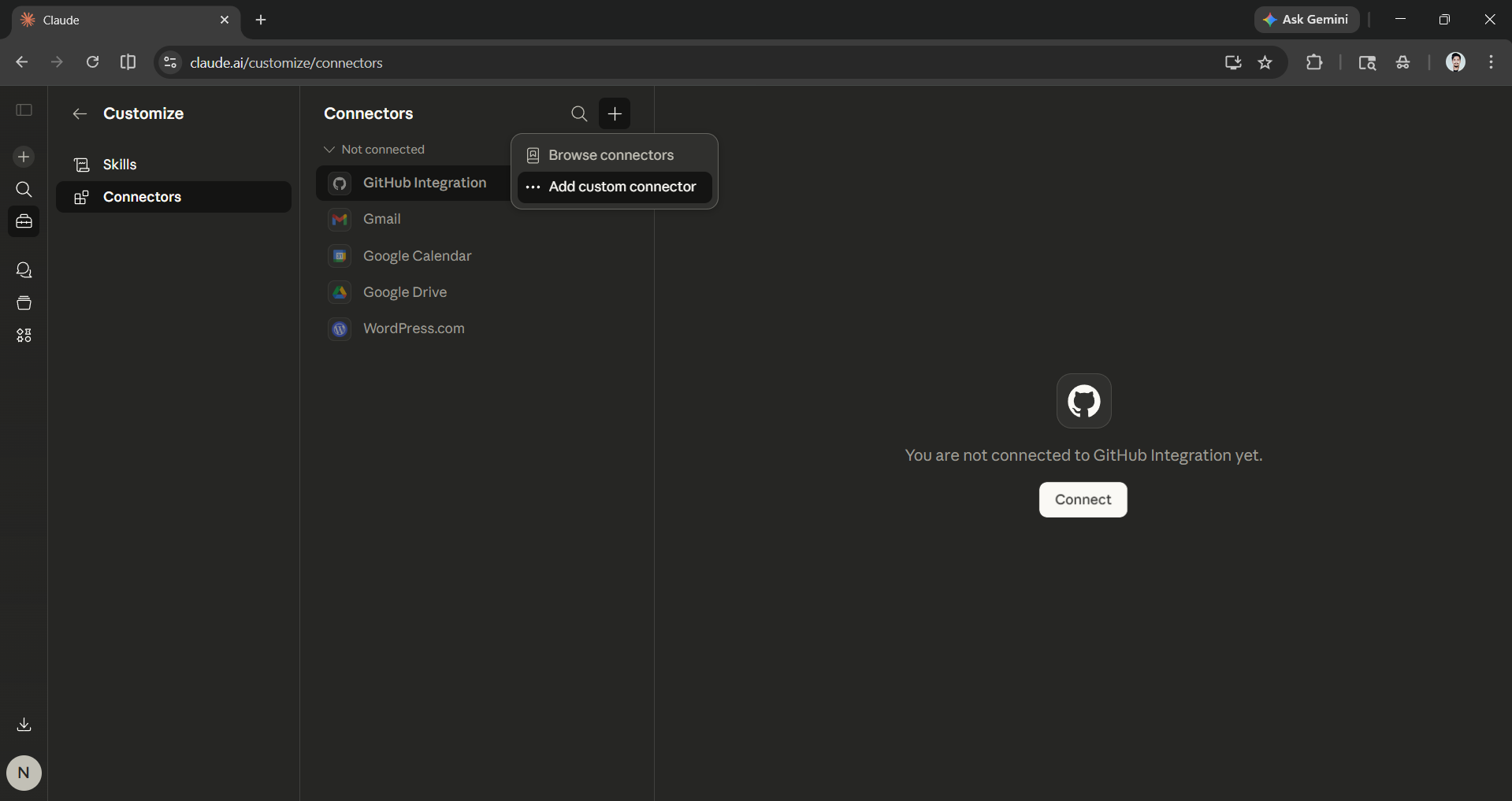
- The process of getting custom connectors is similar. The only difference is that instead of clicking Browse Connectors, you must click Add Custom Connector.
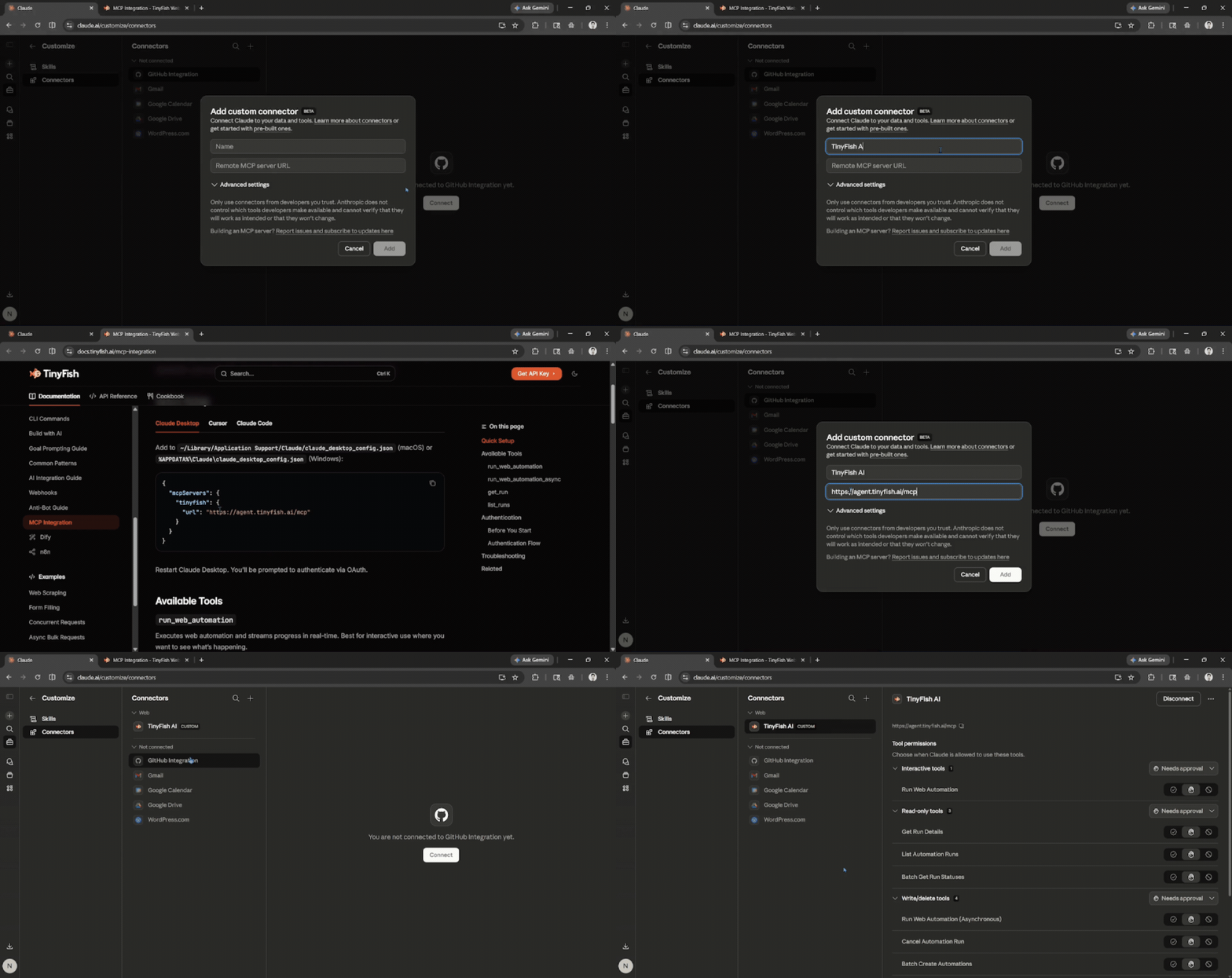
- For this article, we will use TinyFish AI MCP. Add a name for the MCP and then the Remote MCP server URL. Once the MCP app has been connected, you can also easily configure it or disconnect it.
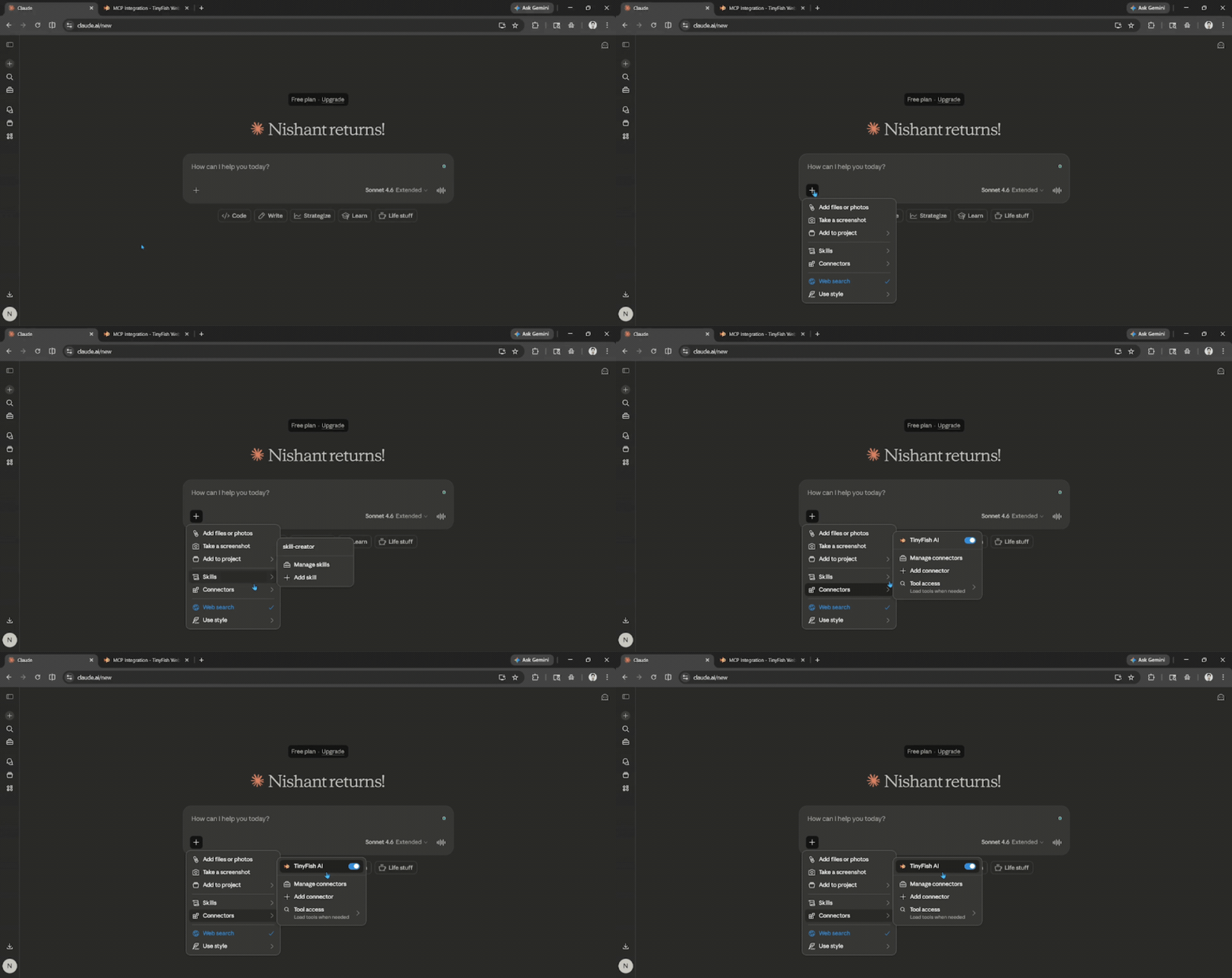
To check the connected apps, click on the add button in the chatbox, then click on connectors. You can easily turn any app on or off using the toggle. When it's time to use one of the connected apps, simply ask Claude to use it.
In Conclusion:
To be able to use everyday apps inside ChatGPT and Claude is a powerful feature that can easily boost productivity and allow you to spend less time switching tabs, logging in, and searching for the thing you want. Anthropic offers plenty of pre-existing apps that you might already use, like Notion, Asana, Wix, Figma, PayPal, and more. If there is an app that is not part of the existing lineup, you can add it via the Remote MCP server URL. For someone who really focuses on productivity and wants no distractions, Claude Connectors can be extremely useful and a game-changer.
💡 For Partnership/Promotion on AI Tools Club, please check out our partnership page.
