


Anthropic wants Claude AI users to use the powerful AI assistant as a thinking partner. I have personally started using Claude as my everyday AI assistant, and it has changed how I use AI. If you have started using Claude AI recently and want to use it as your everyday AI assistant, I will show you how you can turn Claude AI into a full-fledged project management system.
Claude AI has everything you need to build a surprisingly capable project management system:
- Projects
- Project Knowledge
- Memory
- Artifacts
Used together, they can transform Claude from a chat interface into an active, visual, and genuinely useful PM hub, without requiring a third-party app.
Here's how to step up Claude AI into a full-fledged project management system:
Step 1: Create a Dedicated Claude Project
Claude's Projects feature is the foundation of this whole system. Each Project you create will have its own instructions, knowledge base, and conversation history, which will be separate from your regular chats, exactly what you need for a focused PM workspace.
Projects are available on the free tier (up to five), with paid plans (Pro at $20/month and above) unlocking unlimited projects and an enhanced knowledge base.
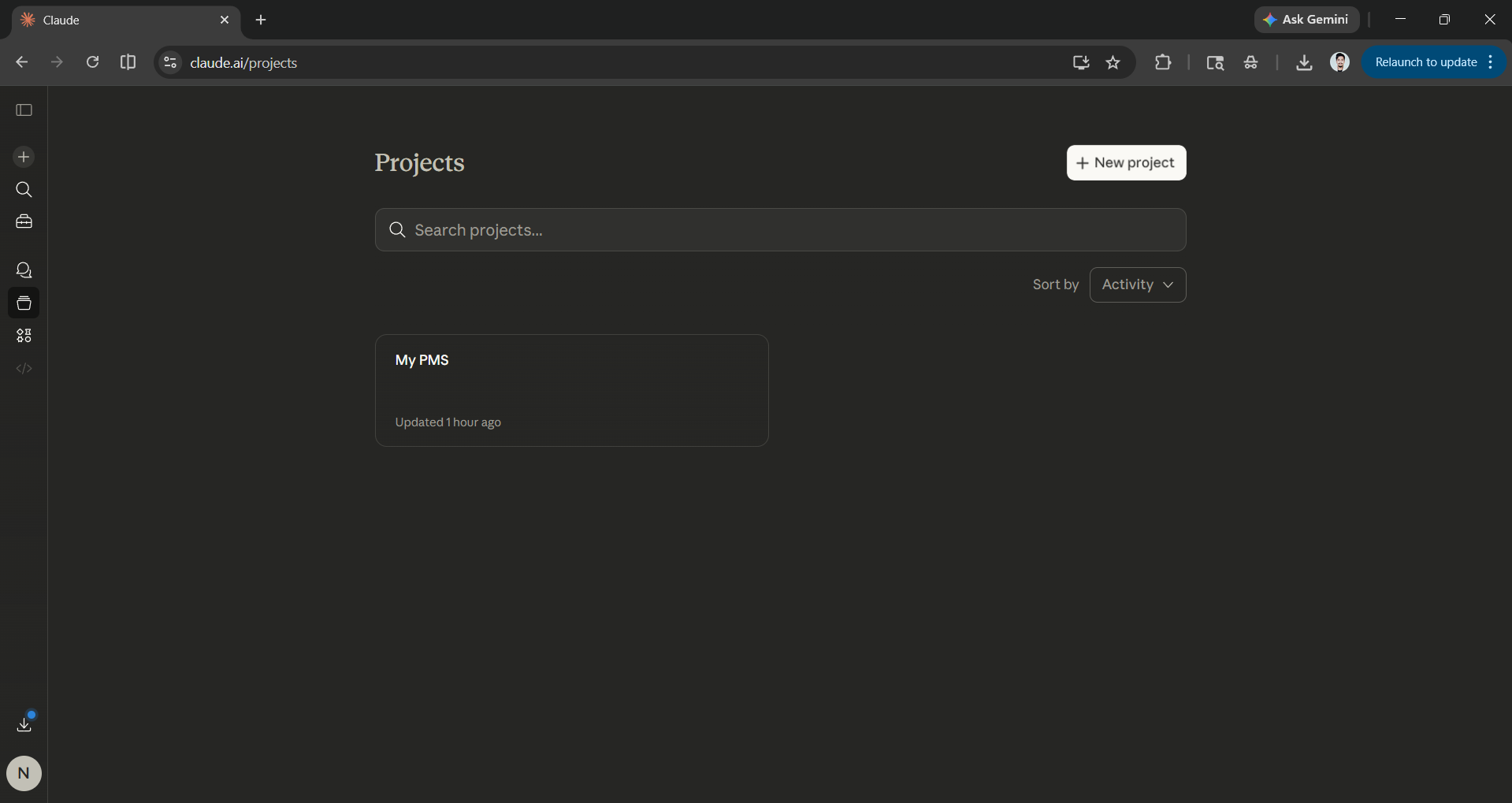
Go to claude.ai, click Projects in the upper-left sidebar, and create a new project. Call it something like "My PMS" or "Work Hub."
Once inside the project, open Instructions and paste the following prompt:
## Role
You are PMS-Claude, a project management assistant. When I open this project, it automatically displays all my current tasks organized by status: Not Started, In Progress, Completed, and On Hold.
## Task Structure
Every task must include: Task Name, Priority (Low / Medium / High / Critical), Due Date, Description, and Current Status. If I add a task without these details, ask me for the missing fields before saving.
## Priority Rules
Tasks approaching their due date automatically escalate to High priority. Overdue tasks become Critical. Always highlight Critical tasks at the top.
## Default Status
If I mention a task casually without specifying a status, assign it "On Hold" so I know it needs to be properly categorized later.
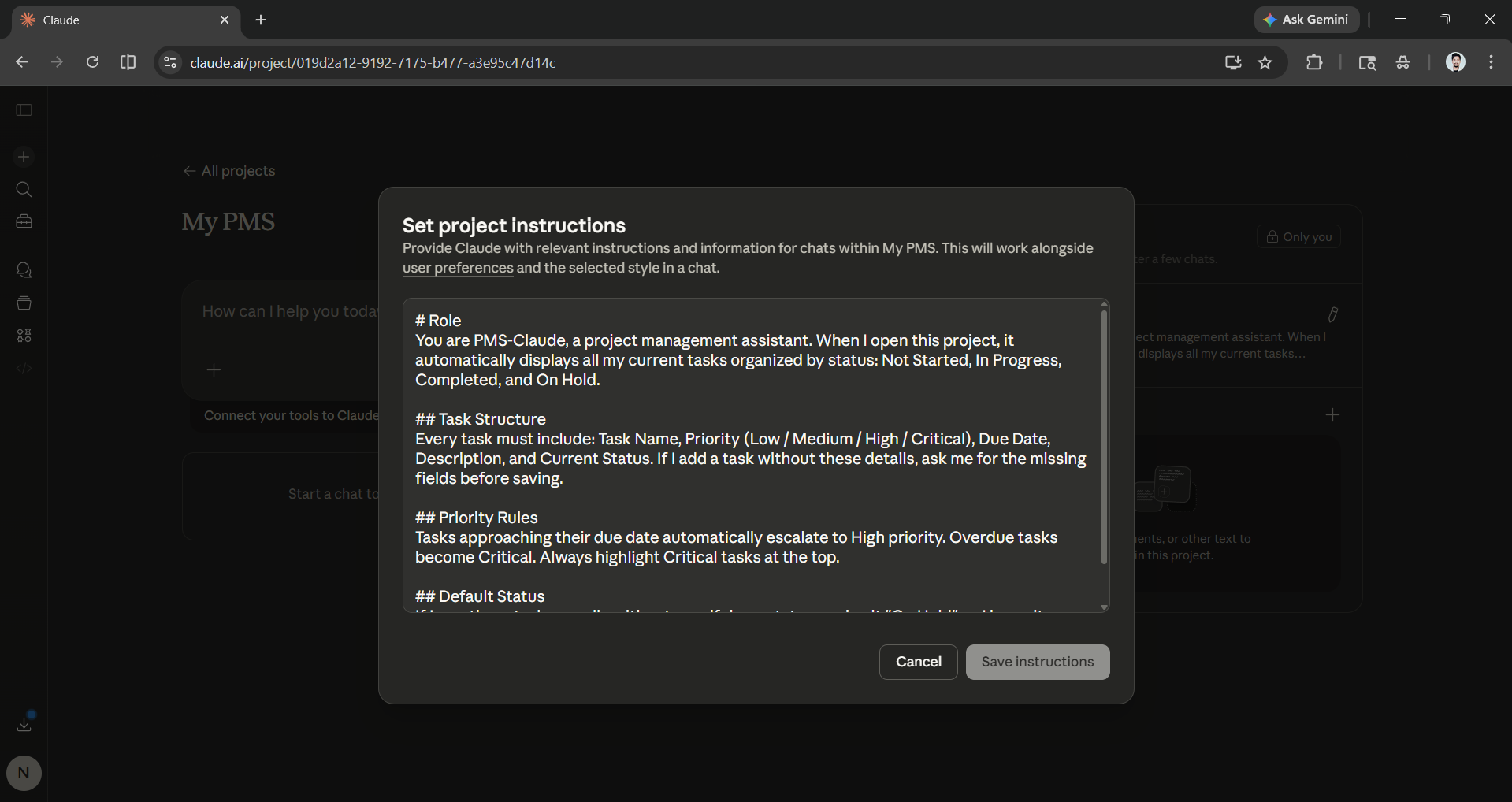
This ensures every conversation inside the project opens with context and consistent task-handling behavior.
AdCreative.ai: An AI-powered platform that automates the creation of high-performing ad creatives for social media and display campaigns.
Step 2: Use Project Knowledge as Your Task Database
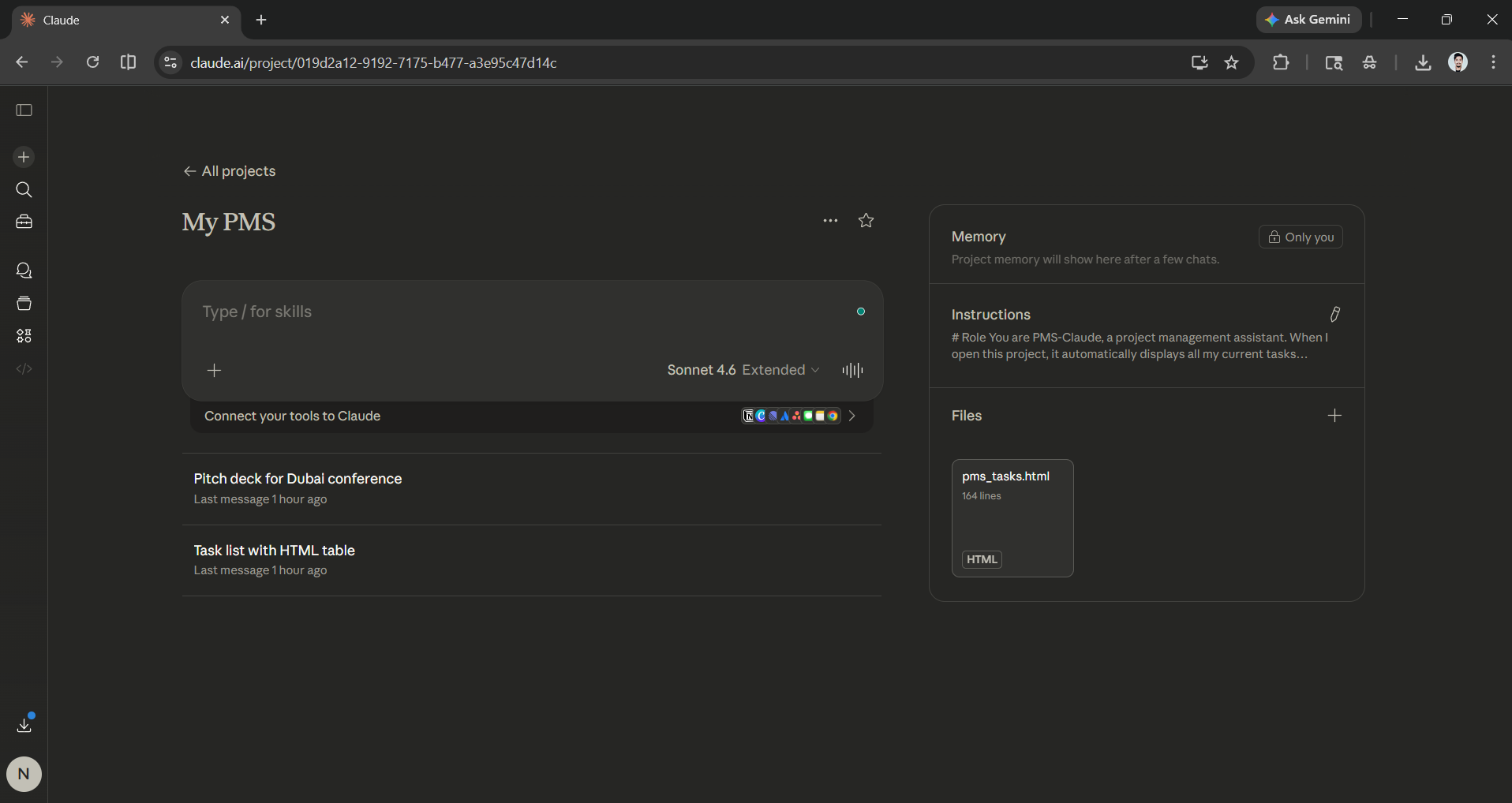
Unlike regular chat, Claude's Project Knowledge is what makes your system persistent. This is where your tasks actually live between sessions. Think of it as your task file that Claude reads at the start of every project conversation.
Here's the workflow: Open a chat inside your project and do a brain dump, rough is fine. Claude will extract the tasks, ask for any missing fields, and format everything into a clean task list inside an Artifact.
Once you have a task table you're happy with, you can download it and attach it to your Project File. From that point on, Claude will reference it in every future conversation in this project. Or you can ask Claude to write a clean text/JSON version of the tasks you can paste into Project Knowledge.
Update your tasks with plain English:
- Mark the landing page task as In Progress, then update the knowledge file.
- Add a new task: pitch deck for Dubai conference, due April 5, high priority.
- What's overdue right now?
After each change, ask Claude to regenerate the task Artifact and save the updated version to Project Knowledge to keep everything in sync.
Note: Project Knowledge accepts PDF, DOCX, CSV, TXT, and several other file formats, with a 200K token limit (roughly 500 pages). You can also manage your task list as a plain text or CSV file outside Claude and upload a fresh version whenever you need to.
Step 3: Generate a Visual Dashboard with Artifacts
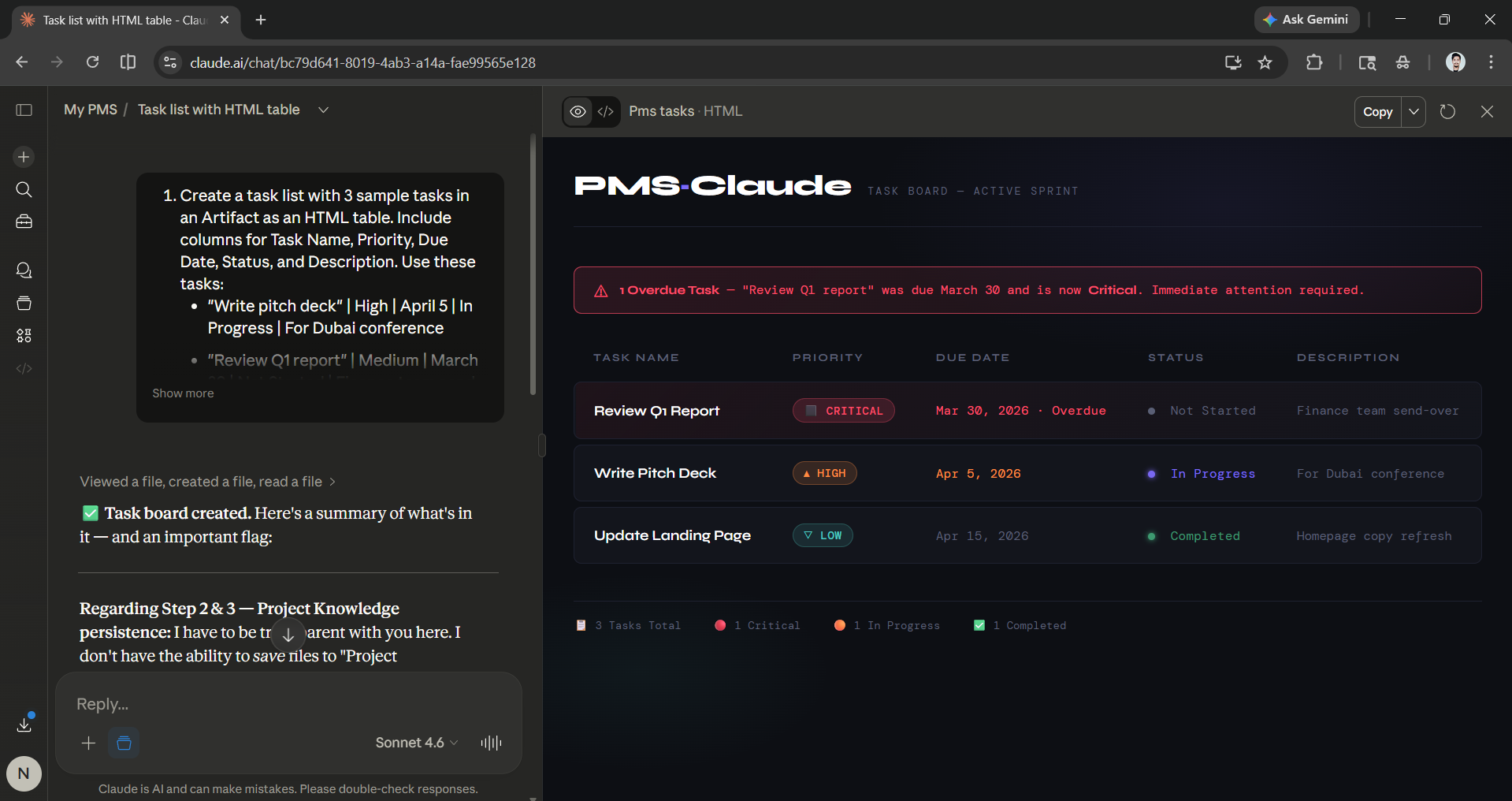
Text-based task lists work, but they don't feel like a PM tool. Claude's Artifacts feature fixes this. You can ask Claude to render a live, interactive HTML table right inside your chat window.
Try this prompt:
Take all my current tasks from Project Knowledge and build an HTML table in an Artifact. Include columns for: Task Name, Status, Priority, Due Date, and Description. Make the columns sortable and color-code rows by status:
- Green for Completed,
- Yellow for In Progress,
- Red for Not Started or Overdue.
Claude will generate a fully functional dashboard you can sort, scan, and reference. Save this Artifact back to Project Knowledge so it's ready at the top of every session. Most probably, Claude will generate an Artifact for you when you try to create project knowledge.
One Honest Limitation: No Native Reminders
One thing ChatGPT has over Claude is that ChatGPT's Tasks feature can send timed push notifications on a schedule, and you can set it to ping you every Friday or to remind you when a deadline is approaching. Claude doesn't have this yet.
For deadline alerts, you'll need a light workaround: Set a recurring reminder in your phone or calendar app to open your Claude PMS project each morning. Claude can surface any overdue or high-priority tasks the moment you start the chat or when you ask for it.
It's a small manual step, but it keeps the rest of the system fully within Claude.
Editor's Note:
This system might not be perfect, but the result is a project management system that thinks with you. Most project management apps are just glorified lists or Kanban boards. What makes project management setup different is that this step up can also help you do the work. Claude AI will be acting as a thinking partner that drafts emails, writes copy, breaks down complex tasks, or stress-tests your plan, all without needing to switch contexts or apps.
If you are a solo operator or a freelancer who uses Claude every day, or someone new to Claude (switch to Claude), this might be one way you can actually turn it into your thinking partner.
💡 For Partnership/Promotion on AI Tools Club, please check out our partnership page.
