

Studying has always been about connecting the right information at the right time, but when your notes are scattered across PDFs, PowerPoints, Word documents, and lecture slides, even knowing where to start can feel overwhelming.
Microsoft Copilot is changing that by turning fragmented study materials into structured, AI-powered study guides. Microsoft Copilot offers features designed specifically for learning, available for free on the web, mobile, and desktop, that cover everything a learner might need to stay organized and reduce study-related stress.
Here is a complete guide on creating an impactful study guide using Microsoft Copilot:
Step 1: Gather and Add Your Materials
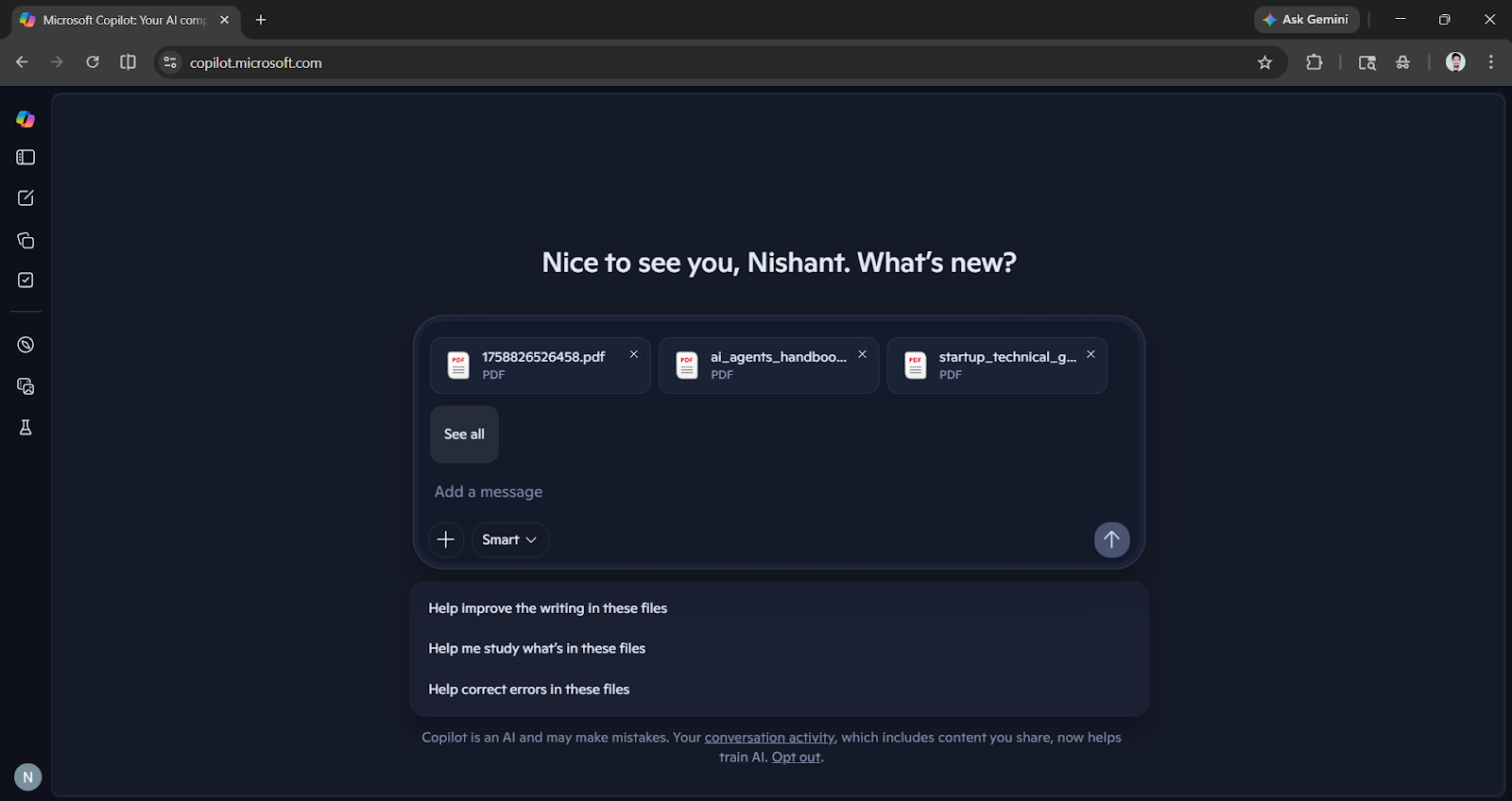
When your study materials are everywhere, start by bringing them together. Open Microsoft Copilot on web, desktop, or mobile, upload your documents (lecture notes, PDFs, slides, or any relevant files).
Step 2: Generate the Study Guide
Once you have added all of your raw study materials, you can ask Copilot directly to build a study guide from them. Copilot can read across your uploaded content and synthesize it into an organized, learnable structure without requiring you to manually sort or summarize anything.
Prompt: Can you create a study guide based on all the material I've gathered?
AdCreative.ai: An AI-powered platform that automates the creation of high-performing ad creatives for social media and display campaigns.
Step 3: Use Copilot's Study Tools to Reinforce Learning
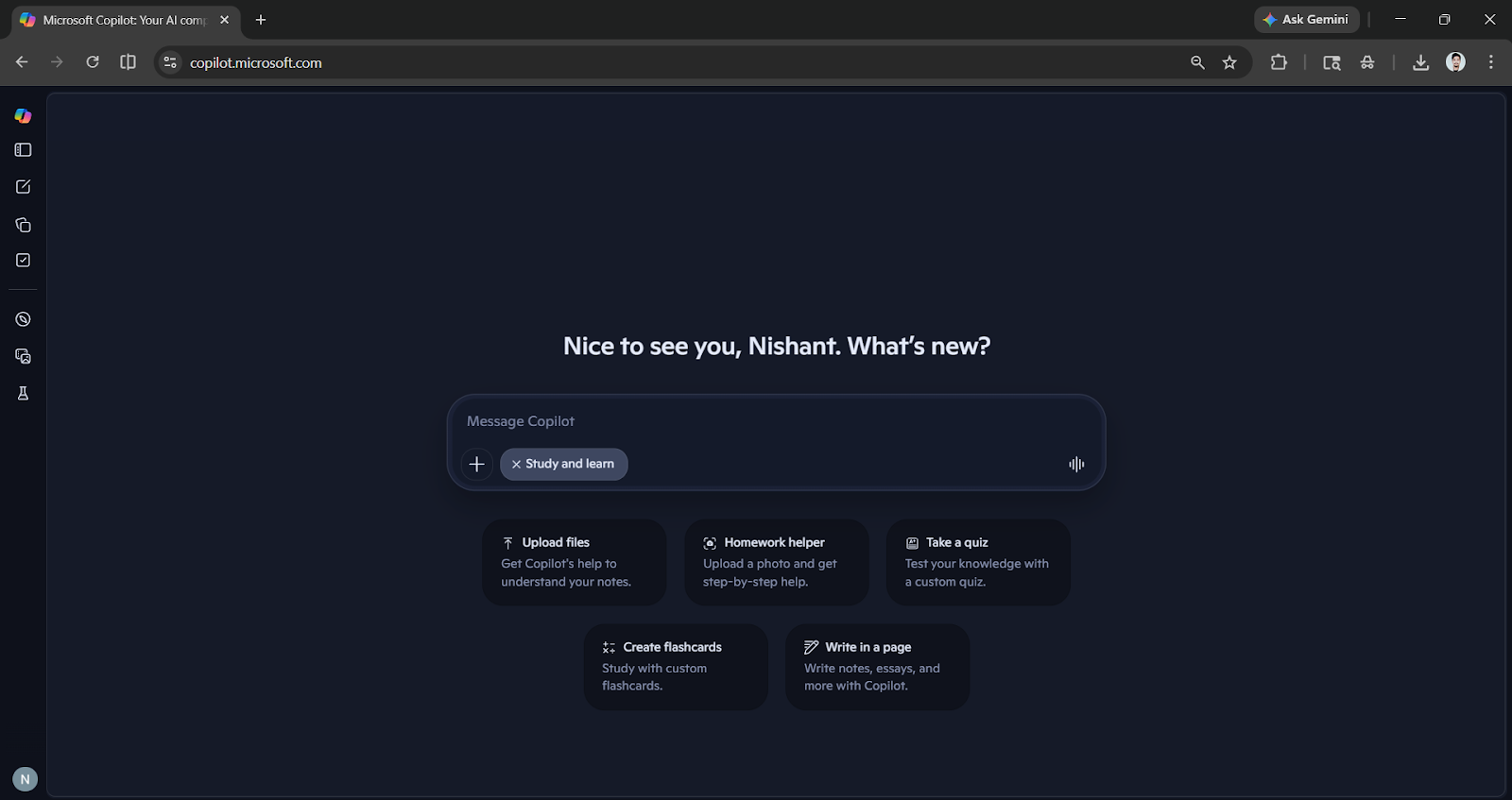
Chatting with Copilot to reason over your references and creating a study guide is one thing you can also turn your study materials into quick drafts, audio overviews, flashcards, quizzes, and more using the Study and learn feature. These tools turn raw content into structured, shareable artifacts in seconds.
Once your study guide is generated, Copilot offers several purpose-built features to deepen your understanding and retention:
- Study and Learn Mode: Acts as a 24/7 study buddy, providing guided learning with customized support tailored to your material.
- Quiz Yourself: Learn, test, and boost your knowledge with interactive quizzes generated from your content.
- Flashcards: Learn and reinforce any topic using Copilot-generated flashcards, ideal for spaced repetition practice.
- Homework helper: Upload an image of the problem you need a solution for, and Copilot will give you step-by-step help to solve it.
With Copilot, you can also create podcasts (audio overviews), generate images, and perform deep research.
Copilot is available on PC, Mac, iOS, and Android, making it easy to continue studying whether you are at your desk or on the go. This cross-device accessibility means your study guide and all its associated tools are always within reach.
A Note on Accuracy
Microsoft acknowledges that generative AI is still an emerging technology and that answers are not always 100% accurate. However, Copilot grounds its responses in live data from the Bing search engine and includes source citations where appropriate. Always cross-reference generated content against your original materials before relying on it for high-stakes assessments.
Final Thoughts
This is not the first time that we have seen an AI assistant assisting users through guided studies. ChatGPT also has a study and learn feature, and Google Gemini has Guided learning, and you can also use Claude for learning. So, Microsoft Copilot isn't doing something that hasn't already been done. However, if you are a student or a professional who works with the Microsoft Office Suite/Microsoft 365, using Copilot can be an easy choice for you. Staying organized isn't easy, but using Microsoft Copilot effectively can unlock an AI-powered workflow that turns scattered resources into focused, actionable knowledge.
💡 For Partnership/Promotion on AI Tools Club, please check out our partnership page.
