


Microsoft Excel is one of the most powerful spreadsheet applications popular for data analysis, reporting, and modeling. Millions or even billions of working professionals use Microsoft Excel to organize, analyze, calculate, and visualize data using grid-style rows and columns. It is an essential office tool with plenty of features; however, what makes it even more powerful in 2026 is the addition of Copilot and Agent Mode. In this article, we'll show you what Agent Mode in Microsoft Excel is and how it can help professionals automate their workflows.
What is Agent Mode in Microsoft Excel?
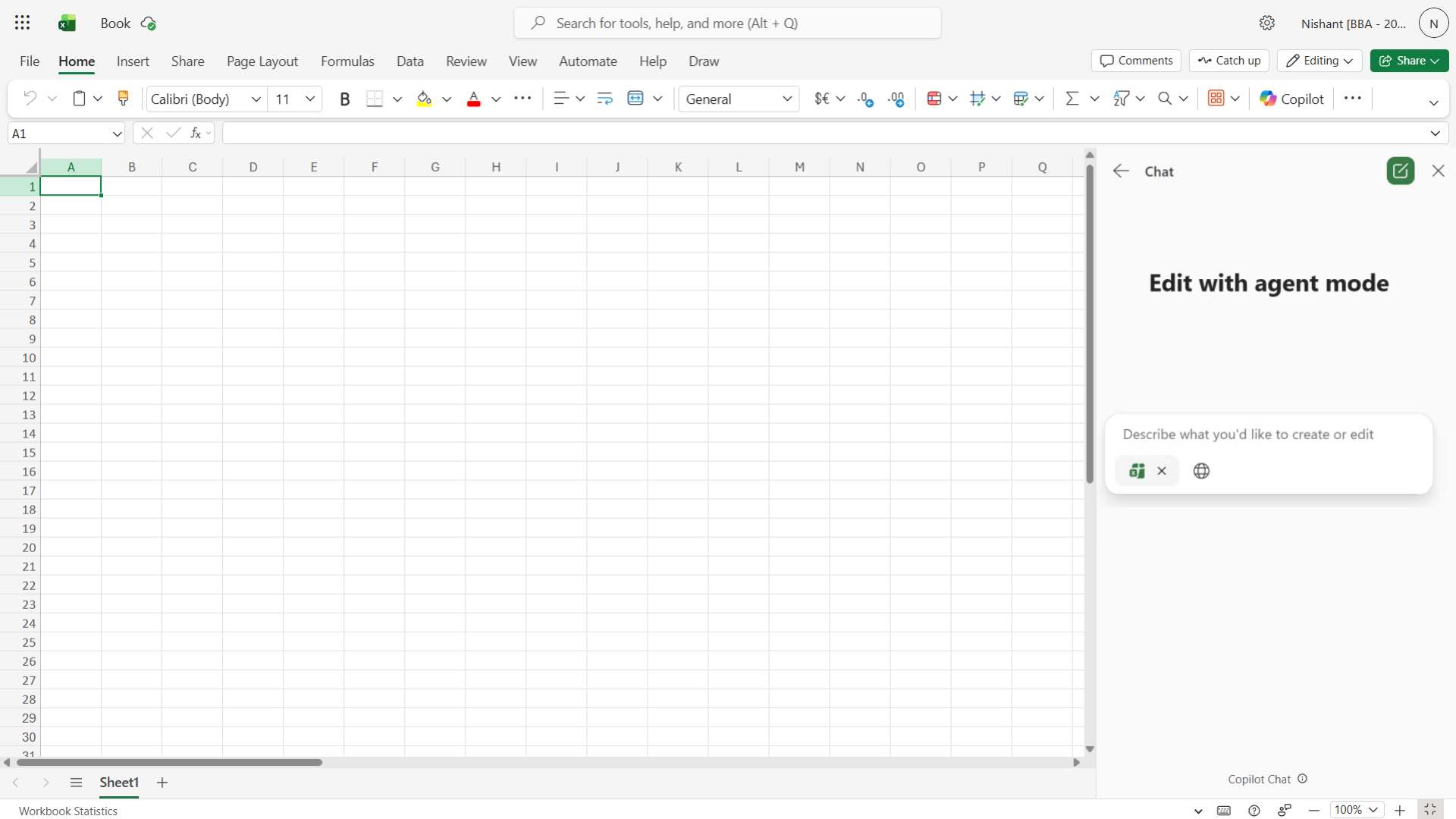
Agent Mode is a new tool in Copilot for Microsoft Excel that allows professionals build and edit workbooks side by side with Copilot. Microsoft claims that Agent Mode is best for complex, multi-step tasks, and it can use Excel's most powerful tools, like tables, charts, PivotTables, and formulas, to help you get the job done.
AdCreative.ai: An AI-powered platform that automates the creation of high-performing ad creatives for social media and display campaigns.
How can you use Agent Mode in Excel to automate your workflow:
1. Automate complex tasks
Microsoft claims that Agent Mode is best for complex, multi-step tasks like reshaping data, merging sheets, and building reports with multiple elements, while allowing users to see its reasoning process in the pane. However, it may take a few minutes to generate and refine the initial response for complex requests
2. Ask, refine, and build iteratively
Agent Mode isn't a chatbot stuck to Excel; it is far more capable. You don't need to copy and paste anything. You can also see Copilot interpret your request, the steps it takes, and explanations of each output, along with verification. That is not all.
- Create workbooks: Make new content in Excel using data from existing workbooks and relevant up-to-date web search results with source citations.
- Scenario modeling: Conduct what-if analyses for revenue, budgets, or forecasts, and research different scenarios by changing assumptions.
- Data analysis: Analyze large datasets, identify anomalies, and find trends using formulas.
- Formula generation: Fix broken formulas and create dynamic formulas that link data across your workbook, and explanations for complex calculations.
- Data visualization: Build pivot tables, charts, and dashboards through natural conversation, along with Excel artifacts that automatically update when the underlying data changes.
MeetGeek: An AI-powered meeting assistant that automatically records, transcribes, summarizes, and analyzes virtual meetings in real time.
3. Model choice
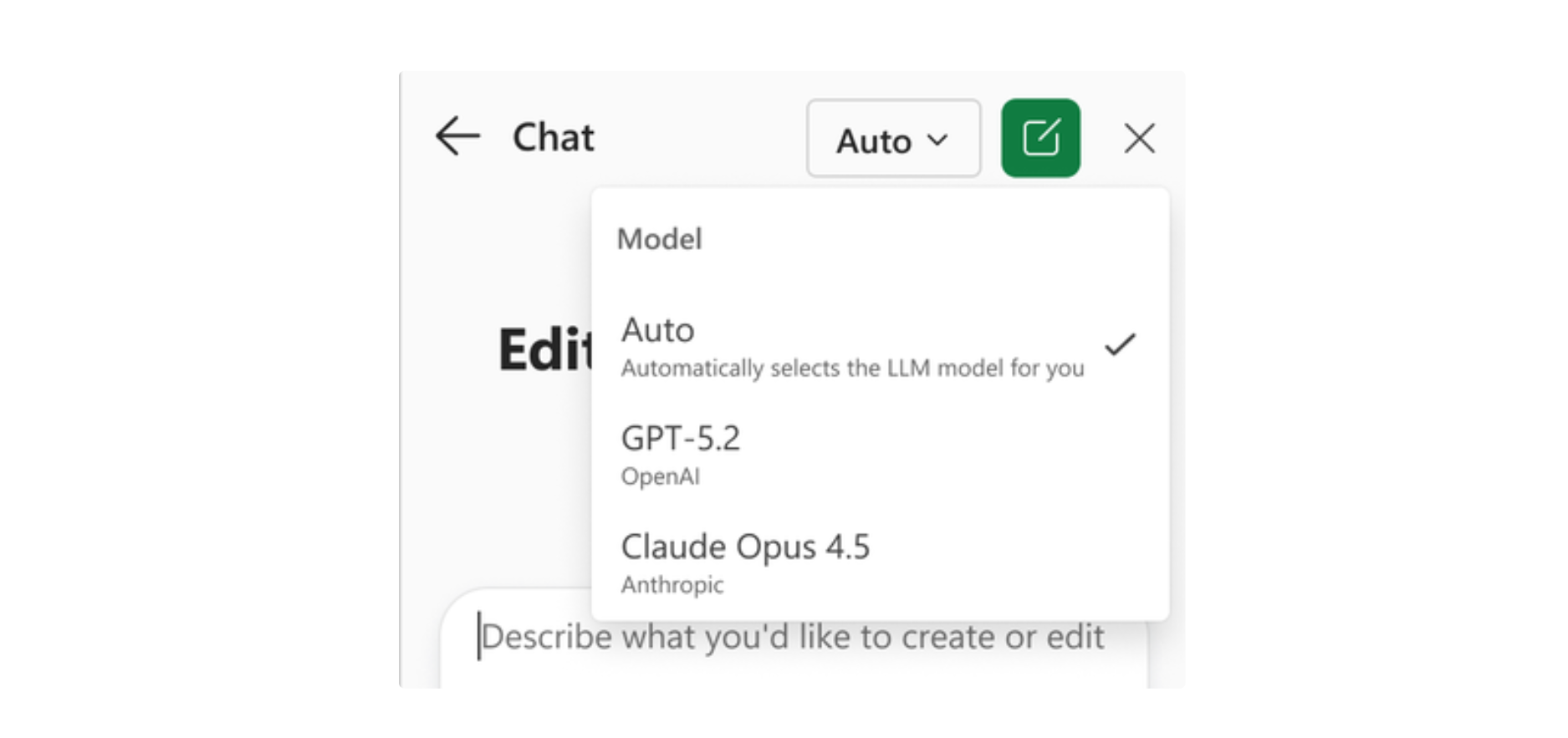
As you may know, different AI models excel at different kinds of work, while some are better suited for fast, structured problem-solving, while others are better for tasks that require explanation, iteration, or more open-ended reasoning. In default Auto mode, Copilot chooses the best model for the query, but you can also select a specific model before running a prompt.
How to try Agent Mode in Excel:
Step 1: Open Excel on Web, Windows, or Mac.
Step 2: Open Copilot and select Agent Mode from the Tools menu.
Step 3: Start with an outcome-based prompt, like "Create a yearly financial report for a bike shop. Include a breakdown of product lines, showing how each line performed compared to the budget variance to budget (VTB) and their growth from last year. Use dummy data for now, and follow standard financial practices and formatting."
After you submit a prompt, it generates a step-by-step plan, makes changes live in the workbook, and may take a few minutes on complex requests (you can stop it anytime).
In Conclusion:
Agent Mode in Excel is one of the best ways professionals can automate their workflows. It's built to create real Excel artifacts like tables, formulas, PivotTables, and charts that stay editable and refreshable, while showing its reasoning and iterating when needed. If you decide to use Agent Mode in Microsoft Excel, you should ask it to generate an outcome, as the feature is already capable of using tools like tables, charts, PivotTables, and formulas to help you automate and get the job done.
💡 For Partnership/Promotion on AI Tools Club, please check out our partnership page.
