


Image enhancement has always been very tricky. You needed dedicated tools like Topaz Gigapixel AI, Adobe Photoshop's Super Resolution, or expensive API-based services, making it hard for normal people like you and me to enhance our blurry images without paying.
Thankfully, artificial intelligence (AI) assistants and AI models powering them have both become widely accessible and capable enough that you no longer need to pay for an expensive service online to get a job done. You can Google Gemini and Nano Banana 2 to upscale your images and deliver cinematic-quality image improvements through nothing more than a carefully engineered prompt.
You don't need plugins or specialized third-party software connectors. Gemini is free to use, and you can also upscale your images for free; however, just remember that Gemini has a daily limit on how many images you can generate.
What Is AI Image Enhancement?
An AI-based enhancement works differently from how traditional upscaling tools work.
- Traditional upscaling algorithms interpolate missing pixels by averaging surrounding color values, a mechanical process that often introduces blurring, artifacts, or unnatural smoothing.
- For an AI-based enhancement, the model tries to reconstruct missing details using patterns learned from large datasets of high-resolution imagery.
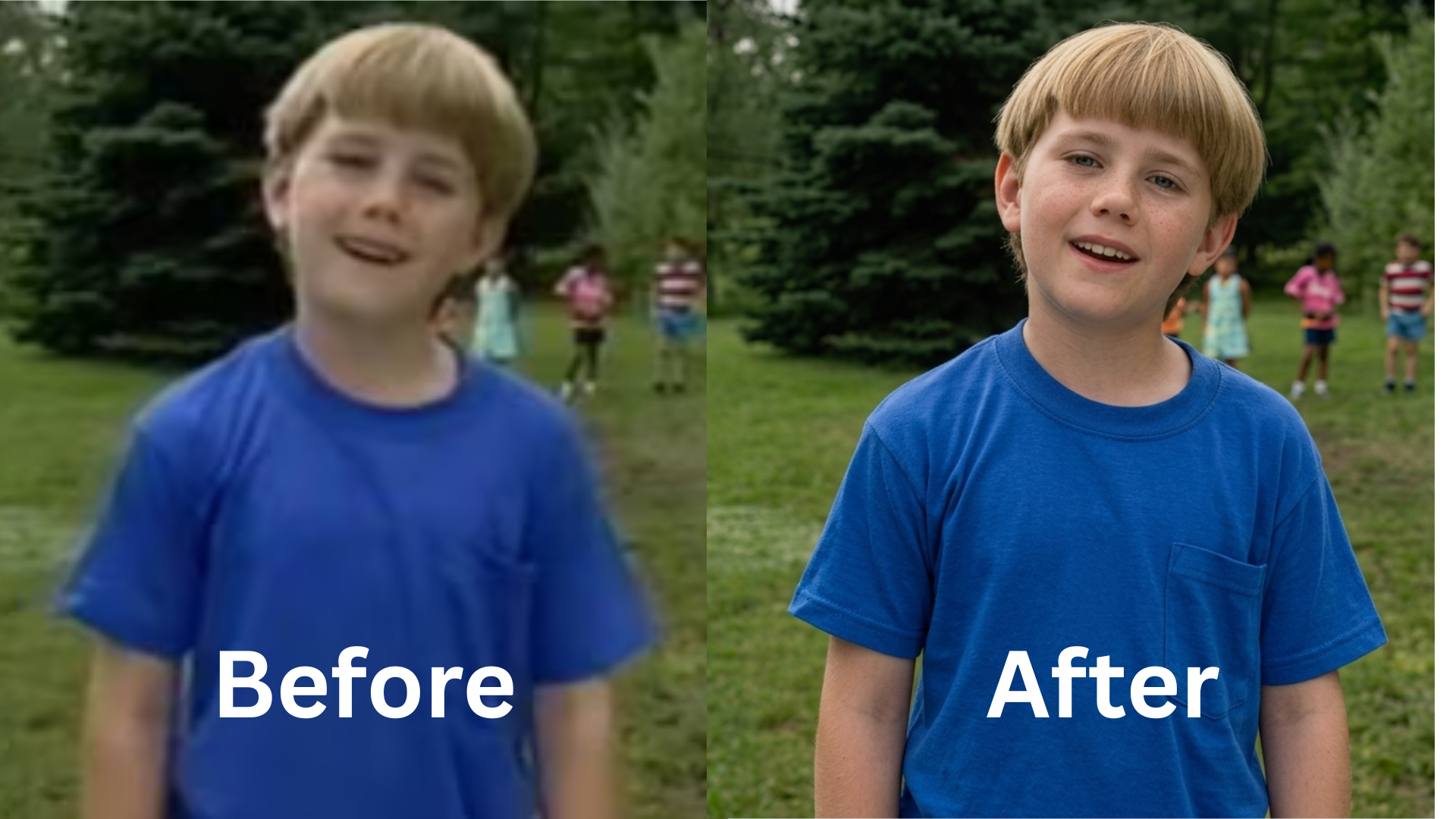
The result is sharper edges, more realistic textures, and a measurable improvement in visual fidelity.
This mix of both positive and negative instructions sets a functional enhancement prompt apart from a general "make this better" request. The clarity of the language affects the quality of the results. This means it doesn't guarantee more pixels in the output; instead, it improves the visual quality of an image based on the prompts. True resolution upscaling, like increasing pixels by four times, is done better by tools like Imagen on Vertex AI or dedicated third-party platforms like Topaz Gigapixel AI. Generally, Gemini's image output is limited to about 1024 pixels on the longest side.
The practical use of AI-based image enhancement is important across industries for restoring archival photographs and improving product imagery for e-commerce, to sharpening assets for large-format creative use.
How to Enhance Your Images Using Gemini: Step-by-Step
The process of enhancing the image is intentionally simple, which is part of what makes it compelling:
Step 1: Open Google Gemini on any device via gemini.google.com or the mobile app.
![Google Gemini [AI Tools Club]](https://storage.ghost.io/c/71/a2/71a292cc-6628-490c-8b4c-3e5a55b86af8/content/images/2026/04/data-src-image-1f5b6479-dae9-4591-b137-f51716ae9429.png)
Step 2: Upload your low-quality image using the attachment or image upload option within the chat interface.
![Google Gemini [AI Tools Club]](https://storage.ghost.io/c/71/a2/71a292cc-6628-490c-8b4c-3e5a55b86af8/content/images/2026/04/data-src-image-232be2c6-a167-487e-a02c-5e8ccc228f1e.png)
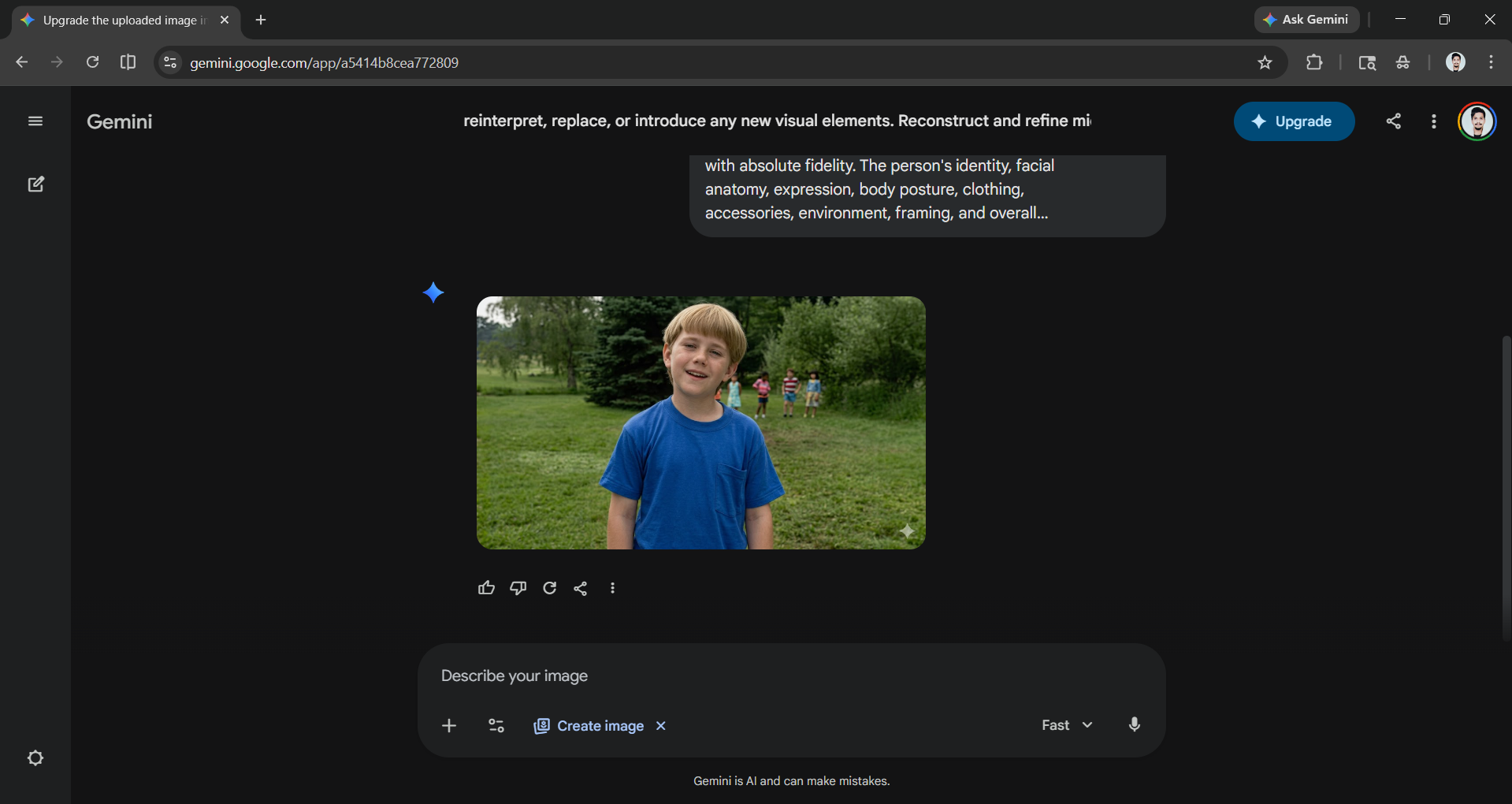
Step 3: Click Create an Image to activate Nano Banana, paste the enhancement prompt directly into the message field, and send.
Prompt: Upgrade the uploaded image into a pristine, ultra-high-definition cinematic version while preserving the subject with absolute fidelity. The person's identity, facial anatomy, expression, body posture, clothing, accessories, environment, framing, and overall composition must remain completely unchanged. Do not modify, reinterpret, replace, or introduce any new visual elements. Reconstruct and refine micro-level details, including precise facial contours, authentic skin texture with naturally visible pores, individually defined hair strands, sharp and lifelike eyes, and clean, well-resolved edges throughout the image. Enhance dynamic range, contrast, and dimensional depth using balanced, studio-quality cinematic lighting.
![Gemini Image Enhancement Prompt [AI Tools Club]](https://storage.ghost.io/c/71/a2/71a292cc-6628-490c-8b4c-3e5a55b86af8/content/images/2026/04/data-src-image-2fb14d10-7dc7-4110-903b-c962e2a4ab9a.png)
Step 4: Wait for the output, which Gemini generates and returns as a processed image ready for download.
Breaking Down the Prompt That Makes It Work
The prompt at the core of this workflow is not random; it is a precisely structured instruction set that directs Gemini's generative capabilities along multiple axes simultaneously:
- Subject fidelity preservation: Make sure the model doesn't change the subject's identity, expression, posture, or overall look.
- Micro-detail reconstruction: Focus on accurately showing facial shapes, skin texture, pore visibility, individual hair strands, and clear eyes.
- Cinematic lighting enhancement: Use high-quality lighting for a realistic look that avoids over-the-top effects.
- Edge resolution: Ensure sharp, well-defined edges throughout the entire image.
- Zero hallucination clause: Prohibits the introduction of new visual elements not present in the original.
This mix of both positive and negative instructions sets a functional enhancement prompt apart from a general "make this better" prompt. The clarity of the language affects the quality of the results.
In Conclusion:
Google Gemini can produce impressive results, but its image editing features have some limitations. As we said earlier, the maximum image output resolution is about 1024 pixels, which may not be sufficient for professional projects. Additionally, the quality of the images can differ from one session to another. So, if you are a professional whose work requires high resolution, accurate pixel sizes, or professional-quality results, using dedicated tools is the best option.
However, if you are someone who needs quick edits, creating content, and trying out new ideas, a Gemini-based approach can offer a good mix of ease and quality, especially since it requires very little setup.

