


Not many people are talking about it, but OpenAI has launched ChatGPT for Excel (public beta), bringing conversational AI directly into the workbook and transforming how professionals at every skill level build, analyze, and manage spreadsheet data. This new ChatGPT for Excel comes with GPT-5.4, OpenAI's newest and most capable model yet, purpose-built for complex workplace tasks.
For decades, Microsoft Excel has been the backbone of business analysis, financial modeling, and data management. Yet for all its power, it has always demanded something that most professionals never fully master: the formulas. Don't get it wrong. Microsoft Excel is, in fact, one of the most capable productivity tools on the market, but it has a ceiling.
If you get a formula wrong, the entire data is useless, and if you add wrong data, it can take you from hours to days manually searching and correcting your mistakes, making the entire process too time-consuming. With time being one of mankind's biggest assets, it is important not to waste it; that is where the new ChatGPT for Excel comes in, helping you to be more productive and automate your workflow using artificial intelligence (AI).
AINews.sh: Stay ahead with the latest AI product releases, in-depth reviews, and news. Compare AI tools, open-source models, and paid platforms.
What Is ChatGPT for Excel?
ChatGPT for Excel is an official Excel add-in developed by OpenAI that embeds a ChatGPT-powered sidebar directly inside Microsoft Excel workbooks. Rather than toggling between your spreadsheet and a separate AI tool, you can easily describe what you want in plain English, and ChatGPT builds it, fixes it, or explains it in place. The tool supports large, multi-tab workbooks with thousands of cells and cross-tab references, making it practical for real-world business workflows.
The add-in is installed directly from Excel via the Add-in option in the Home bar, where users search for ChatGPT and sign in with a qualifying OpenAI account. Once active, it appears on the sidebar.
ChatGPT for Excel runs on GPT-5.4 Thinking, OpenAI's latest model trained for complex financial and analytical workflows. On an internal benchmark simulating spreadsheet modeling tasks typical of a junior investment banking analyst, GPT-5.4 achieved the score of 87.3%, compared to 43.7% with GPT-5, a major jump in accuracy.
Key Features and Capabilities
ChatGPT for Excel is designed to reduce the gap between what you want from a spreadsheet and what you know how to build.
Here's what the tool can do:
- Build spreadsheets from plain language: Describe a financial model, expense tracker, project timeline, or budgeting template in natural language, and ChatGPT generates the full workbook structure, including formulas, labels, and formatting. Users can paste a complex, nested formula and ask ChatGPT to explain it in plain terms, or request a cleaner alternative.
- Analyze data across tabs and formulas: The tool reads your entire workbook, traces how sheets are connected, identifies dependencies, and surfaces patterns or anomalies that manual review might miss. You can trace broken formulas, understand why errors are occurring, and implement fixes with or without manual intervention.
- Real-time edits with cell-linked explanations: ChatGPT can update cells and formulas directly in your workbook, explains every change it makes, and links its responses back to the specific cells it has touched. The best part is that the tool confirms its intent with you before making any changes, keeping you in control and giving you the ability to review or undo edits.
Base44: An AI-powered platform that empowers anyone to transform their ideas into fully-functional apps within minutes, all without coding.
Getting started with ChatGPT for Excel: (Step-by-Step Guide)
Step 1: Install ChatGPT for Excel. There are two ways you can do that:
- Visit Microsoft Marketplace and click on Get it now. Microsoft will redirect you to Microsoft Excel and automatically install ChatGPT as an Add-in.
- You can also directly open Microsoft Excel, search for ChatGPT in Add-ins, and install it instantly.
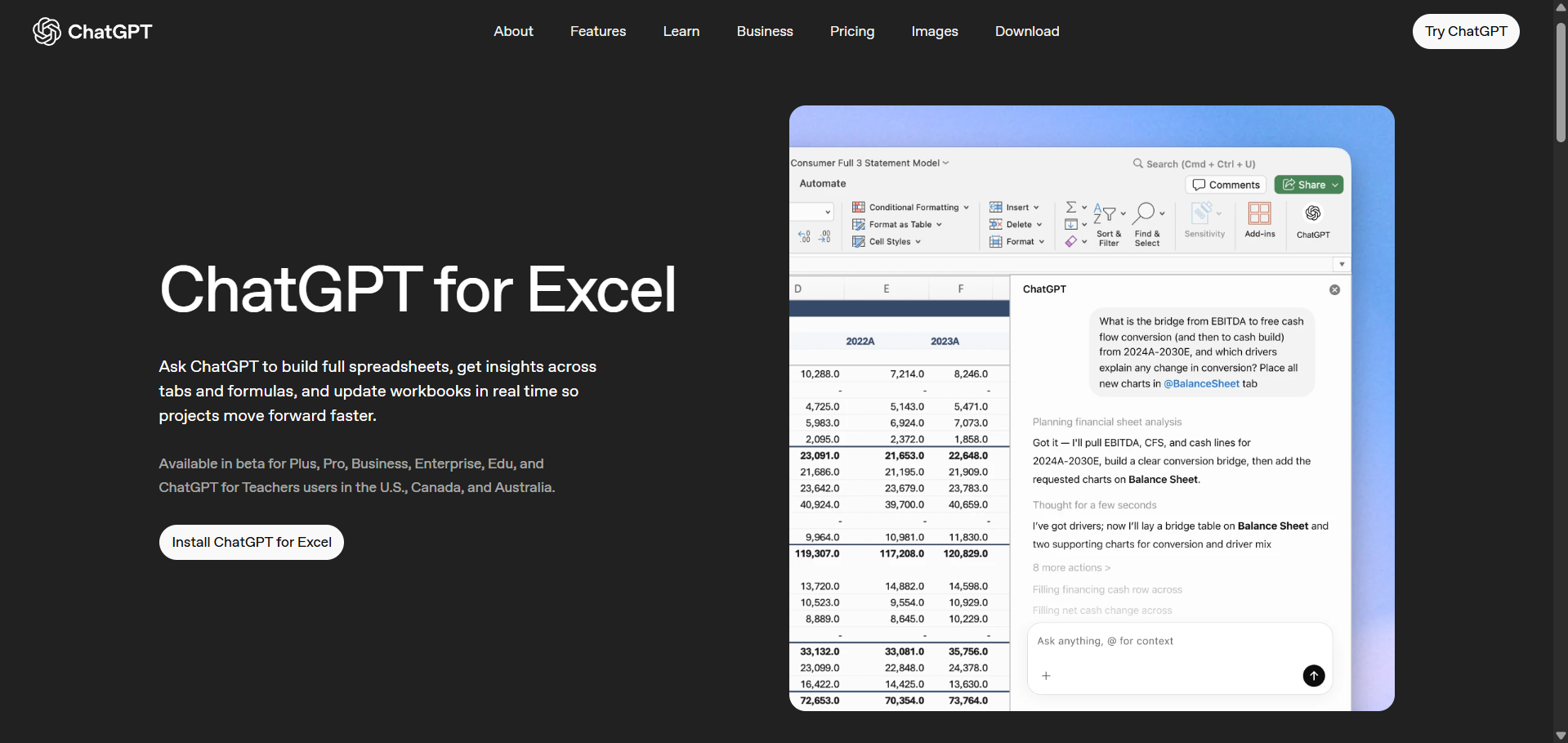
Step 2: To use this feature, you'll need to log in to your existing ChatGPT account. As of writing this article, ChatGPT for Excel is available in beta for Plus, Pro, Business, Enterprise, Edu, and ChatGPT for Teachers users in the U.S., Canada, and Australia.
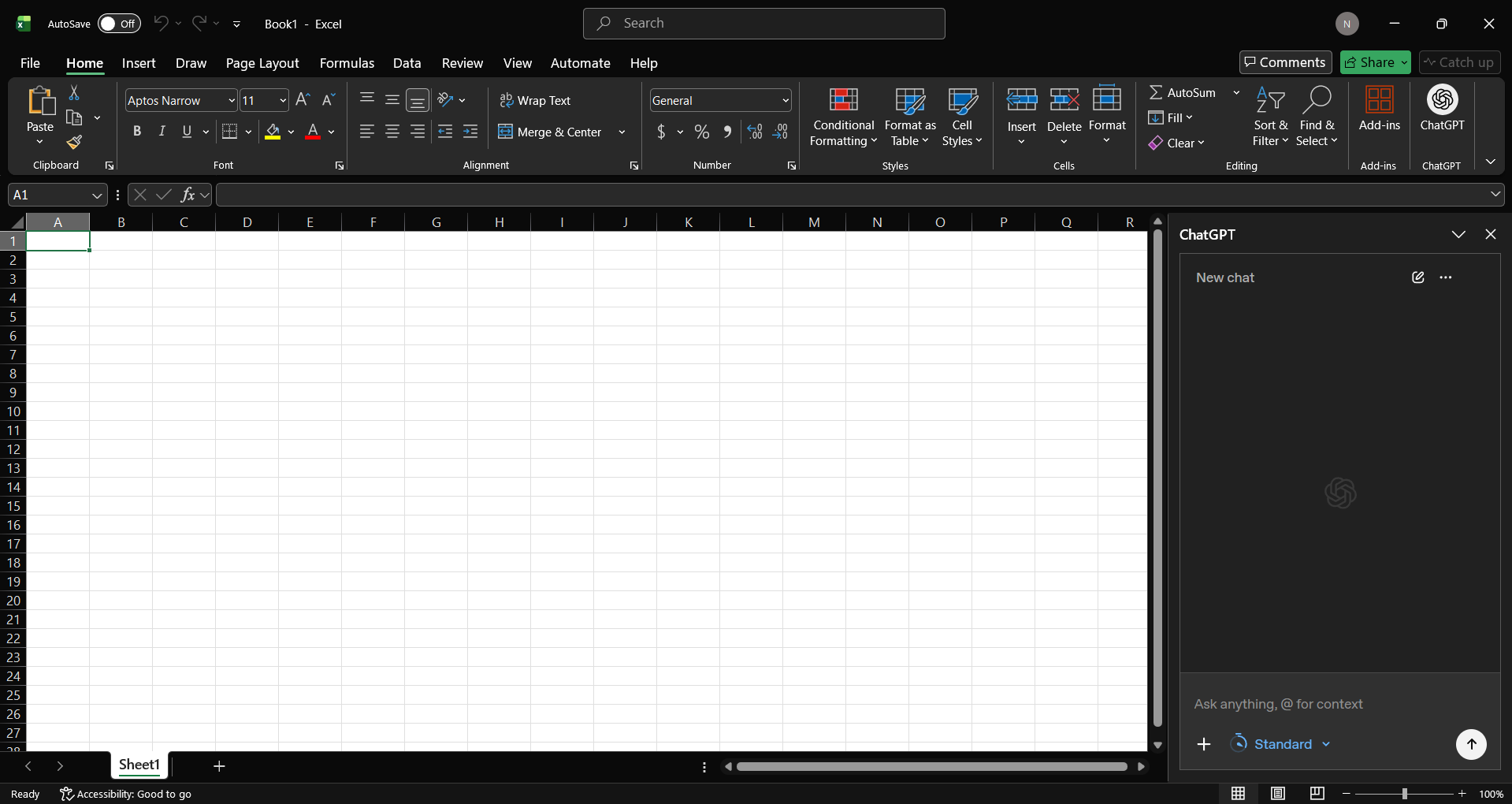
Step 3: Start using it. Enter a prompt if you want to start from scratch and just test the feature, or if you want, you can start editing your existing spreadsheets.
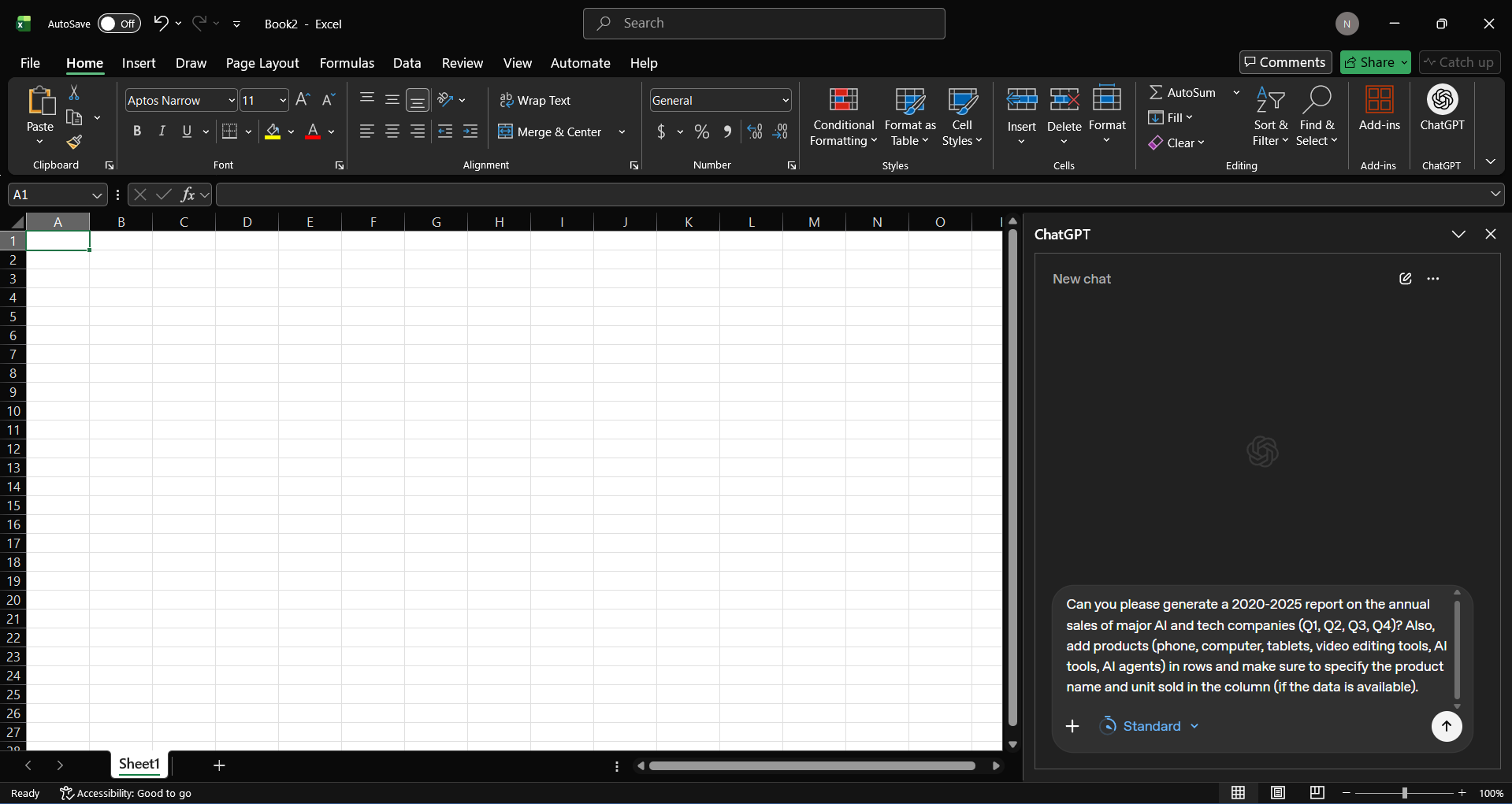
Prompt 1: Can you please generate a 2020-2025 report on the annual sales of major AI and tech companies (Q1, Q2, Q3, Q4)? Also, add products (phone, computer, tablets, video editing tools, AI tools, AI agents) in rows and make sure to specify the product name and unit sold in the column (if the data is available).
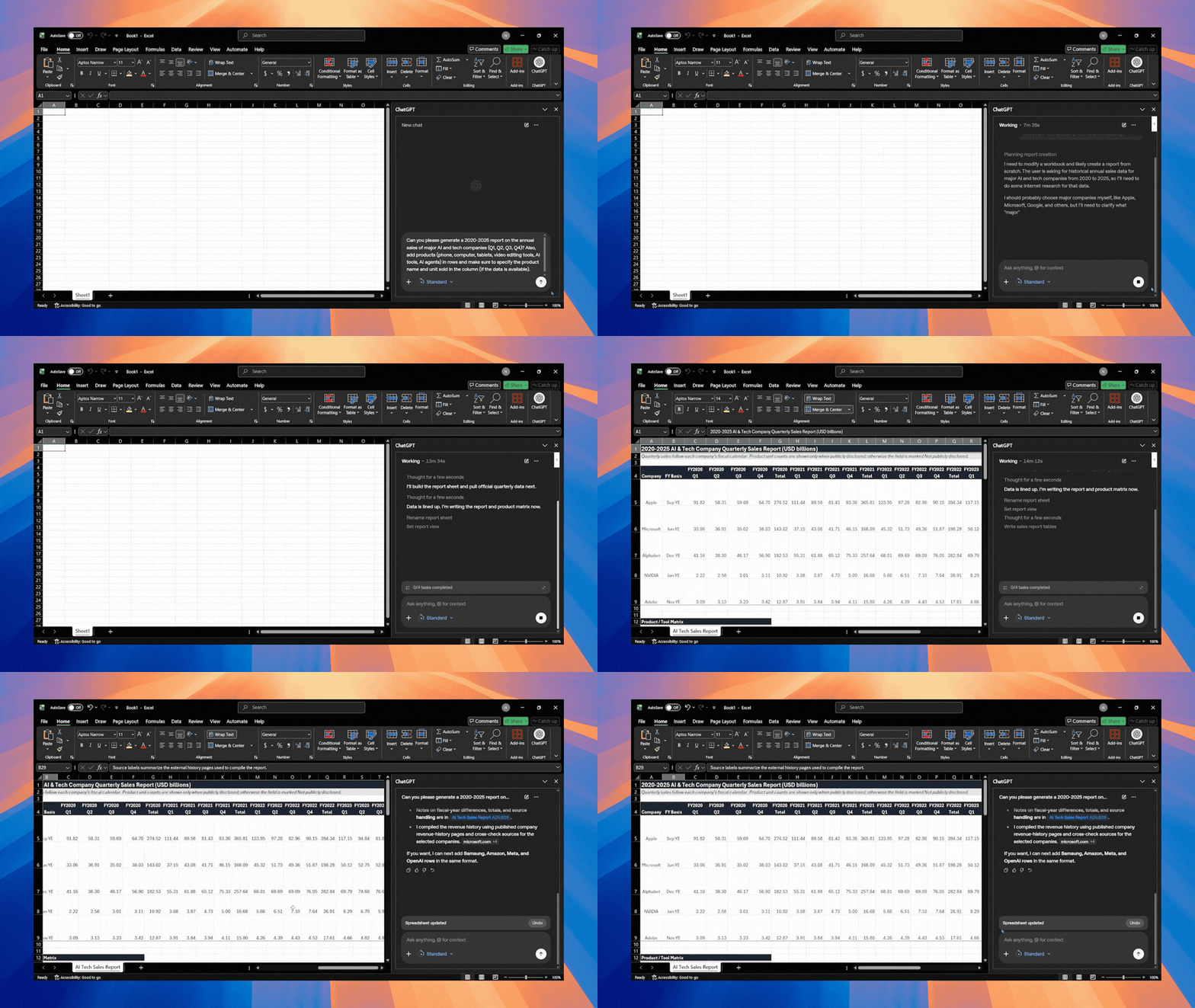
Prompt 2: Can you generate a different financial graph [e.g., a pie chart for 2020, a bar graph for 2021, and so on] showing the market share for the fiscal year?
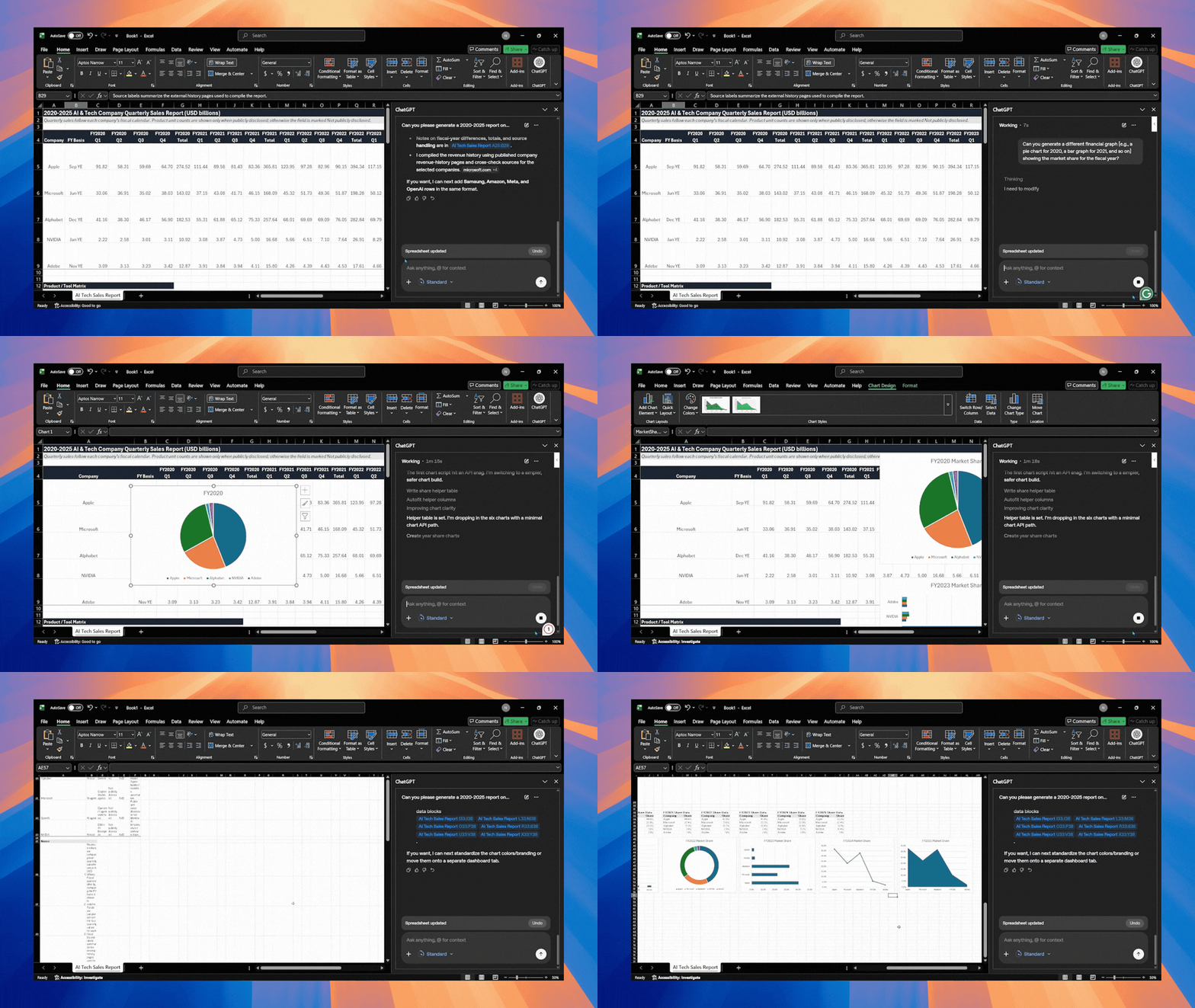
Verdict: Overall, ChatGPT did a great job, and it followed mt prompt fairly accurately, which is always a plus point. If I had to nitpick, I'd say it took longer than I expected (14 minutes and 35 seconds) for it to complete the tasks, that too on standard settings. Other than that, it was fairly good.
In Conclusion:
For a beta product, ChatGPT for Excel was pretty good, but it is worth remembering that it still has its limitations, and several advanced Excel features might not be supported just yet. Also, ChatGPT for Excel is currently available to ChatGPT Plus, Pro, Business, Enterprise, Edu, and Teachers users in the United States, Canada, and Australia. Overall, it is a solid addition and a great tool for professionals to automate their Excel workflow.
💡 For Partnership/Promotion on AI Tools Club, please check out our partnership page.
